
Getting Started with the Novation Launchkey
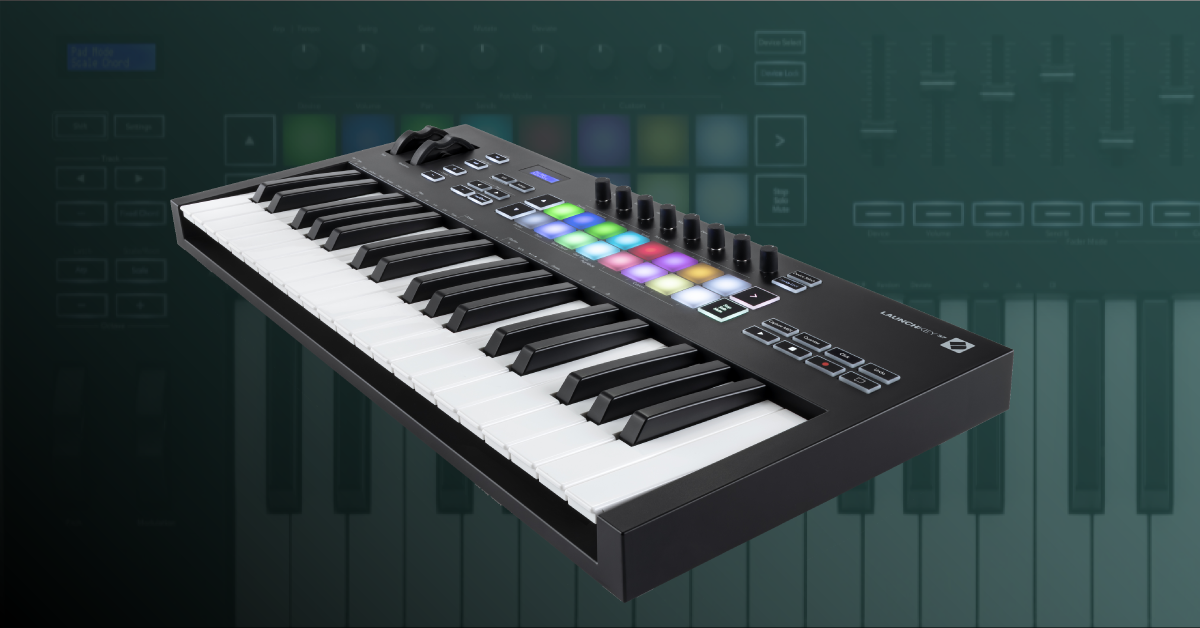
In this guide, we will show you how to set up and get started with the Novation Launchkey series. You’ll learn how to register the Novation Launchkey, download and install the bundled software, and also learn how to set it up within a DAW. Follow the sections below to get started.
- Register the Novation Launchkey
- Connecting the Launchkey
- Navigating the keyboard
- Keyboard and DAW controller guides
Register the Novation Launchkey
Before you can start using the Novation Launchkey, the first thing you’ll need to do is to register it on Novation’s website. Once the Novation is registered, you’ll get access to Ableton Live Lite and free virtual instrument software, including XLN Audio’s Addictive Keys.
- Log in to your Novation account. If you don’t have one yet, you can create it here.
- Click Register a New Product, fill out the registration form including the serial number on the bottom of the device, then click Submit.
Getting the bundled software
After you register the device, licenses and download links for Addictive Keys, Loopmasters, and Ableton Live Lite are deposited in your Novation account. Follow the instructions included on your Novation account page to download and activate your bundled software.
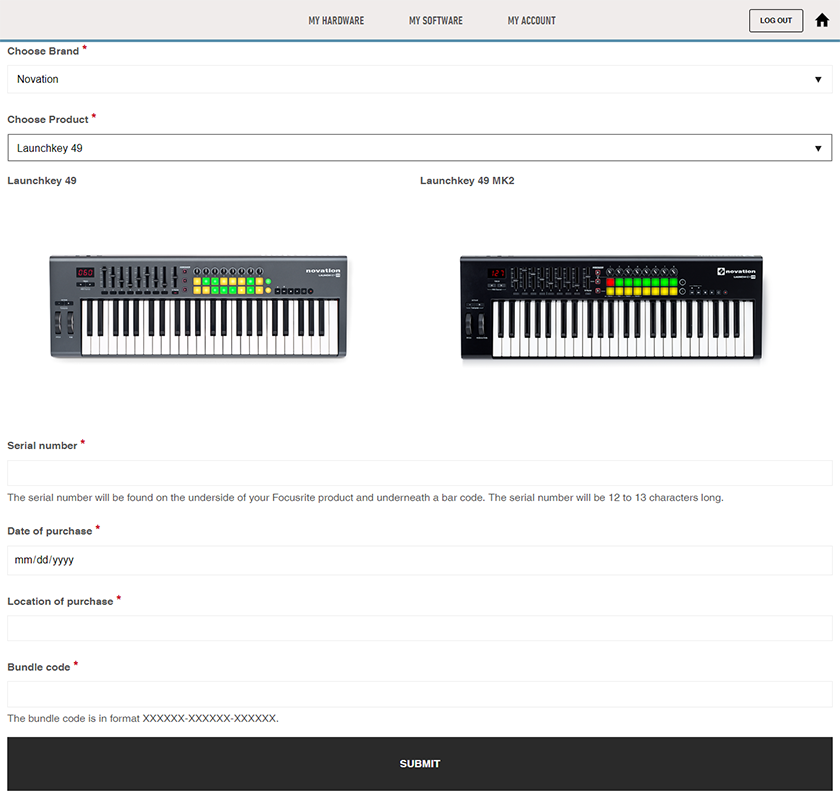
Click here to register your Launchkey.
Connecting the Launchkey
Once the Launchkey has been registered, the next step is to get it connected. Either connect it directly to a computer or use a powered USB hub. Use a compatible 9V power supply adapter when connecting the Launchkey to an iOS device. If your device isn’t recognized, visit our MIDI device troubleshooting guide.
- Connect the USB cable to the computer or powered USB hub.
- Navigate to your computer’s device settings to ensure that the device is recognized.
- PC: Go to Device Manager, then click Sound, video and game controllers to verify it’s listed.
- Mac: Click the Apple icon, select About this Mac, and then click System Report. The Keystation is listed under Hardware > USB.
Connecting to iOS devices
You can use the Keystation to iOS devices, as well. Be sure to use the Apple Camera Connection kit on earlier generation iOS devices or Apple’s Lightning to USB Camera adapter for more recent devices.
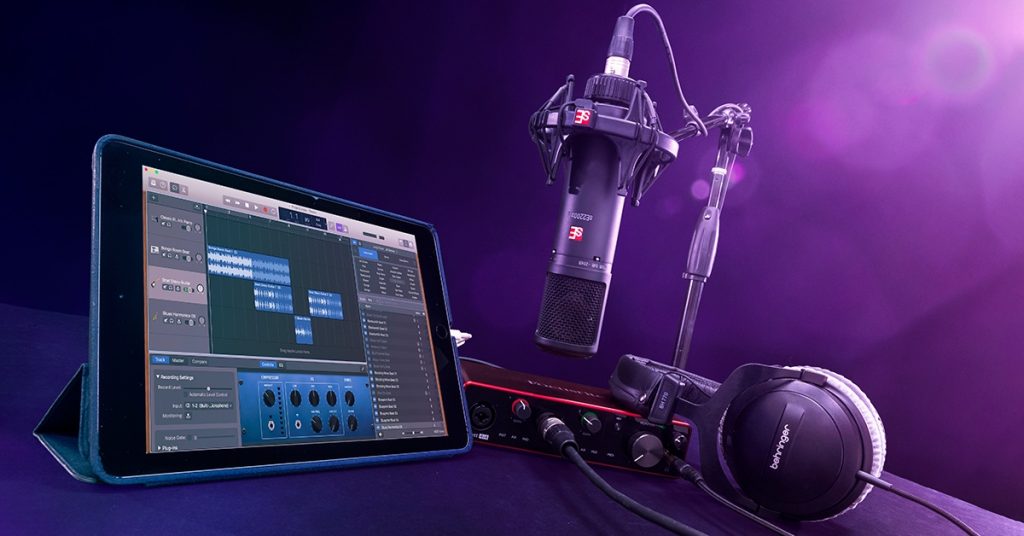
Learn more about using audio hardware with iOS devices!
Learn More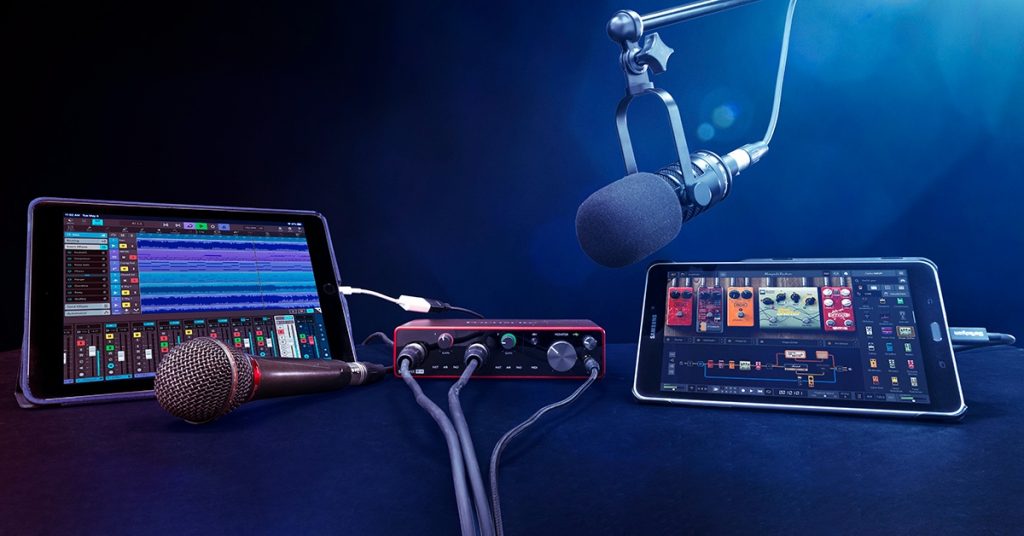
Learn more about setting up audio hardware with any mobile device!
Learn MoreNavigating the keyboard
The Novation Launchkey is both a MIDI keyboard as well as a DAW controller. You can either use it as a generic MIDI controller or, depending on which DAW you are using, you can enable InControl mode. This lets you control the most typical parameters in a DAW, such as panning, channel fader control, and standard transport functions, without assigning MIDI values manually. To set up InControl mode in your DAW, visit the InControl setup guide. Otherwise, visit our guides below to get it set up.
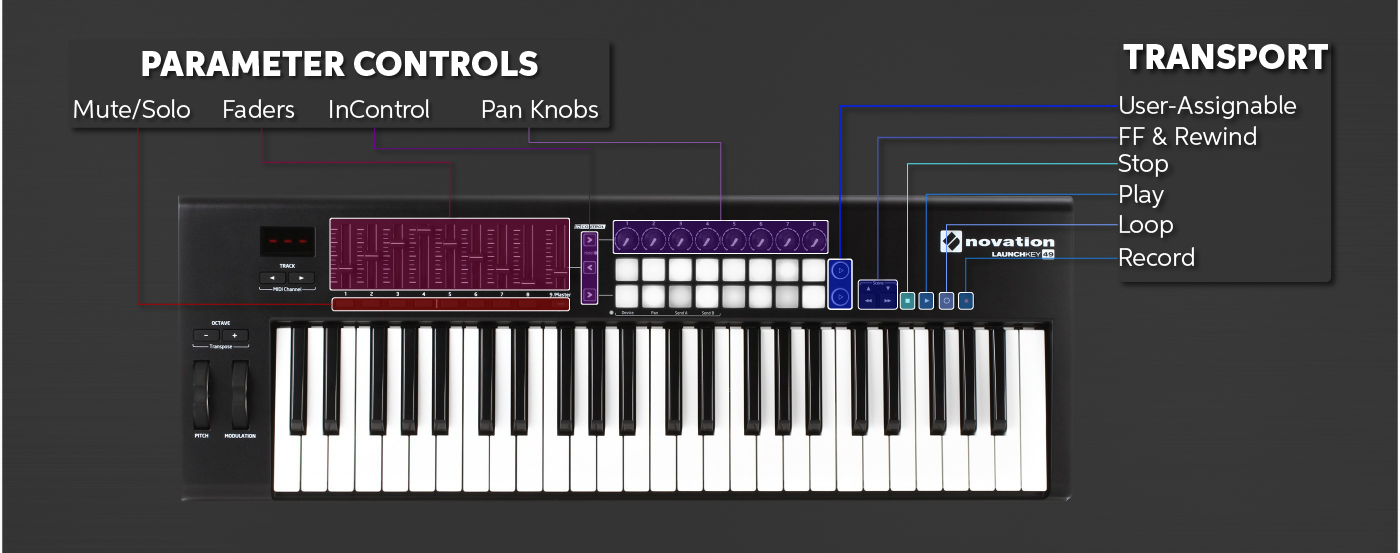
Sections of a Launchkey. Click to enlarge.
Keyboard and DAW controller guides
If this is your first time using a MIDI keyboard or DAW controller, visit our Quickstart guides to learn what they are and how they work. Visit our getting started guides below to get it set up as a keyboard and DAW controller inside your DAW.
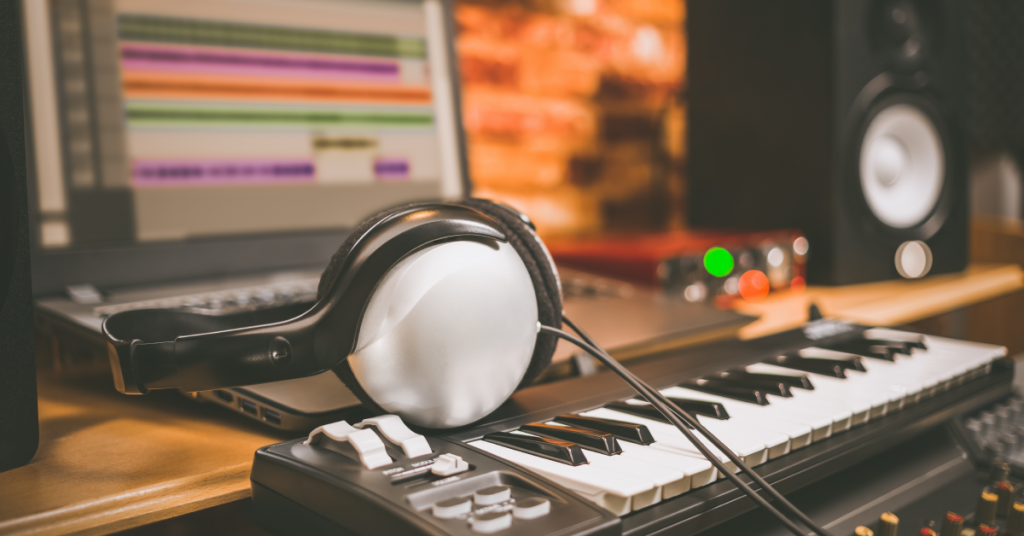
Learn more about how to get up and running with MIDI keyboards!
Learn More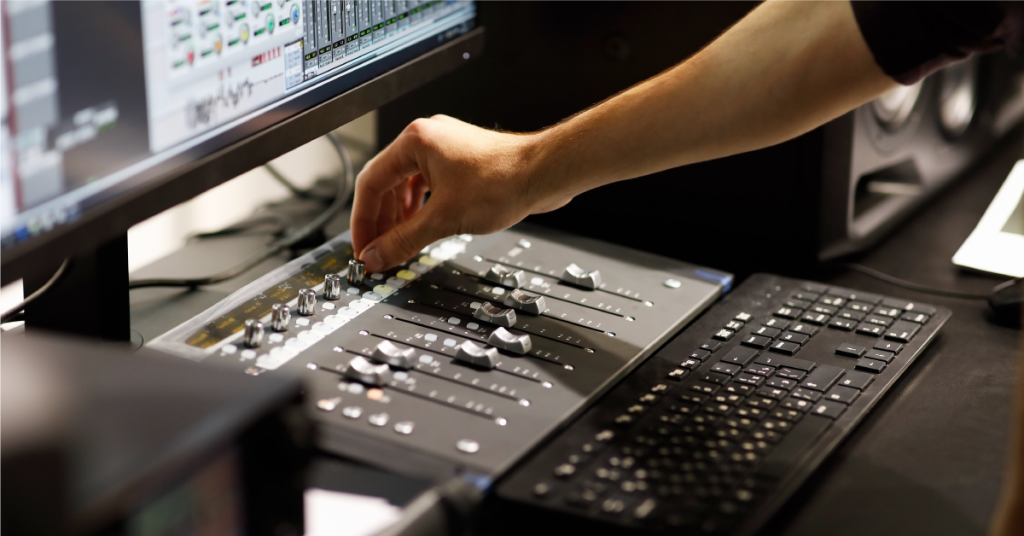
Learn more about how to get up and running with DAW controllers!
Learn MoreMIDI keyboard setup guides
DAW controller setup guides
Additional resources
Novation Launchkey Tutorial Playlist
When you need help, Sweetwater has the answers!
Our knowledge base contains over 28,000 expertly written tech articles that will give you answers and help you get the most out of your gear. Our pro musicians and gear experts update content daily to keep you informed and on your way. Best of all, it’s totally FREE, and it’s just another reason that you get more at Sweetwater.com.

