
How to Set Up a DAW Controller in Reason
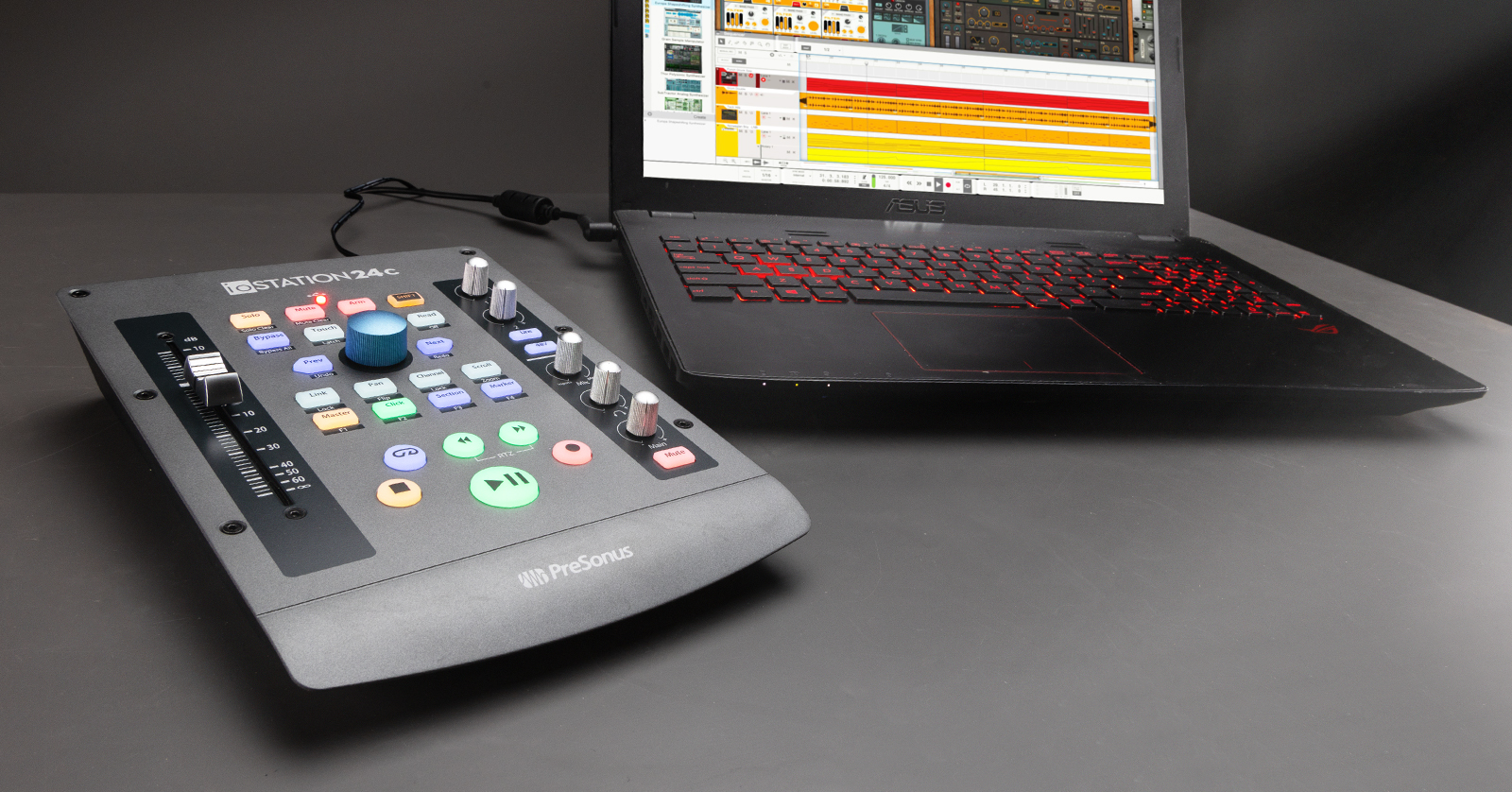
DAW controllers must be configured within Reason before they can control it. That means you must select the controller’s protocol and port settings within Reason. If you’re unsure how to change your MIDI device’s protocol (mode), check its user’s manual for more information. Also, be sure to download the latest driver for your DAW controller beforehand!
If you are setting up a DAW controller for the first time, we recommend reading Getting Started with DAW Controllers first, then following the instructions below.
- Open the Reason menu and select Preferences…
- Select the Control Surfaces tab and choose Auto-detect Surfaces or Add Manually.
- (Optional)Select the controller’s manufacturer/protocol and MIDI ports if added manually.
- Close the Keyboards and Control Surfaces menu.
Reason Remote
Reason Remote supports some controllers. These controllers integrate seamlessly with Reason. When you click Auto-detect, Reason Remote will automatically detect and configure the controller. It’s that easy.

Related Articles
When you need help, Sweetwater has the answers!
Our knowledge base contains over 28,000 expertly written tech articles that will give you answers and help you get the most out of your gear. Our pro musicians and gear experts update content daily to keep you informed and on your way. Best of all, it’s totally FREE, and it’s just another reason that you get more at Sweetwater.com.

