
Audio Setup for Android, iOS, and iPadOS
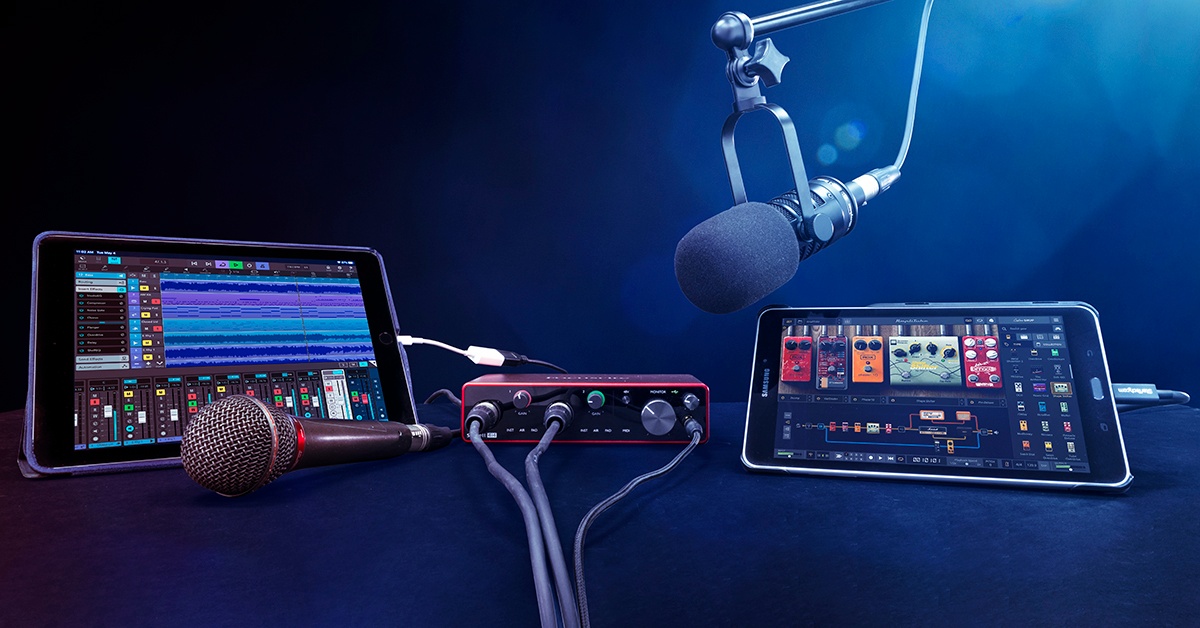
In this guide, we will show you how to set up an audio or MIDI interface with an Android, iOS, or iPadOS device. Read each of the sections below to get started.
- Audio and MIDI connections
- Bluetooth connections explained
- Android hardware setup
- iPhone and iPad hardware setup
Audio and MIDI connections
Mobile devices such as Android tablets, iPads, and iPhones are handy for recording audio or MIDI. Since you can carry them with you, connecting a mic or MIDI controller is very convenient for music making. These mobile devices don’t require the use of specific driver software, so they’re much simpler to set up and configure.
Typically, only one audio or MIDI device can be connected at a time. All that is needed is an app compatible with your device; then, you’ll connect your hardware. We’ll cover Android, iPad, and iPhone setup, as well as Bluetooth and adapter connectivity below.
TRS and TRRS connections
Some devices connect to mobile devices with either a TRS or a TRRS cable type. For a standard headphone connection, there are three connections — tip, ring, sleeve (TRS) — that allow signals for left, right, and ground. In order to hear stereo and have an input channel, we need a fourth connection, hence TRRS (tip, ring, ring, sleeve). That additional connection allows the option of adding a mono input signal — something like a mic or guitar.
- TRS: Stereo Audio (headphones) + Ground
- TRRS: Stereo Audio (headphones) + Mono Audio (mic/guitar) + Ground
Power distribution
Mobile devices often share their power with the connected audio/MIDI device. That means the two devices are now sharing one battery. Since one battery may not have enough power for more than one device, audio/MIDI hardware often requires connecting to a charger or USB power supply. In that case, make sure to use a compatible adapter with enough voltage supplied at the USB port for your external device.
Adapters and compatibility
Every audio and MIDI interface designed to be used with mobile devices has compatibility requirements. That means the hardware has only been tested and confirmed to work on those specified versions. For Android devices, that means the hardware model and Android version. For iPhones and iPads, that means the model’s generation and current iOS/iPadOS version number. Just because a label says “iOS” doesn’t make it automatically compatible, so double-check the version details to make sure your mobile device is supported.
Data cables
- For connecting the USB-A port of an audio interface to the USB-C/Thunderbolt 3 port of an iPhone or iPad.
- For connecting the USB-A port of a power supply to the USB-B port of your audio/MIDI device.
- For connecting the USB-C port of a power supply to the USB-C port of your audio/MIDI device.
Manufacturer cables
- For connecting an Apple device to the port of your iPhone or iPad.
- For connecting IK Multimedia hardware to your mobile device.
- For connecting Apogee hardware to your Lightning iPhone or iPad.
Bluetooth connections explained
Bluetooth can be used on mobile devices to send and receive audio and MIDI to and from other devices. While both Bluetooth and Wi-Fi use the same frequency (2.4GHz), you cannot interchange one for the other. This means that you can’t connect a Wi-Fi-only device to a Bluetooth device. One thing to know is that Wi-Fi is used to pair devices and connect to the internet, whereas Bluetooth is only for pairing and streaming between devices within a short range of each other.
One apparent yet important reason for this is portability. Wi-Fi devices rely on one central “hub” (router) to connect. If that hub isn’t there, the Wi-Fi device won’t work. Bluetooth, on the other hand, does not require a hub. Bluetooth-enabled devices can even be paired to up to seven separate devices at once! This is particularly handy for karaoke events or parties whose venue may not have Wi-Fi or has weak Wi-Fi strength.
Another reason for Bluetooth’s short-range connectivity is energy. While there are a few power-efficient Wi-Fi modules, it’s tailored for transferring large amounts of data, which means it requires more energy. This also allows for greater connectivity range. Bluetooth, on the other hand, requires much less energy; the downside is that the range is limited to approximately 30 feet, depending on the device.
Wi-Fi or Bluetooth audio – which should I use?
We’ve covered some of the reasons why using Bluetooth is more convenient, but this next topic can get confusing for some. Both Wi-Fi and Bluetooth will allow you to stream audio wirelessly, so what’s the difference between streaming audio via Wi-Fi and streaming via Bluetooth? In short, it comes down to the bandwidth and codec.
Your Bluetooth setup requires all parts of your setup to be compatible to stream high-quality audio. The audio file must be compressed in a codec that both your transmitting and receiving devices can support; otherwise, it would have to go through additional compression, which compromises the audio quality.
Let’s assume the audio file in both your transmitting device (e.g., a mobile device)and your receiver (e.g., Bluetooth headphones) use the AAC codec (which is commonly used with Apple products). In that case, the file doesn’t need to go through any additional data compression, so the audio quality isn’t compromised. But if either of those devices in the chain doesn’t use the AAC codec, it must go through additional compression, which will result in a slight loss of audio quality.
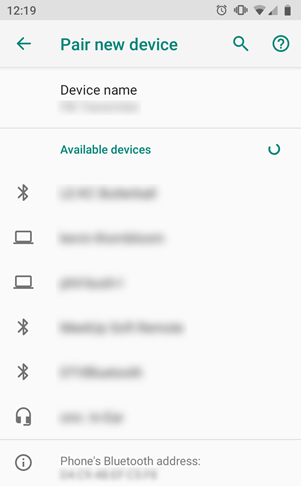
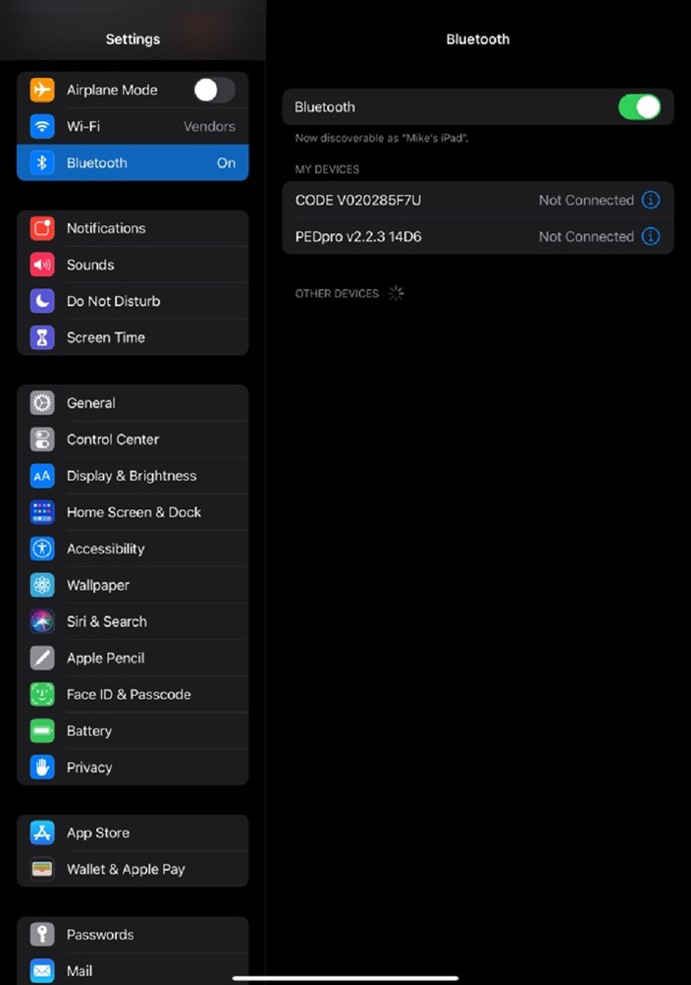
Bluetooth pairing options on Android and iPadOS
Android hardware setup
Unless your audio hardware connects via a TRRS 1/8″ (3.5mm) adapter (such as those used in headphones), audio and MIDI hardware almost always require the use of an OTG (on-the-go) adapter on Android devices. This allows you to connect a USB-A device directly to your Android. For example, if you have an Android device that uses a micro-USB connection, you would connect the USB cable from the audio hardware to an OTG adapter, then the micro-USB end of the adapter to your Android.
How to enable MIDI in Developer mode
Most Android devices will go through system updates automatically, and almost all hardware is plug-and-play. If automatic updates have been turned off for some reason or you have an older Android device that isn’t compatible with a new OS, you may have to go through a few additional steps to get your MIDI controller working. To enable MIDI transfer, you’ll need to go into Developer mode. Don’t worry; it’s not as scary as it sounds. Follow these steps and you’ll be working with MIDI in no time.
- Launch Settings (cog icon), scroll to System, then press “About phone.”
- Scroll down to find “Build number.”
- Continuously press “Build number” (five times) until you receive a message stating you’re now a developer.
- Back out to System, press Advanced, then scroll down and press “Default USB configuration.”
- In the window that appears, press MIDI.
- Back out to your home screen. Your Android device will now be ready to connect via MIDI.
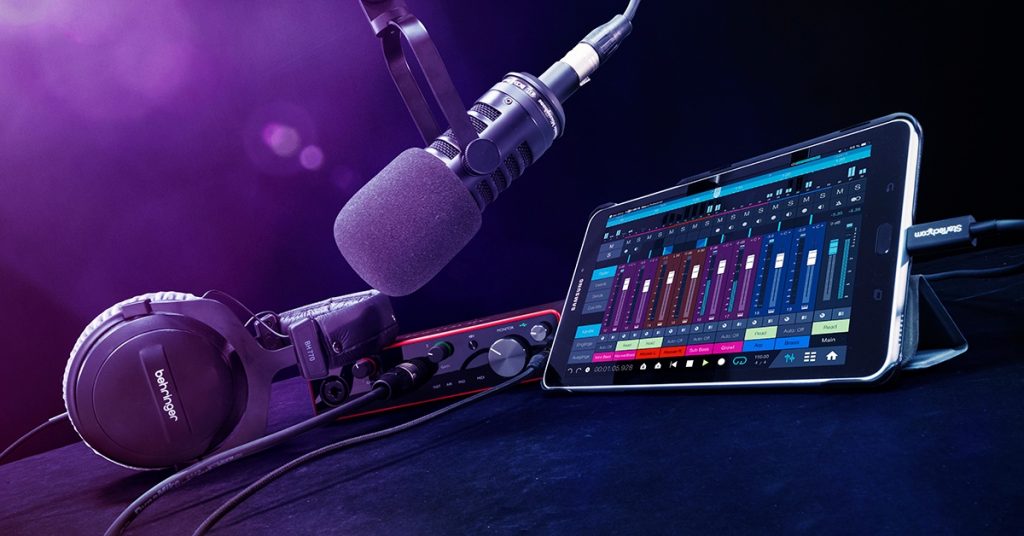
Learn more about how to get up and running with audio recording on Android devices!
iPhone and iPad hardware setup
iPhones and iPads are easy
to set up for audio and MIDI recording purposes. Your recording device just needs
to be compatible with your iPad’s model and software version. If it’s not
compatible, it may not work correctly or at all.
The most common setup concerns are in regard to adapter compatibility and
additional power. While some adapters may have similar connections (e.g., USB-A
ports), that doesn’t necessarily mean they’ll work correctly. If you’re
experiencing connectivity issues, check out these guides from Apple to learn
more about different adapters and cables.
Lightning/USB cables and adapters
Some device and iPad configurations require specific cables or adapters to work correctly. Below are common lightning and USB-C connectors for iPhone and iPad recording setups.
iOS resources from the iPhone User Guide
iPadOS resources from the iPad User Guide
Related content
Learn more about how to get up and running with audio recording on Android devices!
Learn More
Learn more about how to get up and running with audio recording on iPads!
Learn MoreAdditional resources
When you need help, Sweetwater has the answers!
Our knowledge base contains over 28,000 expertly written tech articles that will give you answers and help you get the most out of your gear. Our pro musicians and gear experts update content daily to keep you informed and on your way. Best of all, it’s totally FREE, and it’s just another reason that you get more at Sweetwater.com.

