
Resolving MIDI Device Issues on PC and Mac
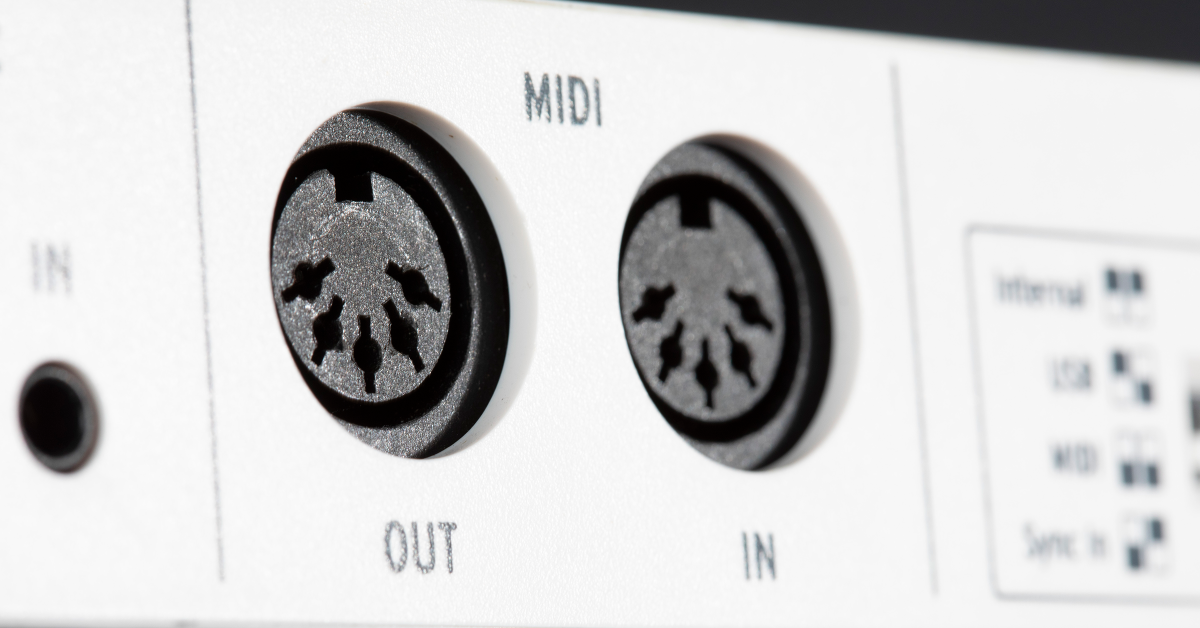
How to resolve MIDI device issues on PC and Mac
In this guide, we will show you how to resolve MIDI device and midi connection issues on PC and Mac. That means, we’ll show you how to get a MIDI keyboard or control surface reconnected to your computer so that it will work with your software. Follow the sections below to get started.
- How to test MIDI devices
- Reconnect USB MIDI devices
- MIDI connections and routing
- MIDI keyboard setup guides
- DAW controller setup guides
How to test MIDI devices
Musicians all over the world have MIDI devices, but what do you do when they don’t work? Sometimes reconnecting a USB cable can resolve the issue, while other times, a MIDI setting might need to be changed. Since each MIDI device and configuration are different, we troubleshoot MIDI problems by using a MIDI test utility and then taking the appropriate steps for either USB or MIDI connections.
Use a MIDI utility to monitor MIDI data
When you’re troubleshooting MIDI devices, you need to know whether it and its MIDI data are detected. To do that, we recommend using a MIDI utility app. A MIDI utility app will display detailed information about each MIDI message (port, channel, CC#, and value). For example, if your MIDI device isn’t selectable in the software and its information doesn’t show up in the MIDI utility, then the device may need to be reconnected, reset, or reinstalled. If the device and its MIDI data show up in the utility, then reconfiguring the software is required.
- Connect and power on your MIDI device.
- Download the MIDI utility for your OS:
- PC: MIDI-OX
- Mac: MIDI Monitor
- Open the Downloads folder and launch the MIDI utility app to test your device:
MIDI-OX (PC)
- Double-click the midioxse.exe file.
- Open the Input Monitor window by clicking View and selecting Input Monitor.
- Open the Options menu and click MIDI Devices. Select your MIDI device(s) input and output ports, and click OK.
- Use the keys, pads, buttons, or encoders to see their corresponding MIDI data values.
MIDI Monitor (Mac)
- Double-click the MIDIMonitor.zip file. Move the newly created MIDI Monitor file to the Applications folder and then double-click it to launch the app.
- Open the Sources drop-down menu and click MIDI Sources.
- Click the check-box beside each MIDI device you want to monitor. We recommend only checking the device(s) which needs testing.
- Use the keys, pads, buttons, or encoders to see their corresponding MIDI data values.
Connecting USB vs. MIDI
MIDI devices will connect to your computer either via USB or MIDI. While most will work just fine over MIDI, some require (or only have) USB connections. Once connected, check that your MIDI device is detected in your software.
USB
USB is common and often used because it can provide power to bus-powered controllers. That means the device is both connected and powered from the same USB port. Many MIDI devices have an additional power jack for connecting an external power supply, which is useful when using a MIDI connection instead of USB.
MIDI
Another option is to connect via MIDI cables to a MIDI or audio interface’s MIDI ports. When connected this way, the MIDI device will show up as the interface’s MIDI port instead of its USB device identity. Keep in mind that since MIDI does not provide bus power, you will need either USB power or a wall wart power adapter to turn the device on.
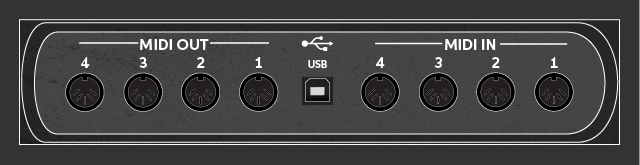
USB MIDI connections
Reconnect MIDI devices
Computer audio production usually involves connecting a few USB devices to your computer. Sometimes the connections become out-of-sync and a device needs reconnected. Unplugging its USB connection and plugging it back in will often do the trick. If not, you will need to reconfigure the USB connection and then reinstall any required driver software. Before you do, check to see if the computer detects your MIDI device.
Does the computer detect your MIDI device?
Device Manager (PC) and System Information (Mac) utilities are handy for investigating device connections, software specs, and other essential information on your computer. In audio production, we use these menus to check that each device is connected and communicating with the rest of the system. If your MIDI device does not appear in the utility, consider reconnecting the cable, connecting it directly to your computer, or trying a different USB port.
PC: Device Manager
- Right-click the Windows icon and choose Device Manager.
- Select Sound, video and game controllers and locate your device.
- Right-click your device and choose Properties to uninstall the device and view driver details.
- (optional) If it shows up as an unknown device or with a yellow exclamation mark, uninstall the MIDI device and reinstall the device’s driver software.
Mac: System Information
- Click the Apple icon, then hold the option key and click System Information….
- Under Hardware, select the type of port that your MIDI device is plugged into (e.g., USB, Thunderbolt, Firewire, etc.).
- Locate and view the status of your MIDI device.
If your MIDI device is not detected, continue to reconfigure USB connections.
Reconfigure USB connections: ports and hubs
If your MIDI device does not appear, let’s try reconfiguring the USB connections. Although hubs are a convenient way to connect multiple devices to the same USB port, they may prevent the MIDI device from communicating with your computer (especially with passive hubs). While larger MIDI devices can have dedicated power supplies, others are bus powered from the computer. If your USB devices draw more power than your hub can provide, you may experience a loss of connectivity. For best results, use a powered hub that has its own power supply adapter.
Follow the steps below and check the Device Manager/System Information window and MIDI monitor app to view the status of your MIDI device.
- Disconnect and reconnect the MIDI device. Test the device.
- Disconnect and reconnect to a USB port directly on your computer. Test the device.
- Disconnect all other USB devices. Test the device.
- Restart the computer. Test the device.
If your device is still not detected, continue to reinstall driver software
Reinstall driver software
Many MIDI devices are class-compliant, which means you don’t have to install anything for them to get a MIDI connection. If your device isn’t class-compliant, that means you will need to install the driver software to make it work. Even if you’ve already installed the software, sometimes drivers need to be updated or reinstalled to restore connectivity. To reconnect your MIDI device, download the latest compatible driver version, install it, and restart your computer.
- Power off and disconnect your MIDI device from the computer.
- Visit the MIDI device’s website or go to our driver index to locate and download the driver software.
- Open the Downloads folder and run the installer file.
- Once installed and/or updated, restart your system in the following order:
- Connect USB and MIDI devices.
- Power on USB and MIDI devices.
- Power on the computer.
MIDI device connections and routing
MIDI cables are another way to connect MIDI devices. While MIDI connections do not require USB ports to transmit MIDI data, the devices will still need to be powered, either from their included power adapter or a USB Power Distribution supply. Continue below to check your controller’s MIDI connections.
Check MIDI IN, OUT, and THRU connections
First, double-check that each MIDI device cable is connected to the correct ports. Input devices like MIDI keyboards will connect their MIDI OUT port to the other MIDI device’s MIDI IN port. MIDI THRU ports connect to INPUT ports and will pass on any data received from their own device’s INPUT port. Problems with the software configuration are more common than MIDI device failure. For virtual instruments, make sure the MIDI controller is selected as the MIDI or instrument track’s input. If your MIDI devices are connected but not triggering the correct features or instruments, they might be assigned to the wrong channel. Check your MIDI device’s user manual for more information about changing its MIDI channels or resetting it.
MIDI device output settings
Some devices have a setting for enabling/disabling the MIDI output port. Check your controller’s user manual for more information about this feature.
- Check that each MIDI OUT or THRU port of your device is connected to the correct MIDI IN port.
- OUT connects to IN
- THRU connects to IN
- IN connects to OUT
- Use a MIDI utility to monitor MIDI data and test your controller.
- If the signal does not pass correctly, consider the following:
- Reassign the device’s MIDI channel or reset it.
- Update the DAW’s MIDI track IN and OUT routing.
- If no signal passes, try another MIDI cable.
Keyboard and DAW controller setup guides
MIDI keyboard setup guides
DAW controller setup guides
When you need help, Sweetwater has the answers!
Our knowledge base contains over 28,000 expertly written tech articles that will give you answers and help you get the most out of your gear. Our pro musicians and gear experts update content daily to keep you informed and on your way. Best of all, it’s totally FREE, and it’s just another reason that you get more at Sweetwater.com.

