
Arturia MiniLab Quickstart Guide
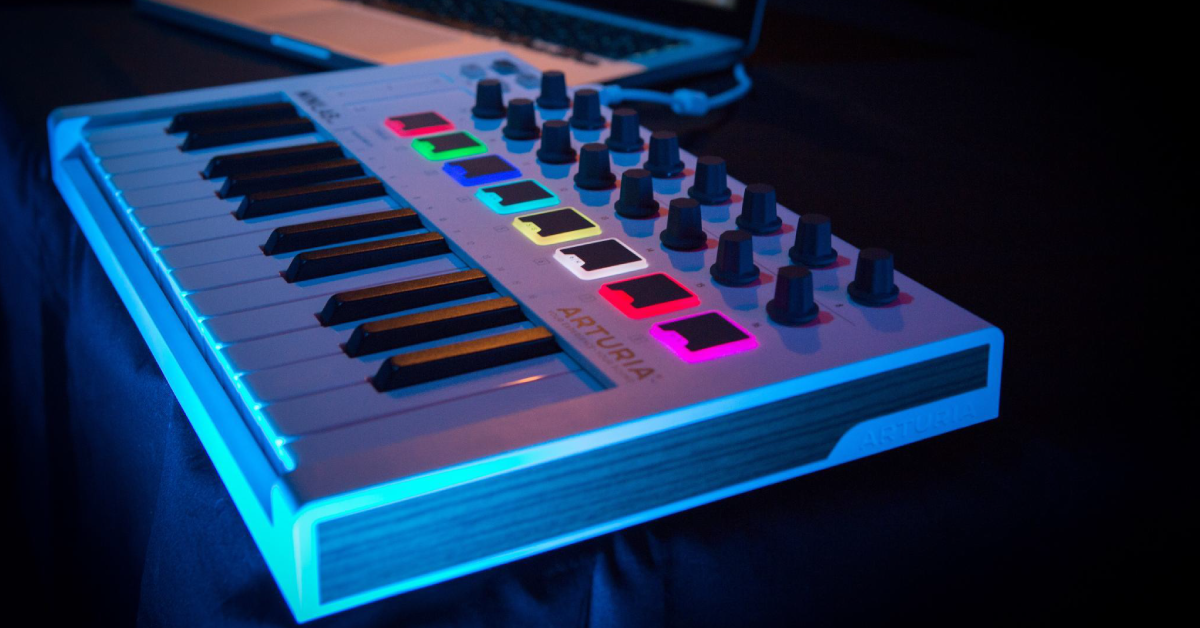
The Arturia MiniLab series: MiniLab, MiniLab Mk II, MiniLab 3, and MiniLab 37 mk3 are compact and capable MIDI controllers. They’re also tailor-made for the Arturia Analog Lab Intro virtual instrument for Mac and Windows PC, which comes with your purchase, providing synthesizer and keyboard sounds selected from Arturia’s V Collection. To get started, let’s set up Analog Lab Intro, the Arturia Software Center, and Arturia MIDI Control Center.
- Register Your Purchase with Arturia
- Download the Owner’s Manual
- Download Arturia Software Center
- Arturia MIDI Control Center
- Arturia Analog Lab Intro
- Download Ableton Live Lite and Third-party Software
- Arturia’s Getting Started Video
- Arturia MiniLab Resources
- SweetCare Keyboard & DAW Controller Setup Guides
Register Your Purchase with Arturia
Before you go any further, you need to set up your account with Arturia to obtain the software packages for Mac or Windows PC that are included with your purchase of the MiniLab.
Your MiniLab comes with a sticker on the bottom with the serial number and the all-important Unlock Code.
Log in to the Arturia website with your username and password or create a new account if you don’t have one already. Follow the prompts to register your purchase and enter your Unlock Code.
Download the Owner’s Manual
Click on the links below to locate and download the newest version of the owner’s manual for your MiniLab model on the Arturia website.
Download Arturia Software Center
Arturia Software Center is the app that lets you manage all your licenses, download the Arturia apps, and install updates when they are available.
Download and install Arturia Software Center for macOS or Windows from the Arturia Downloads page.
- Launch Arturia Software Center.
- Log in to your account.
- Scroll down to the My Products section.
- Click on the Activate button next to each piece of software you want to start using. Be patient as the Software Center downloads, installs, and activates your software.
Arturia MIDI Control Center

Arturia MIDI Control Center
Download MIDI Control Center
Arturia MIDI Control Center is the app you need to configure your MiniLab to control external synthesizers and virtual instruments other than Analog Lab, to configure your MiniLab to work with different DAWs, and to dive deep into customization for anything you want the keyboard, pads, sliders, buttons, and control knobs to do. You can save and recall templates for different projects.
Install MIDI Control Center from within Arturia Software Center or download it directly from the Arturia Downloads page.
Be sure to download the newest version of the MIDI Control Center Owner’s Manual from the same link.
Update the MiniLab Firmware
From time to time, Arturia will release free firmware updates for your hardware that will fix bugs, may add additional features, and will ensure full compatibility with the newest version of the Analog Lab app.
When you first use your MiniLab, it’s important that you check for a firmware update and install it if one is available.
- Connect your MiniLab to your computer with the USB cable.
- On your computer, download the latest firmware for your MiniLab model from the Arturia Downloads and Manuals page.
- Launch the MIDI Control Center.
- Make sure your MiniLab is selected in the pull-down menu under “Device.” Click on the box showing the “Firmware Revision.”
- In the dialog box that follows, click “Upgrade.” Navigate to your Downloads folder and select the firmware file that you downloaded in the step above.
- Follow the prompts in the app. When the firmware upload is complete, your MiniLab will restart and be ready for use.
Arturia Analog Lab Intro

Analog Lab Intro
One reason that many folks buy an Arturia MiniLab is to work with the Analog Lab Intro Keyboard Anthology app for your Mac or Windows PC, which lets you play presets from Arturia’s catalog of V Collection instruments. The Intro version of Analog Lab is included with your purchase.
If you haven’t already installed it from within Arturia Software Center, you can download Analog Lab from Arturia’s Get started with MiniLab 3 page.
Run the installer and launch the software. Follow the instructions inside Analog Lab to set up MiniLab and activate your free license for Analog Lab Intro.
Here’s Arturia’s video on getting started with Analog Lab on the MiniLab 3.
Arturia: Tutorials: MiniLab 3 – Using Analog Lab
Download Ableton Live Lite and Third-party Software
Withi MiniLab 3, you are entitled to download a number of third-party apps, including Ableton Live Lite, NI Komplete Select, and more. You need to install and register these apps separately.
Go to the MiniLab 3 Start page and scroll down to the section “Download your included software from our partners.” Click on each section and follow the instructions.
Find the activation code or serial number for each product on your account page:
- Log in to your account on the Arturia website.
- Under My Products, select the model of MiniLab that you have registered.
- Scroll down to “Free licenses with your product.”
- Click the button to expand the section. You’ll see a code for each item. Copy it, as you’ll need it to register your purchase according to the instructions for that product.
Arturia’s Getting Started Video
Arturia: Tutorials: MiniLab 3 Overview
Arturia MiniLab Resources
Bookmark the Arturia MiniLab 3 Resources page.
Arturia provides DAW integration scripts for using MiniLab 3 with FL Studio, Cubase, Reason, Logic Pro, Bitwig, and Ableton Live along with guides for using each. Download the package for your DAW and follow the instructions to install the script in the correct location so that it can be accessed within your DAW.
On the same page, they also provide tutorial videos for using MiniLab 3 with each of these DAWs.
There’s also an Arturia MiniLab Mk II Resources page.
Support information for the original MiniLab is on the Arturia Downloads and Manuals page.
SweetCare Keyboard & DAW Controller Setup Guides
Now that you have your Arturia MiniLab set up and connected, check out our guides to learn more about setting it up in your preferred DAW.
MIDI Keyboard Setup Guides
DAW Controller Setup Guides
Related Articles
When you need help, Sweetwater has the answers!
Our knowledge base contains over 28,000 expertly written tech articles that will give you answers and help you get the most out of your gear. Our pro musicians and gear experts update content daily to keep you informed and on your way. Best of all, it’s totally FREE, and it’s just another reason that you get more at Sweetwater.com.

