
How to Set Up a DAW Controller in Pro Tools
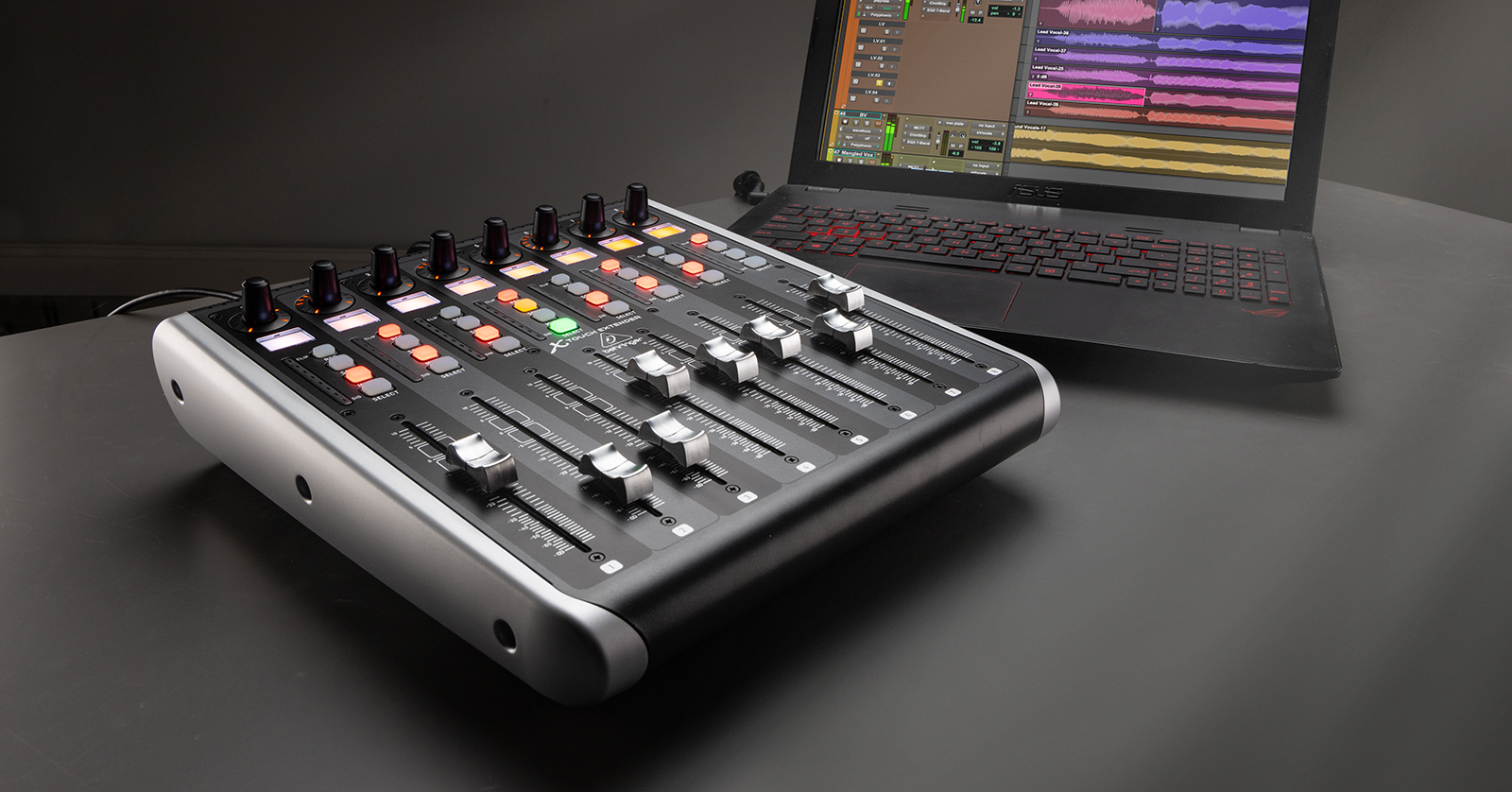
If you own a DAW controller and want to use it in Pro Tools, you must configure the settings before you can control it. That means you must select the controller’s protocol and port settings within Pro Tools.
If you’re unsure how to change your MIDI device’s protocol (mode), check its user’s manual for more information. Also, be sure to download your DAW controller’s latest driver beforehand!
Pro Tools supports a variety of DAW controllers and EUCON control surfaces. If you are setting up a DAW controller for the first time, we recommend reading Getting Started with DAW Controllers first, then following the instructions below.
Enable MIDI Devices
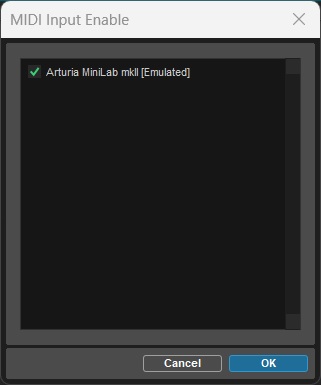
For your DAW controller to work in Pro Tools, it must first be enabled within the MIDI settings. If it isn’t enabled, Pro Tools won’t respond to the controller’s MIDI data. While keyboards and MIDI notes will work once enabled, DAW controllers with faders, encoders, or transport controls will still need to be configured after enabling them.
- Open the Setup menu, hover over MIDI, then select MIDI Input Devices….
- Enable your MIDI device by clicking its checkbox.
- Click OK.
- Once it’s enabled, continue below to learn how to configure its settings.
Configure MIDI Controllers
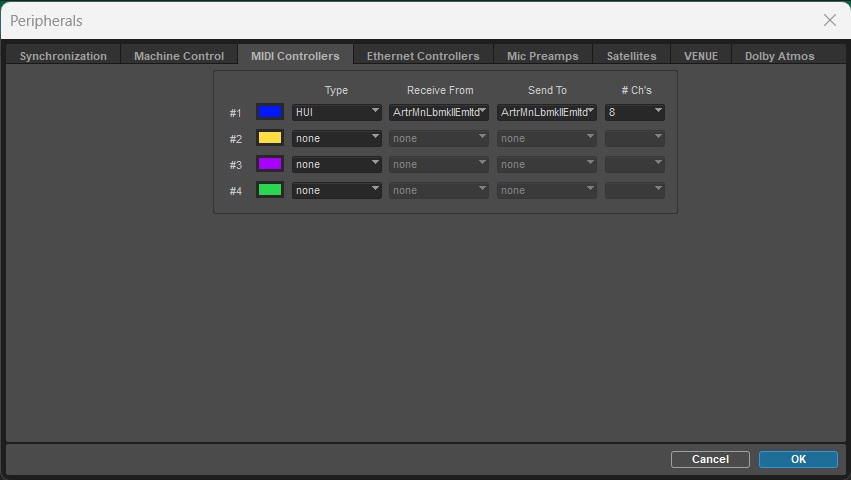
DAW controllers (and control surfaces) must be configured further in Pro Tools before their control features will work. You must select a controller’s protocol and ports in the DAW settings. Without the correct port or protocol, the MIDI device and DAW won’t be able to communicate with each other.
If you’re unsure how to change your MIDI device’s protocol, check its user manual to learn how. EUCON devices are configured a little differently with the EuControl app.
- Open the Setup menu and select Peripherals.
- Click the MIDI Controllers tab and select your controller’s protocol Type, Receive From port, and Send To port.
- Click OK to save your changes and close the window.
EUCON and EuControl Setup
EUCON devices are unique because they use Ethernet cables to connect either to your computer or a local network instead of using USB or MIDI cables. The required EuControl app synchronizes each connected Artist Series controller to the Pro Tools software. Follow the steps and video below to set up a EUCON controller with Pro Tools.
Pro Tools | Control
Pro Tools can also be controlled via EUCON with the Pro Tools | Control iOS app. Learn more about how to set up Pro Tools | Control.
- Download and install the latest EuControl software from the My Products page of your Avid account.
- (Optional)Artist series software is downloaded from a My Artist Series account.
- Set up your EUCON controller by following its unique guide.
- Devices can be set to DHCP assignment (automatic) or configured with a static IP address.
- Open the Setup menu and choose Peripherals….
- Click the Ethernet Controllers tab, click the Enable EUCON checkbox, and then click OK.
When you need help, Sweetwater has the answers!
Our knowledge base contains over 28,000 expertly written tech articles that will give you answers and help you get the most out of your gear. Our pro musicians and gear experts update content daily to keep you informed and on your way. Best of all, it’s totally FREE, and it’s just another reason that you get more at Sweetwater.com.

