

Roland Aerophone AE-20 and AE-30 Quickstart Guide
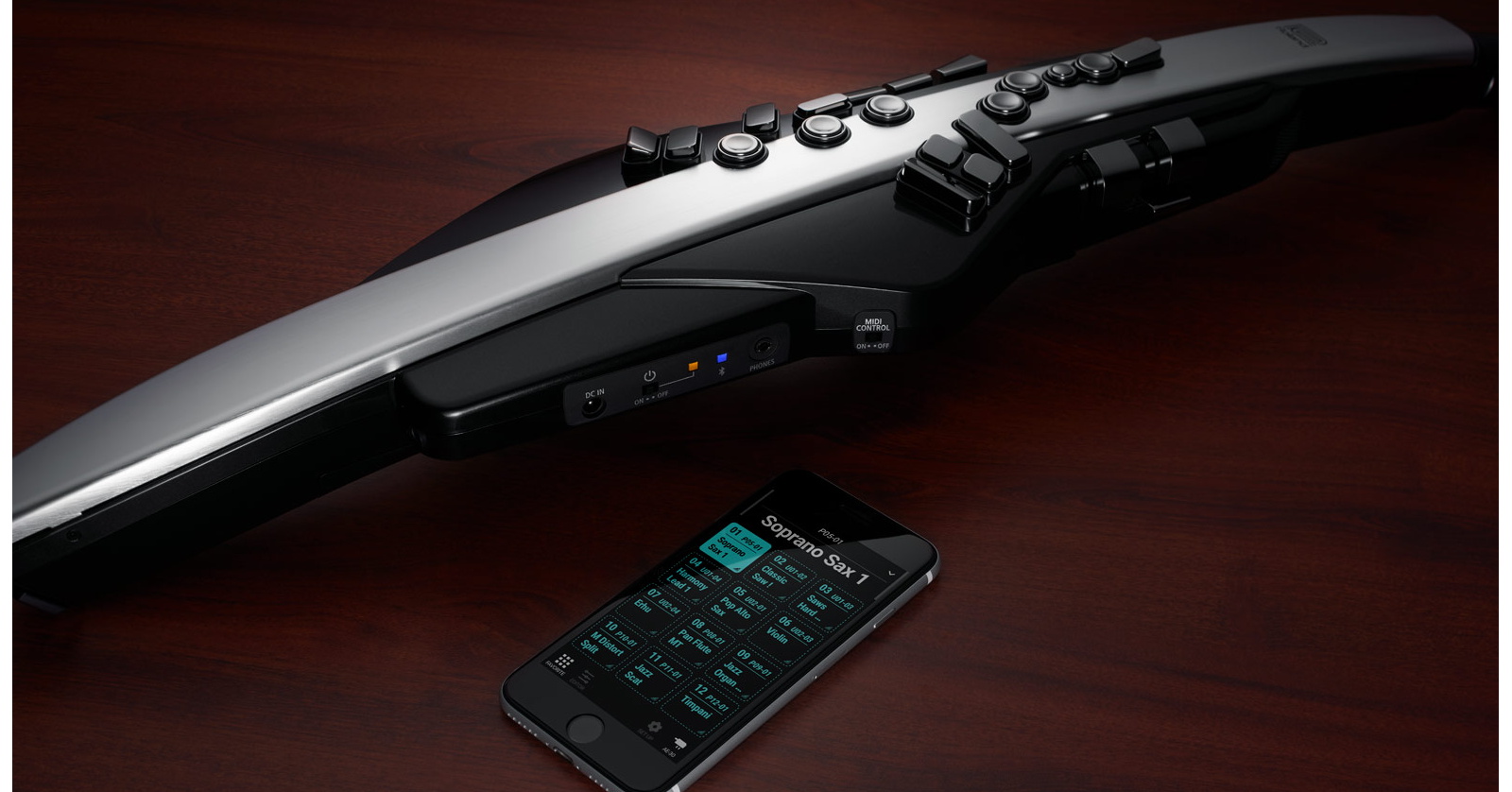
Congrats on buying a Roland Aerophone AE-20 or Aerophone Pro AE-30 electronic wind instrument. Let’s get started.
- What Is a Roland Aerophone Electronic Wind Instrument?
- Register Your Purchase, Download the Manuals & App
- Install the Driver for Your Computer
- Update the Firmware
- Playing Your Roland Aerophone
- What Is MIDI? Aerophone as a MIDI Controller
- Roland Aerophone Care & Maintenance
- Roland Aerophone Video Tutorials
- Roland Aerophone Knowledge Base
What Is a Roland Aerophone Electronic Wind Instrument?
Electronic wind instruments have been on the market since the mid-1980s.
For woodwind players, a Roland Aerophone provides a second instrument that enables you to play synthesizer sounds and emulate other woodwind and orchestral instruments for live performance or recording.
Your Roland Aerophone AE-20 or Aerophone Pro AE-30 features:
- A breath controller mouthpiece that, while not the same as a reed and mouthpiece on a conventional saxophone, senses your breath so you can start, sustain, and stop notes and control vibrato
- Keys laid out so you can play notes with similar (but not identical) fingerings to those on an acoustic saxophone
- An internal sound engine that creates synthesizer sounds and emulations of orchestral instruments that you can play expressively
- Internal speakers that put out enough volume for you to be able to hear what you play
- An audio output so you can connect a cable and send the sound to an amplifier or a PA system
- Headphone output so you can practice without disturbing others
- Audio auxiliary input over Bluetooth so you can play along with practice tracks
- Battery power so you can play without being connected to a power cable
- MIDI output for playing external hardware instruments or virtual instruments on your computer
- Audio interface over USB to your computer for recording to a DAW
Register Your Purchase, Download the Manuals & App
Register
Take a few minutes to register your purchase with Roland. Go to the Roland Backstage page. Create a new user account or enter the email and password for your existing account.
After you confirm your account information and log in, click on “My Gear.” Then click on “Register a Product.” Fill out the product registration information, including the serial number of your unit.
Owner’s Manuals
You will need to refer to the owner’s manuals, so it’s a good time to download them.
Go to your product’s support page, click “Owner’s Manuals,” and download the relevant documents.
Aerophone App
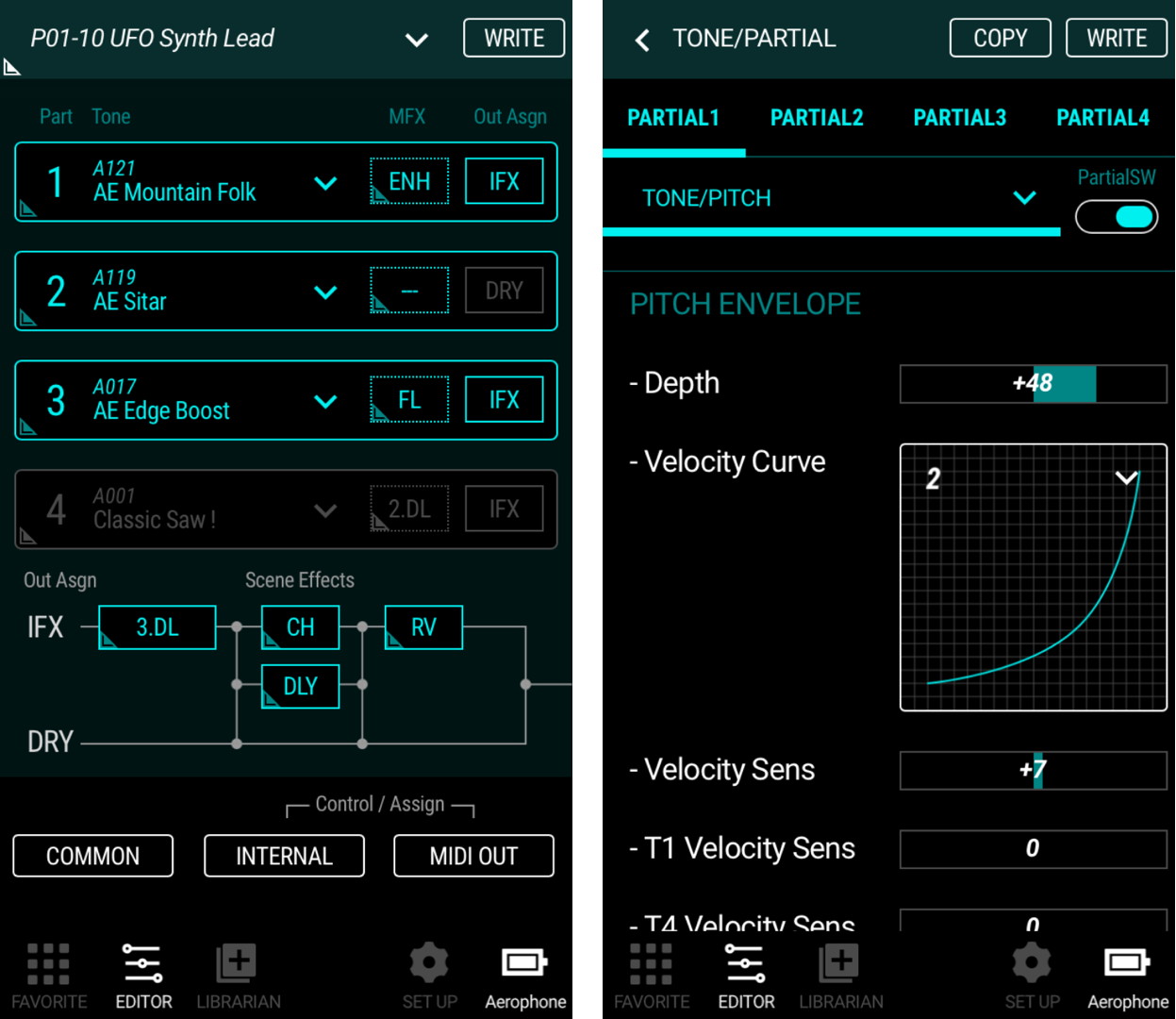
Two views in the Aerophone Pro Editor app on Android
Configuring your Aerophone, as well as selecting and editing sounds, requires the Aerophone Pro Editor app for your iPhone or Android device.
- Download to your iPhone from the Apple App Store.
- Download to your Android device from the Google Play Store.
To connect your Aerophone to the app on your phone over Bluetooth, follow the instructions in the Aerophone AE-20 Owner’s Manual > Other Settings > Using the AE-20 with a Smartphone.
Install the Driver for Your Computer
To use your Aerophone AE-20 and Aerophone Pro AE-30 to transmit MIDI and as an audio interface for recording with a Mac or Windows PC, you must install a custom driver.
Go to the product’s downloads page. Under “Updates & Drivers,” locate the version of the driver that corresponds with your version of Windows or macOS. Click on the link and follow the instructions to download and install the driver.
Update the Firmware
A Roland Aerophone is a digital device that runs software internally. From time to time, Roland may release a firmware update (Roland calls it a “System Program”) that will fix bugs and may add new features and sounds. A firmware update may also be necessary so that your instrument works correctly with the newest version of its Roland app.
When you first get your new instrument, it’s essential that you check to see if there’s a new version of the firmware and install it.
Aerophone AE-20
Updating the firmware requires a USB flash drive. You connect the flash drive to your Mac or Windows PC, download the newest version of the System Program from the Roland website, copy the update files to the flash drive, then eject the flash drive from your computer and insert it into the AE-20 and perform the update procedure.
On your computer, go to the Roland Aerophone AE-20 Downloads page. Under “Updates & Drivers,” click on the link for the newest Aerophone AE-20 System Program.
Read the instructions on the page thoroughly before you begin and take special note of the section “Caution When Performing the Update.” Now follow the instructions to perform the update.
Aerophone Pro AE-30
The procedure for the Aerophone Pro AE-30 is similar to the AE-20 above, but the file you install is different. Make sure that you are downloading the AE-30 System Program from the Roland Aerophone Pro Downloads page.
Follow the instructions to perform the update.
Playing Your Roland Aerophone
Battery Power or External AC Adapter
Insert six AA-size NiMH (nickel-metal hydride) batteries.
Alternatively, you can use the included Roland PSD AC adapter. Note that the power adapter cannot charge the batteries.
Wrapping the Band
The Aerophone has a moisture band that you need to wrap around the joint where the mouthpiece connects to the instrument. This will protect the instrument by absorbing the condensed moisture from your breath.
Attach the neck strap to its hook.
Connect to Headphones or Speakers
You can play sounds using the internal speakers or connect headphones to the Phones jack.
You can connect to external speakers or a PA system using the Output jack. Use a TRS cable for stereo output.
Turn down the volume all the way before you connect anything to the Phones or Output jacks.
Performing
Turn on the power.
On the AE-20, you can adjust the output volume for both the headphone jack and the line output using the Volume knob next to the battery compartment.
On the AE-30, you can adjust the volume on the display screen using the Menu button and scrolling to the Speaker Volume and Output Volume menus.
Place your left thumb on the thumb rest and your right thumb on the thumb hook.
Hold the mouthpiece lightly between your upper teeth and lower lip and blow into it. This is your embouchure.
Consult your owner’s manual for the fingering chart.
Learn more in the AE-20 Owner’s Manual > Playing the Instrument.
Learn more in the AE-30 Owner’s Manual > Performing.
Selecting Different Sounds
Sounds on the instrument are called “Scenes.”
The AE-20 and AE-30 have hundreds of Scenes from synth sounds to emulations of orchestral instruments. These are organized into 12 banks, or Categories. Use the Scene Category knob next to the battery compartment to select a Category. Then use the Scene buttons beneath the display screen to call up a specific sound.
Learn more in the AE-20 Owner’s Manual > Getting Ready to Play > Playing the Internal Sounds.
Find a full list of sounds in the AE-20 Scene List.
Learn more in the AE-30 Owner’s Manual > Performing > Making Sound Settings > Playing the Internal Sounds.
Likewise, the AE-30 has the AE-30 Scene List.
Selecting Different Fingerings
You can change the fingering mode to be more like other instruments. Options include sax, recorder, e-wind, trumpet, flute, and clarinet.
Learn more in the AE-20 Owner’s Manual > Other Settings > Changing the Fingering Settings (Fingering Mode).
Learn more in the AE-30 Owner’s Manual > Making Settings in the Menu > Making System Settings and Scene Settings > Fingering Mode.
What Is MIDI? Aerophone as a MIDI Controller
The Aerophone AE-20 and the Aerophone Pro AE-30 also function as a MIDI controller. In addition to making sounds within the instrument, you can use your Aerophone to play external instruments.
Like other electronic musical instruments, such as keyboards, your Aerophone uses the universal MIDI (Musical Instrument Digital Interface) protocol. With MIDI, you can go beyond the instrument sounds built into your Aerophone and access a much broader range of electronic sounds, both for emulating orchestral instruments and playing synthesizers.
When you play a note on your Aerophone, it transmits MIDI data that plays that note on an external hardware synthesizer or a virtual instrument plug-in on your computer, running inside a recording app called a DAW (digital audio workstation).
Note that programs and sounds on synthesizers and virtual instrument plug-ins are usually set up to be played from a keyboard. To play these sounds expressively with your Aerophone, you will have to modify the parameters of the sounds on the synthesizer or virtual instrument. Specifically, synthesizer programs need to be modified to use MIDI CC 2 for breath control.
The MIDI output from your Aerophone can also be used for recording. A DAW can record MIDI data separately from audio. After you record a track, you can edit your performance and assign the MIDI data to different virtual instruments. In some DAWs, your recorded MIDI data can be transcribed into standard music notation or output to music-notation software for creating charts and scores.
The AE-20 and AE-30 can transmit MIDI to your Mac or Windows PC over the USB-C connection. The AE-30 also provides connections for standard 5-pin DIN MIDI cables.
If you want to learn more about the world of MIDI, here’s our Sweetwater inSync guide.
Roland Aerophone Care & Maintenance
Every time you are finished playing, you must remove the mouthpiece, clean it, and drain condensation (water, moisture) from the instrument.
- Remove the moisture band, if present, and let it air-dry.
- Remove the mouthpiece by pulling it straight out. It may require some force.
- Wipe any dirt on the outside of the mouthpiece with a soft cloth.
- Carefully wash off the inside of the mouthpiece under the tap.
- Thoroughly wipe off any drops of water with a soft cloth and let the mouthpiece dry completely.
- With the instrument upright, mouthpiece end up, lean it against a wall so that condensation (water, moisture) can drain out of the water drain. Wipe the instrument with a soft cloth.
Special care is required to align things correctly when reattaching the mouthpiece. Applying recorder cream (not included) makes attachment and removal easier.
Learn more in the AE-20 Owner’s Manual > Caring for the Mouthpiece.
Roland Aerophone Video Tutorials
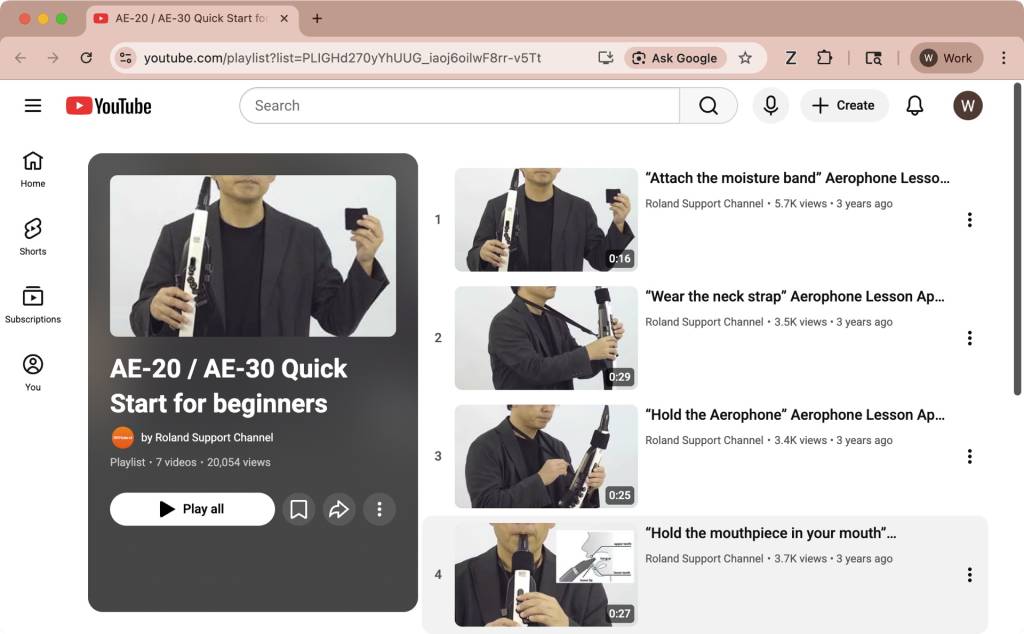
Roland Aerophone AE-20/AE-30 tutorial playlist on YouTube
The Roland Support Channel provides a series of short tutorial videos to help you get started, work with the apps, and update the firmware.
Roland Aerophone Knowledge Base
On the support page for your instrument, you’ll find a Knowledge Base with detailed answers to frequently asked questions.
When you need help, Sweetwater has the answers!
Our knowledge base contains over 28,000 expertly written tech articles that will give you answers and help you get the most out of your gear. Our pro musicians and gear experts update content daily to keep you informed and on your way. Best of all, it’s totally FREE, and it’s just another reason that you get more at Sweetwater.com.

