
Pro Tools won’t recognize my interface!
Is your audio interface plugged in and powered on, but not detected by Pro Tools? When setting up Pro Tools, you need to be sure that the drivers are installed, Playback Engine is assigned and I/O Settings are reset. Read below to synchronize your interface with Pro Tools.
Reinstall Audio Device Drivers
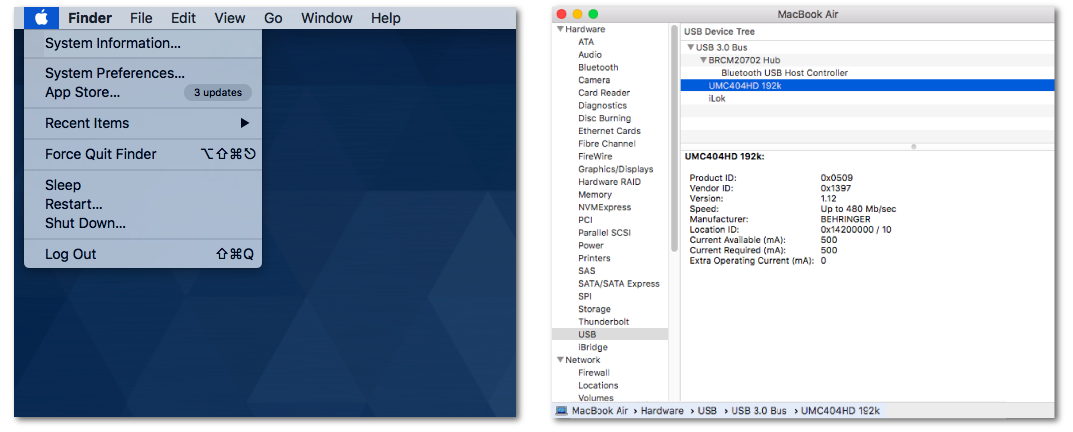
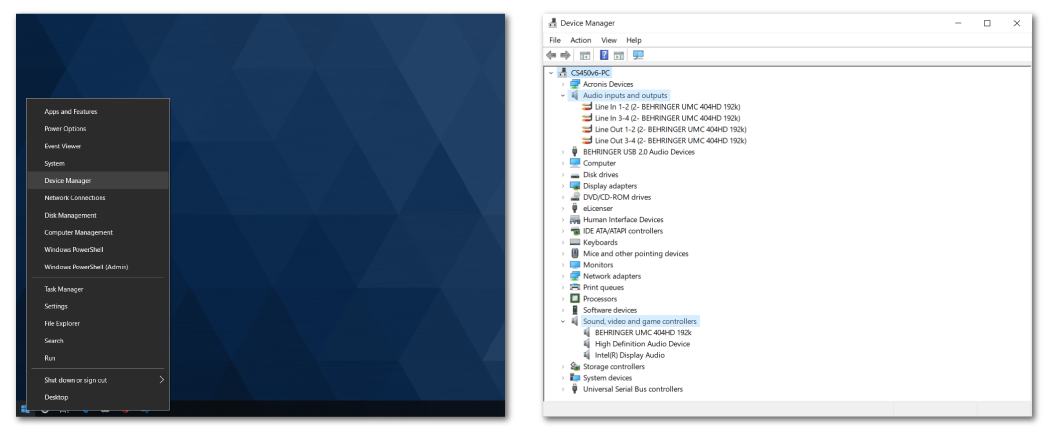
If you’re having trouble getting your audio interface to work with your Pro Tools setup, the first thing to do is make sure you have downloaded and installed the latest drivers for your audio interface. These can be downloaded at the manufacturer’s website for whichever interface you may be using. Once done, restart your computer and see if the device is detected in Device Manager (PC) or System Information (Mac). Follow the directions below for Mac and PC to check that your interface is connected.
View Connected Devices on macOS
- Click the Apple icon, hold the Option key, and click System Information…
- To locate the interface, under Hardware, select the format in which your interface is connected (e.g. USB, Thunderbolt, FireWire).
View Connected Devices on Windows
- Right-click the Windows icon, and choose Device Manager.
- Your interface’s connections will appear under Audio inputs and outputs.
My interface isn’t recognized!
An interface may not synchronize correctly if the appropriate driver is not installed. If your device is not detected, first download and install the driver which the manufacturer recommends is best compatible with your computer. If the device is still not detected, visit our Resolving Audio Interface Issues guides for PC (Windows) & Mac (macOS).
Pro Tools Playback Engine Settings
Once you’ve installed the correct driver and confirmed the audio interface is detected, next update your Playback Engine settings within Pro Tools. The Playback Engine can be found in the Pro Tools Setup menu. Open up the Playback Engine menu, and select your interface from the drop-down menu. Click here for a video that will show you how to do this.

Select your interface in the Playback Engine drop-down menu.
Pro Tools I/O Setup Settings
Once an audio interface is selected as the Playback Engine, your Pro Tools I/O settings need to be updated. The I/O Setup window is found under the Setup menu. If you’re not sure what to do here, pressing Default for the Input, Output, and Bus tabs is a great place to start. That should automatically map the default I/O settings for your audio interface. From here you can make any additional changes or customization. Here’s a video that will show you how to reset the I/O.

Verify your I/O Setup is correct by going to Setup menu and choosing I/O…
Related content
- Pro Tools Troubleshooting Guide
- How do I trash my Pro Tools preferences?
- Pro Tools tells me that “The current playback engine does not support a sample rate of…”
- How to Configure Pro Tools 12 & 2018 Audio & MIDI Settings
- Intro to Pro Tools: Creating and Recording a Track
When you need help, Sweetwater has the answers!
Our knowledge base contains over 28,000 expertly written tech articles that will give you answers and help you get the most out of your gear. Our pro musicians and gear experts update content daily to keep you informed and on your way. Best of all, it’s totally FREE, and it’s just another reason that you get more at Sweetwater.com.

