
Resolving Audio Interface Issues on Windows 11
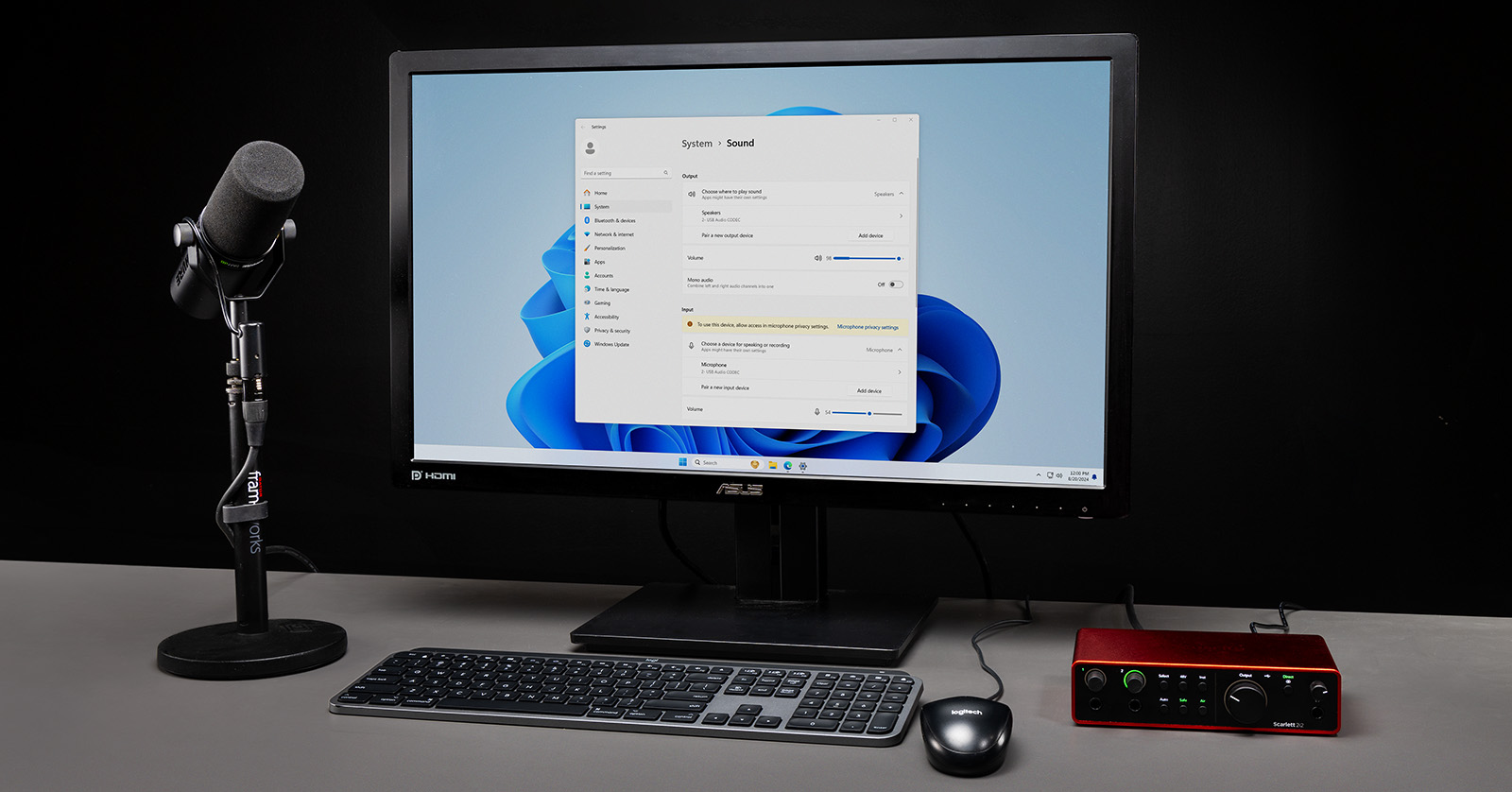
An audio interface is the centerpiece of any digital home studio. Sometimes, you may have issues like audio dropouts, pops, clicks, and the interface not showing up as an audio output device. In this guide, we will show you how to fix these issues so you can get back up and running.
Windows Audio Device Connections
Many audio devices and software applications require the use of an audio interface to play back or record audio on Windows. For the audio interface to work correctly, you will need to make sure your audio drivers are compatible and up to date and check your Windows system settings and connections.
Compatibility and Drivers
Before getting started, you must check if the audio interface is compatible with your computer. Check your computer’s specifications and compare them with the interface’s system requirements on the manufacturer’s product page.
If your system isn’t compatible, you may have to update the operating system or find a compatible audio interface. If this is your first time setting up your interface, you must download the latest driver available to ensure it’s being recognized. Check out our audio interface driver download page to find the newest driver available for your interface.
.zip files
If your download is a .zip file, make sure to extract the driver installer before launching it. Check out our guide to learn more about .zip files.
Update Windows Sleep Settings
Windows 11 has features that allow you to optimize your PC’s efficiency. When you put your PC to sleep, it stops all processes and unmounts drivers, including audio and MIDI drivers, to save energy. When you wake your computer back up, however, the drivers may not reload properly, resulting in no sound, meaning that you’ll likely need to restart the computer so the interface can reconnect correctly.
Check out our Windows 11 PC Optimization guide to learn how to update the sleep settings. After you’ve optimized your computer, continue below for more troubleshooting steps.
USB Connectivity
If you don’t hear audio or see your audio interface as a connected device, it could be due to the physical USB connection. There are a few reasons why, too. Here are some tips to ensure your connection is sound.
- Disconnect and reconnect the cable from your PC. Check that the cable is fully connected.
- Only use the factory-supplied USB cable. If one isn’t supplied, use high-quality, brand-name cables. While generic cables might work in a pinch, they are often unreliable, and you will run into connection issues.
- Make sure you are using the correct cable. This is especially true with Thunderbolt devices.
USB hubs
If your PC has a limited number of USB ports, USB hubs are a convenient way to connect multiple devices like mice, external hard drives, and USB thumb drives. However, USB hubs, specifically passive ones, cannot provide enough power to transfer data to and from your audio interface.
If you can, reconfigure your USB connections to connect your audio interface directly to your computer. If a hub is necessary, use a powered hub.
Computer Startup Sequence
Powering up your system in the correct order is essential for reliable communication between your PC and your interface. This primarily applies with powered interfaces; if your audio interface is bus powered, you don’t have to worry as much.
- Connect and turn on your audio interface.
- Power on your computer.
- Power on your monitor speakers.
- If your monitors are powered on before your computer is turned on or off, you’ll likely hear loud pops, which can damage your monitors.
When shutting down your system, just follow the startup sequence in reverse.
Windows Sound Settings
If you’ve confirmed your interface is compatible, it’s connected correctly, and your PC is booted properly, but you’re still running into issues, the next step is to check the Windows 11 sound settings.
Update Default Windows Sound Settings
Applications like your browser or music streaming service will play back through the default output device in the System Sound settings. If you aren’t hearing any audio, it could be caused by the interface not being selected as the primary output device.
- Right-click the Speaker icon on the toolbar. Click Sound settings.
- Scroll down to and click More sound settings.
- Select your interface, then click Set Default.
- Click the Recording tab, select your interface, and click Set Default.
Disable Exclusive Mode
When you launch an application that uses audio, it takes control of your primary playback device. If you launch another application that requires audio, you likely will not get any sound. To get around this, you must disable Exclusive Mode.
- Right-click the Speaker icon on the toolbar. Click Sound settings.
- Scroll down to and click More sound settings.
- In the Playback tab, right-click your interface and choose Properties.
- Click the Advanced tab. Uncheck Allow applications to take exclusive control of this device.
- Click Apply, then click OK.
- Repeat steps two through five in the Recording tab.
DAW Sound Settings
Applications like DAWs and standalone virtual instruments have their own sound settings, often found in a Preferences, Settings, or Options menu.
If your audio device is correctly connected to the computer, it should be automatically detected and selected as the default playback and recording device. Go to the software’s sound settings and confirm it’s the chosen device.
Audio Device Not Detected
If your audio interface or audio device isn’t detected in Windows or your software, you’ll need to perform some additional troubleshooting. The first thing to check is Device Manager. If it isn’t detected in Device Manager, it could be a faulty cable, an old driver, or an issue with the audio device itself.
An easy way to check if the interface or device is being detected is to disconnect and reconnect it while looking in Device Manager. You can narrow down the issue if you hear the USB connection notification sound and see it appear.
Check Device Manager
Device Manager helps check hardware specifications and connections on your Windows PC. In audio production, you’ll use Device Manager to check that everything is connected and communicating with the rest of your PC. If your device does not appear in this list, reseat the cable connected to your computer or try a different USB port.
If your audio interface or other audio device shows up as an Unknown device within Other devices or has a yellow Caution icon, you must uninstall and reinstall the latest driver.
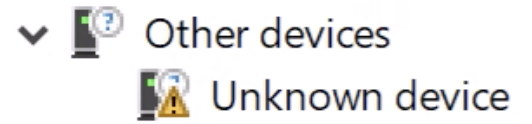
How to check Device Manager
- Right-click the Windows icon on the taskbar, then left-click Device Manager. Alternatively, type Device Manager in the Windows search bar on the taskbar.
- Choose Sound, video and game controllers. Look for your audio interface or device.
- Right-click your interface and choose Properties to uninstall, disable, update, or view driver details.
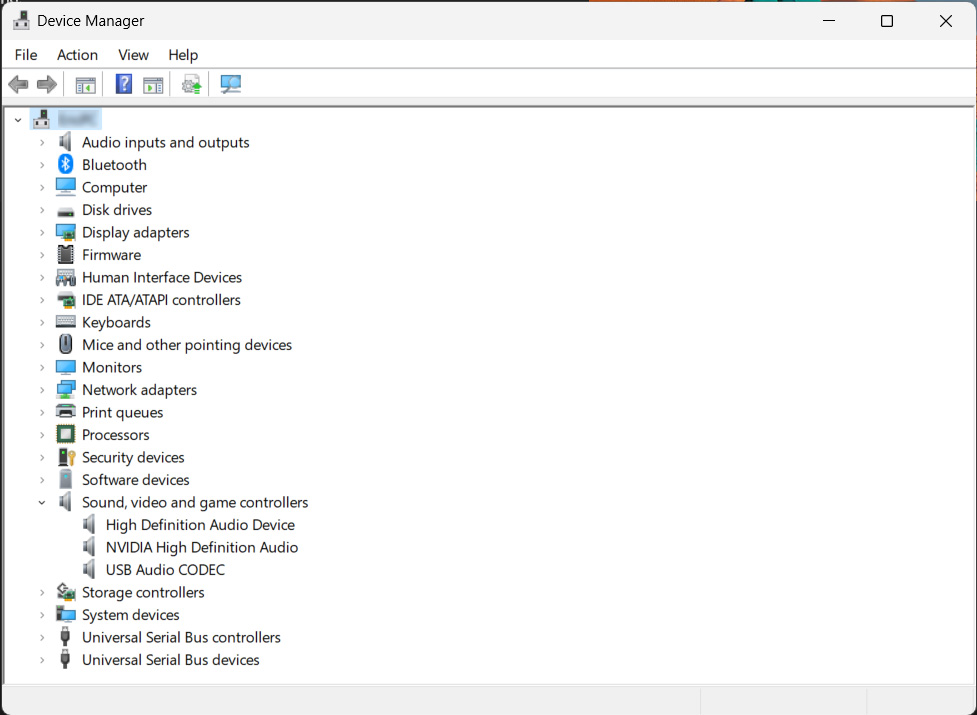
Reinstall audio device driver
If your Windows 11 PC is still not detecting or communicating with your audio device, you’ll need to reinstall the interface’s driver. Drivers are usually bundled with device control software that allows you to access additional functions to control your audio interface remotely.
Some audio interfaces are class compliant, meaning no additional driver software is required for them to function. If your interface is class compliant and you plan on using it in a DAW, you will need to download ASIO4ALL instead.
Reinstalling Audio Device Drivers
IMPORTANT! Always install drivers before connecting an audio interface to your Windows 11 computer. If you connect an interface without the proper driver, Windows will install a generic driver which can cause potential issues.
- Uninstall the driver from Device Manager, power everything off, and disconnect the audio interface from your computer.
- Restart the computer, go the audio interface manufacturer’s website, and download the latest driver.
- Install the driver, then restart your computer. Connect the audio interface back into your PC.
Install ASIO4ALL
Windows 11 PCs come with generic system audio drivers, and they aren’t the best choice for audio production. ASIO4ALL is made for this purpose, as DAWs and virtual-instrument software rely on the ASIO driver protocol. When using ASIO4ALL, make sure to use the Offline Settings to select what playback devices you wish to use in your DAW or other audio software.
When you need help, Sweetwater has the answers!
Our knowledge base contains over 28,000 expertly written tech articles that will give you answers and help you get the most out of your gear. Our pro musicians and gear experts update content daily to keep you informed and on your way. Best of all, it’s totally FREE, and it’s just another reason that you get more at Sweetwater.com.

