
Raven MTi2: Pro Tools Internal Mixer Alignment
Overview
In this article, we will show you what steps need to be taken to get Pro Tools set up with the Raven MTi2. The actions that need to be taken can be grouped into three sections:
2. Set Up the Internal Mixer Alignment
Raven MTi2 Setup Checklist for Mac
To get your Raven MTi2 setup and working smoothing with a Mac, read through our Raven MTi2 Setup Checklist for Mac.
Preliminary Setups
1. Maximize the Mix Window
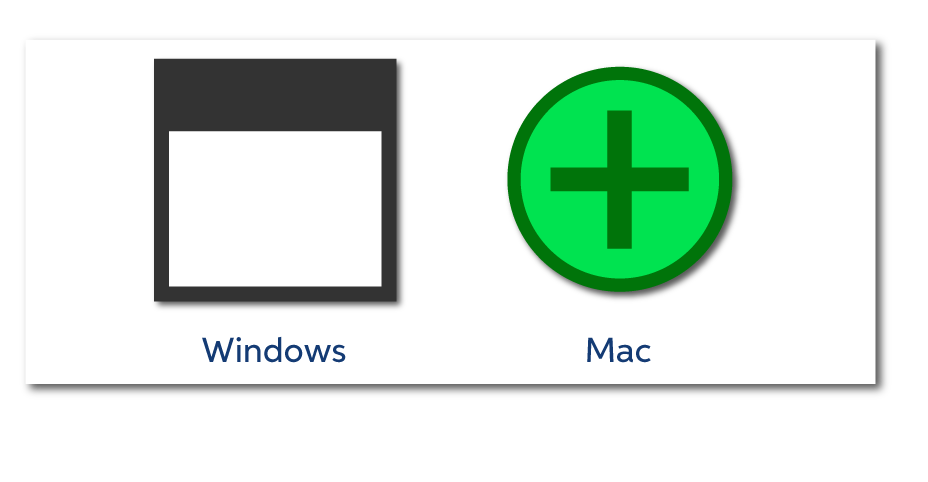
Make sure the Mix Window is maximized and is scrolled all the way to the left with track 1 showing. On Windows, maximize the Mix Window by clicking the double-window button on the top-right side of the screen. On Mac, click the green plus button on the top-left side of the screen.
2. Configure the Mix Window Views
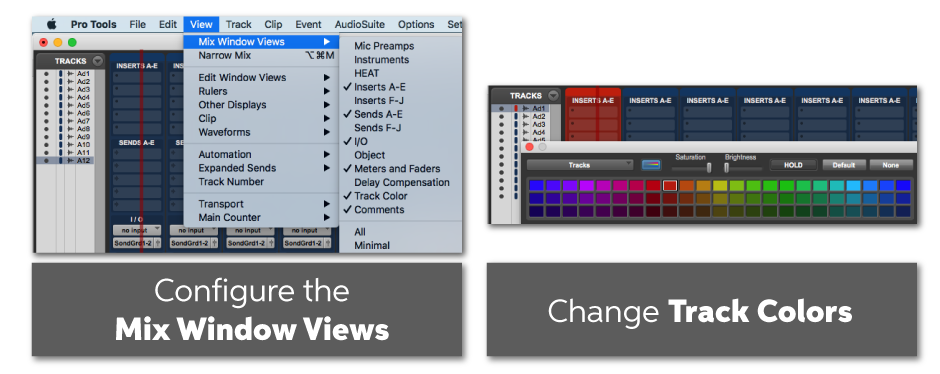
Activate Track Colors by going to the Mix Windows Views and checking Track Color. Then, you can change track colors by using the Color Palette. This can be accessed by double clicking the track. Follow the instructions below.
In the Mix Window Views, make sure that Inserts A-E, Sends A-E, Meters and Fader, Delay Compensation, Track Color, and Comments are checked. Follow the instructions below.
How to Configure the Mix Window Views
1. Go to the View tab.
2. Navigate to the Mix Window Views section.
3. Make sure the following is checked:
- Inserts A-E
- Sends A-E
- Meters and Fader
- Delay Compensation
- Track Color
- Comments
How to Access the Color Palette:
You can change track colors by using the Color Palette. To do this, double-click the track.
3. Align the Toolbar
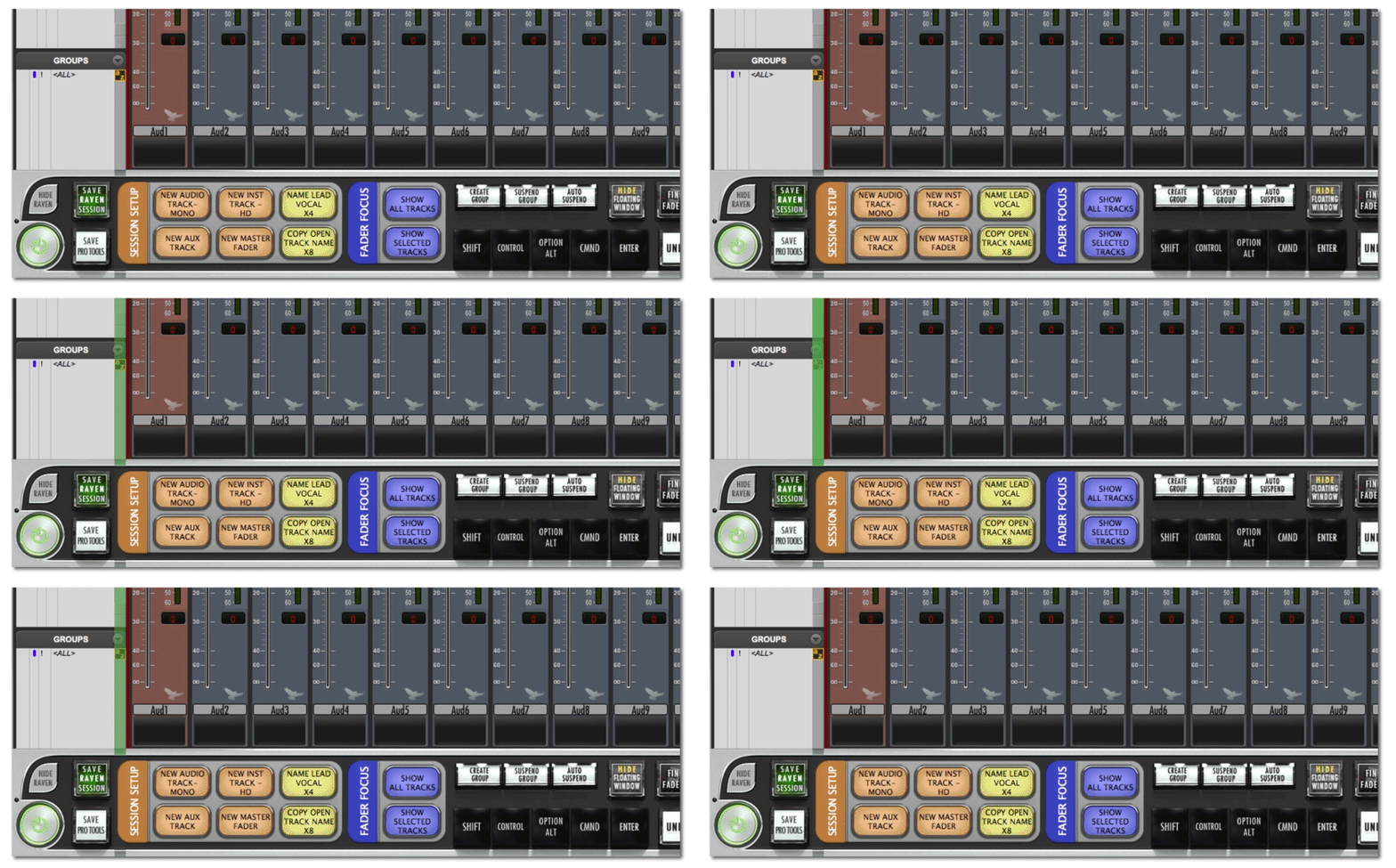
At the top of the Raven Toolbar, there is a dark grey notch on the left-hand side of the Mix Window. Make sure this is aligned with the Tracks List Window in Pro Tools as shown below.
Set Up the Internal Mixer Alignment
Now that you’ve completed the preliminary setups, you need to download the correct Internal Mixer Alignment for your configuration from the choices below and import it into Pro Tools. Once this has been done, it can be recalled whenever your session needs to be realigned. Follow the instructions and GIF below.
Raven Window Configurations Dual.ptx
Raven Window Configurations Single.ptx
How to Set Up the Pro Tools Internal Mixer Alignment
1. Download the correct Internal Mixer Alignment.ptx version above.
2. In your Pro Tools session, go to the File tab, choose Import, and select Session Data…
3. Select the Raven Window Configurations.ptx file and click Open.
4. In the Import Session Data window, check the Window Configurations box and click OK.
Note: To recall the window layout, go to the Window tab, choose Configurations, and select the layout.

Final Adjustments
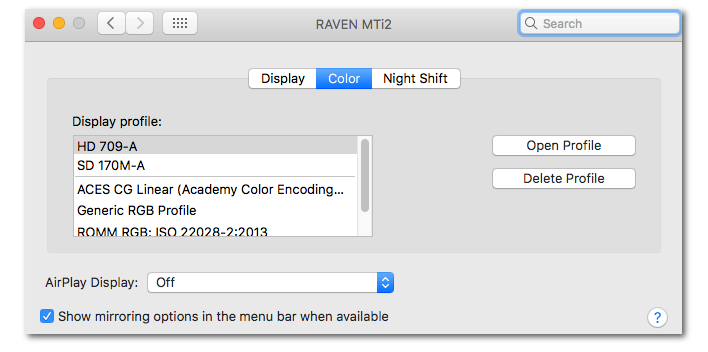
1. Adjust the Display Color
Make sure the Display Color preferences are set to the top default settings. Follow the instructions below.
How to Adjust the Display Color
1. Click the Apple icon and go to System Preferences.
2. Select Display.
3. In the Color tab, make sure it is set to the top default setting as shown below.
2. Keep the OS Dock Hidden
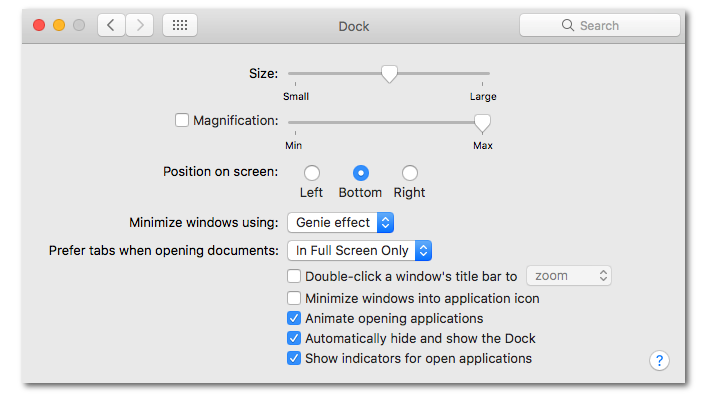
Follow the instructions below to keep the OS Dock Hidden.
How to Keep the OS Dock Hidden
1. Click the Apple icon and go to System Preferences.
2. Select Dock.
3. Check the Automatically hide and show the Dock box.
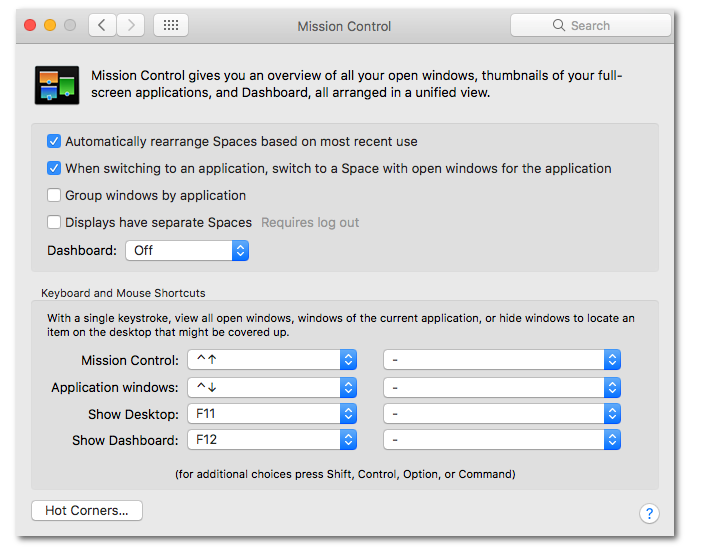
Note: OS X 10.11.1 user should not check the Automatically show and hide menu bar in General System Preferences as well as Display have separate Spaces in Mission Control System Preferences.
3. Miscellaneous
Using Raven with Multiple Screens
In Mission Control (System Preferences), Displays have separate Spaces needs to be unchecked.
Windows Users
1. Go to Taskbar and Start Menu Properties, select the Toolbar tab. Then, check the Auto-hide the taskbar box.
2. Go to Control Panel and select Appearance and Personalization. Then, select Display and adjust the Custom sizing options to 100%.
Wrapping up…
At this point, your Raven MTi2 should now be aligned with Pro Tools. If you haven’t already, make sure to read through our Raven MTi2 Setup Checklist for Mac and, as always, you can find more resources in the Helpful Links section below.
Helpful Links
How do I setup my Raven MTi2 with Pro Tools?
How do I setup my Raven MTi2 with Cubase in Windows 10?
PC Optimization Guide for Windows 10
Mac Optimization Guide for macOS 10.13 High Sierra
Slate Announces Major DAW Compatibility Updates for Raven
When you need help, Sweetwater has the answers!
Our knowledge base contains over 28,000 expertly written tech articles that will give you answers and help you get the most out of your gear. Our pro musicians and gear experts update content daily to keep you informed and on your way. Best of all, it’s totally FREE, and it’s just another reason that you get more at Sweetwater.com.

