
PreSonus Revelator Quickstart Guide
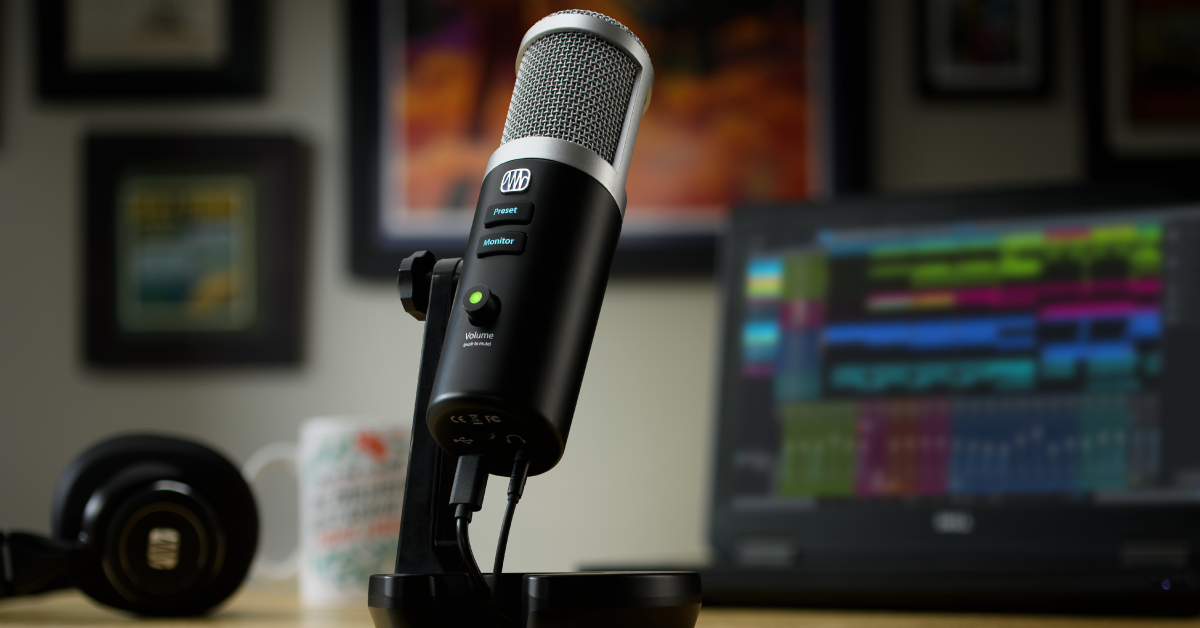
Getting started with the PreSonus Revelator
In this guide, we will show you how to register, set up, and use the PreSonus Revelator for the first time. Follow the sections below to get started.
- Register the Revelator with PreSonus
- Set up and connect the Revelator
- How to adjust the levels on a Revelator
- Changing mic presets
Register the Revelator with PreSonus
Before you get set up and connected, the first thing you’ll want to do is register your Revelator with PreSonus. By registering the microphone, you’ll receive a free copy of Studio One Artist. Make sure you have your Sweetwater invoice, as you’ll need to enter the purchase date during the process.
- Log into your PreSonus account. If you don’t have one yet, click Create Account underneath the Login button.
- On your account homepage, click Register a Product, then use the dropdown box to select Hardware.
- Select the purchase date shown on your Sweetwater invoice, enter the Serial Number, then click Register.
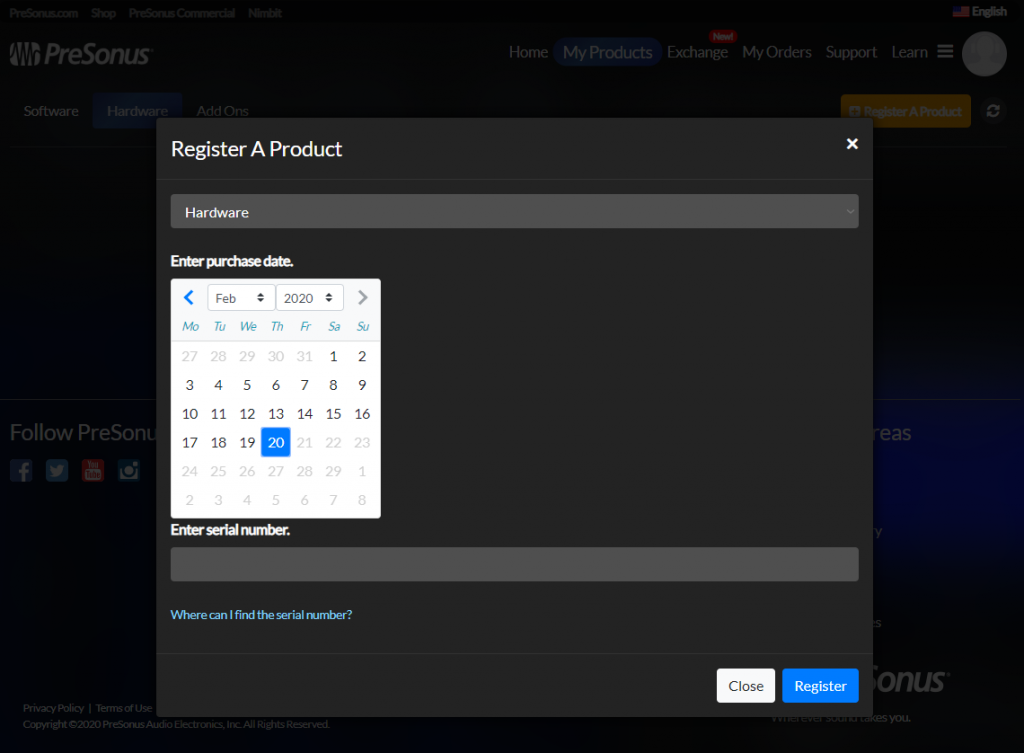
Click the image to register the Revelator
Download and install Universal Control
Universal Control is the standalone app for PreSonus hardware. Universal Control also unlocks all of the advanced features for the Revelator and also allows you to perform firmware updates that PreSonus will release periodically.
- Go to your PreSonus account home page, click Products, then click Hardware.
- Click View More Details, then click Download installer.
- PreSonus automatically detects which OS you’re using, so if you plan on using a different OS or if the OS listed is incorrect, use the dropdown box underneath Select your operating system to select the correct one.
- Navigate to your Downloads folder, run the Universal Control installer, and follow the on-screen instructions.
- PC: Double-click the .exe file to begin the installation process.
- Mac: Double-click the .dmg file, then double-click the .pkg to begin the installation process.
Download and install Studio One Artist
Once your PreSonus Revelator is registered, you then have access to your free copy of Studio One Artist. The installation is straightforward, so be sure to check out our article to learn how to activate, download, and install Studio One Artist.
Learn more about how to download and install Studio One!
Learn More →Set up and connect the Revelator
Once you have the Revelator registered, it’s time to connect the Revelator to your computer. The Revelator must be selected as your computer’s primary audio device to get it to work correctly. For most applications, this will be done from Sound Settings (Windows) or Sound Preferences (Mac). Most streaming and recording software have their own sound settings, so when using the PreSonus Revelator, you’ll need to make sure that it’s selected as the primary input and output device.
Setting up the Revelator on Windows 10
- Right-click the speaker icon on the Windows toolbar, then click Sound.
- Click the Playback tab, right-click on the Revelator, click Set as Default Playback Device, and then select Set as Default Communication Device.
- Right-click on the Revelator again, choose Properties and then click on the Advanced tab.
- Uncheck the “Allow applications…” box within the Exclusive Mode section, click Apply, then click OK.
Setting up the Revelator on Mac
- From the Menu bar, click the Apple icon, then select System Preferences.
- Click Sound.
- Choose your Revelator in both the Input and Output tabs.
- You’ll also need to use the Format dropdown box to change the sample rate when updating your software’s sound settings.
Revelator not showing up?
If your Revelator isn’t showing up, disconnect and reconnect the device and also a different USB cable. If neither of those things work, check out our guides on how to resolve audio device issues on Windows and Mac.
Learn more about how to troubleshoot audio interface issues on PC!
Learn More
Learn more about how to troubleshoot audio interface issues on Mac!
Learn MoreHow to adjust the levels on a Revelator
Adjusting the mic, headphone, and monitor levels on your Revelator are all done with the press of a button, then using the Volume knob. Once all of your levels are set, you’ll be ready to go!
Mic level
- Press and hold the Monitor button. When the knob turns green, you’ll be controlling your mic level.
- Talk into the Revelator with your normal speaking voice.
- If the knob flashes red, your microphone is clipping, and you’ll need to turn it down.
- Once you’ve found a reasonable level, wait approximately five seconds, or press the Monitor button to exit.
Headphone level
- Press the Monitor button so that the knob isn’t lit.
- Press the knob to mute the mic. Once pressed, the knob should turn red.
- Play some audio from your computer, and turn to adjust the headphone level to the desired amount.
Monitor level
- Press the Monitor button so that the knob turns blue.
- Start playing audio from your computer while speaking into the Revelator.
- Use the knob to blend the input signal from your mic and the output coming from your computer.
- Turn the knob left to increase the mic’s monitoring signal and turn it to the right to increase the signal coming from your computer.
Changing mic presets
What sets the Revelator apart from the rest is the ability to create and load mic presets. There are four built into the mic, four that PreSonus made, and eight user-created slots.
TIP: To bypass the presets, press and hold the Preset button on the Revelator.
- Launch the Universal Control software, then click Revelator at the bottom to access the Preset Management window.
- Click on the slot of the preset you want to change.
- Click on the preset you want to load, either from the dropdown box or using the preset selection knob.
Saving presets
You can save presets by selecting the preset from the slot, then clicking on the empty box located to the right of the Hot Key slot. Lastly, name it and click OK.
Related content

Learn more about optimizing your Windows 10 computer for music production!
Learn More
Learn more about optimizing your Mac computer for music production!
Learn More
Learn more about how to get up and running with Studio One!
Learn More
Learn more about how to reduce latency, clicks, and pops while recording.
Learn MoreAdditional resources
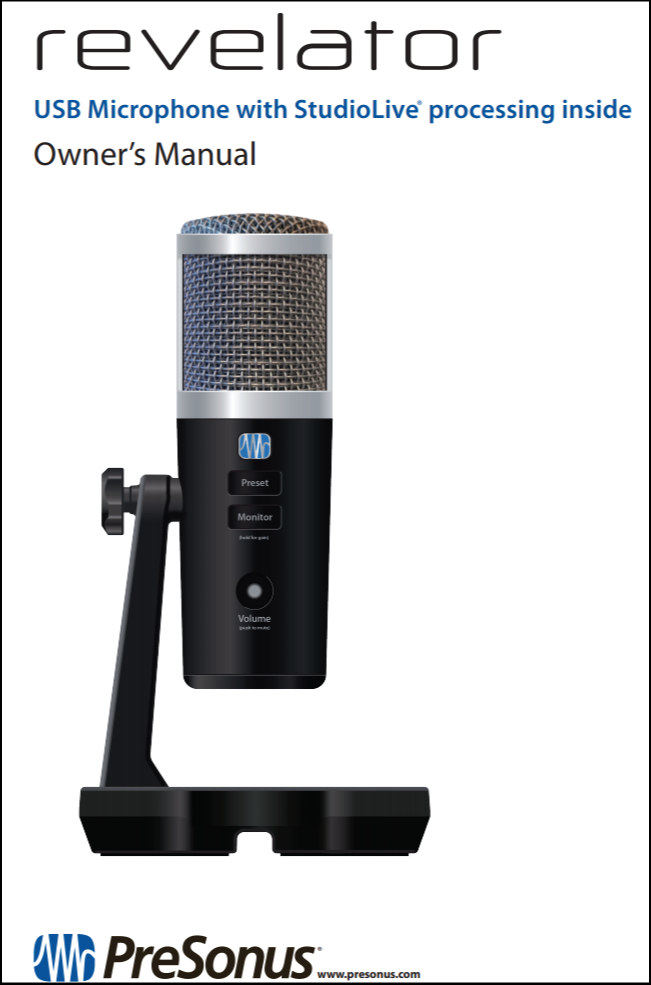
Revelator Owner’s Manual
#Podcasting with Revelator
When you need help, Sweetwater has the answers!
Our knowledge base contains over 28,000 expertly written tech articles that will give you answers and help you get the most out of your gear. Our pro musicians and gear experts update content daily to keep you informed and on your way. Best of all, it’s totally FREE, and it’s just another reason that you get more at Sweetwater.com.

