
IK Multimedia ARC ON-EAR Quickstart Guide
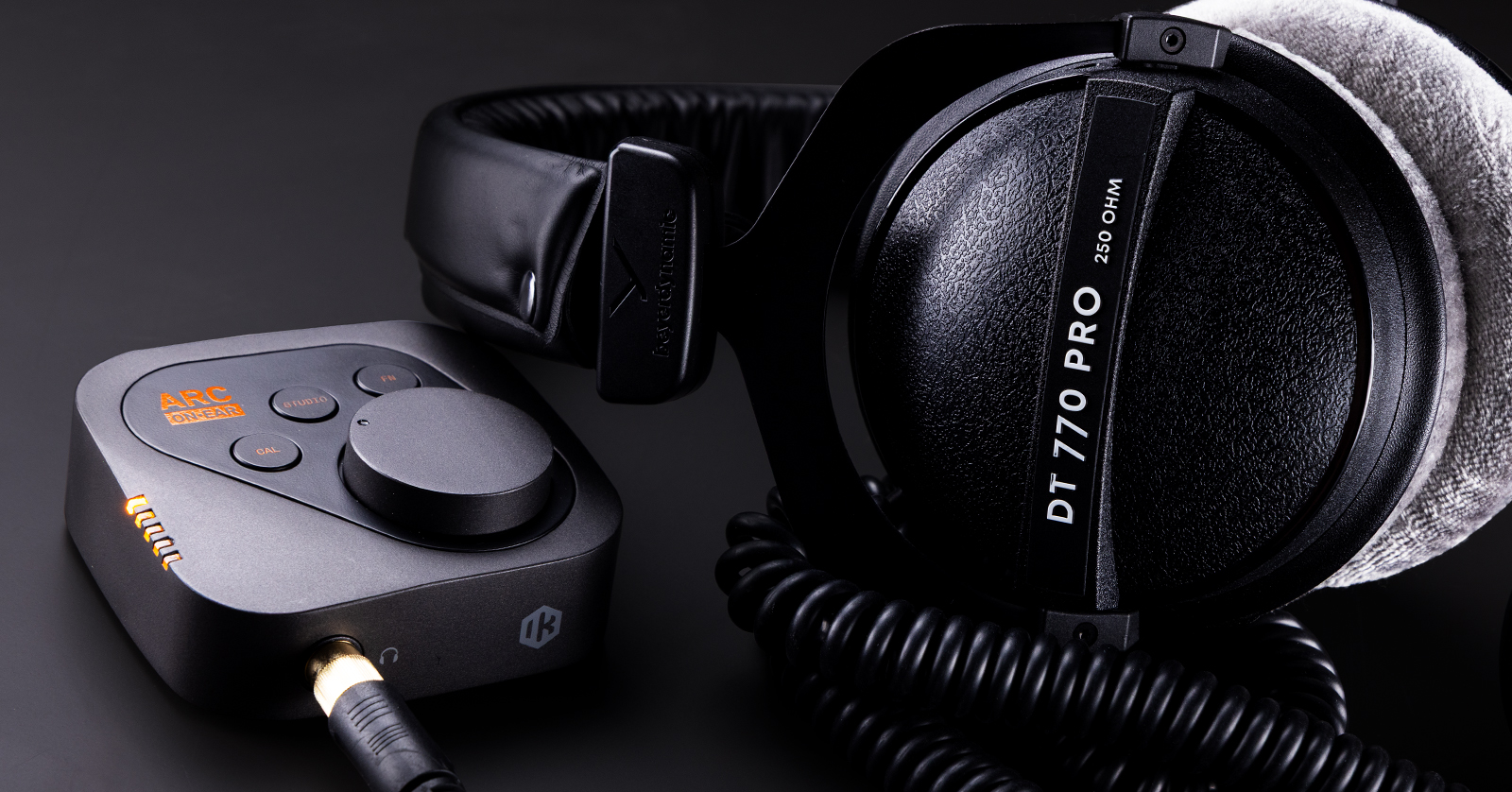
The IK Multimedia ARC ON-EAR system is the perfect tool for any audio engineer mixing on headphones. In this guide, we will show you how to set up and use it for the first time. Follow the sections below to get started.
Register ARC with IK Multimedia
Before getting set up, you first need to register your ARC ON-EAR system with IK Multimedia. Upon registering, you will gain access to the software you need and activate your warranty with IK Multimedia.
- Log in to your IK Multimedia account. If you don’t have an account, then click the red “Register”button on the right, fill out the required information, and then click “Register” again.
- Go to the IK Multimedia Product Manager download page and download the latest version for your OS.
- Navigate to your Downloads folder then locate and launch the installer.
- Follow the on-screen instructions to complete the installation.
Download and install ARC ON-EAR software
Before using the ARC ON-EAR hardware, you must download its companion software. This can be done using the IK Multimedia Product Manager application.
- Launch IK Multimedia Product Manager, log in with your account credentials, and click “REGISTER.”
- Enter the ARC ON-EAR serial number to activate the software then locate the software download from the Hardware tab.
- Navigate to the Downloads folder then locate and launch the installer. Follow the on-screen instructions to complete the installation process.
- If you’re unsure of the download location, then click the Gear icon in IK Multimedia Product Manager. You can view (and change) the default download location of all your IK Multimedia software.
- Connect the hardware to your computer, connect your headphones to the 1/4-inch jack on the front of the device, and launch the software. Once it’s powered on, the hardware should be recognized and show its stored data.
- Use the 3.5mm Analog In jack if you want to send audio through an external audio source such as a mixer, audio interface, phone, or tablet.
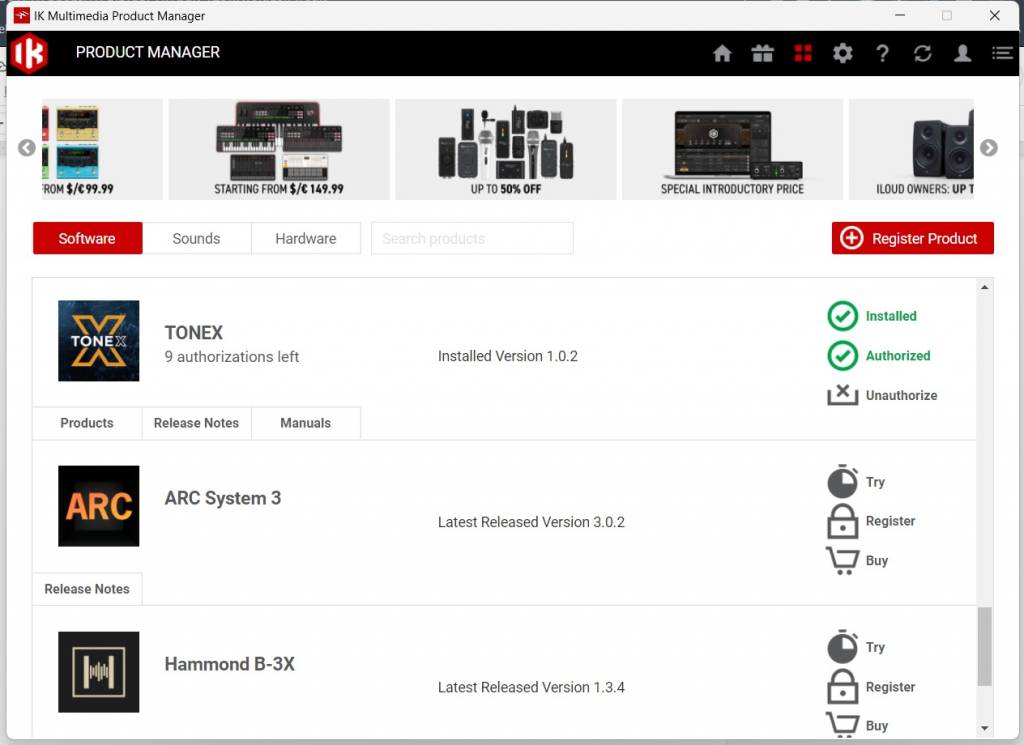
Click the image to download IK Multimedia Product Manager
How to Use the ARC ON-EAR System
Thanks to its intuitive controls and software, the ARC ON-EAR is straightforward to operate. You have total control of your headphones, from emulating different headphones and studio monitors to tweaking the headphone frequency range.

ARC ON-EAR software homepage
- Calibration: Allows you to enable, adjust, and turn off the headphone correction filter.
- Studio Simulation: This turns studio simulation on and off.
- Virtual Speakers: Toggles the studio simulation of the virtual speakers you choose.
- Virtual Speakers (Select Speakers):Opens the drop-down menu with a list of speaker models you can load for studio simulation.
- Headphone Model (Select Headphone): Opens the Headphone Browser window.
- FN Button Assignment: Selects the function you assign to the hardware’s FN button.
These setting changes and any frequency adjustments you make can be saved as a preset. The presets are saved automatically and can be backed up for later recall.
Headphone browser

ARC ON-EAR Headphone browser
When you open the Headphone Browser, you can choose from dozens of headphone models. You can filter the list by type, impedance, and manufacturer.
- Safe Headroom will automatically attenuate the signal when enabled so that the output never clips. The level will differ depending on the headphone model. This is recommended if you are listening to mastered music.
- If Safe Headroom is disabled, then you can manually control the volume, but if you turn it up too much, then it can result in clipping.
Hardware controls
Now that you know how to use the software, here are a few things to remember when using the hardware.
- Press the CAL button to turn the headphone simulation filter on/off.
- Press the STUDIO button to enable/disable the studio room listening filter.
- Hold FN and press the CAL button to change presets. Please note that the preset will take a few seconds to load!
TechTalk: ARC ON-EAR Presentation from IK CTO Davide Barbi
IK Multimedia ARC On-ear Headphone Amplifier Demo
Related Articles
When you need help, Sweetwater has the answers!
Our knowledge base contains over 28,000 expertly written tech articles that will give you answers and help you get the most out of your gear. Our pro musicians and gear experts update content daily to keep you informed and on your way. Best of all, it’s totally FREE, and it’s just another reason that you get more at Sweetwater.com.

