
AlphaTheta OMNIS-DUO Quickstart Guide
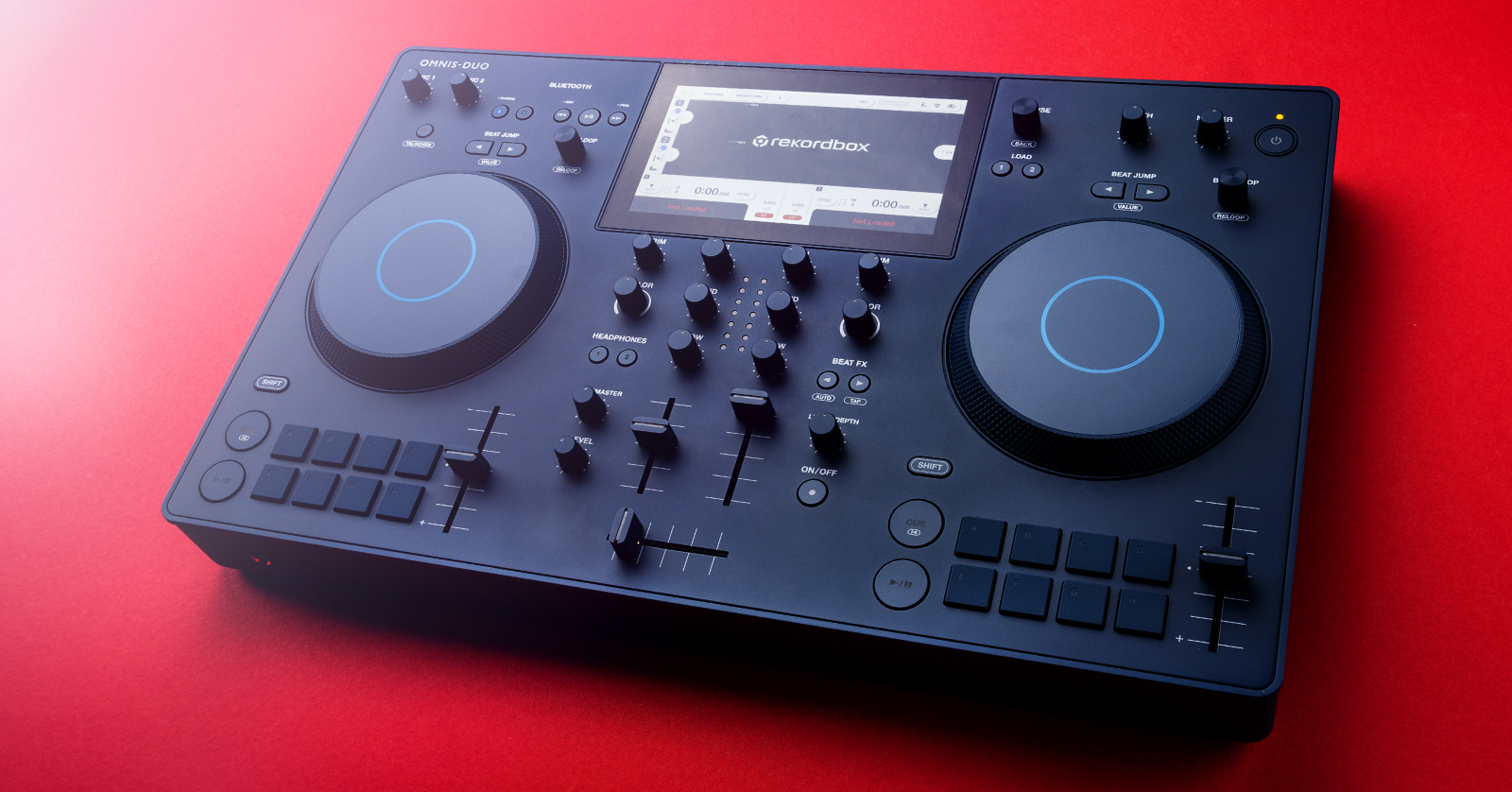
The AlphaTheta OMNIS-DUO is the perfect solution for every DJ. In this guide, we will show you how to register, set up, and use it for the first time. Follow the instructions below to get started.
Register the OMNIS-DUO
Before getting connected, you must register the OMNIS-DUO with Pioneer DJ. Once it’s registered, you will gain access to the necessary firmware and software for the controller to work correctly. Keep your Sweetwater invoice handy; you’ll need to enter some information during registration!
- Log in to your Pioneer DJ account. If you don’t have one yet, create it here.
- Once you’re logged in, click your name at the top right corner of the page, then click the blue Register Product box.
- In the Product Name field, type, then select the OMNIS-DUO.
- Enter the serial number on the bottom side of the unit, plus the purchase date and the place of purchase. Click Register.
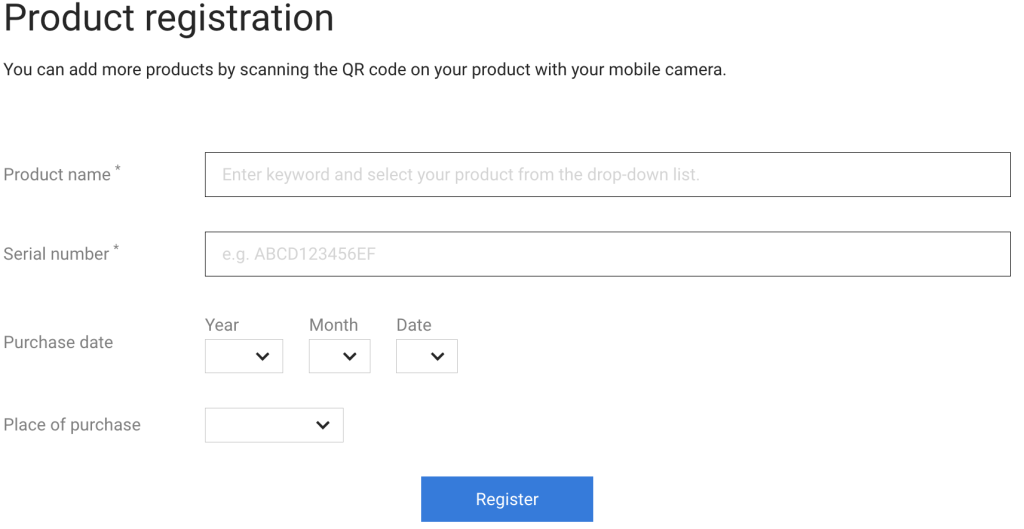
Click the image to register your AlphaTheta OMNIS-DUO
Setup and Connections
IMPORTANT! When you use the OMNIS-DUO for the first time, make sure it is plugged in and fully charged; otherwise, it won’t power on. Also, use any USB-C power supply or battery bank that can supply 45V or more.
The OMNIS-DUO is packed with features, but it has simplistic connections. This reduces the number of cables needed, so you spend more time playing and less time setting up.
- Plug in the OMNIS-DUO and fully charge it.
- Charging will take approximately three hours. If the battery level is too low, it will not power on while plugged in. If this is the case, wait a little while before powering it on.
- Once it’s fully charged, connect the OMNIS-DUO via RCA or XLR to a mixer or speakers and your microphones to the Mic 1 and 2 inputs. You can also pair the OMNIS-DUO with Bluetooth speakers.
- Connect the OMNIS-DUO to your computer using the USB-C port with the computer graphic above it. The controller won’t appear as a device if you connect it using the USB-C power port.
Additional Setup and Connection Tips
Here are a few additional tips and tricks for setting up and connecting your OMNIS-DUO.
- The OMNIS-DUO’s battery life is approximately five hours.
- The controller has an Eco mode that will turn off Bluetooth and Wi-Fi connectivity and will also lower the display’s brightness to reduce power consumption.
- The OMNIS-DUO is class-compliant (plug-and-play) with Mac computers, but if you’re using a Windows laptop, you must first download the OMNIS-DUO driver for it to work correctly.
OMNIS-DUO Bluetooth Pairing
One great feature of the OMNIS-DUO is its Bluetooth connectivity. You can send audio from your mobile device via Bluetooth and stream it through analog speakers or any Bluetooth speaker! This truly makes it a fully portable DJ controller.
Bluetooth Input Setup
NOTE: The OMNIS-DUO can only store one Bluetooth input device simultaneously. If you attempt to pair a second device, the first device will be automatically removed.
For the OMNIS-DUO to accept incoming Bluetooth audio, you must first enable Bluetooth on both your mobile device and the OMNIS-DUO. AlphaTheta has made that simple, too!
- Enable Bluetooth on your mobile device. Check out our Android or iOS guides to learn more.
- Tap the Bluetooth icon in the screen’s status bar at the top of the display to open the Portability options.
- Tap ON for Bluetooth Input, then tap > for Bluetooth Input. The Bluetooth Input Settings will appear.
- Tap Pairing to enter Pairing mode. Alternatively, press and hold the Bluetooth button on the OMNIS-DUO. The OMNIS-DUO will now enter pairing mode.
- Go through the standard Bluetooth pairing process on your mobile device.
- On the OMNIS-DUO, select your source, then choose Send to Deck or Send to Mixer.
Bluetooth Playback Setup
NOTE: The OMNIS-DUO can store up to five Bluetooth output devices simultaneously.
Pairing a Bluetooth playback device with the OMNIS-DUO is straightforward. Like the Bluetooth Input setup (outlined above), the pairing is done in the Portability options.
- Tap the Bluetooth icon on the screen’s status bar at the top of the display.
- Tap ON for Bluetooth Output.
- Tap Add Device, then follow the standard pairing procedure on your Bluetooth playback device.
- Please note that there will be approximately 5- to 7ms of latency if you pair it with a standard Bluetooth speaker. We recommend using AlphaTheta Wave-8 DJ speakers for low latency when streaming.
Working with the OMNIS-DUO
NOTE: The waveform may take a moment to load when adding the track to the deck.
The OMNIS-DUO can spark creativity for anyone out there. Thanks to its ease of use, the OMNIS-DUO lets you interact with your crowd or your friends for an even more enjoyable experience. You just need to set the audio source and load the track to the decks, and you’re ready to perform!
- Insert the USB thumb drive (USB-A) or SD card to its respective slot.
- Tap Storage on the display, then choose the source.
- Tap Browse to search for a song to load to a deck. Alternatively, tap Search and manually enter the song or the artist you’re looking for.
- Select the song you wish to load, then press the deck (1) or (2) you want to load it.
- Press … located next to the right of the deck information to open the load modes: Slip, Vinyl, and Normal.
- If Vinyl mode is enabled, pausing playback will mute the sound. If the source deck is set to Normal mode, it will output sound intermittently (stutter).
- Tap Browse to select tracks during playback.
- If you want to record your set in real time, tap the Rec button, then tap the Rec icon.
rekordbox and Serato Compatibility
The OMNIS-DUO was created with mobile DJs in mind. However, you can connect it to your computer and use it as a standard DJ controller using rekordbox and Serato Lite. As a matter of fact, you must use rekordbox if you want to tempo sync in real time. Check out our rekordbox and Serato guides to learn more about how to use the software!
Disconnecting Storage Devices
Before physically disconnecting the storage device (USB thumb drive or SD card), you must disconnect it within the OMNIS-DUO’s Source options. If you don’t, the drive may be corrupted.
- Tap Source on the home page, then select the source you will disconnect.
- Press USB/SD Card STOP.
- Once prompted, you can physically disconnect the storage device.
Supported Storage and Audio Format Notes
If you’re streaming from a USB thumb drive or an SD card, you first must ensure the storage and audio formats are correct.
Storage format requirements
- FAT16, FAT32, exFAT, HFS+ (NTFS is not supported.)
Audio format requirements
- .mp3, .mp4, .aac, .wav., .aif/aiff, .m4a, .flc/.flac
Folder hierarchy
- A folder can have up to eight levels. We recommend keeping the levels as low as possible, as tracks can take some time to load if they’re contained deep within the main folder directory.
ID3 Tags
- The OMNIS-DUO can read all versions of ID3 tags, as well as meta tags.
Audio file artwork
- .JPG files at 800×800 resolution
Related Articles
When you need help, Sweetwater has the answers!
Our knowledge base contains over 28,000 expertly written tech articles that will give you answers and help you get the most out of your gear. Our pro musicians and gear experts update content daily to keep you informed and on your way. Best of all, it’s totally FREE, and it’s just another reason that you get more at Sweetwater.com.

