
AlphaTheta XDJ-AZ Quickstart Guide
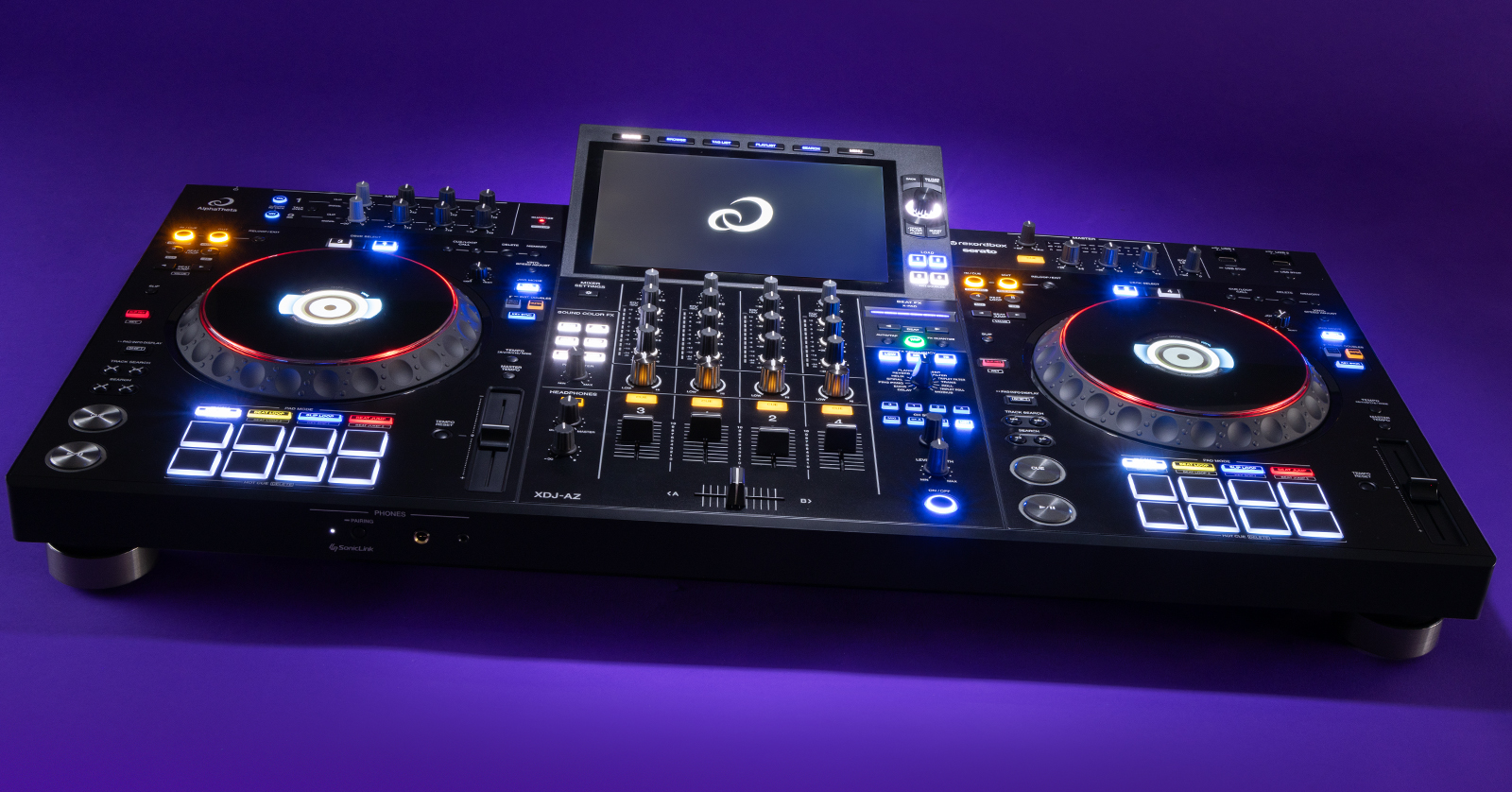
AlphaTheta’s XDJ-AZ is a powerful all-in-one DJ controller perfect for any DJ. In this guide, we’ll show you how to register, navigate, and use the XDJ-AZ for the first time. This article only scratches the surface, so check out the AlphaTheta XDJ-AZ Instruction Manual to learn more! Let’s get started.
Register the XDJ-AZ
Before setting up the XDJ-AZ, you first must register it with AlphaTheta. After registration, you’ll gain access to the necessary firmware and drivers so the DJ controller can function correctly. Keep your Sweetwater invoice handy, as you’ll need it during the registration process!
- Log in to your Pioneer DJ account. If you don’t have one yet, create it here.
- Once logged in, click your name at the top-right corner of the page, then click the blue Register Product box.
- In the Product Name field, type, then select the XDJ-AZ.
- Enter the serial number on the bottom side of the unit, the purchase date, and the place of purchase. Click Register.
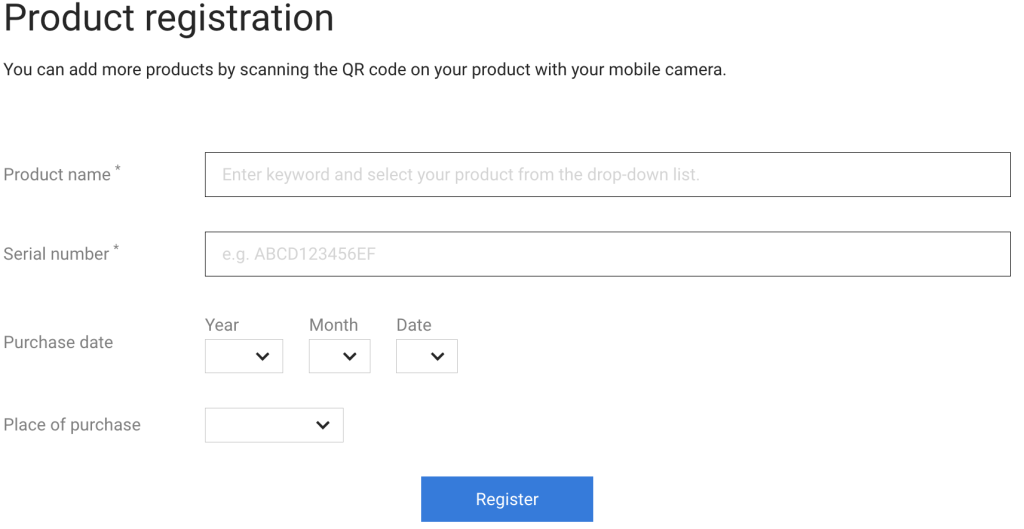
Click the image to register your AlphaTheta XDJ-AZ.
Download Serato DJ and rekordbox
IMPORTANT! Serato DJ will be fully supported in December 2024!
Your XDJ-AZ comes with free copies of Serato DJ and rekordbox. Since the controller is compatible with both applications, no activation is required. Before connecting the controller to your computer, download and install the driver to ensure the applications work properly. Then you’re all set!
WINDOWS PC USERS: If you are running Windows 10 and want to use rekordbox’s Link Export feature, you must download and install the USB Connection (Link Export) driver.
rekordbox for Android and iOS devices
You can download rekordbox on Android and iOS devices. This app allows you to play tracks and stream them directly to the XDJ-AZ.
Simply go to the Google Play Store (Android) or the App Store (iOS) to download the app, then follow the installation instructions.
Update the XDJ-AZ Firmware
AlphaTheta periodically releases firmware that typically adds new features or addresses any bugs present in the current version.
Check the Current Firmware Version
Before updating the XDJ-AZ firmware, check your currently installed version and compare it to the latest version listed on the XDJ-AZ download support page.
- Press and hold the MENU button to open the Utility menu, then touch the General icon on the display.
- Go to the XDJ-AZ Firmware page and compare the version listed to the version currently installed on your DJ controller. If they match, you’re good to go.
Update the Firmware
If the DJ controller’s firmware is outdated, here’s how to update it. Please note that you must use a USB thumb drive formatted to FAT32 to update the firmware. If you’re not sure how to format external storage devices, check out our formatting guide to learn more.
- Download the latest firmware from the XDJ-AZ software and firmware updates page.
- Navigate to your Downloads folder. Extract the file, transfer it to your USB thumb drive, and safely eject the USB thumb drive from your computer.
- Power on the XDJ-AZ while pressing and holding the BEAT SYNC and MASTER buttons. Release them once you see Connect USB storage into top USB port.
- Insert the thumb drive into the top USB port on the XDJ-AZ. The update process will begin automatically.
- Don’t disconnect the thumb drive or power down the DJ controller during the firmware update! Doing so may brick the unit.
- After the firmware update is complete, power cycle the unit and check the firmware version as outlined in the instructions above.
- If the firmware update still doesn’t match, or if you receive a MAIN update file is corrupted warning on the display, repeat the update process.

Click the image to download the XDJ-AZ firmware.
Setup and Connections
The process of setting up and connecting your XDJ-AZ is similar to that of many other DJ controllers, but there are a few things that make it unique.
- Make sure to disconnect any connected USB devices before powering the XDJ-AZ off.
- Before disconnecting USB devices from the rear, press the USB STOP button. This will safely eject devices from the controller.
- You can sync your XDJ-AZ with CloudDirectPlay via Wi-Fi. You can also use Wi-Fi to access your entire rekordbox library without needing to connect the XDJ-AZ to your computer (Link Export Mode) using a PC, a Mac, an Android device, or an iOS device.
- CloudDirectPlay lets you stream music stored directly on cloud-based services, such as OneDrive and Google Drive, to the controller.
- Free Cloud Library Sync subscription plans allow you to sync up to 10 tracks. If you wish to stream more, you must have an active Creative or Professional subscription.
- If you want to connect more than one DJ player (like the CDJ or XDJ) to the Pro DJ Link network, you must use an external Ethernet hub or a router with a built-in switching hub. Check out the Pro DJ Link connection guide to learn more.
Working with the XDJ-AZ
The XDJ-AZ is packed full of features for any DJ out there. We’ll show you how to get you up and running, so make sure to check out the Instruction Manual to learn more!
- Connect the XDJ-AZ to your computer and launch rekordbox (or Serato), then press the Source button. Choose the device where your tracks are stored.
- If you are streaming from the storage device, connect any external USB storage devices to the top-panel USB jacks.
- If you are a Windows PC user, you must download the dedicated XDJ-AZ driver before connecting the controller to your computer.
- Press Browse to pull up the tracks.
- If you want to monitor a track before loading it onto a deck, connect headphones to the controller, press LINK CUE, and touch the displayed waveform.
- Once you have found the track you want, select it, then press the deck number located below Select Deck To Load.
XDJ-AZ Professional All-in-One DJ System | Overview
Related Articles
When you need help, Sweetwater has the answers!
Our knowledge base contains over 28,000 expertly written tech articles that will give you answers and help you get the most out of your gear. Our pro musicians and gear experts update content daily to keep you informed and on your way. Best of all, it’s totally FREE, and it’s just another reason that you get more at Sweetwater.com.

