
AlphaTheta SLAB Quickstart Guide

The AlphaTheta SLAB is a groundbreaking MIDI control surface made with Serato Studio users in mind. In this guide, we’ll show you how to register, set up, and use it for the first time. Follow the sections below to get started.
Register the SLAB
Before getting connected, you need to register the SLAB with AlphaTheta. After it’s registered, you will gain access to the software necessary for the controller to work correctly. Keep your Sweetwater invoice handy; you’ll need to enter some information during registration!
- Log in to your Pioneer DJ account. If you don’t have one yet, then create it here.
- Once you’re logged in, click your name at the top-right corner of the page, and click the blue Register Product box.
- In the Product Name field, type, then select the SLAB.
- Enter the serial number located on the bottom of the unit along with the purchase date and the place of purchase. Click “Register.”
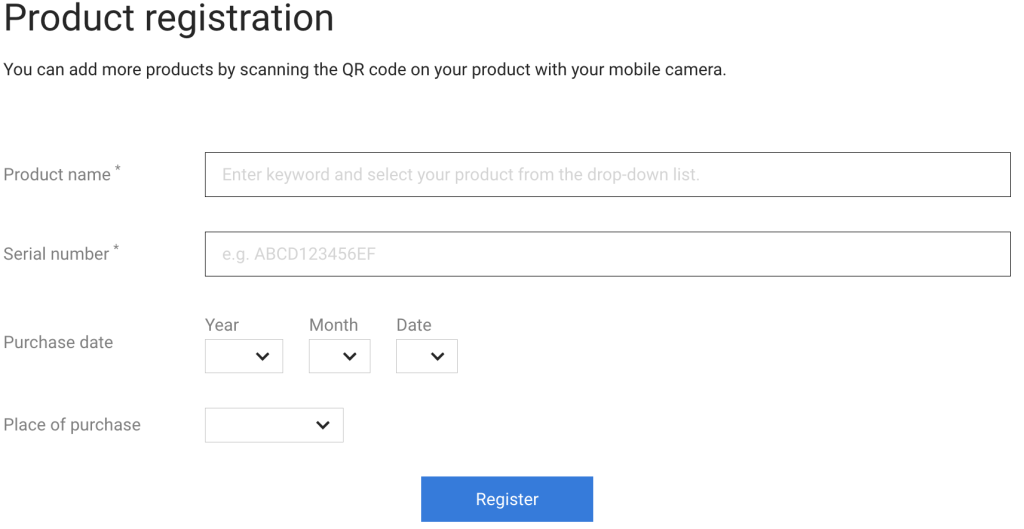
Click the image to register your AlphaTheta SLAB.
Download & Install Serato Studio
IMPORTANT! Serato Studio (as well as all other Serato software) is not compatible with Windows on Arm computers since it utilizes the AVX instruction set.
Each time you connect your AlphaTheta SLAB to a computer, you will unlock the full version of Serato Studio. There’s no additional activation procedure to go through, so you can simply plug in the SLAB and get started!

Click here to download Serato Studio
SLAB Firmware Update
AlphaTheta will release SLAB firmware updates periodically, which will often add new features and address issues present in the current version. Running on the latest firmware ensures optimal performance.
- Connect the SLAB to your computer and launch Serato Studio. You will receive a notification if new firmware is available.
- Click “Visit Download Page” and get the latest version for your OS.
- You can also go to the SLAB download page to download the firmware file.
- Unzip the firmware file in your Downloads folder.
- Disconnect the SLAB from your computer.
- Press and hold the Shift and Record pads while reconnecting the SLAB to your computer. You will enter Update Mode.
- Run SLAB_vxxx.exe (PC) or .app (Mac) and click “Start.”
- Do not disconnect the SLAB from your computer during the upgrade process!
- When done, click “OK.” The SLAB restarts.
- Press and hold Strip Mode to confirm that the SLAB firmware version matches the downloaded firmware file.

Click the image to download the SLAB firmware.
Navigate the Hardware
The AlphaTheta SLAB can be broken down into four sections: Transport, Pads, App Control, and Touch Strip. Within those sections are pads or encoders that control the behavior of the controller and the software.
- The Transport section is straightforward. This is where you will control the playback, library, and scrubbing functions.
- The 16 performance pads control the functions set by one of the four Pad Mode pads above (Trigger Mode, Piano Mode, Deck Select, Scene Select).
- Hold SHIFT and press a pad to access its secondary settings.
- You can edit the EQ, stems, effects, and parameters with the encoders. Press the Encoder Mode pad to change what parameters the encoders control.
- Use the factory-supplied USB-C cable! Using third-party cables may cause latency.
How to Use the SLAB in Serato Studio
You can control almost everything in Serato Studio directly from the SLAB, so creating a song is straightforward.
Create a Beat
Creating a beat is as simple as adding a scene, loading a kit, and pressing Record.
- Press Trigger Mode, press Library, then use the jog wheel or < and > arrows to navigate to Drums in Serato Sample. Press the jog wheel over the selected kit to load it into the project.
- Press Record to start recording. If you wish for the pattern to be longer, then press Scene Size.
- If you press Scene Size after recording, then the current pattern will be copied.
- To add note repeat (e.g., triplet, 16th note) hold Note Repeat while performing. Use the first encoder to change the note repeat rate.
- To add groove, enter Sequencer (SHIFT + Piano Mode), press and hold the pad(s) in the pattern you want to adjust, and use the main knob to nudge the note forward or backward.
- Hold Scene Select and press an empty pad to add a new Scene.
Generate a Random Pattern
Hold SHIFT and press Auto Set to select the genre of the pattern you wish to create. Once selected, press Auto Set to create a random pattern.
You can clear the pattern at any time by holding SHIFT and pressing Delete.
Working with Samples
Working with samples in Serato Studio using the SLAB is easy.
- Hold Scene Select and press an empty pad to create a new scene.
- Press Library, then use the jog wheel or < and > arrows to navigate to Audio Samples in Serato Sample. Hover over the sound to preview and press the jog wheel to select it.
- Once the sample is loaded, press Auto Set to create the cue points. You can delete cue points by holding Delete and pressing the cue point.
- Press Record and start performing.
Stem Separation
One great feature of the AlphaTheta SLAB is stem separation. This means you can separate vocals, drums, bass, and melodies and trigger them individually.
- Create a new scene and locate the sample you wish to separate (as outlined above).
- Press Encoder Mode until you see Deck Stems and press the encoder knobs to turn off the stems you wish to remove.
SLAB Overview—The Serato Studio-Native Pad Controller – YouTube
Related Articles
When you need help, Sweetwater has the answers!
Our knowledge base contains over 28,000 expertly written tech articles that will give you answers and help you get the most out of your gear. Our pro musicians and gear experts update content daily to keep you informed and on your way. Best of all, it’s totally FREE, and it’s just another reason that you get more at Sweetwater.com.

