
Getting Started with rekordbox
rekordbox is one of the best software applications for DJs, so in this guide, we will show you how to navigate and use it for the first time. This article only scratches the surface, so be sure to check out Pioneer’s rekordbox Masterclass video and the rekordbox user guide to learn more! Follow the sections below to get started.
Navigating rekordbox
rekordbox has a user-friendly interface that makes it easy to navigate. You’ll be working with two primary sections: the Player and the music library.
Player
There are three different Player views: Export, Performance (also referred to as rekordbox DJ), and Lighting. This guide will focus on the basics of Export and Performance modes.
- Navigate to the top left of the screen to switch between Export and Performance.
Export
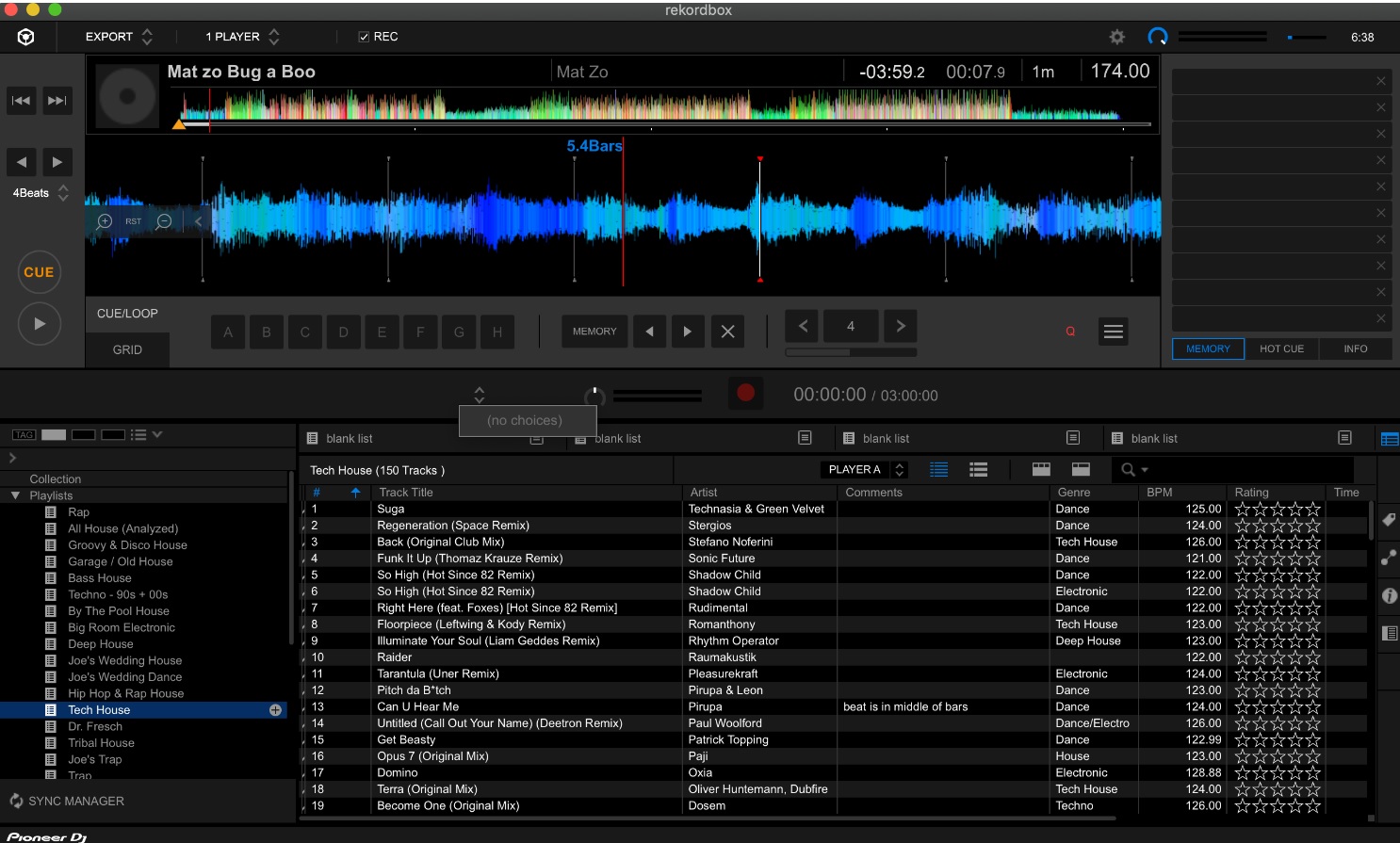
Export mode is used primarily for managing songs, creating playlists, and adding hot points and cue points. As the mode suggests, this is also where you will export all the data to an external storage device.
Performance (rekordbox DJ)
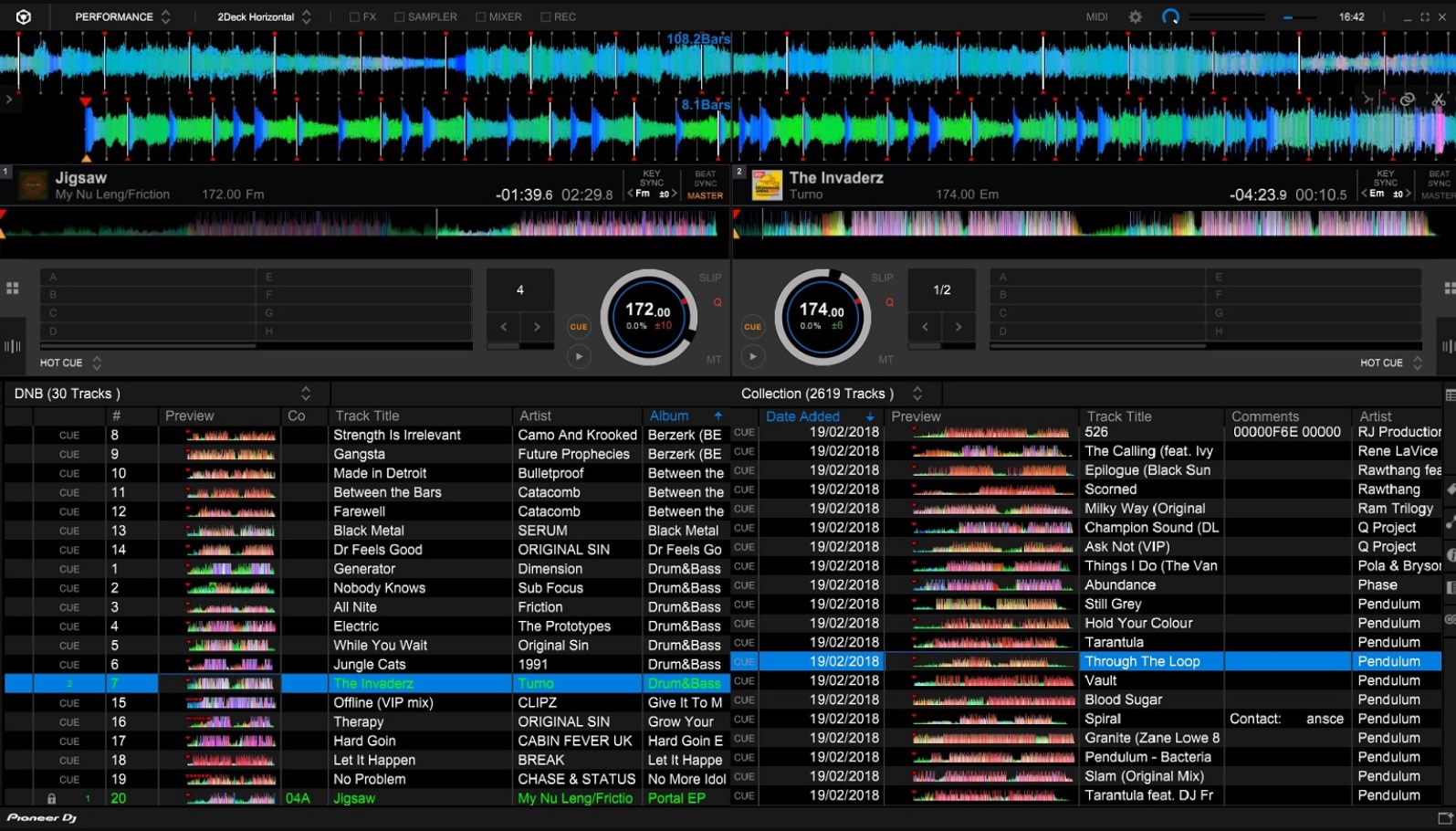
Selecting Performance will take you to an exact virtual layout of your DJ controller. It’s where you can control the parameters of each track and adjust track locations, and it is the main window you’ll be using during performances.
Waveform display
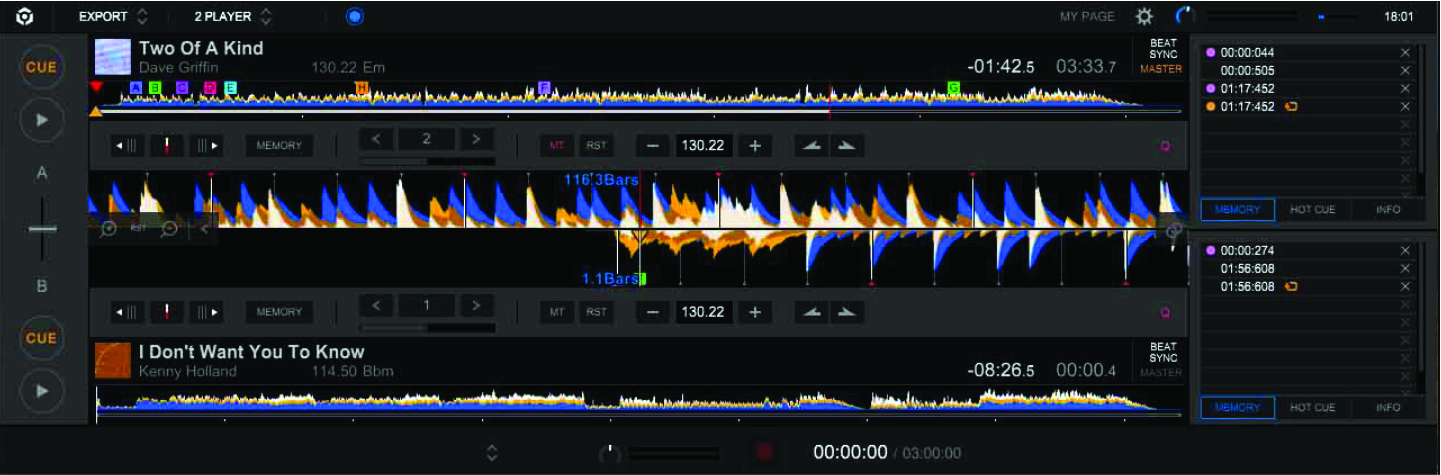
The waveform display is self-explanatory: it’s where you’ll see the track’s waveform. The primary function of the waveform display is to navigate through the song to set cue points.
- Click and drag along the waveform to scrub through the track to help fine-tune the start (or end) point of the song that is currently loaded. Once you’ve selected that point, click Cue/Loop, and within the Cue/Loop panel, click a letter (A-H) to add a cue point.
Adjusting the beat point
When you import music, rekordbox automatically detects the tempo and aligns it to a Grid. When you click Beat Grid, you can view the beat points rekordbox added, which makes it easier to identify the downbeats of a track. However, there may be a time when it’s incorrect. Fortunately, you can manually edit this.
- Click the three vertical lines, select Analyze Track (Normal), then update the tempo range, key, and phrase if necessary. Once analyzed, the new beat grid will appear, indicated by vertical red lines.
- If it’s still offbeat, click and drag to scrub to the closest downbeat, then click the red and white bar button located to the left of the tempo to reset the beat grid.
- Click the Metronome icon to hear a click during playback. This will help you immensely when trying to find the downbeat!
Playlists and folders
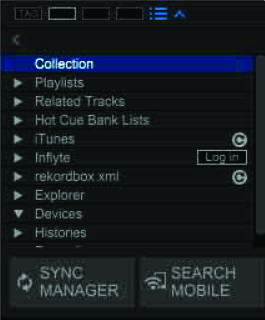
The bottom half of the rekordbox application is where you will manage your music. You can create and manage your playlists and group folders on the left side of the music library. The left panel is dedicated to playlists and folders.
rekordbox allows you to create and organize sets for your gigs. To create a playlist, highlight Playlist and click the + icon. Alternatively, right-click Playlists and then select Create New Playlist.
You can also create folders to help organize your playlists even further. This is particularly useful if you organize music by dates, sub-genres, etc. To create a new folder, right-click Playlist and select Create New Folder.
- We recommend renaming your playlist to something identifiable, such as Rap Set, Dance Set, or Party Mix Set.
- You can create a new playlist inside a folder by clicking the + button. If you have an existing playlist you want to add, click and drag it to the folder where you want to add it.
Intelligent Playlists
One cool feature of rekordbox is the ability to create playlists based on specific parameters. This is especially useful if you have an extensive music library consisting of many different genres. For example, if you want to create a playlist only for slow songs or for a specific genre, you can create an Intelligent playlist instead of searching through your library manually.
- To create an Intelligent playlist, right-click Playlists, select Create New Intelligent Playlist, then enter the parameters to filter your tracks.
Collections
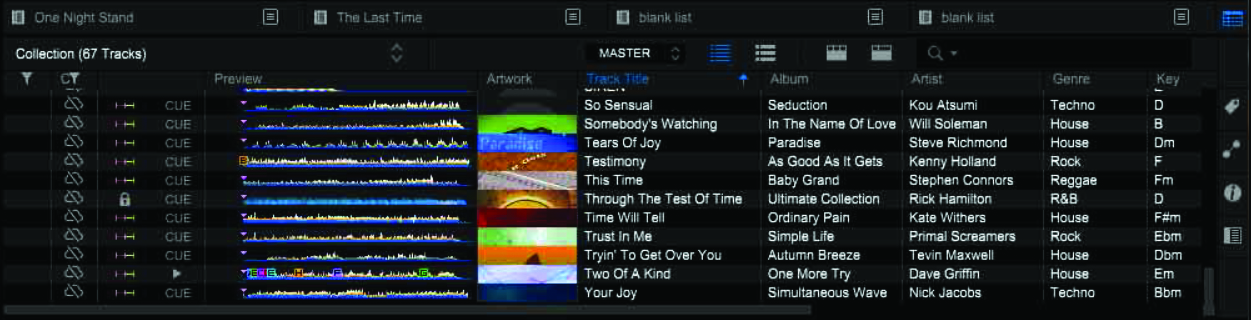
The right panel of rekordbox is dedicated to your music library. Any music you import into rekordbox will be displayed here. You can sort and filter your songs any way you want, which makes it easy to adapt to your workflow.
- Click the gear icon to open rekordbox’s preferences and click View to adjust global view settings.
- Right-click anywhere in the Collection window to add or remove specific attributes you want to see listed. This helps filter out any unnecessary information needed (e.g., album art or date imported).
How to Import Music in rekordbox
Now that you know the general layout of rekordbox, it’s time to import your music! The process is straightforward. We highly recommend your music is stored in one specific place on your hard drive; this makes it much easier to locate everything. Check out our guide on file management to learn more!
- Click File, select Import, then locate the folder where your music resides.
- If you want to import specific songs, open the folder where the songs reside, then click and drag them into rekordbox.
- Once you’ve imported your music, it will then analyze the songs. rekordbox will also scan the song’s key, BPM, genre, etc., based on the file’s ID3 tag.
- Depending on how many songs you import, it may take a little time for rekordbox to analyze them!
Create custom tags
While rekordbox scans for the ID3 metadata, you can create custom tags that you may not be able to add within the ID3 tag (e.g., high energy, situation). This is particularly useful when you’re creating Intelligent playlists!
- To create a custom tag, click the tag icon on the right side of the screen, click +, then enter your tag. Once you’ve added the tag, select the tracks that apply, and click the checkbox to apply the tag.
ID3 tags
rekordbox will analyze your tracks via the ID3 data embedded in the song’s file. This helps identify the song’s information like artist, tempo, genre, etc. If the song doesn’t have any ID3 tags, or if it’s tagged incorrectly, you may be able to edit the tags if necessary. Check out our guide about ID3 tags to learn more!
How to Enable Stems in rekordbox
Stem separation lets you remix parts from your favorite songs to make your set sound unique. In rekordbox, stem separation will split one audio track into three elements: vocal, instrument, and drums. Check out rekordbox’s FAQ page to learn more about stems.
To enable stems, click the Gear (Preferences) icon, select Extensions, then click the STEMS tab. You can then toggle the stem functionality on and off.
- When you’re in the STEMS preferences, go to STEMS Analysis Process and choose Prioritize sound quality. While track loading times may take longer, you will have higher quality stems.
rekordbox ver. 7 Tutorial – Stems
Related Articles
When you need help, Sweetwater has the answers!
Our knowledge base contains over 28,000 expertly written tech articles that will give you answers and help you get the most out of your gear. Our pro musicians and gear experts update content daily to keep you informed and on your way. Best of all, it’s totally FREE, and it’s just another reason that you get more at Sweetwater.com.

