

What Is an ID3 Tag?
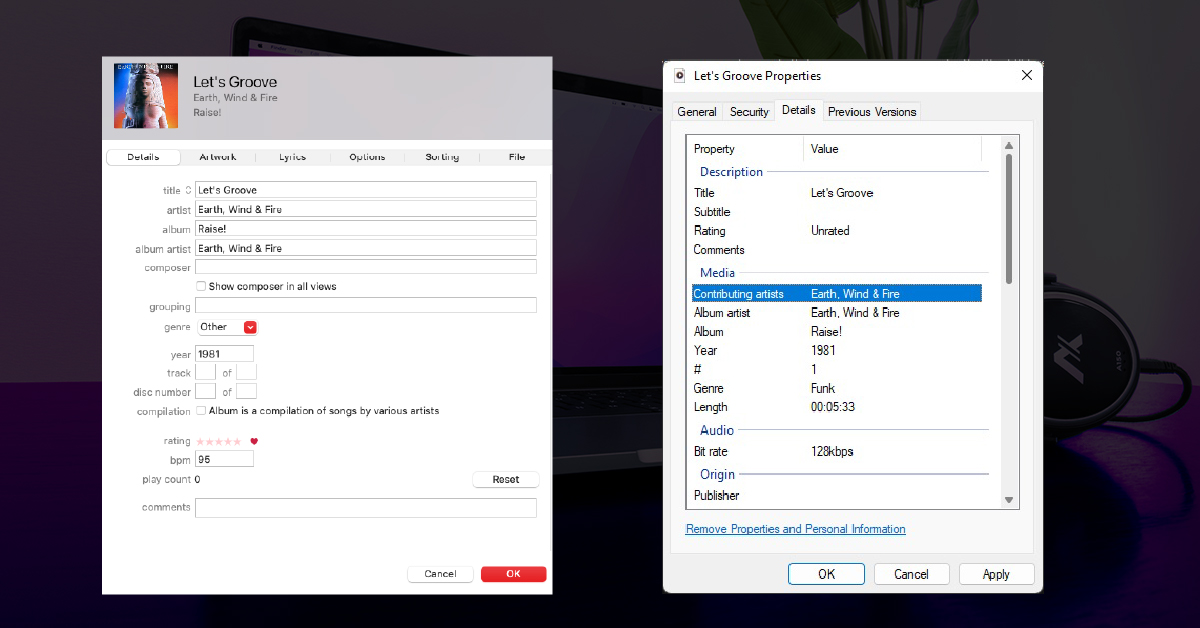
In this guide, we will discuss what ID3 tags are and why you need them. Follow the sections below to get started.
What are ID3 tags and why do I need them?
Before we talk about why you need ID3 tags and how to add or edit them, you first need to know what they are.
ID3 tags are a critical component of audio files, particularly MP3s. In simple terms, ID3 tags are the metadata for an audio file to make sure they are displayed correctly in computer software such as a DAW, a DJ streaming software, or a music streaming app like Apple Music. Some ID3 tag metadata includes the artist, album name, track number, genre, bit rate, and key.
For example, DJs need a very organized library to keep the set going, so things like tempo, genre, and song key play a critical role. Your entire set can lose energy if a song doesn’t have an ID3 tag or if it has incorrect ID3 tags! ID3 tags are also very important to podcasters, as having the show’s name, episode title, and date can help users across all platforms see what they’re listening to.
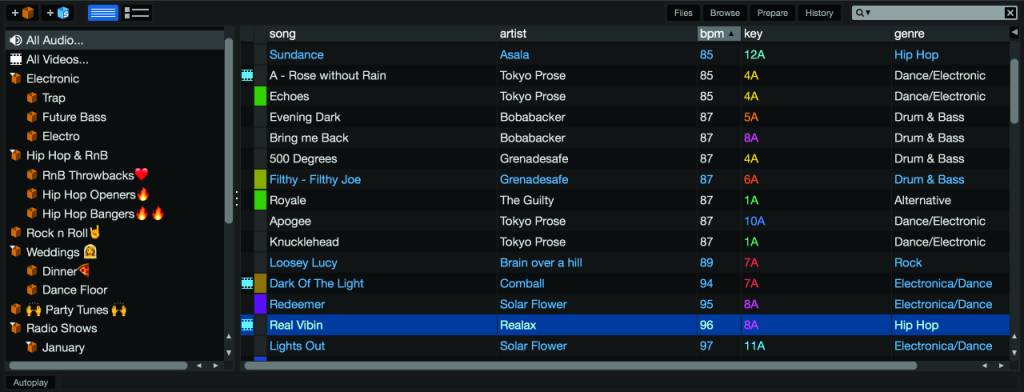
Example of a DJ library
How to add ID3 tags
While there are third-party ID3 editor application alternatives, you can easily edit ID3 tags using native OS apps. If you’re a Mac user, you can edit ID3 tags via Apple Music (formerly iTunes). You can edit ID3 tags directly from the audio file’s properties if you’re a Windows PC user. Some DJ software allows you to edit ID3 tags, but tagging them beforehand will set you up for success. Here is a general guideline on what information your ID3 tag should include:
- Artist
- Title (including any remix)
- Year
- Genre
- BPM
- Release art (optional)
- Vibe (optional)
Adding ID3 tags on Mac
Adding ID3 tags on Mac can be done directly through Apple Music. All the information you’ll need to edit is on the main Details window of the song.
- Launch Apple Music.
- Locate, then right-click, the track you wish to edit.
- Update all the information within the Details tab, then click OK after entering all the information.
- Utilize the Grouping and Comments section to your advantage! This is an excellent opportunity to notate the vibe, subgenre, etc.
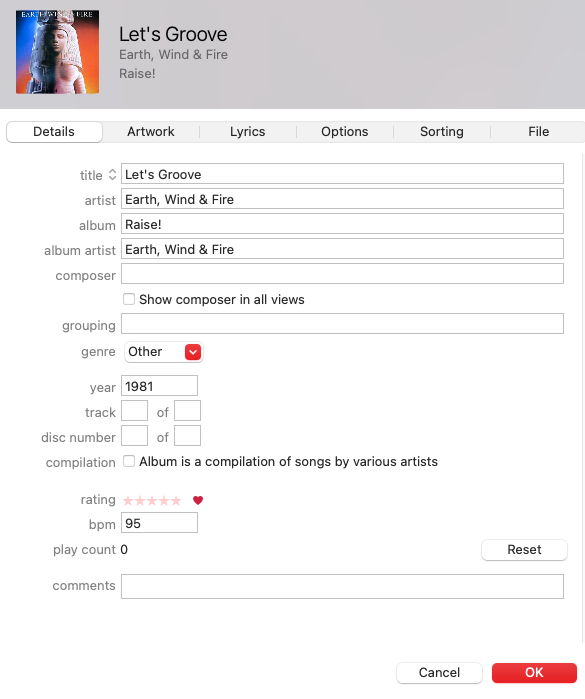
Example of an ID3 tag in Apple Music
Adding ID3 tags on Windows PC
Unlike Mac, where you’ll need music media software to edit ID3 tags, on Windows you can edit ID3 tags directly from the audio file’s properties. Please note that this only works for files that are not DRM-protected, and if DRM protection is enabled, you cannot manually edit any of the metadata.
- Launch Windows Explorer, then navigate to and locate the song you wish to update.
- Right-click the file, then select Properties…
- Click the Details tab, then edit all of the ID3 information.
- If the file is DRM-protected, all data will be grayed out.
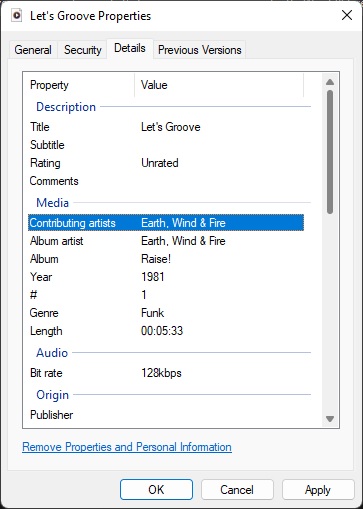
Example of an ID3 tag in Windows PC file Details
When you need help, Sweetwater has the answers!
Our knowledge base contains over 28,000 expertly written tech articles that will give you answers and help you get the most out of your gear. Our pro musicians and gear experts update content daily to keep you informed and on your way. Best of all, it’s totally FREE, and it’s just another reason that you get more at Sweetwater.com.


