
Getting Started with DJ Controllers
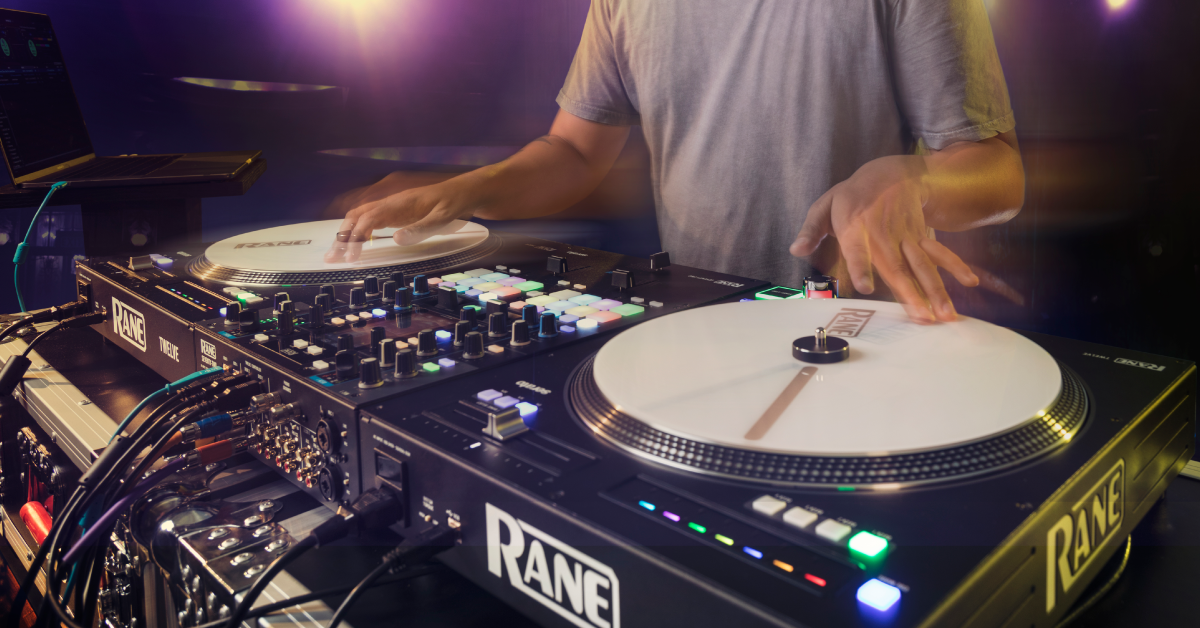
There are many different DJ equipment setups that are all dependent on your venue, such as weddings or clubs. But knowing the basic ins and outs will make you a better DJ. That’s why, in this guide, we’ll talk about the DJ setup fundamentals so you can get up and running in no time! Follow the sections below to get started.
What is a DJ controller?
Before showing you how to set up a DJ controller and incorporate it with your gear, you first need to know what it is and how it works.
Some DJ controllers allow you to stream songs using an external device such as a tablet, external hard drive, or traditional vinyl. Some can even stream via Wi-Fi! However, probably the most common type of DJ controller is one that requires a computer and DJ software, such as Serato or Rekordbox, to operate the controller.
DJ Controllers 101: What to Look For and How to Use Them
Parts of a DJ controller
While there are plenty of different DJ controllers out there, they all have two common parts: the mixer and the platter. Their configuration and features can differ from one another, so we’ll just cover the basics that’ll get you up and running. Once you’re comfortable navigating your controller, you can check out the owner’s manual to dig into the more unique features!
Mixer
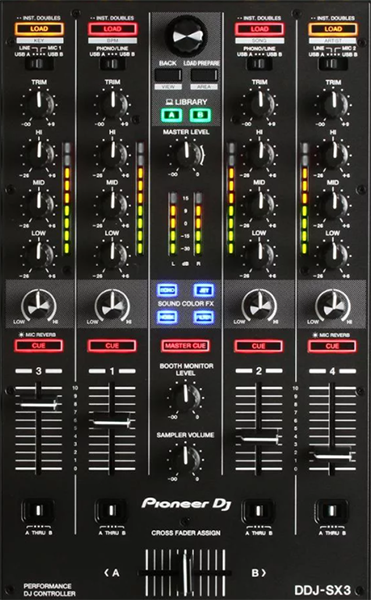
The mixer, located in the middle of the DJ controller, is where you’ll adjust settings such as the EQ, track level, and crossfader. You can also control various audio I/O routings, such as the Headphone, Main, and Boothmixes, and sometimes even work with software control! Here are a few fundamental tips when you’re working with the mixer:
- Play a tune and set your channel fader, sometimes called the “up fader,” to unity, usually marked as 0. There’s no attenuation or amplification at unity, so you have some room to turn it down or up later when you’re in the mix.
- Turn up your gain, located at the top of the channel fader, so you are just barely clipping at the loudest part of the song, and then back it off just a little bit. Set your Main Out just like the channel so it is just below clipping. You don’t want red lights.
- Both channels should be at a consistent level with each other. That way, the performance doesn’t sound unnatural when you’re crossfading.
- Keep your EQ knobs at 12 o’clock and turn off your effects until you need them.
- Make sure that your crossfader slider is dead center! If it’s all the way to the left or right, you won’t get any signal from the respective track.
- Adjust the crossfader’s slope to find the right balance between transition and volume cutoff. You’ll find that a steeper curve will be closer to an ON/OFF switch; this is how scratch DJs work their magic. On the other hand, softer curves allow smoother blends and are more common in techno, house, and styles with long blends.
- Don’t feel as if you have to use everything, especially when you’re learning the ropes. Plenty of DJs don’t use their crossfader at all and choose to use up faders to bring in tracks. There are no crossfaders on most radio station broadcast consoles, and plenty of the high-end DJ mixers are rotary mixers with no crossfader.
- Restraint is a skill, and while effects and filters are fun and let you put your stamp on the mixes, you may find your enthusiasm for your new tools masking both tunes!
How to use the headphone cue
Using the headphone cue is probably one of the first and most important things to learn when you start DJing. It allows you to listen to the upcoming track while the audience only hears the song that’s currently playing. It’s a critical function when you need to set up cues, fine-tune the tempo, and adjust the start- and endpoints. Utilizing the headphone cue can surprisingly make or break a performance. There’s nothing worse than having the perfect song to transition to, only to have it fall in the wrong spot! Headphone cues are straightforward to set up, too, so follow these steps to get it right.
There are generally two ways that cues work. Some brands allow multiple tracks to be cued up at a time, while others allow only one channel to be queued up at a time. They both have advantages, but it’s good to know what you’re working with.
- Turn the channel down on the song you’re about to bring in, then press the channel’s Cue button in the mixer section.
- Make the necessary adjustments like the tempo and cue points.
- If the song that’s already playing is drum-heavy and the one you’re bringing in has more vocals, consider rolling off the lows and highs to get rid of kick and hats for your incoming tune, so it sits better as you blend it in.
- Once everything is set up, then slowly turn that channel’s fader (or knob) up to the right volume over the track you’re transitioning over.
- You can either use the channel’s fader or the crossfader to transition to the other track. It’s all a matter of preference, so practice each way and see what you think sounds best.
Mixer
Smoothing Out Your Mix With Filter & EQ
Mixing with Faders
Mixing with FX
Drop Swapping
Platter
The platters are like a DAW controller because they’re where operations such as transport control and adding track cues are performed. You’ll work with the individual tracks here. Depending on your controller, you can permanently or temporarily adjust the song’s tempo so it can sync up correctly for a smooth transition. Modern DJ controllers also have pads by the platters, which you can assign to control different functions.
- The platters on DJ controllers often serve two purposes: the slider near the platter is usually for pitch control, and the knob on the side is for browser control.
- Not to be confused with the Cue button on the mixer, the Cue button located on the deck will typically set cue points on a track.
- Cue points are markers you place at a specific point in a song you can then use as a starting point. You’ll probably want a cue point at the very beginning of the song so you can jump back there instantly.
- You may also want a cue point at the beginning of the first chorus and maybe at an interesting instrumental section, such as the bridge. But if you miss the mark, there’s usually a SHIFT key that you can hold and hit the pad again to erase the cue point you created.
- The pads, usually located below the platter, can be used in many ways beyond cue points. If your DJ controller has the feature, you can trigger drums or synth samples, assign specific pads to trigger or loop certain cue points, and more!
- Be sure to check out the owner’s manual to see what functions your DJ controller’s pads have and how to assign them.

Platter
The Basics of Scratching w/ DJ Prophet
How to Use Pad Scratch
Continue to
Now that you know how to get started with DJ controllers continue to learn how to set up your DJ controller!
DJ Tips for a High-Energy Live Set
How to Organize Your DJ Library
How to DJ | Beat Matching
Additional resources
Here’s some great tutorial content from our friends at Hercules and Pioneer! While the products used in the videos are different, the same basic concepts apply to any DJ controller you have!
Mixing House Tutorial
Mixing Hip Hop Tutorial
The Anatomy of the Mix w/ DJ Wall-E
Hot Cues Strategy
When you need help, Sweetwater has the answers!
Our knowledge base contains over 28,000 expertly written tech articles that will give you answers and help you get the most out of your gear. Our pro musicians and gear experts update content daily to keep you informed and on your way. Best of all, it’s totally FREE, and it’s just another reason that you get more at Sweetwater.com.

