

Aggregate Audio Devices and Drivers for PC and Mac
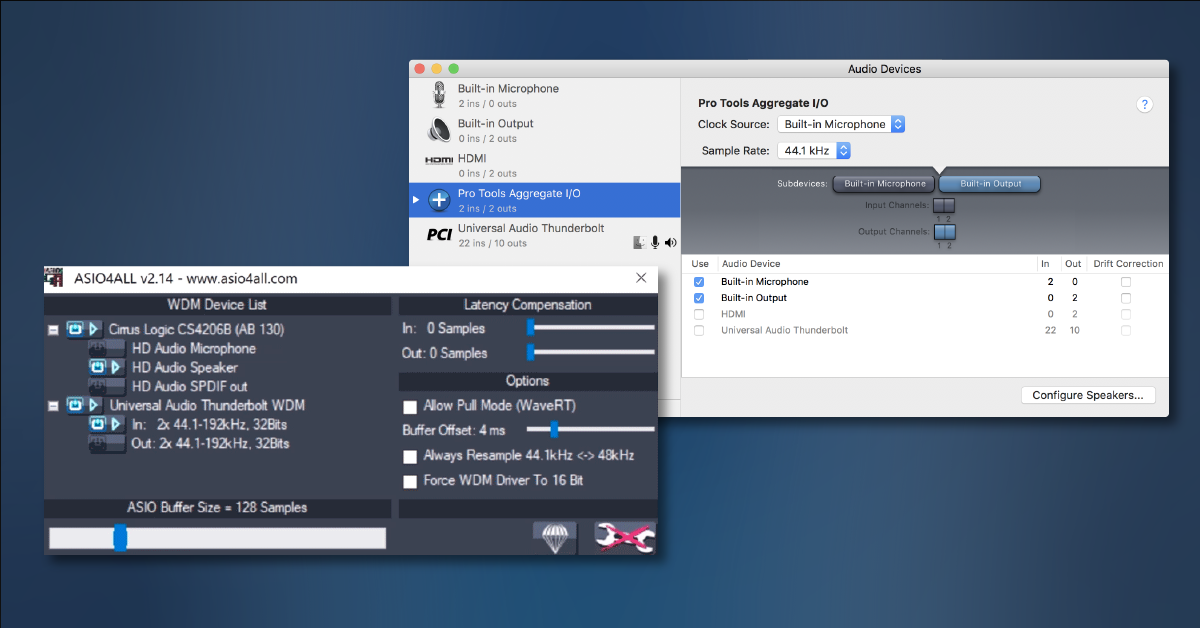
In this guide, we will show you how to manage multiple audio devices as a single aggregate device on Windows and macOS. Whether you have a Mac or PC, you’ll learn how to combine multiple audio devices into one audio device identity. Follow each of the sections below to get started.
What is an aggregate device?
DAWs and audio production software connect with audio devices to record and playback audio. This is typically done through the app’s preferences by selecting it as the audio playback device. You may also need to configure the audio device’s sample rate and routing from the bundled software.
Some apps, like GarageBand or Logic, have an input and output selection that allows you to select the inputs and outputs from one or two different devices. That means you can use a different input device than the output device, although both need to be configured for the same bit depth and sample rate. For other apps, like Pro Tools or Studio One, only one device is selected for audio recording and playback. Most audio interfaces will show up as one device, but others, like the macOS built-in microphone and speakers, will need to be grouped as one device. This is often referred to as an aggregate device.
You can use the Audio MIDI Setup utility app to configure audio settings and manage aggregate devices on macOS. Windows does not have a native tool for grouping audio devices, but ASIO4ALL is a reliable app that can create aggregates. Once the devices are grouped into an aggregate device, you can then launch your DAW, select the aggregate device or ASIO4LL as the playback device, and then configure the I/O settings. Each device’s input and output channels will appear in the same order as when the aggregate device was configured. If using a DAW, the I/O can be fully customized to appear in the order and have the preferred titles.
Aggregate device consistency
Aggregate devices don’t always perform as well as when the interfaces are alone. You might experience digital clock source problems, dropouts, noise, or other playback-related issues. If you experience poor performance or connectivity issues, an aggregate device may not be ideal.
ASIO4ALL for Windows
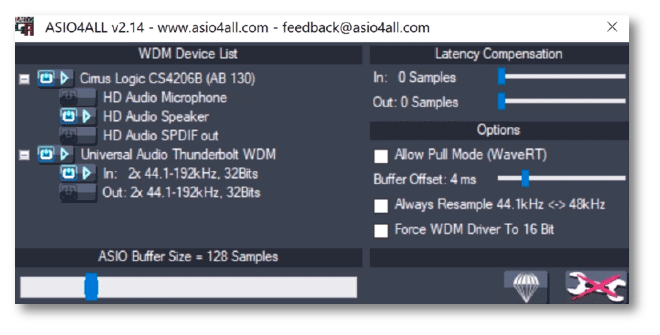
While some apps select input and output devices individually, Windows does not have a native app or utility for creating aggregate devices on Windows. Instead, you’ll need an app like ASIO4ALL, which is a reliable third-party solution to create aggregate devices on Windows. While it’s often used as a better driver for audio software, you can also use it to combine or group multiple input and output devices. They’ll show up in the order you selected them, but you’ll also need to update the DAW’s I/O settings so that the inputs and outputs get the correct audio device channels. Learn more on our ASIO4ALL and Windows page.
PC audio drivers
All of your connected devices will show up in Device Manager. This includes internal and external audio devices, screens and monitors, and other peripherals. If your device does not show up, you may need to reconnect or reinstall the driver. Learn more about the difference between the ASIO, WDM, and MME drivers and how to resolve PC audio issues.
Audio MIDI Setup for macOS
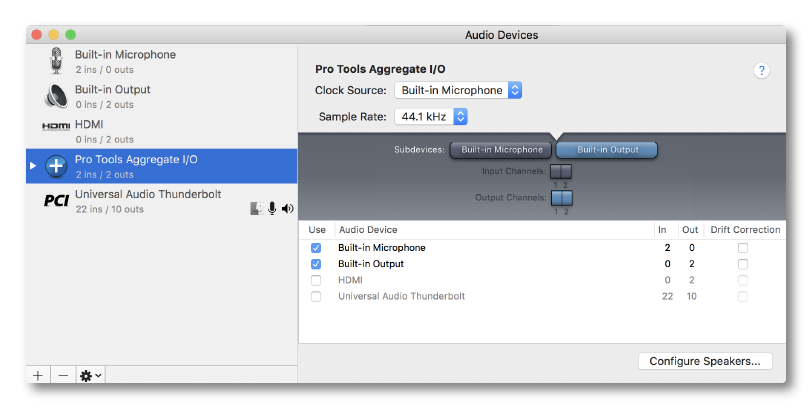
Mac desktops and laptops (macOS) have a native utility for managing audio and MIDI devices called Audio MIDI Setup. You can use it to see each connected audio device and some of its settings, like channel count and sample rate. Many audio devices have their own control panel software for configuring these settings, so Audio MIDI Setup will just show you the basics. If no windows appear after launching Audio MIDI Setup, check that the app appears in the menu bar, click the Window menu, and select the Audio Device window to view it. Once open, you can create a new aggregate device (bottom right + button) and select which devices are used. Learn more on our Audio MIDI Setup for Mac page.
Mac audio device drivers
All of your connected audio devices will show up in the Audio Devices window. That includes built-in microphones and speakers, audio interfaces, HDMI connections, and aggregate devices. If your device does not show up, you may need to reconnect or reinstall the driver. Learn more about how to update drivers on Mac and how to resolve Mac audio issues.
Can I use ASIO4ALL on Mac?
One question that is asked frequently is if you can use ASIO4ALL on Mac. The third-party audio driver software is only available on Windows. Also, Mac solely relies on Core Audio, so ASIO4ALL would be redundant.
Related Articles
When you need help, Sweetwater has the answers!
Our knowledge base contains over 28,000 expertly written tech articles that will give you answers and help you get the most out of your gear. Our pro musicians and gear experts update content daily to keep you informed and on your way. Best of all, it’s totally FREE, and it’s just another reason that you get more at Sweetwater.com.

