
How to Update BIOS
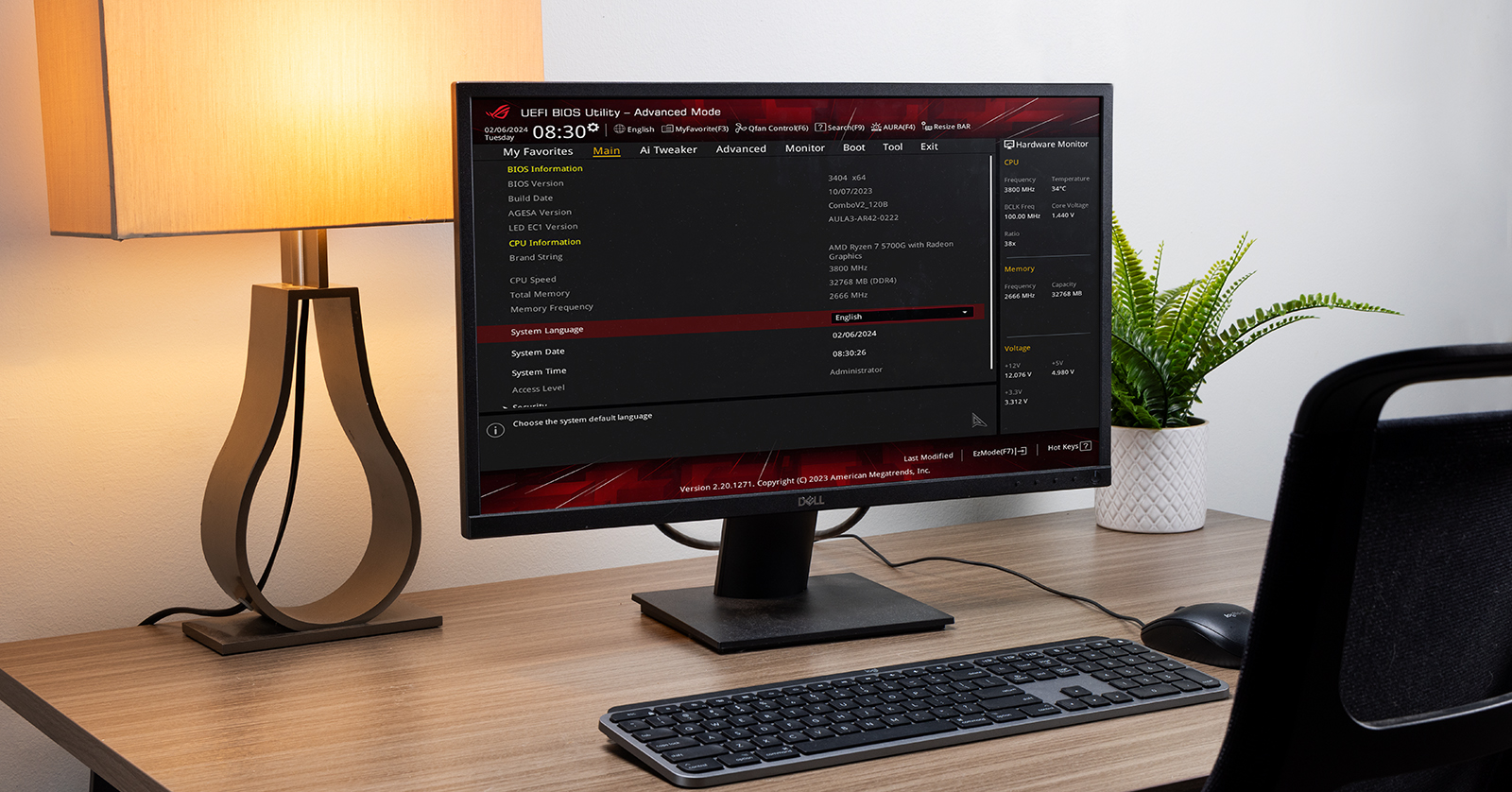
If you have a Windows or Linux PC, you need to know about BIOS. While it may be out of sight and out of mind, updating your BIOS can improve performance and stability and, more importantly, address any bugs or security issues your computer may encounter. In this guide, we’ll discuss what BIOS is and why you should update it. We’ll also provide an update outline.
- What Is BIOS?
- Types of BIOS
- Why Should I Update My BIOS?
- What BIOS Version Do I Have?
- How to Open BIOS
- How to Update BIOS
What Is BIOS?
BIOS (Basic Input/Output System) first appeared in the 1970s and remained the same until UEFI (Unified Extensible Firmware Interface) emerged in the 2000s. These days, almost all PCs are running UEFI. BIOS (UEFI) is a type of firmware that is installed on your computer motherboard’s microprocessor (ROM chip) that assists in hardware-specific processes.
The BIOS instructs your computer on basic hardware functions such as changing the settings on your CPU, hard drive, memory, and fan speed, as well as changing any hardware input control (USB and Thunderbolt). It’s also used to recognize any attached hardware such as hard drives, graphics cards, RAM sticks, and the processor. Furthermore, the BIOS detects, and allows you to rearrange, your hard drive’s boot order, which is essential for loading Windows (Bootstrap Loader).
The BIOS is also important for POST (Power-on Self-Test), which is the initial hardware diagnostic test that makes sure your computer’s hardware is functioning correctly when you turn it on.
It’s important to note that the BIOS is tied to your motherboard and does not rely on the Windows OS. However, if you are having issues with Windows, it may be caused by a specific setting in the BIOS.
Types of BIOS
There are two primary types of BIOS: BIOS (referred to as Legacy) and UEFI (Unified Extensible Firmware Interface).
What’s in a Name?
Before we begin, there’s one thing to note: at its core, UEFI is just a new standard of the BIOS with cosmetic changes and additional features. So, while it’s technically UEFI, even seasoned vets will still call it BIOS.
Legacy
As the name implies, Legacy is the original BIOS and has limited functionality nowadays. For example, it is text based and can only be controlled by a keyboard. It won’t recognize hard drives that are more than 2TB. Also, it does not recognize GUID Partition Table (GPT) disks and Secure Boot, which are minimum requirements for Windows 11. Most importantly, you cannot install 64-bit versions of software.
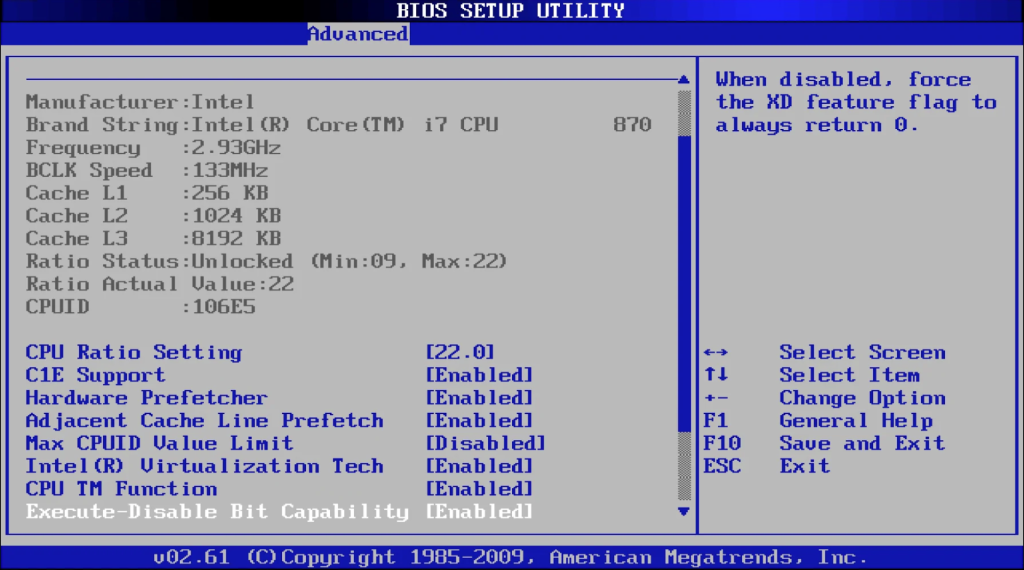
UEFI
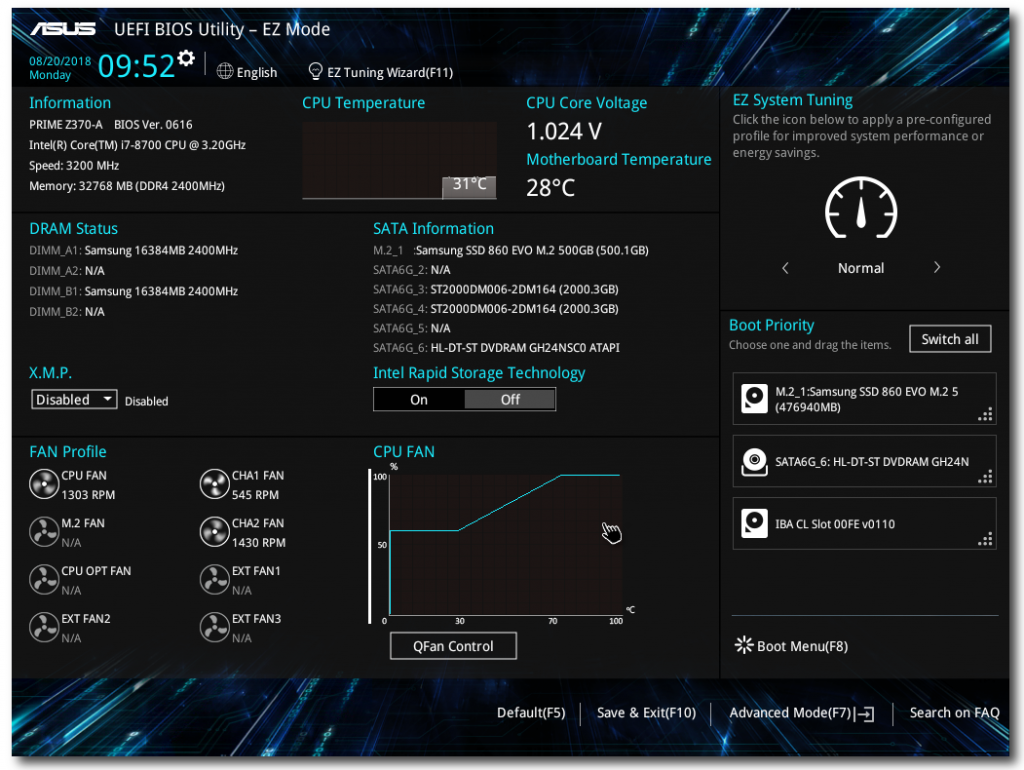
Most, if not all, modern computers use UEFI, which is a sleeker, more powerful version of BIOS. You have keyboard and mouse control, can access hardware settings you couldn’t in the Legacy version, and, most importantly, can adjust security options so your computer is completely safe. Here are just a few of the functions of UEFI that weren’t possible with the original BIOS.
- 32- and 64-bit compatible
- Compatible with storage devices more than 2TB
- Options to enable GPT and Secure Boot, which are minimum requirements for Windows 11
- RAM, CPU, voltage, fan, and other hardware control
Why Should I Update My BIOS?
There are differing opinions on whether you should update the BIOS (UEFI). The answer is “yes and no.” There can be a tremendous upside when updating your BIOS (UEFI). However, it can come with risks. Here are a few reasons why updating your BIOS is good.
New Motherboard
If you’re building a new PC, the motherboard you purchased may have been on the shelf for a bit. From when it was on the shelf to when you’re building your computer, the manufacturer may have released a new BIOS version.
Hardware Performance
If you have an older processor or graphics card but a newer motherboard, you may be missing out on major performance upgrades. For example, an older BIOS version may only allow your computer CPU to access some memory from your graphics card. However, a BIOS (UEFI) update can let the CPU access ALL memory, meaning you’ll see a noticeable difference in graphics performance!
Hardware Compatibility
Some BIOS (UEFI) updates can unlock new features that may make older processors fully compatible. For example, suppose you have an AMD Ryzen A4 processor back from 2017, and you perform a BIOS update. In that case, you can upgrade to the latest, more powerful version without replacing any parts.
Stability Improvements and Bug Fixes
Additional reasons for updating your BIOS are stability and bug fixes. If there are comprehensive reports of a specific issue related to the motherboard, the motherboard manufacturer will release an update (patch) to solve said problem.
Address Potential Security Threats
The most important reason to update your BIOS (UEFI) is to address potential security threats. Hackers can find motherboard vulnerabilities, enabling them to access and steal data, passwords, and encryption keys from others who share the same computer.
What BIOS Version Do I Have?
Before we talk about updating your BIOS (UEFI), you must know how to check what BIOS version you have. If your version matches the latest version on the manufacturer’s website, there’s no need to update.
While you can always open your BIOS to check, the easiest way is through the System Information window.
- Click the Windows icon, then search for and select System Information.
- Look for the BIOS version.
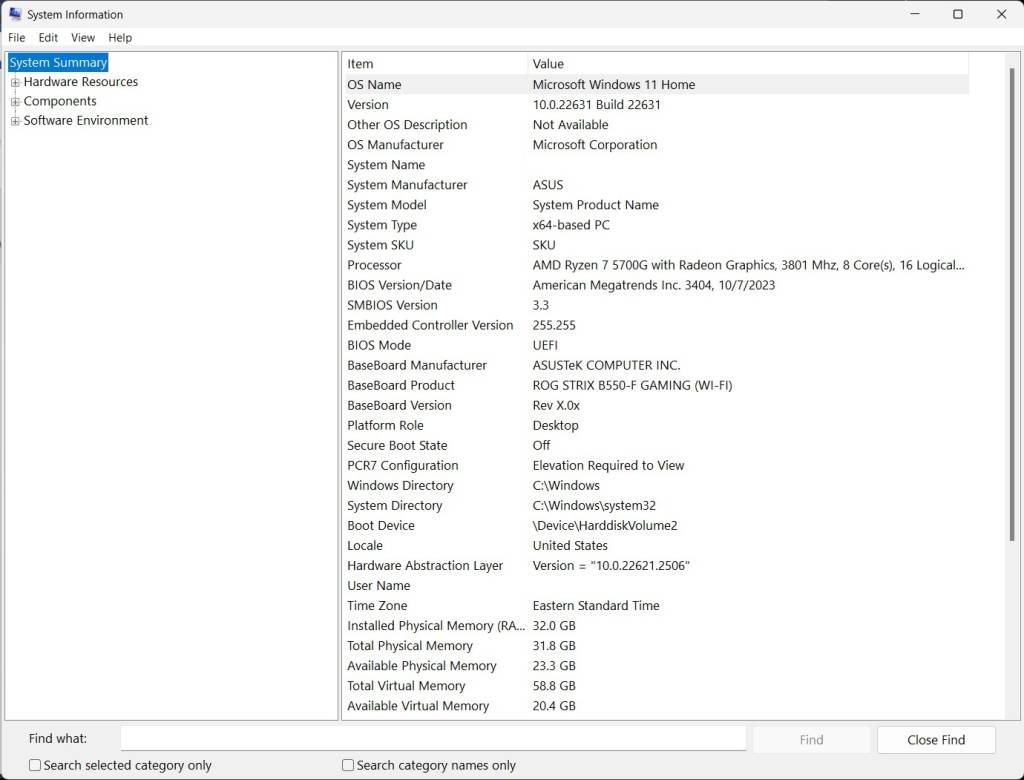
You can view your BIOS version in the System Information window.
How to Open BIOS
There are a few ways you can open your BIOS (UEFI). You can open the BIOS by restarting in Windows or by the classic method of repeatedly pressing a specific key on your keyboard when your computer boots up.
Open BIOS in Windows
If you’re already signed into Windows and want to go straight to the BIOS (UEFI), follow this procedure.
- Click the Windows icon, then type and select Advanced startup.
- Click Restart Now.
- Click Troubleshooting, select Advanced options, and click UEFI Firmware Settings.
Open BIOS with BIOS Keystroke
IMPORTANT: There’s a limited time from when you turn on your computer to when Windows loads. To ensure you get into the BIOS without needing to restart, follow the tried-and-true method by repeatedly pressing the specific key as soon as you turn on the computer. This ensures you get into the BIOS.
Depending on your computer/motherboard brand, you must press a different BIOS key to open the BIOS. Here is the comprehensive list of BIOS keystrokes by manufacturer.
- ASRock: F2 or DEL
- ASUS: F2 for all PCs, F2 or DEL for Motherboards
- Acer: F2 or DEL
- Dell: F2 or F12
- ECS: DEL
- Gigabyte/Aorus: F2 or DEL
- HP: F10
- Lenovo Laptops: F2 or Fn + F2
- Lenovo Desktops: F1
- Lenovo ThinkPads: Enter, then F1
- MSI: DEL for motherboards and PCs
- Microsoft Surface Tablets: Press and hold volume up button
- Origin PC: F2
- Samsung: F2
- Toshiba: F2
- Zotac: DEL
How to Update BIOS
Now that you know the ins and outs of the BIOS and how it works, it’s time to learn how to update it. If you feel uncomfortable updating the BIOS, take it to a computer shop or a qualified PC tech. Follow the motherboard manufacturer’s update procedure carefully, and take your time! Make sure also to have a copy of the motherboard’s user manual.
IMPORTANT!
Before we begin, it is critical to know that if a BIOS update is done incorrectly or if there’s a power failure during the BIOS update, you may brick your computer, and it will no longer function or work correctly! The BIOS update process may take a little time, but do not step away from the computer.
- Insert a USB thumb drive that has been formatted to FAT32. Make sure you back up any data before formatting, as you will lose all data when formatting!
- Go to your motherboard manufacturer’s support page, locate your model, and look for its download page.
- Download the latest BIOS file. Download the readme file, as well!
- Navigate to your Downloads folder, then extract the .zip file.
- Depending on the manufacturer, you may need to go through additional procedures, such as renaming the file. Please review the motherboard manufacturer’s process!
- Transfer the BIOS file to the USB thumb drive, then safely eject it.
- Insert the thumb drive into your computer, then launch into your BIOS (UEFI). Motherboards often have a USB slot dedicated specifically for BIOS updates, so make sure it’s connected to that port!
- Launch the BIOS update or flashing tool, select the BIOS update file, and begin the update process.
- Your computer should automatically restart after the BIOS update process, depending on the motherboard manufacturer’s BIOS update process.
Related Articles
When you need help, Sweetwater has the answers!
Our knowledge base contains over 28,000 expertly written tech articles that will give you answers and help you get the most out of your gear. Our pro musicians and gear experts update content daily to keep you informed and on your way. Best of all, it’s totally FREE, and it’s just another reason that you get more at Sweetwater.com.

