
Installing and Using ASIO4ALL for Windows
Getting started with ASIO4ALL
When it comes to recording projects, a smooth and undisturbed workflow is very important. That is why, in this article, we’ll show you how to download and install ASIO4ALL and configure it with your audio interface. Follow the instructions below to download, install, and configure ASIO4ALL.
- What is ASIO4ALL?
- How to download and install ASIO4ALL
- How to set up your interface and DAW with ASIO4ALL
What is ASIO4ALL?
Most DAW’s require using an ASIO driver, which helps your computer communicate with connected audio devices correctly and provide low latency recording,. ASIO Drivers will bridge the gap between your computer’s sound card and your DAW. If you don’t own an audio interface, or if your interface is class-compliant (no native ASIO driver), you will want the third-party driver called ASIO4ALL. It’s also a very handy troubleshooting tool if you’re having issues with your sound devices or a manufacturer’s ASIO driver. Check out our guide to learn more about ASIO and other Windows audio drivers.
The instructions below are broken down into three sections. In the first section, you will download and install ASIO4ALL for Windows. Then, you will configure your audio device in ASIO4ALL’s Offline Settings, and in the last section, we’ll explain how to update your DAW’s playback device so that ASIO4ALL is used.
How to download and install ASIO4ALL
To begin, download the ASIO4ALL driver from the ASIO4ALL website. Next, open your Downloads folder and run the installer. Take a look at the instructions below to install ASIO4ALL.
- Go to www.asio4all.org.
- Click on the latest version listed, scroll down and click the orange Download button.
- Open your downloads folder, double click the ASIO4ALL.exe installer, and follow the on-screen instructions.
Off-Line Settings
Be sure to check Off-Line Settings when you get to the Choose Components portion of the installation process. This will allow you to configure ASIO4ALL when you’re not using your DAW.
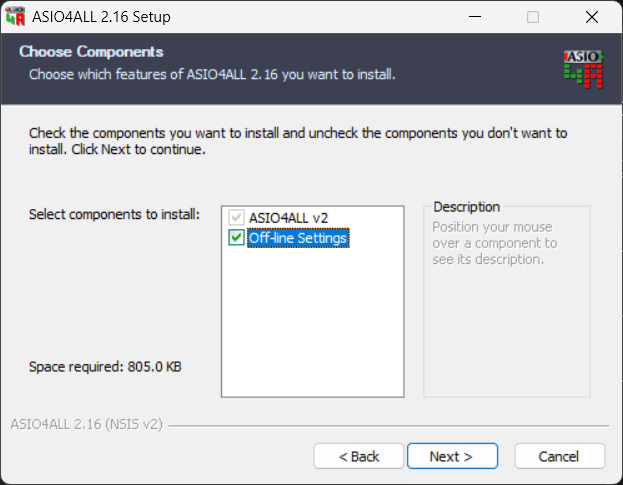
Check the Off-Line Settings box during the installation process.
How to set up your interface and DAW with ASIO4ALL
Now that you’ve installed ASIO4ALL, you’ll need to configure your interface in order to get sound out of your DAW and minimize latency. To do this, open the ASIO4ALL Offline Settings and select your interface. Then, select ASIO4ALL as the default playback device in your DAW. Follow the steps and the GIF below.
- Go to the Windows Start Menu and open ASIO4ALL Offline Settings.
- Select your interface by clicking the button next to it. It will light up blue when selected.
- Open the input/playback settings menu of your DAW and select ASIO4ALL as the input/playback device. See below for your DAW settings menu.
Adjust the buffer size!
You’ll also want to adjust your buffer size in this window by adjusting the slider bar on the right. That way, you get the right balance of low latency and computer processor workload. To learn more, you can read about buffer size settings in this article.
Find the input/playback settings device in your DAW
- Ableton: Options > Preferences > Audio
- Cubase: Devices > Device Setup > VST Audio System and select your device
- Digital Performer: Setup > Configure Audio System > Configure Hardware Drivers
- Reason & Record: Reason/Record > Preferences > Audio
- Sonar: Edit > Preferences
- Studio One: Studio One > Options > Audio Setup
- Pro Tools: Setup > Playback Engine
- FL Studio: Options > Audio Settings
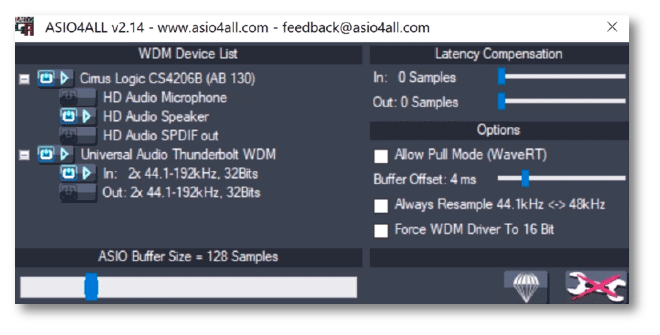
Configuring ASIO4ALL to use your computer’s sound card, external audio interface, or combination of the two.
Related Articles
When you need help, Sweetwater has the answers!
Our knowledge base contains over 28,000 expertly written tech articles that will give you answers and help you get the most out of your gear. Our pro musicians and gear experts update content daily to keep you informed and on your way. Best of all, it’s totally FREE, and it’s just another reason that you get more at Sweetwater.com.

