
Audio MIDI Setup for Mac
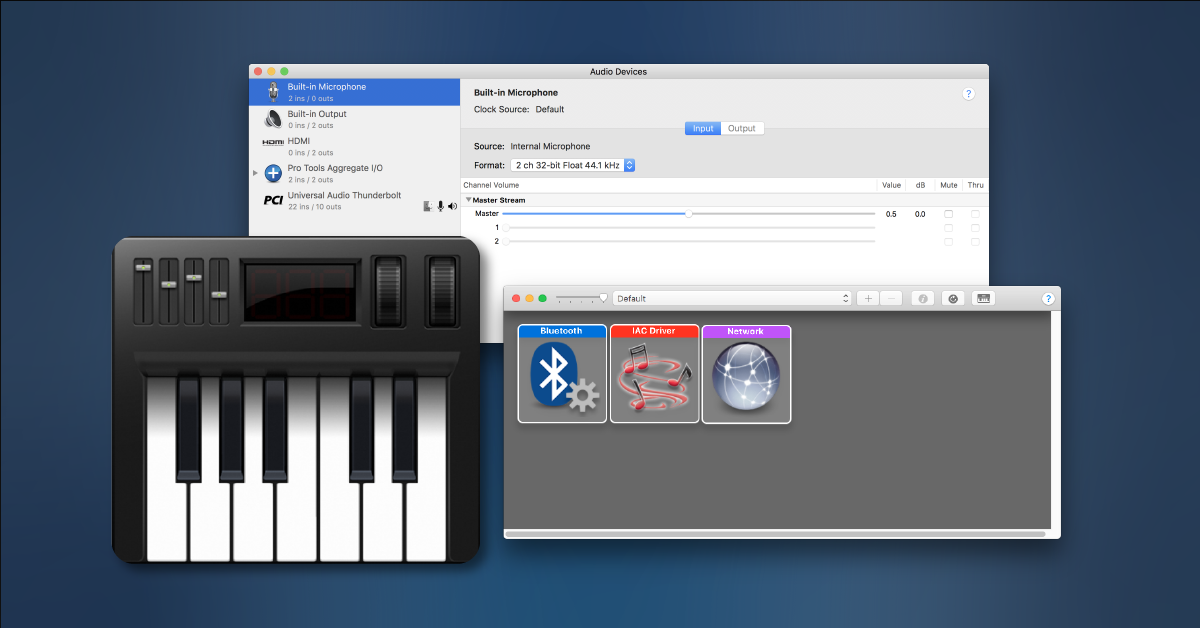
In this guide, we will show you how to use the Audio MIDI Setup utility on macOS. That means you will learn how to manage audio and MIDI devices, as well as how to create aggregate audio devices and test MIDI signals. Follow each of the sections below to get started.
What is Audio MIDI Setup?
Audio MIDI Setup is the native audio and MIDI utility app for macOS. You can see each connected device and some of its settings. Many audio devices have unique control panel software, so Audio MIDI Setup will just show you the basics. The MIDI window is similar, but can also show each devices’ input and output connections. When you launch Audio MIDI Setup, you may see one or more windows, but you may see no windows at all. If that’s the case, open the Audio Device and MIDI Setup windows from the Window menu.
Core Audio and MIDI drivers
Core Audio is what handles each application’s macOS digital audio and MIDI needs. If a connected audio or MIDI device is class compliant, Core Audio will take over and make the device work on macOS. Devices that require a unique driver won’t work correctly until their required software is installed.
- Select your default audio device(s).
- Adjust the sampling rate or bit depth.
- Route signals to audio device outputs for stereo, surround, etc..
- Create an aggregate audio device.
- Configure MIDI connections.
Audio Device Setup for Mac
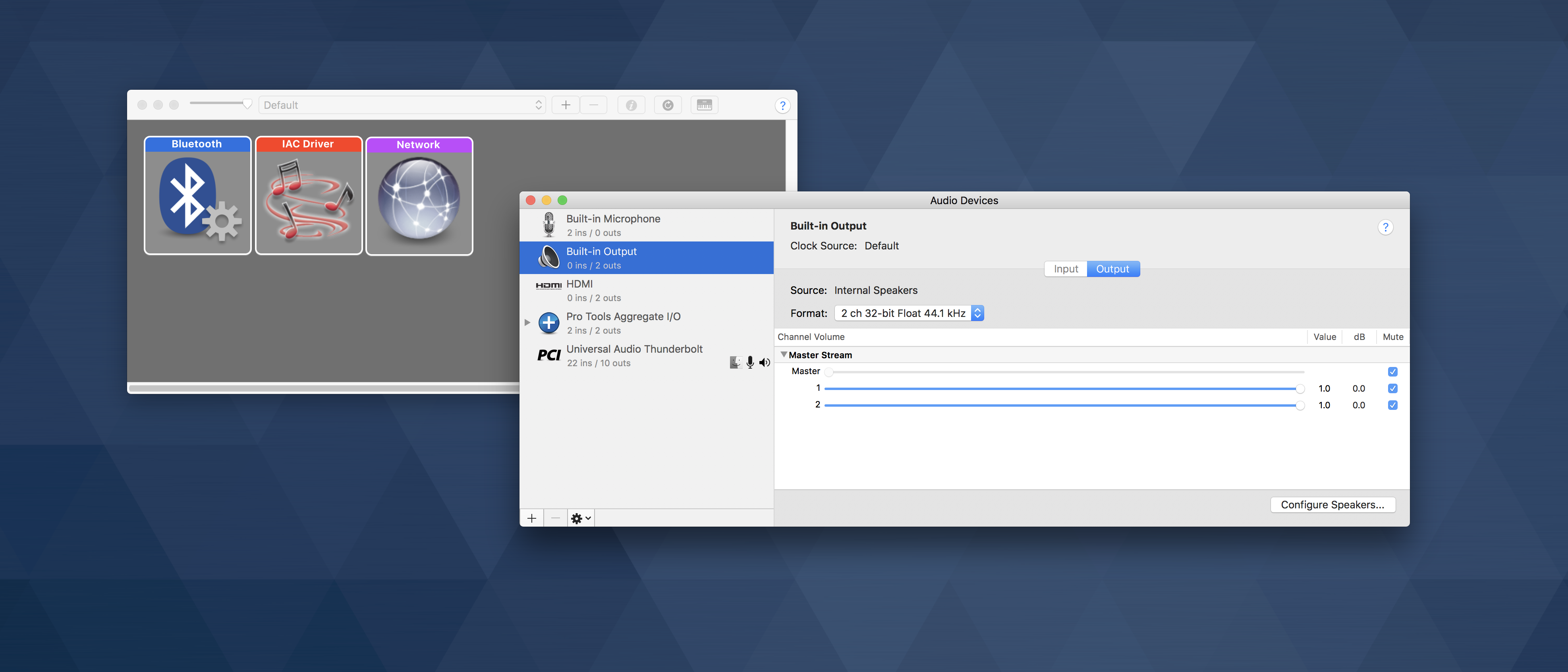
You can access the sound settings on Mac computers from a few locations. The important part to remember is that the Sound preferences are different than Audio Devices and MIDI Studio windows. Sound preferences are for selecting which audio device to use. The Audio Devices window is for other tasks, like changing the sample rate or configuring aggregate devices. If your audio device shows up here, that means it will be selectable from your DAW or audio production software.
- Sound settings: System Preferences > Sound or click the speaker icon in the menu bar.
- Audio and MIDI device settings: Applications > Utilities > Audio MIDI Setup
How to create an aggregate audio device on Mac
DAW and audio production software must connect to an audio device to stream audio. This is usually done through the app’s preferences by selecting it as the audio playback device. Some apps, like Garage Band or Logic, use two selections for input and output. That means you can use a different input device than the output device, although both should be set to the same bit depth and sample rate. For other apps, like Pro Tools or Studio One, only one device can be selected to stream audio. If your audio device appears as two separate devices, or you want to combine two devices into one, they will need to be combined grouped as an Aggregate Device.
- Click the + button and select Create Aggregate Device.
- Select the devices to include within the aggregate device:
- Each device’s input and outputs will appear in the order they’re selected.
- One device will be the Clock Source and the others will have Drift Correction enabled. This is not necessary if they are already synchronized via Word Clock or another digital connection.
- Configure your software’s I/O settings to align with the Aggregate Device’s input and output channels.
MIDI Studio setup for Mac
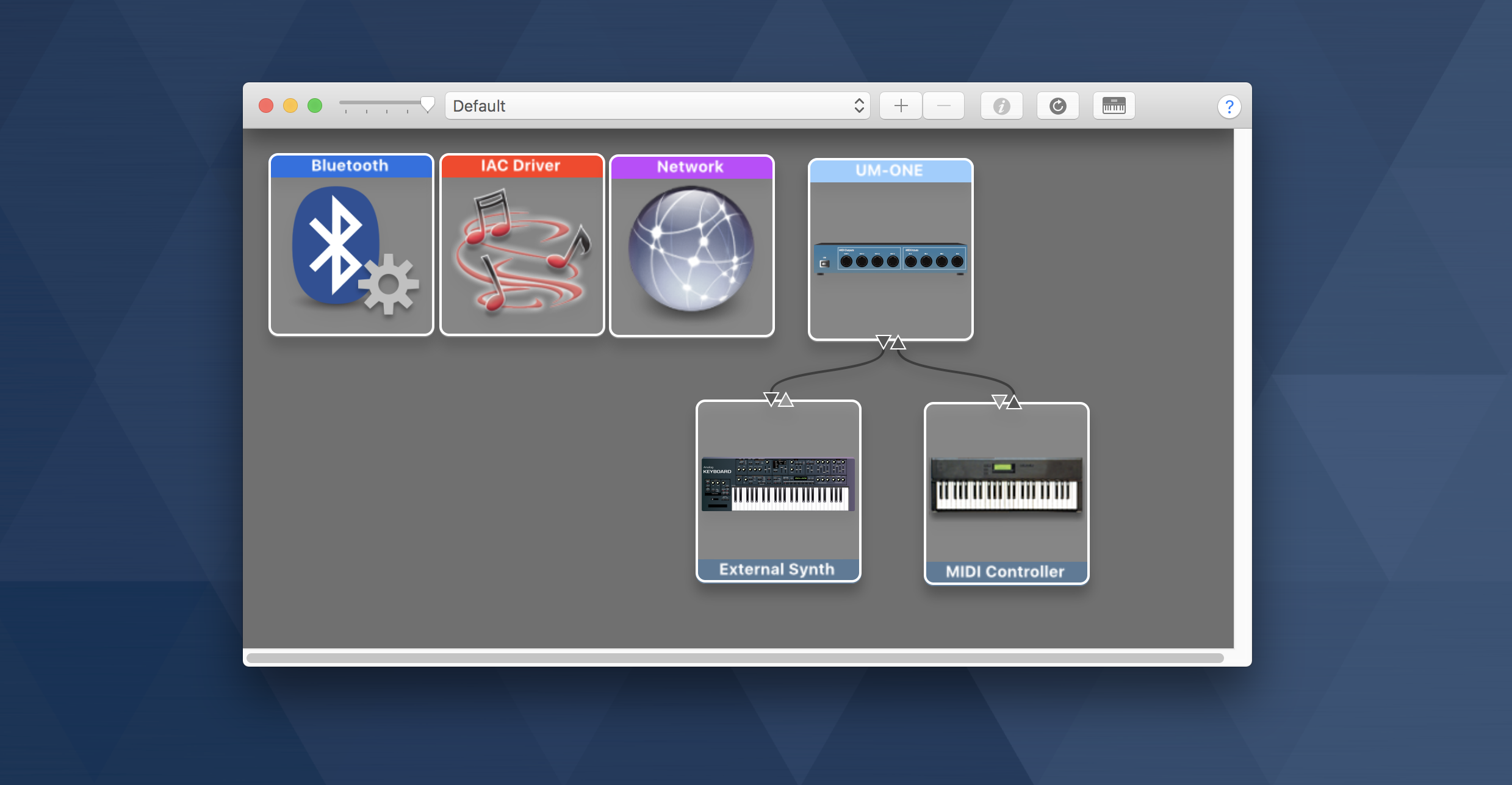
MIDI devices are configured in the MIDI Studio window of Audio MIDI Setup. Some are class compliant and will appear right away, while others aren’t and require third-party driver installation before they can be used. Once connected, your device will appear with its name and image. Essentially, if it shows up that means the MIDI device is selectable within DAW or audio production software.
How to set up external MIDI devices on Mac
MIDI devices show up in the MIDI Setup window when connected to the computer via USB, but not when connected by MIDI cables. MIDI devices connected to MIDI ports of another device will transmit MIDI signal but are not identified in MIDI Studio until you’ve created a virtual identity. While it may still work by selecting the generic MIDI port titles, it makes more sense to select a title named after the connected device. You do that by creating a virtual identity for each external devices.
- Click the + button to create a New external device.
- Connect the virtual identity to the port by clicking the New external device’s output port and then the MIDI interface’s input port.
- Double-click the New external device to give it a name and update its image.
When you need help, Sweetwater has the answers!
Our knowledge base contains over 28,000 expertly written tech articles that will give you answers and help you get the most out of your gear. Our pro musicians and gear experts update content daily to keep you informed and on your way. Best of all, it’s totally FREE, and it’s just another reason that you get more at Sweetwater.com.

