
Yamaha MODX Setup Guide
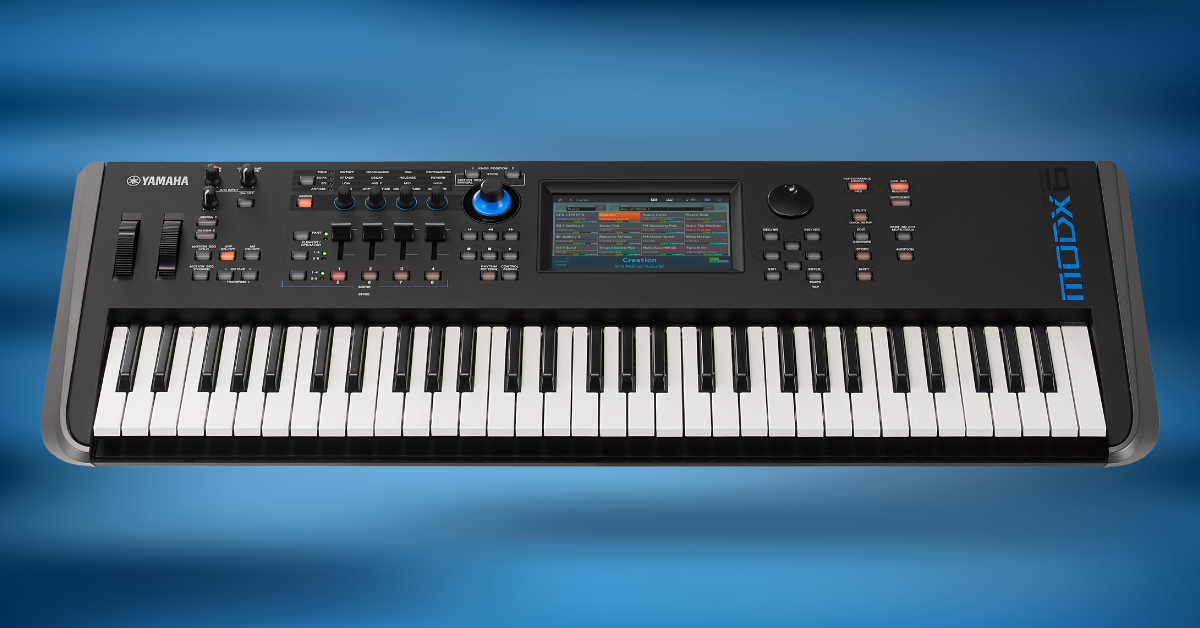
The Yamaha MODX is a compact but very powerful synthesizer to have in your collection. That’s why, in this article, you’ll learn the Yamaha product registration process and how to set up and connect the MODX for the first time. Follow the sections below to get started.
Register the MODX
Before setting up your MODX, the first thing you’ll need to do is register the synth with Yamaha. After you register the MODX, you’ll get access to free sound libraries and a free Cubase AI license. Follow these steps to go through the Yamaha product registration process.
- Log in to your Yamaha account. If you haven’t created one yet, then visit the account sign-in page, click New User, and fill out the Yamaha registration form.
- From your account page, navigate to Product Registration, and then click Register My Product.
- Fill out all of the required information, including the serial number located on the back of the unit, and click Complete Registration.
- Once you’ve gone through the Yamaha product registration process, visit the MODX Sound Library page to download your free sound libraries.
Why are the sound libraries listed for Montage?
Even though the sound libraries are listed for Montage, you can also use them with your MODX. The MODX content is compatible with the Montage, the MOTIF, and MOXF series of keyboards! Check out Yamaha’s compatibility page for more information.
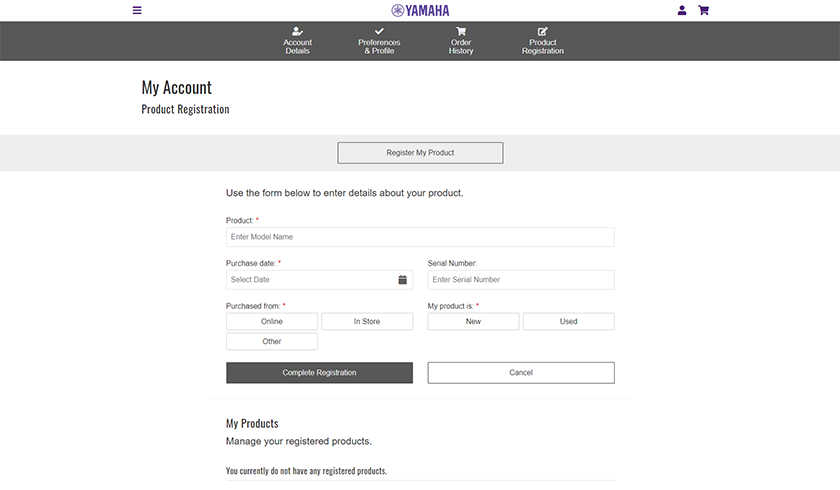
Click the image to register your Yamaha MODX
Synth Tips | Importing MOTIF Content | MODX/MONTAGE
Activate Cubase AI
The Yamaha MODX is bundled with a free license to Steinberg’s Cubase AI DAW. To activate Cubase, you’ll need to create a MySteinberg account and use the included download access codes to activate them. Check out Steinberg’s video below for instructions on how to activate Cubase AI!
How to Download and Activate Cubase AI and LE | Getting Started with Cubase
MODX hardware setup and connections
You can incorporate a Yamaha MODX into your studio or live rig in many ways. Setting up is straightforward, too, so you can start creating music sooner. Follow the sections below for instructions on making audio and MIDI connections and connecting to a computer and iOS devices.
A/D input
The A/D (analog-to-digital) input allows you to connect microphones, mobile devices, or even other synthesizers using TRS cables. Once connected, the audio signal can be raised or lowered, panned, and sent through the MODX’s effects chain. The audio signal is then sent out along with the selected Performance.
- Press the A/D INPUT ON/OFF button to enable or disable the input signal.
- Depending on whether you’ve connected a mic or a line device to the A/D input, you must navigate to the Audio I/O tab in the Settings menu to change the input between Mic and Line.
- If you aren’t sure what to switch it to, check out our article about the differences between mic- and line-level signals to learn more.
- A/D settings are adjusted via the Audio In routing page within the Monitor Volume menu.
Tech Talk Live: MONTAGE/MODX A/D Input
MIDI
You can use 5-pin MIDI cables to connect the Yamaha MODX to and from external devices like synthesizers or keyboards. Once connected, you can split the sound between the MODX and an external synth. Visit this owner’s manual site to learn how to assign each signal to a different output.
Computer
The MODX works with your DAW seamlessly. Connecting a USB cable from the device to a computer turns the MODX into an audio interface that also transmits MIDI, so there’s no need to connect the MODX to a MIDI interface. You’ll first need to download the official Yamaha MODX driver and MODX Connect from the MODX downloads page. Follow these steps to connect your MODX to a computer.
- Go to the MODX downloads page and download the official Yamaha Steinberg driver for PC or Mac.
- Navigate to your Downloads folder and unzip the compressed folder.
- PC: Right-click the .zip file, select Extract all…, and then click Extract. Open the uncompressed folder, launch the installer, and follow the on-screen instructions.
- Mac: Double-click the .zip file, open the uncompressed folder, launch the installer, and follow the on-screen instructions.
- Press the Utility button or cog icon on the touch panel, press Settings, navigate to MIDI I/O, and change MIDI IN/OUT to USB.
- Connect the MODX to your computer, open the DAW you will be using, and select the MODX as the default input and output device.
If you have a Mac with Apple silicon
If you have a Mac with Apple silicon, installing the Yamaha Steinberg USB Driver for macOS requires the extra step of booting into Recovery mode and changing your Mac’s security policy in order to grant permission for a piece of software called a kernel extension.
Follow the instructions in our SweetCare article Enabling Kernel Extensions on Mac with Apple silicon.
Complete the process by following the instructions in the Yamaha document Yamaha Steinberg USB Driver Installation Guide for macOS 11 or later (Intel/Apple silicon).
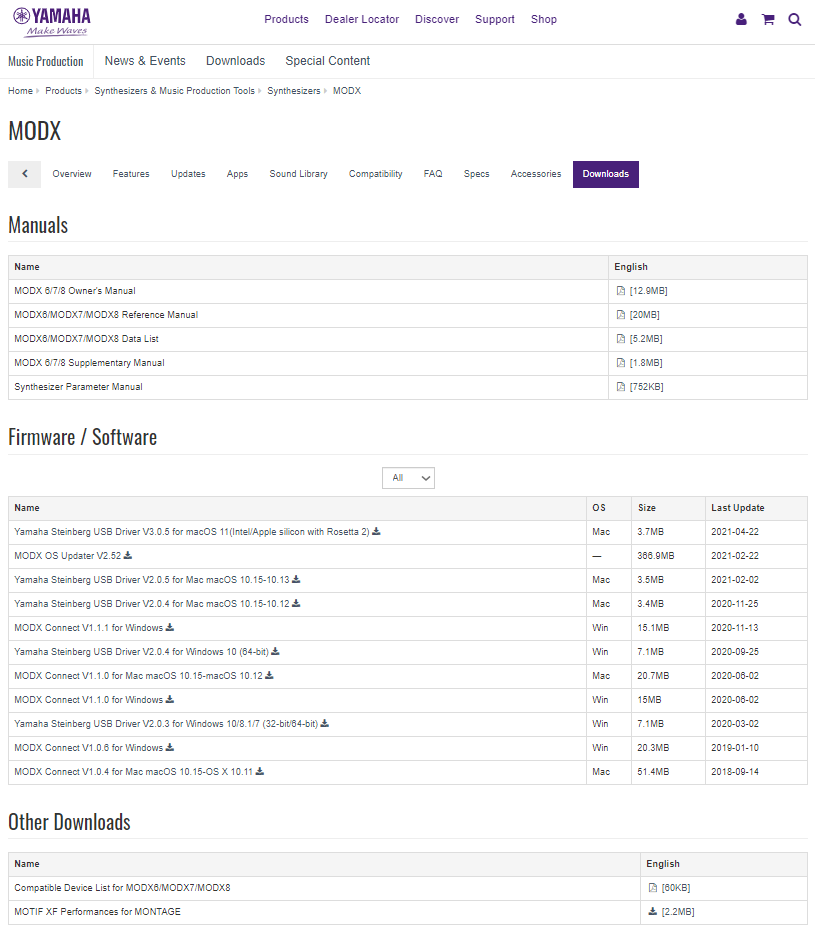
Click the image to download the Yamaha drivers.
iOS device
IMPORTANT: Your MODX must have the latest firmware installed for it to work correctly. Check out our firmware update article for more information.
The MODX also connects to any iOS device. When connected, you can use the Soundmondo app to upload your saved performances and even download free performance content. If you have an iOS recording app such as Cubasis or Studio One Remote, you can also record it. Follow these steps to connect your iOS device.
- Download and install the Soundmondo iOS app.
- Connect a USB cable from the USB HOST port on the Montage to an official Apple Lightning to USB Camera Adapter connected to your iOS device.
- Launch Soundmondo to pair the devices. If properly connected, a green and white plus sign will appear on the app.
- If you are using the MODX with a remote DAW, check out the DAW’s manufacturer user manual to learn how to connect the device.
Yamaha Soundmondo | Overview
Tech Talk Live: Soundmondo
How to calibrate the touch panel
The MODX touch panel works right out of the box, but it’s a great practice to calibrate it for the best accuracy possible. Calibrating the MODX’s touch panel is also the first step when troubleshooting “ghost pressing” or overall inaccuracy. You have two calibration options, so follow each set of instructions to learn how to calibrate the MODX touch panel.
Option 1
- Hold the UTILITY button and then press the PART SELECT MUTE/SOLO button.
- Press ENTER when the Utility display appears.
- Touch the white squares that appear, and follow the on-screen instructions to complete the calibration process.
Option 2
- Press the Utility button or the gear icon on the touch panel.
- Press Settings, navigate to System, and then select Calibrate Touch Panel.
- Touch the white squares that appear, and follow the on-screen instructions to complete the calibration.
Related content
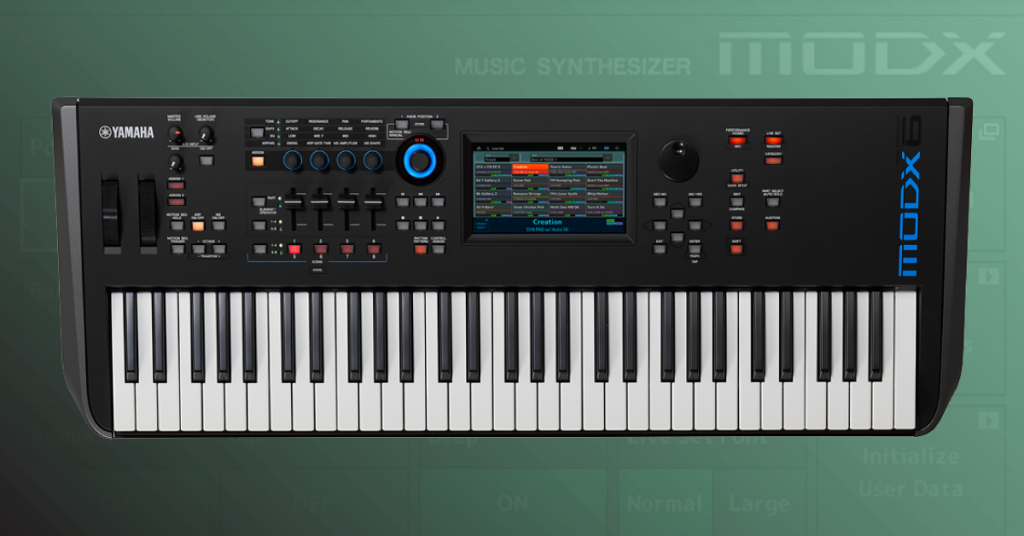
Learn more about how to update the firmware on your Yamaha MODX!
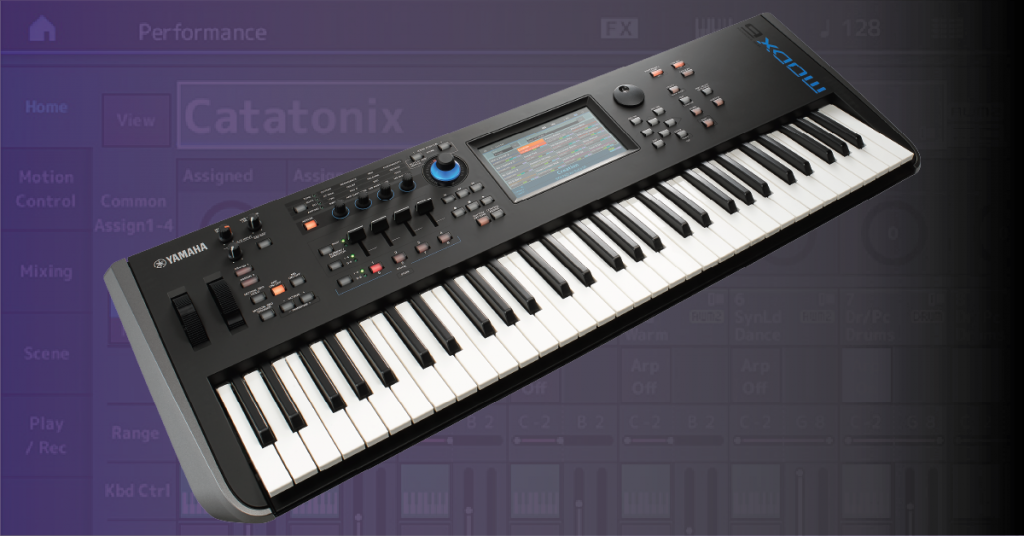
Learn more about working with sounds on your Yamaha MODX!
Additional MODX resources
Related Articles
When you need help, Sweetwater has the answers!
Our knowledge base contains over 28,000 expertly written tech articles that will give you answers and help you get the most out of your gear. Our pro musicians and gear experts update content daily to keep you informed and on your way. Best of all, it’s totally FREE, and it’s just another reason that you get more at Sweetwater.com.

