

Share Yamaha Keyboard Presets with Soundmondo
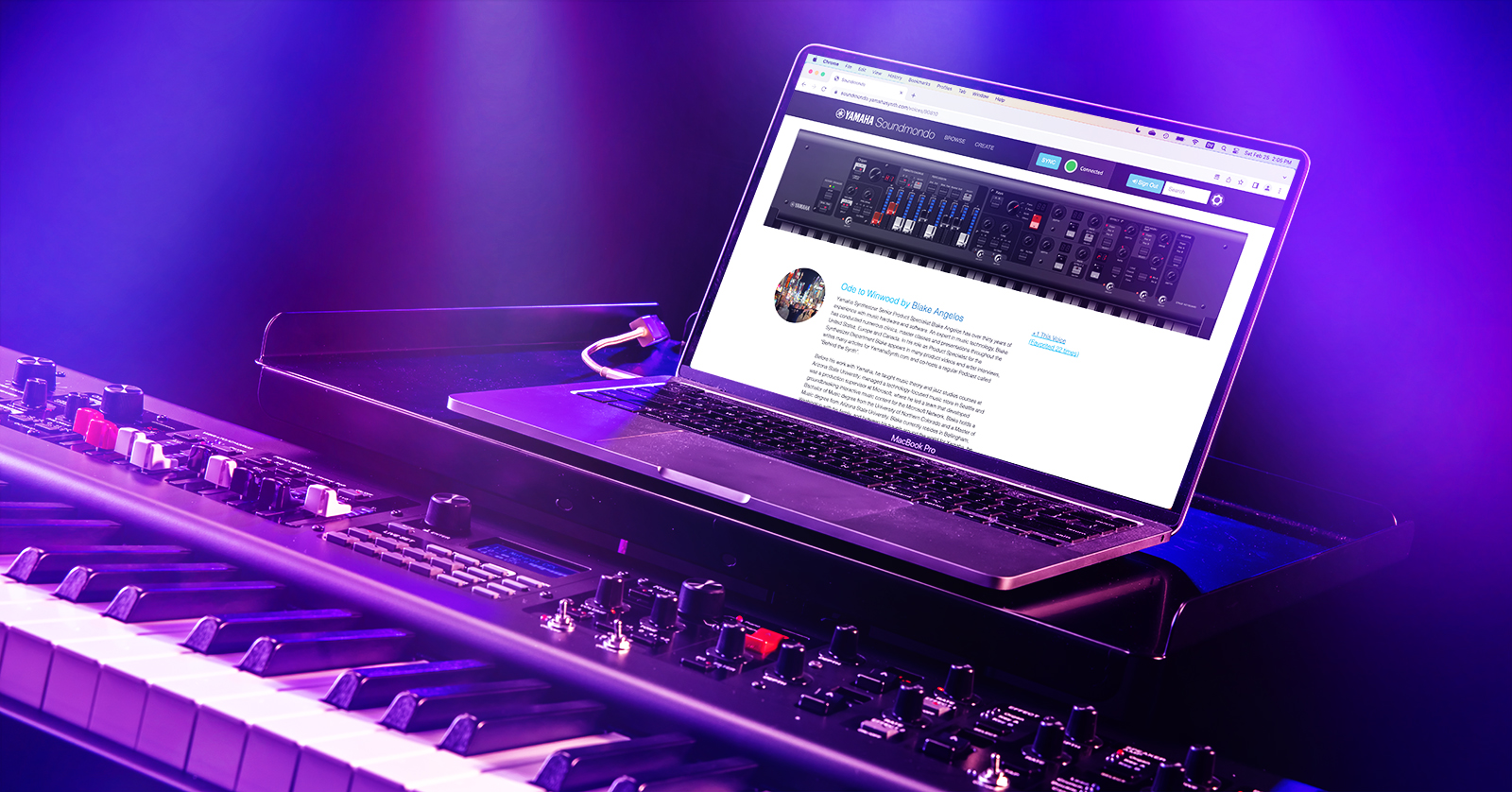
Soundmondo is Yamaha’s platform allowing users all over to share the presets, or Voices, they create. It supports several of their professional keyboard lines: the CP Stage Piano, YC Stage Keyboard, CK Stage Keyboard, Montage Synthesizer, and MODX Synthesizer, as well as the reface compact keyboards.
- What does Soundmondo do?
- How Can You Use Yamaha Soundmondo?
- Soundmondo on Mac or Windows PC
- Downloading, modifying, and saving presets in Soundmondo
- Soundmondo on iOS and iPadOS
What does Soundmondo do?
Yamaha calls Soundmondo its “social sound-sharing community.”
Soundmondo was created for the reface series, which are miniature keyboards with no ability to store presets (with the exception of the reface DX FM synthesizer). While the professional Yamaha Stage keyboards and Montage and MODX lines have sophisticated programmability and the ability to store presets (Voices) and set lists (Live Sets), Yamaha decided to extend support for saving and sharing sounds to these instrument lines as well.
When you create an account and profile on the Soundmondo website, you can access libraries of thousands of other users’ sounds for your instrument. You can search for keywords and category tags, making it easy to find new sounds to try out.
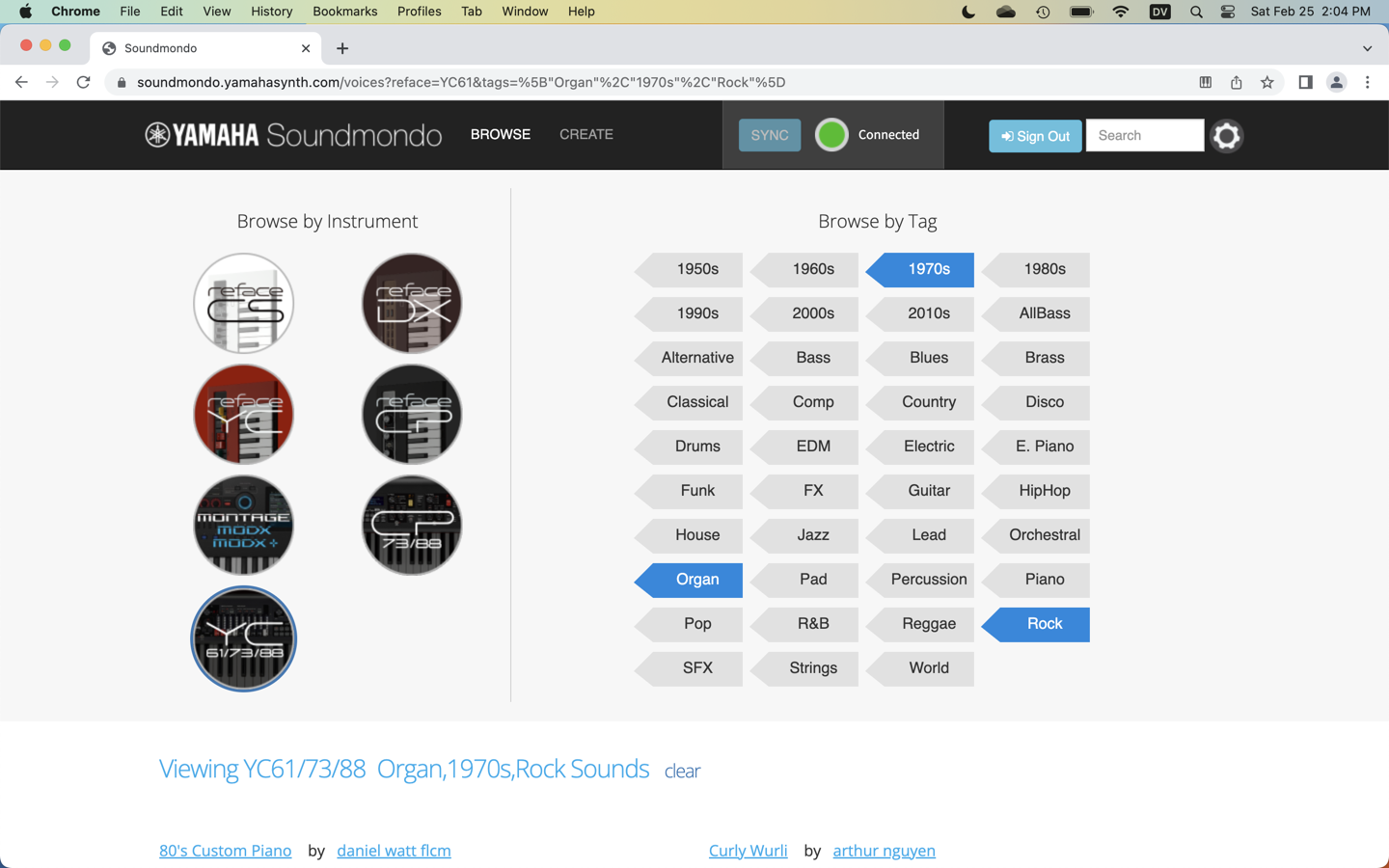
Soundmondo meta tags help you search for a sound.
You can download a Voice for your model keyboard from Soundmondo and then modify the Voice on your instrument. You can save the Voice on your keyboard and also save it to your Soundmondo profile for retrieval later. You can set your Voices to be “Private,” only visible to you, or “Public,” sharing them with the community. If you wish, you can label each Voice with information about yourself, about how you programmed the sound and how it works, and you can assign meta tags so that other users can search by genre, decade, and type of instrument.
Soundmondo provides short musical phrases in MIDI file format, which you can use to audition different Voices as you load them into your keyboard.
You can even share Voices with your friends who own the same instrument by generating a QR Code for each Voice you create and sending the QR Code to your friends.
How Can You Use Yamaha Soundmondo?
Soundmondo can be accessed in two ways:
- As a web-based app that runs in your browser on Mac or Windows PC.
- As an app for iPhone and iPad. The Soundmondo app enables you to save presets locally on your device.
Soundmondo on Mac or Windows PC
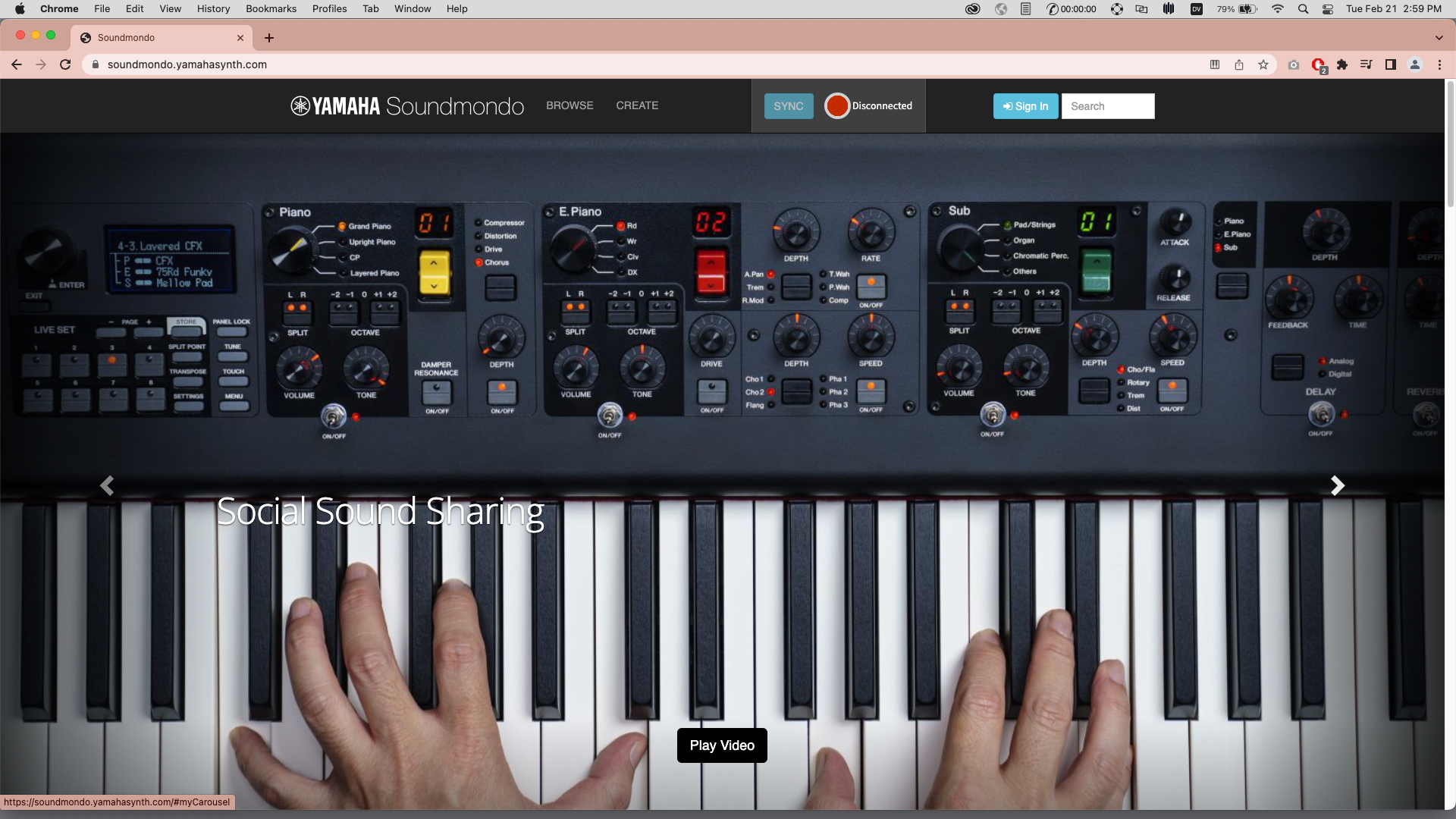
The Soundmondo home page in Google Chrome
Soundmondo is a cloud-based web app that you access through a web browser that supports the Web MIDI standard. These include Google Chrome, FireFox, Opera and Microsoft Edge. (Apple Safari does not support Web MIDI.)
To use your Yamaha keyboard with your Mac or Windows PC:
- Go to the Yamaha Firmware/Software Updates page. Search on your instrument name.
- Download and install the USB-MIDI Driver for your version of macOS or Windows. Follow the instructions with the download.
- Connect a USB cable from your keyboard to your computer.
- Launch Google Chrome or another Web MIDI-compatible browser and go to https://soundmondo.yamahasynth.com/. Bookmark that link.
The first time you go to the website with your keyboard connected, your browser may prompt you with a message saying, “soundmondo.yamahasynth.com wants to use your MIDI devices.” Click Allow.
On the Soundmondo home page, click the Sign In button. Create a user account. From the home page, click the gear icon at the far right of the top bar to open your user profile settings. If you wish to participate in the “social sound-sharing community” and publish your presets to share them with other users, you can upload a profile picture and provide links to your pages on SoundCloud, YouTube, Facebook, and Twitter. But you don’t need to fill any of this out to use Soundmondo.
Downloading, modifying, and saving presets in Soundmondo
Click Browse next to the Soundmondo logo.
Click the Sync button. The red Disconnected light will change to the green Connected light, meaning that Soundmondo is communicating with your keyboard.
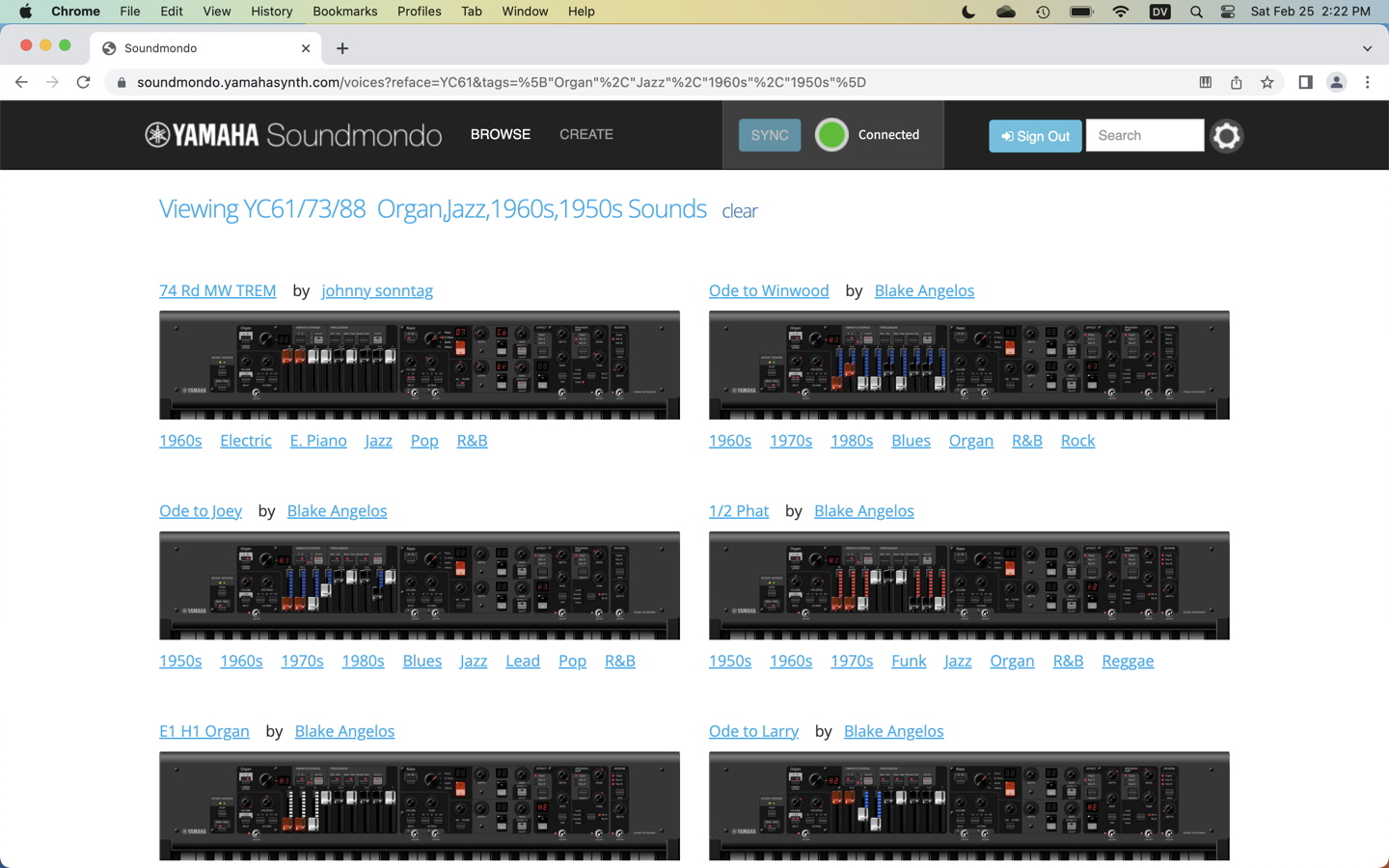
Some Soundmondo search results for Voices for jazz organ sounds for the Yamaha YC keyboard
Under Browse by Instrument, by selecting your instrument and clicking on the Style Tags, you can search for Voices for your instruments shared by users from around the world.
When you select a preset and click the Sync button, that Voice is downloaded from Soundmondo into your keyboard.

A Yamaha organ preset for the YC stage keyboard
A new page for that Voice loads in the browser window. Depending on your model of keyboard and the nature of the programming in that Voice, the image on the page will reflect the appearance of the front panel on your instrument. In the example above, the LED displays on the YC organ drawbars will show the settings for that Voice, even though the physical drawbar positions will be different on your keyboard.
On your instrument, if you change the position of any switch, dial, drawbar, or other control, you are, in effect, creating a new preset, so the browser window displays the settings with a blank Voice Title and Voice Description. You can save the preset by giving it a new title and description, tags, and values for other fields. Scroll down to the bottom of the page. Under Accessibility, choose Public or Private, and click Save.
Go back to the gear icon to go back to your user profile. At the bottom, you will see the list of Sounds (presets) you saved. You can drag and drop to reorganize them. You can also create Set Lists and drag and drop Sounds into them.
Soundmondo on iOS and iPadOS

The Yamaha Soundmondo app for iPhone and iPad
If you have an iPhone or iPad, you can use the free Soundmondo app. Download it from the Apple App Store.
If you are using an iPhone or an iPad with a Lightning connector, you need an Apple Lightning to USB Camera Adapter. Connect a USB-B to USB-A cable to your reface keyboard and connect the other end of the USB cable to the Lightning Camera Adapter. Then connect the Lightning plug to your iPhone or iPad.
If you have an iPad with a USB-C connector, you can use a USB-B to USB-A cable and a USB-A to USB-C adapter and connect that to your iPad.
Power on your keyboard and launch the Soundmondo app on your device.
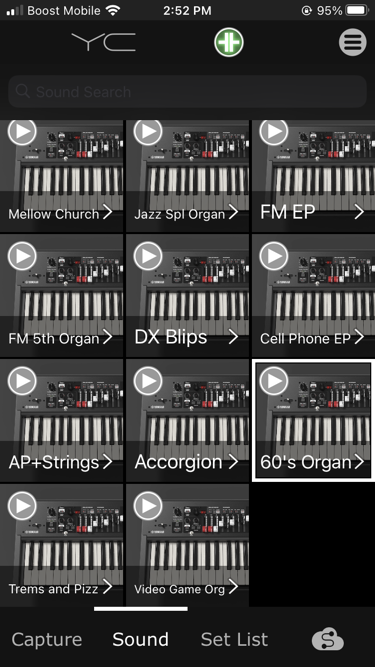
The Yamaha Soundmondo app on iPhone with the YC keyboard
Sign in to your Soundmondo account with the username and password you created on the website, or click the Open Signup Page button to create a new account.
It will automatically recognize which model of reface you have connected and provide you with a short list of built-in presets.
You can click on the “S” icon in the lower-right corner to search the Soundmondo library and select and download from the thousands of shared user presets in the cloud, as you would from the web browser on Mac or Windows.
Clicking Capture takes you to a new view where you can upload your current reface sound to your device. You will be prompted to save this as a Voice.
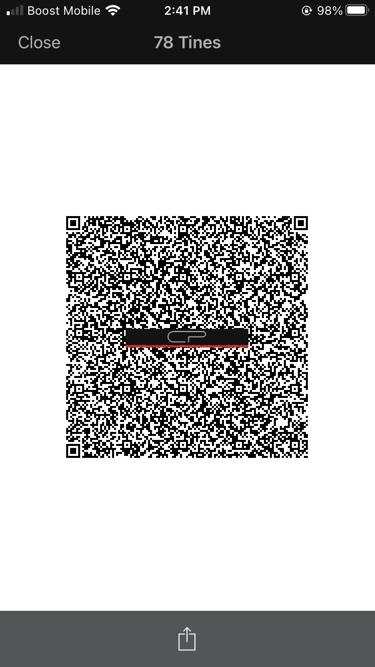
Soundmondo generates a QR Code that anyone can use to access your sound
You can also generate a QR Code representing the saved Voice, which you can text or email to other reface owners so that they can recall the preset in Soundmondo and load it on their instrument.
You can create local Set Lists and save presets for quick recall.
Locally saved Set Lists and Voices can be recalled from the iOS app and loaded into your reface keyboard even if you are not connected to the Internet.
Related Content
Related Articles
When you need help, Sweetwater has the answers!
Our knowledge base contains over 28,000 expertly written tech articles that will give you answers and help you get the most out of your gear. Our pro musicians and gear experts update content daily to keep you informed and on your way. Best of all, it’s totally FREE, and it’s just another reason that you get more at Sweetwater.com.

