
Enabling Kernel Extensions on Mac with Apple silicon
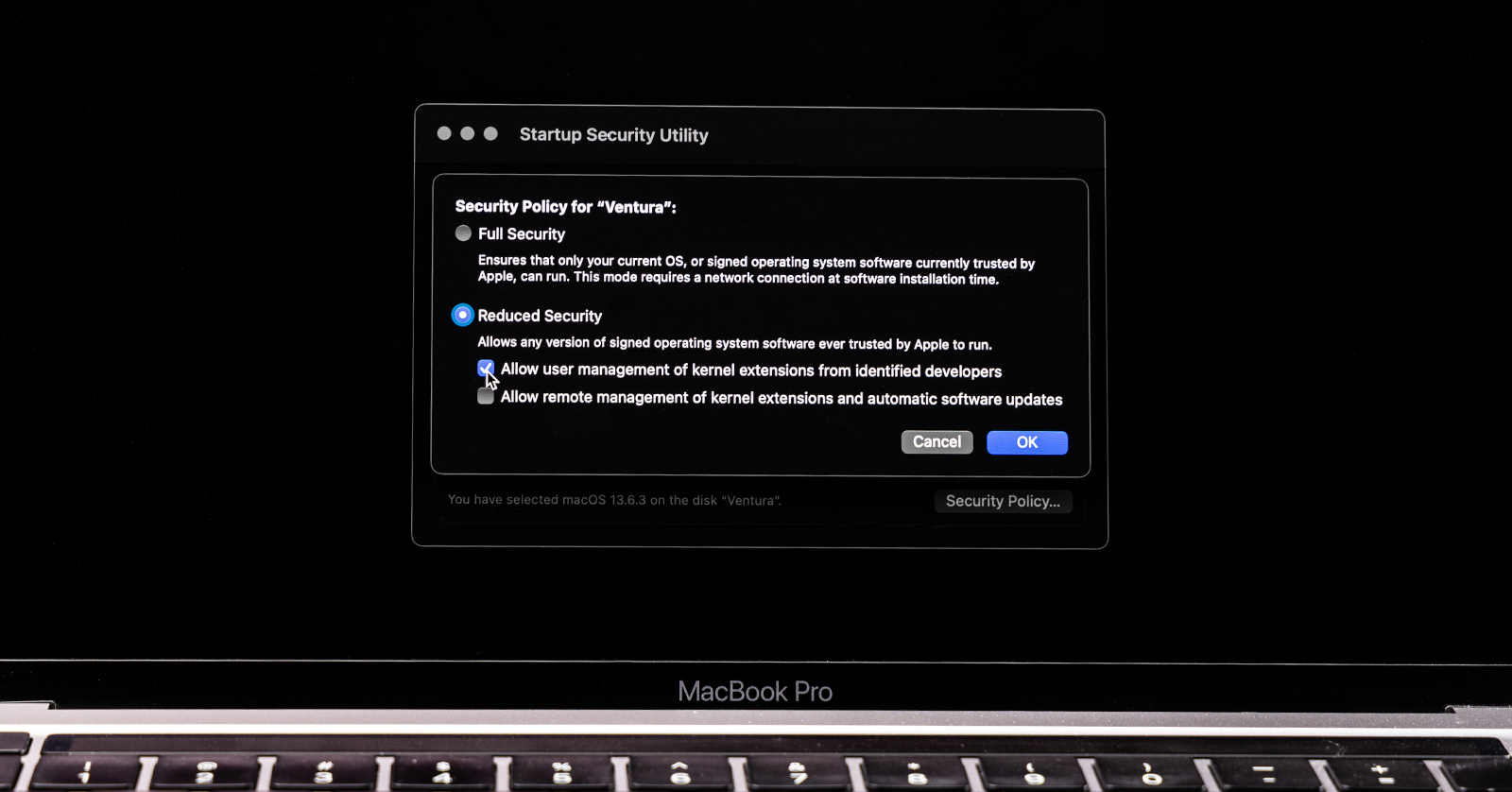
IMPORTANT: This article is based on macOS Sonoma (macOS 14) released in 2023. The procedures apply to all versions of macOS that support Mac with Apple silicon computers.
If you have a Thunderbolt audio interface, or certain other kinds of hardware and software that you need to interface to a Mac with Apple silicon, there’s a one-time configuration procedure that you need to set up on your Mac to enable your hardware to connect.
You probably found this article because your device’s installer app tells you that you have to use macOS Recovery mode to enable kernel extensions. We wrote this article to explain how, and if you are curious, why.
- Background: What Is Enabling Kernel Extensions, and Why Is It Necessary?
- How to Enable Kernel Extensions in macOS Recovery Mode
- What Devices, Apps, or Software Need to Have Kernel Extensions Enabled?
- Learn More About Optimizing Your Mac for Audio, Music, and Content Creation
Background: What Is Enabling Kernel Extensions, and Why Is It Necessary?
- If you want to understand why this is necessary, read this section.
- If you would just rather get to the procedure, feel free to skip to the next section.
There’s a class of hardware devices that process a lot of data (for example, Thunderbolt audio interfaces) that require low-level access to a computer. They need to connect to the central processor chip and hardware without first going through the layers of code in the operating system. They need to access the kernel, which is the core computer code that is positioned between the OS and the hardware.
Connecting hardware or drivers to the kernel is something that’s been around for years. It was implemented different ways on earlier version of computers with Intel processors, running Windows, macOS, or otherwise.
On macOS, a device that needs access to the kernel does so by installing a piece of software called a kernel extension, or kext.
For security reasons, however, the operating system is set up to prevent access to the kernel. You can install your device’s kernel extension, but the device cannot connect until you grant permission to override the system’s security settings to create an exception for that one kernel extension.
On older, Intel-based Mac computers, a user with administrator privileges could grant the security exception within macOS in one step by changing a setting in System Preferences.
On the new Mac with Apple silicon computers (with M1, M2, M3, or M4 series chips), however, Apple adds an additional step. After you run the software installer, you must:
- Shut down your Mac.
- Boot into macOS Recovery mode and make a specific change to the security settings.
- Reboot the Mac into macOS as normal, then log back in.
- Go to the System Settings to grant the security permission.
Then you can start using your device or software.
There are two things to bear in mind:
- You are not compromising security on your Mac, as after you allow kernel extensions in Recovery mode, you still need to go into System Settings and grant permission for the device or app.
- You only need to do the Recovery mode procedure once per computer. If you connect another device or install an app that also uses a kernel extension, all you have to do is stay within macOS, go to System Settings, and grant another exception. It’s easy.
How to Enable Kernel Extensions in macOS Recovery Mode
Do You Have a Mac with Apple Silicon?
This procedure only applies to Mac with Apple silicon computers.
If you are not sure if you have a Mac with Apple silicon, here’s how to find out.
Follow This Procedure
TIP: When you boot your Mac into Recovery mode, you are not running macOS. You can’t see the Finder, the desktop, or any of your files. Before you go into Recovery mode, print out these instructions or view them on another device.
Start the Mac in Recovery Mode
- Shut down your Mac.
- Press and hold the power button on your Mac. You will see the message Continue holding for startup options. When you see Loading startup options, you can let go of the button.
- You’ll see your startup volume, any other volumes, and Options. Select Options, then click Continue.
- Enter your administrator account username and password, if prompted.
The Mac will boot into Recovery mode, where you will see several different apps you can run.
Startup Security Utility
In the menu bar, choose Utilities > Startup Security Utility.
In the Startup Security Utility dialog box, select your internal hard drive, usually labeled “Macintosh HD.” This is the drive that you boot from when you run macOS. Click Security Policy.
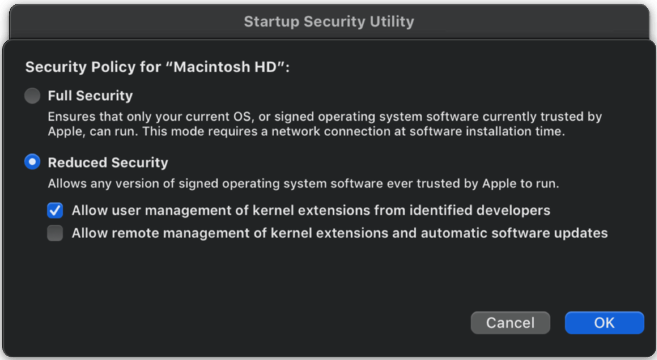
Enabling management of kernel extensions in macOS Recovery
In the next Startup Security Utility dialog box:
- Click the Reduced Security button.
- Check the Allow user management of kernel extensions from identified developers box.
- Click OK.
- Pull down the Apple menu. Choose Restart.
Your Mac will now boot into macOS as usual.
Continue to follow the installation instructions that came with the device or software that requires the kernel extension. The instructions will explain how to go to System Settings (System Preferences in older versions of macOS) and enable the permissions necessary to use your device or software.
To learn more about the various functions of macOS Recovery, here’s our SweetCare guide macOS Recovery Explained.
What Devices, Apps, or Software Need to Have Kernel Extensions Enabled?
Here’s a list of relevant devices and software we work with here at Sweetwater.
If you need further information, here are the links to the support pages on the respective manufacturer and software developer websites.
- Universal Audio Thunderbolt audio interfaces
- Certain Line 6 Helix and POD Go devices
- Certain Yamaha mixers and professional keyboards
- iZotope Audiolens software (part of Ozone, Neutron, and Music Production Suite)
- Apogee Thunderbolt audio interfaces
- Pro Tools Ultimate and the Avid HD Driver
- Steinberg USB and Thunderbolt audio interfaces
- RME audio interfaces
- Certain MOTU audio interfaces
- PreSonus Quantum audio interfaces
- Focusrite Red Thunderbolt audio interfaces
- Waves SoundGrid systems
- Lynx Aurora Thunderbolt audio interfaces
Learn More About Optimizing Your Mac for Audio, Music, and Content Creation
Sweetwater is your source for everything in music, pro audio, and more. We provide information not only about working with Apple Mac computers, but about working with Windows PCs as well.
Check out these resources.
Related Articles
When you need help, Sweetwater has the answers!
Our knowledge base contains over 28,000 expertly written tech articles that will give you answers and help you get the most out of your gear. Our pro musicians and gear experts update content daily to keep you informed and on your way. Best of all, it’s totally FREE, and it’s just another reason that you get more at Sweetwater.com.

