
Volca Drum Quickstart Guide
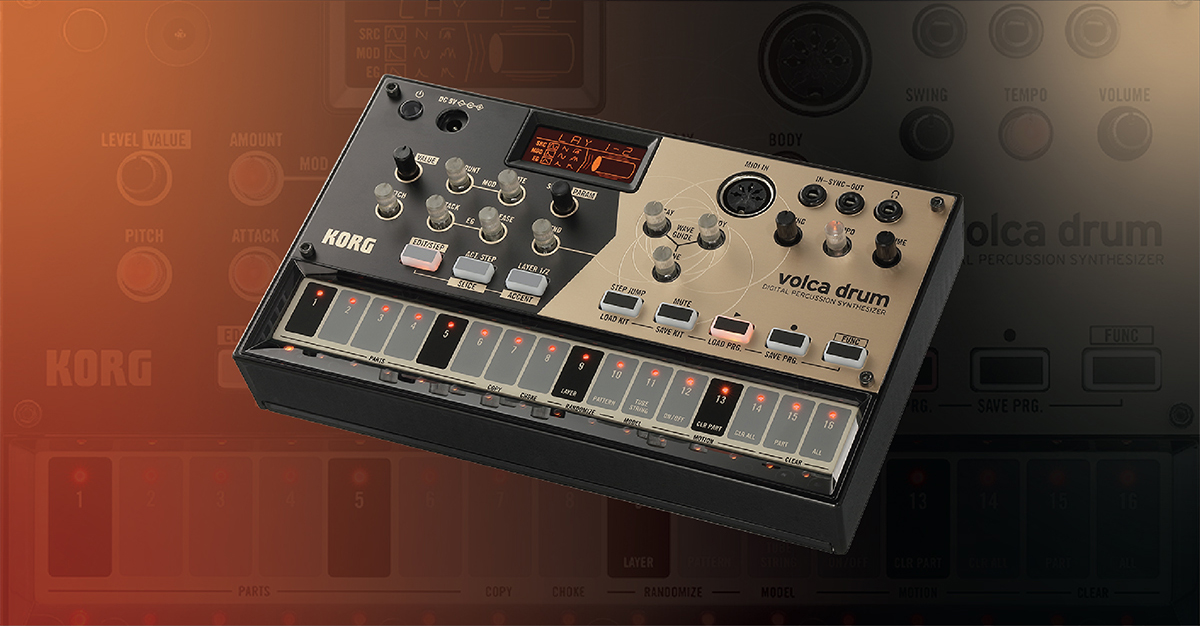
In this guide, we will teach you how to work with the Korg Volca Drum for the first time. We’ll explain the sections of the drum sequencer, how to get sound out, and then teach you how to record. Follow the sections below to get started.
Navigating the Volca Drum
The Volca Drum is a drum sequencer that you can use on its own or sync and control with other devices. The initial setup is easy. Just insert six AA batteries, turn it on, and start making beats.
- If you want to use a power supply with a Volca, you must use the Korg Volca power supply. Using a generic power supply may result in damage to the unit.
- Volca modules come with six nickel-hybrid AA’s. If you switch to alkaline batteries, you will need to change the battery mode. To do this, press and hold the FUNC button and power the unit on. Next, press the M2 key to switch to alkaline (bt.AL).
Sections of the sequencer
There are three main sections of the Volca Drum; Inputs and Outputs, Sound Controls, and Sequencers. You can access more features and functions of the unit by holding the FUNC button. For a complete list of functions, refer to the User Guide.
Inputs and Outputs
The Input & Output section of the Volca Drum is where you will connect external synths to sync together. You can also use the audio outputs to connect either headphones in or record into your DAW.
Sound Controls
This is the section where you will adjust the tone and effects of the current drum.
Sequencer
The Sequencer section is where you will record, save, and adjust the tempo and timing of the current sequence.
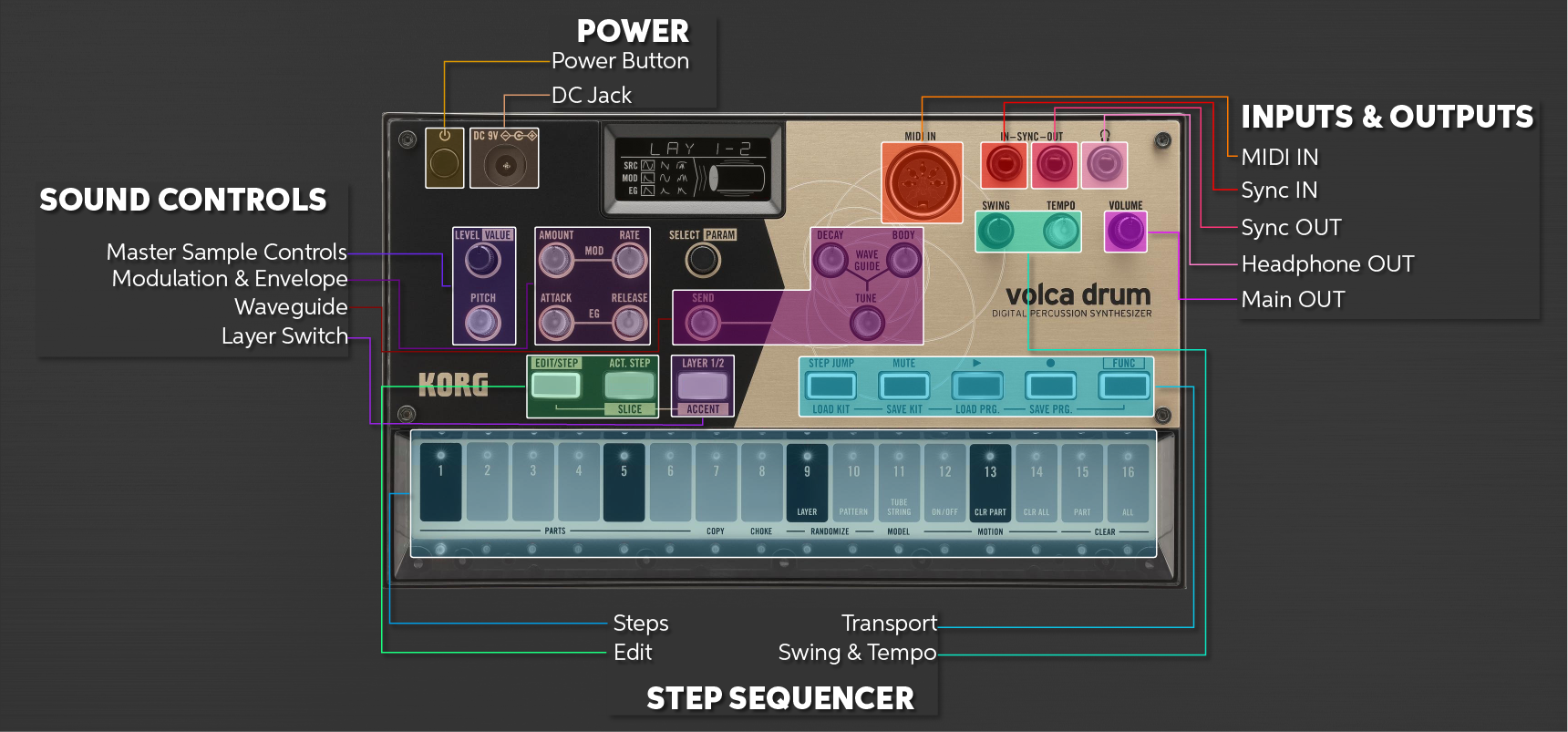
Sections of the Volca Drum. Click to enlarge.
Working with samples
As soon as you turn the Volca Drum on, a kit with preloaded samples is available. You’ll need to use the knobs and buttons within the Sound Controls section to change samples or add layers. Continue reading below to learn how to adjust the pitch, tone, and waveguide.
Creating custom samples
Creating custom samples in the Volca Drum is easy; just turn it on, press one of the first six keys in the Sequencer section, then use the knobs in the Sound Controls section to adjust things like pitch and effects. Follow these steps to create samples.
- Press one of the keys to select a sample, then turn the LEVEL knob up until you reach the desired volume.
- Turn the Pitch knob to change the pitch of the current sample, then turn the AMOUNT and RATE knobs in the Mod section to change how the pitch is altered.
- Adjust the Attack and Release knobs to change each stage of the drum sample.
- Turn the DECAY, BODY, and TUNING knobs for effects, then turn the SEND knob up to adjust the level of them.
Individual or global?
Changing any settings such as the pitch, modulation, or attack and release will only affect the current sample. If you want to change the settings on any others, you will need to select that trigger.
Loading and saving kits
The Volca Drum comes with ten factory-preset kits and programs (sequences). They’re all fully editable, but you can create new ones from scratch, too. You can save up to 16 kits at a time. Each kit can be composed of six samples you can save. Follow these steps to load and save.
Saving kits
Hold the FUNC button, press the MUTE button, then select the slot where you want to save the kit. Press the FUNC button again to exit out of Save Mode.
Loading kits
Hold the FUNC button, then press the STEP JUMP button. The flashing LED indicates which kit is currently loaded. Press the step key where the kit is loaded.
Using the Volca Drum
Now that you know how to navigate the Volca Drum and how to work with we will show you how to record sequences, save, and load programs.
Recording a sequence
There are two ways you can record; live and step. When recording in standard mode, the steps are recorded in real-time. In step mode, you can record one step at a time without having to worry about being off time. Follow these steps to record in each mode.
Live recording
- Press the Record button to prepare to record, then press Play to begin recording.
- Press the Record button once you finish.
Step recording
- Select the sample you wish to trigger, then press the EDIT/STEP button.
- Press the Step keys in which you want to trigger. The solid LED beneath the step key indicates which drum is currently on.
- If you need to change a step during playback, press the EDIT/STEP button, exit Step Mode then select the sample you want to change.
Saving and loading programs
Saving and loading programs is easy. You can save up to 16 programs and also specify which sequences you’d like to playback. Follow these steps to save and load.
- Saving programs: Hold the FUNC button, press the RECORD button, then select the slot where you’d like to save the program. Press the FUNC button again to exit it out.
- Loading programs: Hold the FUNC button, press the PLAY button, then select the slot where the program is located. Press FUNC again to exit Load Mode.
Loading multiple programs
If you want to load multiple programs, hold the slot of the first program then select the program slot where you’d like to end. It will be sequential. For example, while in Load Mode holding 2 then pressing 9 will play back programs 2 through 9.
Factory reset and system update
There will be times where you may need to perform a factory reset to clear your projects or perform a system (firmware) update to get the latest updates and features. Follow these steps to perform a factory reset and system update.
Factory reset
- Press and hold the FUNC and PLAY buttons while turning the unit on.
- When the PLAY and REC buttons start flashing, press the REC button to perform the factory reset. Press the PLAY button to cancel.
System update
- Press and hold the REC button while turning the unit on to check which firmware version the unit is currently running.
- Visit the Korg product download page and download the firmware.
- Open your downloads folder and extract the firmware file.
- PC: Right-click the .zip file, then select Extract All…
- Mac: Double-click the .zip folder.
- Turn the unit off, then press and hold the FUNC and REC buttons to enter System Update mode.
- Connect the Volca Drum from the SYNC IN jack to an available input on your computer, then play the .WAV file, which is included in the firmware .zip folder.
- Once the firmware is complete, the PLAY, REC, MEMORY, and FUNC buttons will start blinking. Turn the unit off to finish the update.
Related Articles
When you need help, Sweetwater has the answers!
Our knowledge base contains over 28,000 expertly written tech articles that will give you answers and help you get the most out of your gear. Our pro musicians and gear experts update content daily to keep you informed and on your way. Best of all, it’s totally FREE, and it’s just another reason that you get more at Sweetwater.com.

