
Polyend Tracker Mini Quickstart Guide
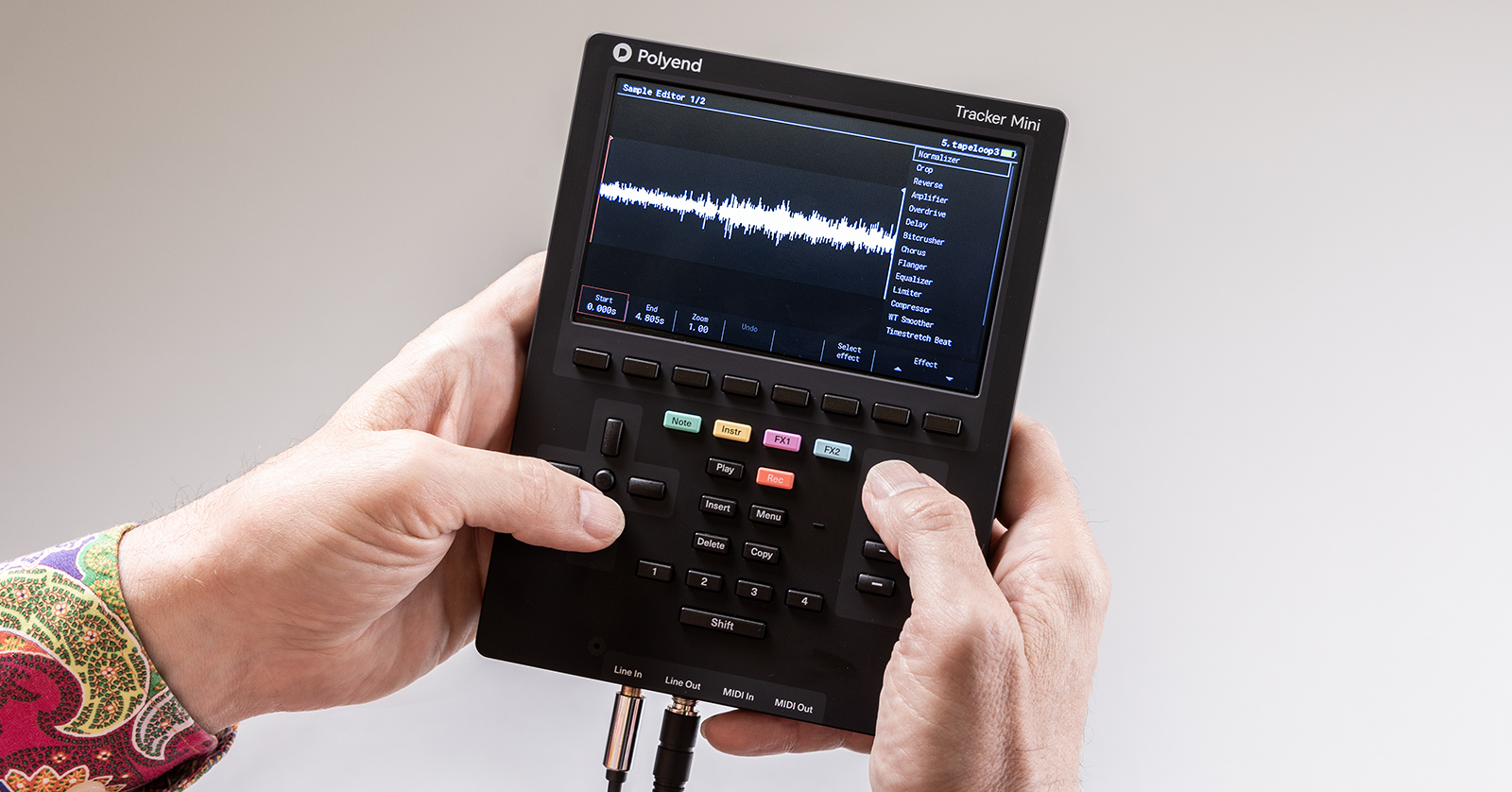
The Polyend Tracker Mini is a handheld, all-in-one tracking and sequencing workstation. Let us help you get started working with this powerful little unit.
- Register the Polyend Tracker Mini
- Polyend Tracker Mini Firmware Update
- Polyend Tracker Mini Connections and Controls
- Creating Tracks on the Polyend Tracker Mini
- Connecting an External Keyboard
- Exporting Audio Files from the Polyend Tracker Mini
- Back Up Your Work to Your Mac or Your Windows PC
Register the Polyend Tracker Mini
Before you get started, register your purchase with Polyend. This is required to access firmware updates. From time to time, Polyend will release improvements and bug fixes, which you will need to download and install.
Scan the QR Code
In the box, you will find a pink Polyend ID card with a QR code. Scan it, and it will send you to the registration page on the Polyend website. You can also click https://polyend.com/my-account/, where you can log in or create a new user account.
On your My Account page, click on Register Product. From the Select a Device drop-down menu, select Tracker Mini, then enter your unit’s serial number. Click Register.
Download the Owner’s Manual
The Polyend Tracker Mini Essentials guide is provided in print form in the box. Download a PDF copy at this link.
You will also want to download the Polyend Tracker Mini Manual, which contains a great deal more reference information.
Polyend Tracker Mini Firmware Update
When you power up your Tracker Mini, look in the lower left-hand corner of the screen. You will see the firmware version number, for example, “1.0.0.” Take note of it.
Once you register your purchase, go to your My Account page on the Polyend website. Click on the Downloads link. If there is a firmware version with a higher number than the version currently running on your Tracker Mini, you should update it. Otherwise, you can skip over the rest of this section.
Download the update package to your Mac or your Windows PC and extract it. It will include specific instructions that you should follow.
Here’s a general overview:
- Shut down your Tracker Mini.
- Eject the microSD card in the unit (see below). Insert the card into the included microSD card USB reader adapter.
- Attach the microSD card USB reader adapter to your Mac or your Windows PC. The microSD card will appear as a new volume in the macOS Finder or Windows File Explorer.
- Go to the directory of the downloaded firmware update. Copy the firmware file, which ends in .ptf, into the /Firmware folder on the root directory of the microSD card.
- Perform the Eject operation on the microSD card. After it is ejected, detach the microSD card USB reader adapter from your Mac or your Windows PC, then remove the microSD card from the USB reader.
- Insert the microSD card back in its slot on the Tracker Mini. Power it up.
- Hold Shift + 4 or use Menu to select the Config menu.
- Navigate to the Firmware menu. In the central window, select the firmware version to install.
- Press Confirm.
- The firmware installation will begin. It will take about a minute. Be patient until the operation is 100% complete.
- The Tracker Mini should restart automatically, but if you are prompted to do so, press the On/Off button and manually restart the Tracker Mini.
- When the unit starts up, look again at the lower left-hand corner of the display. It should show the new firmware version number.
Now that you have updated the firmware, let’s get to work.
Polyend Tracker Mini Connections and Controls
You can control the Tracker Mini by placing it on a tabletop and using all your fingers, but the controls are laid out so that you can also operate it by holding it in your two hands and using your thumbs.
The Tracker Mini has no built-in speaker, so you will want to use the Line Out port to connect stereo headphones or external speakers.
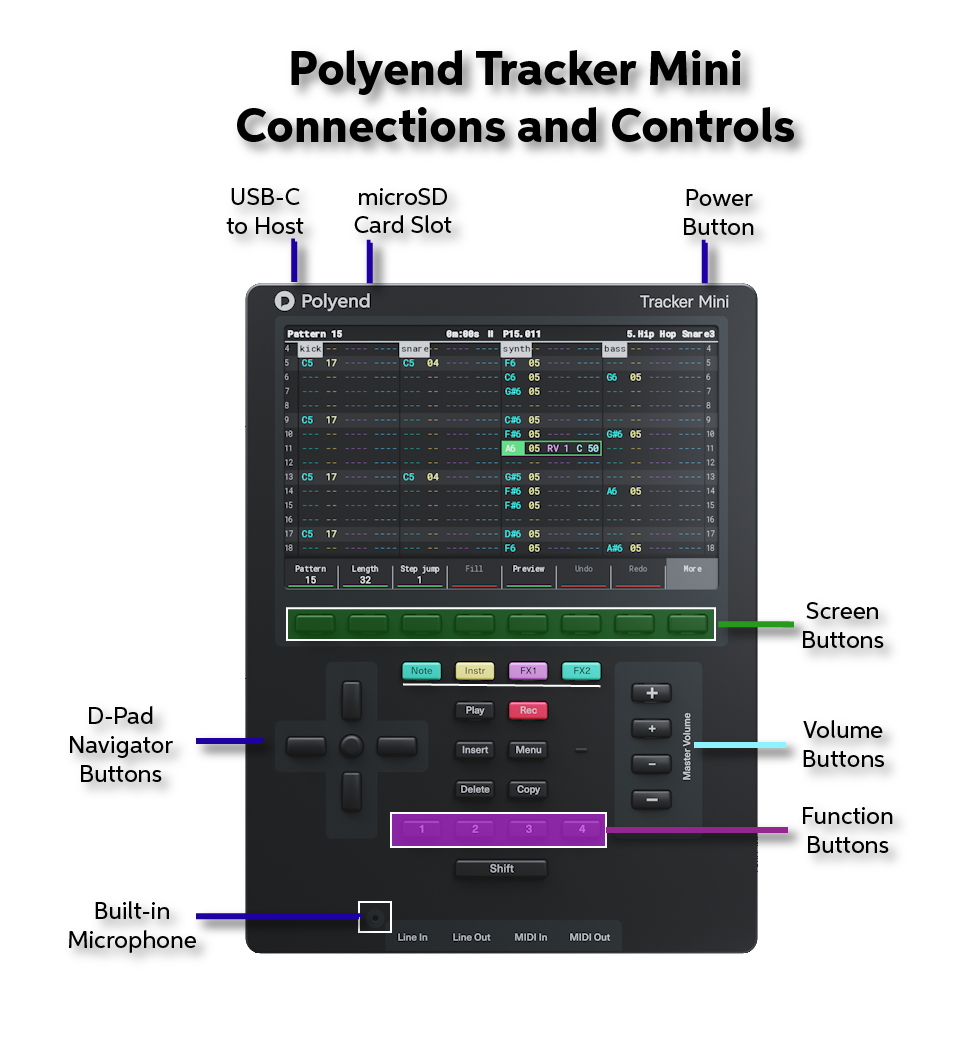
Polyend Tracker Mini connections and controls
Polyend Tracker Mini Connections
- USB-C. Use the provided USB-C to USB-A cable to connect the included power adapter to run the Tracker Mini and charge its battery. You can also connect a USB-C data cable and configure the Tracker Mini to send 12 stereo channels of digital audio along with MIDI over USB to a host computer or device. Learn more in the Polyend Tracker Mini Manual > 8.10 Audio Output Over USB.
- microSD card slot. Use the included 16GB microSD card. The card holds the Tracker Mini’s firmware, your projects, wavetables and samples, and all other information. The unit will not operate without the microSD card inserted. The underside of the card with the gold contacts should face toward the front panel.
- Power button. Press this recessed button and release it to power the unit up. Press and hold the button to shut the unit down.
- Internal microphone. On the top panel, to the left of the Line In label, is a recessed internal microphone suitable for recording and sampling sounds found while in the field. You can also input audio for recording by using the Line In port.
- Line In. Connect a cable with a 1/8-inch TRS or TS plug for analog audio input in stereo or mono. The Tracker Mini comes with an adapter with a 1/8-inch stereo male plug to two 6.3mm mono female plugs to interface with external gear using the more common 6.3mm mono cables. Learn more in the Polyend Tracker Mini Manual > 8.3 Audio Inputs.
- Line Out. Connect a cable with a 1/8-inch TRS plug for headphones or analog audio output to a mixer or speakers.
- MIDI In and MIDI Out. To connect to external MIDI equipment, connect the 1/8-inch plug to the included 5-pin DIN MIDI adapter (Type B). Note that these two 1/8-inch jacks are not audio connections.
Polyend Tracker Mini Controls
- LCD display.
- Screen buttons. These eight buttons change function depending on the context or mode on the display screen.
- D-Pad Navigator buttons. The Up, Down, Left, Right, and Enter buttons are used for navigating menus and controls.
- Dedicated buttons. The Note, Instrument, FX1, FX2, Play, Rec, Insert, Menu, Delete, and Copy buttons perform dedicated functions.
- Function buttons. These four buttons can be assigned to different functions. By default, they are Pattern, Instrument Automation, Sample Playback, and Master.
- Shift button. Holding this button down while you press another button enables that button’s secondary function.
- Master Volume buttons. Adjust output volume in large or fine increments.
Learn more in the Polyend Tracker Mini Essentials manual, on page 7.
Creating Tracks on the Polyend Tracker Mini
Now it’s time to consult the Tracker Mini Essentials manual > page 18, Process of Creating a Step. Follow the workflow to start composing music.
Here’s Polyend’s 5-minute Quick Start Video:
Polyend Tracker Mini Quick Guide
Here’s another example from Polyend:
Polyend: Tracker Mini Workflow: From Zero to a Track
Learn more in the Polyend Tracker Mini Manual > 1. Overview.
Connecting an External Keyboard
Rather than recording sequencer steps manually using the onboard buttons, you can record keyboard and MIDI controller performances live into the Tracker Mini’s sequencer by connecting your controller using the MIDI adapter through the 1/8-inch MIDI In port. Learn more in the Polyend Tracker Mini Manual > 5.7 Live Recording Steps with an External Controller.
Exporting Audio Files from the Polyend Tracker Mini
When you create tracks in the Tracker Mini, you can render them as audio stems that can be transferred to a DAW and added to other projects. These audio files are stored in particular folders on the microSD card.
To read about the workflow of a project and the procedures for rendering and exporting audio stems, consult the Polyend Tracker Mini Manual > 1.11 Example Workflow and Chapter 8 Audio.
To transfer the stems you export to your computer’s DAW, shut down the Tracker Mini, eject the microSD card, and insert the card into the included microSD card USB reader adapter. Then, connect the adapter to your Mac or your Windows PC using the USB-A connection.
Your microSD card will be mounted as a volume in the macOS Finder or Windows File Explorer. You can then navigate to the folder and copy the audio files to your computer’s hard drive and import them into a project in your DAW.
Back Up Your Work to Your Mac or Your Windows PC
All your work with the Tracker Mini resides on a single microSD card. At regular intervals, you need to make backup copies of your projects in case anything goes wrong. As explained in the section above on exporting audio files, you can eject the microSD card from the Tracker Mini and connect it to your Mac or your Windows PC. Then, you can copy the relevant folders on the microSD card to a dated backup folder on your computer. Learn more in the Polyend Tracker Mini Manual > 13.9 SD Card Compatibility & Backing Up.
Related Content
Tracker Mini as a Studio Brain
Tracker Mini in Stereo – Granular, Wavetable, and Stereo Rendering
Tracker Mini: How to Control & Sequence Performance FX With the Polyend Play
When you need help, Sweetwater has the answers!
Our knowledge base contains over 28,000 expertly written tech articles that will give you answers and help you get the most out of your gear. Our pro musicians and gear experts update content daily to keep you informed and on your way. Best of all, it’s totally FREE, and it’s just another reason that you get more at Sweetwater.com.

