

TASCAM iX Series Quickstart Guide
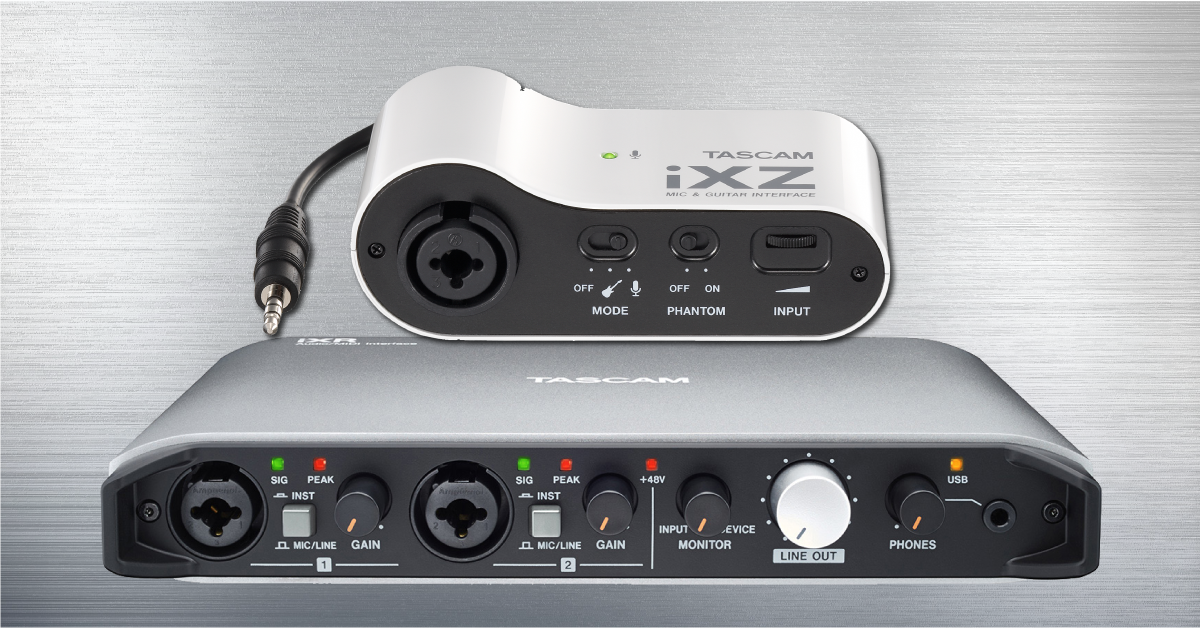
In this guide, we will show you how to register, set up, and connect a TASCAM iX series audio interface for the first time. Follow the sections below to get started.
Register the iX interface
Before we get everything connected, we’ll walk you through how to register the interface. Once you register the iX series interface, you’ll get exclusive support and notifications for upgrades to your interface. Keep your Sweetwater invoice handy, as you’ll need that during the registration process. All you need to do is go to the registration page, fill out the registration form, and then click Submit. Once registered, continue to TASCAM iX setup and connections. iOS users can skip to the iOS section of this article.
How to register Cubase LE
All TASCAM iX series interfaces come with a free copy of the Cubase LE (Mac/PC) and Cubasis LE (iOS) DAW. The registration card should come in the box with your interface. The download and installation process is straightforward, so check out our Steinberg Software Activation Instructions article to learn how to get up and running.
Learn more about how to activate, download, and install Cubase LE!
TASCAM iX setup and connections
Now that you’ve successfully registered your interface with TASCAM, it’s time to get everything set up and connected. We’ll walk you through both USB as well as iOS setup. If you have an iXZ skip Connecting to your computer instructions and go directly to Connecting your iOS device.
Connect to your computer (iXR users only)
The TASCAM iX interface is a class-compliant USB interface on Mac, but Windows users will be required to download and install TASCAM’s driver included in the Settings Panel installer file, which is necessary to use your interface. Please note that Mac users will also need to download and install the Settings Panel as this is where you will adjust the interface buffer size, input and output routing, and where you’ll perform firmware updates.
TIP: The TASCAM iX interface is bus-powered meaning that it’s powered by the computer’s USB port. That being said, we recommend connecting the interface directly to your computer as USB hubs may not provide enough power to use the device.
- Go to the TASCAM iXR download page and scroll down to Software.
- Click the Settings Panel download for your OS.
- Go to your Downloads folder, then extract and launch the installer.
- Connect your iXR interface to your computer, then launch the iXR control panel.
- If you receive a message to update your firmware, please do so now.
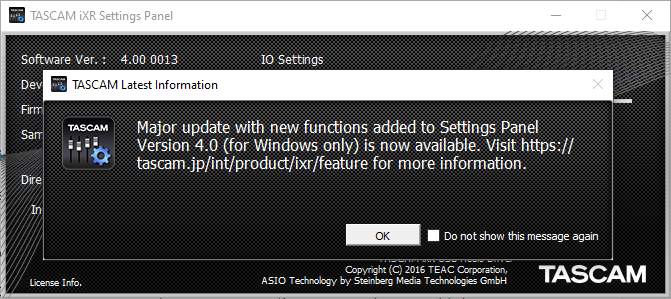
Click OK when you receive this notification.
Is your interface not showing up?
If the interface isn’t showing up when connecting it to your computer, reconnect the interface by unplugging and plugging it back in. If you have not done so yet, try reconfiguring the USB connections so that the iX interface is connected directly to your computer. If the problem persists, try a different USB port or cable. Visit our Windows and Mac guides for more tips on resolving audio device connectivity.
Learn more about how to troubleshoot audio interface issues on PC!
Learn More
Learn more about how to troubleshoot audio interface issues on Mac!
Learn MoreConnect to your iOS device
IMPORTANT: Please use a genuine Apple power adapter, as using third-party USB power adapters can damage your interface and/or iOS device.
One great feature of the TASCAM iX series interfaces is that they’re compatible with iOS devices. Since AA batteries power iXZ interfaces, all you need to do is plug it into your iOS device’s headphone or Lightning jack, then connect your headphones to the headphone jack on the interface! No additional setup is required.
Unlike the iXZ interface, the TASCAM iXR interface is USB bus-powered, and must be connected to an external power source as iOS devices will not power the interface whatsoever. Follow these steps to power the TASCAM iXR:
- Connect the USB cable that came with your interface from the PC/MAC/POWER port on the interface to the USB power adapter supplied with your iOS device.
- Use a USB-A to USB-A cable, connect one end to the USB-A connector on the interface, and connect to a Lightning to USB Cable adapter.
- If you have a newer iPhone that does not have an ⅛-inch connection, you will need to use the Apple Lightning to 3.5 headphone jack adapter.
- Connect the Lightning connector to your iOS device, then launch your recording software!
Learn more about how to set up your iOS device for audio recording!
Connect to your Android device (iXZ users)
IMPORTANT: If you plan on using the iXZ interface with an Android device, you MUST use a CTIA to OMTP adapter.
One thing that sets the iXZ interface apart from the rest is the ability to use it on Android. GarageBand is the go-to mobile DAW for iOS users, but there are plenty of mobile DAW’s to choose from in the Google Play Store.
Just like iOS devices, AA batteries power iXZ interfaces, so all you need to do is plug the interface into your CTIA to OMTP adapter, connect your headphones into the headphone jack, then start recording!

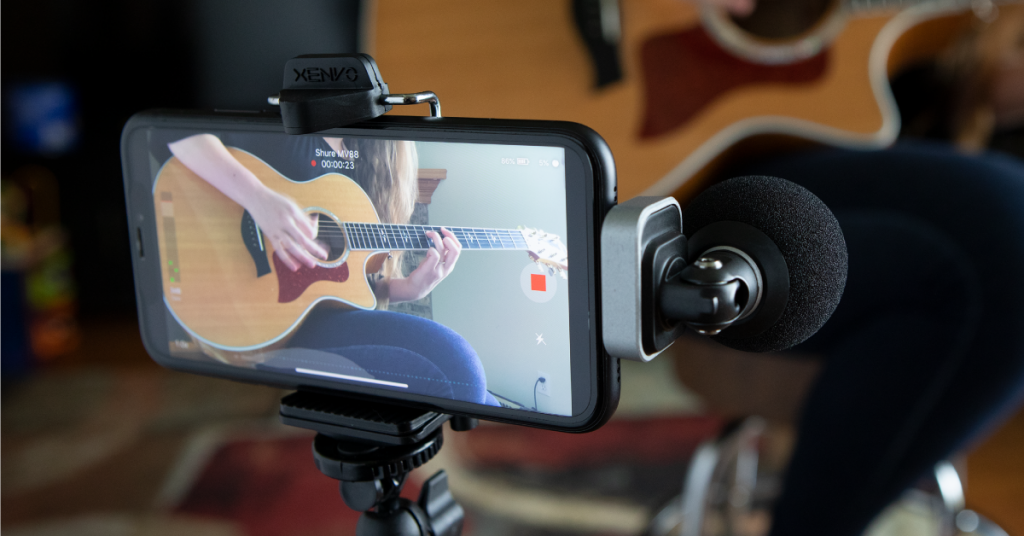
Learn more about how to set up your Android device for audio recording!
Related content

Learn more about optimizing your Windows 10 computer for music production!
Learn More
Learn more about optimizing your Mac computer for music production!
Learn More
Learn more about how to get up and running with Cubase!
Learn More
Learn more about how to practice effectively using an iPad!
Learn MoreAdditional resources
When you need help, Sweetwater has the answers!
Our knowledge base contains over 28,000 expertly written tech articles that will give you answers and help you get the most out of your gear. Our pro musicians and gear experts update content daily to keep you informed and on your way. Best of all, it’s totally FREE, and it’s just another reason that you get more at Sweetwater.com.


Offer applies only to single-receipt qualifying purchases. Select manufacturers may require that only the manufacturer’s products qualify towards the minimum purchase amount needed to be eligible for promotional financing. Otherwise, an invoice that meets the minimum purchase amount and contains at least one qualifying manufacturer product is eligible for promotional financing. No interest will be charged on promo purchase balance, and equal monthly payments are required on promo purchase until it is paid in full. The payments equal the amount financed divided by the number of months in the promo period, rounded up to the next whole dollar. These payments may be higher than the payments that would be required if this purchase was a non-promo purchase. During the last month(s) of the promo period the required monthly payment may be reduced due to the prior months’ rounding. Regular account terms apply to non-promo purchases. New Accounts as of 07/31/2025: Purchase APR is 34.99%. Penalty APR is 39.99%. Min Interest Charge is $2. Existing cardholders: See your credit card agreement terms. Subject to credit approval.
Offer applies only to single-receipt qualifying purchases. No interest will be charged on the promo balance if you pay it off, in full, within the promo period. If you do not, interest will be charged on the promo balance from the purchase date. The required minimum monthly payments may or may not pay off the promo balance before the end of the promo period, depending on purchase amount, promo length and payment allocation. Regular account terms apply to non-promo purchases and, after promo period ends, to the promo balance. New Accounts as of 07/31/2025: Purchase APR is 34.99%. Penalty APR is 39.99%. Min Interest Charge is $2. Existing cardholders: See your credit card agreement terms. Subject to credit approval.
The estimated required monthly payment shown which excludes taxes and delivery equals the amount financed divided by the number of months in the promo period, rounded up to the next cent. During the last month(s) of the promo period the required monthly payment may be reduced due to this rounding. These payments apply only with the financing offer shown. If you make these payments by the due date each month, you should pay off this amount financed within the promo period, if it is the only balance you are paying off. If you have other balances on your account, this payment will be added to any other minimum monthly payments.
Applies only to select items from this manufacturer. Ask your Sweetwater Sales Engineer for more details.