
Yamaha UR Series Audio Interface Setup Guide
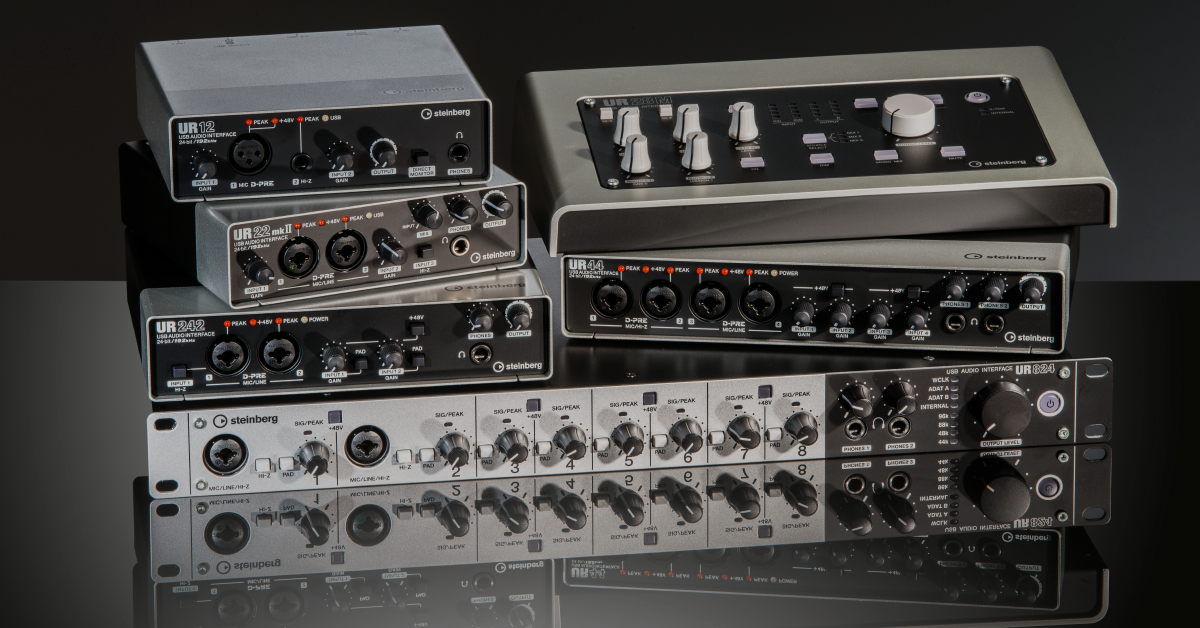
In this guide, you will learn how to set up a Yamaha UR series interface on a Mac and PC. We will show you how to connect it to your computer, and then get audio in and out from the device. Follow the sections below to get started.
Register the Interface
Before we dive in, the first thing to do is to register the interface. Yamaha UR interfaces are bundled with a free version of Cubase AI and Cubasis LE for iOS devices (UR12 excluded). To get them, create an account and register your Yamaha interface. Follow these steps to register your interface.
- Log in or create a Steinberg account here.
- Once logged in, go to the My Steinberg page.
- Click Register Hardware, select your interface model from the list shown, and then enter your serial number.
- Click Enter Download Access Code and follow our software activation instructions below.
- The download for Cubasis LE 2 can be found on the App Store here.
Download and Install the Drivers
After registration, you next need to download and install the latest drivers compatible with your system. Follow the steps below to download the driver and install it for your operating system.
Installation for Windows PC
- Go to the Yamaha USB Driver download page and download the latest driver for Windows.
- Navigate to your Downloads folder and run the installer.
- Right-click the .zip file, select Extract all…, and then click Extract. Double-click the new .exe installer file and follow the on-screen instructions.
Installation for macOS
The Yamaha Steinberg USB driver requires special permissions to be set up in macOS. If you have a Mac with Apple silicon, the first step requires booting your Mac into Recovery mode and making a change to the Security Policy. After this you can install the software.
- Go to the Yamaha Steinberg USB Driver download page.
- Read the installation information and follow the instructions.
- Learn more in the Steinberg document macOS: Yamaha Steinberg USB/Thunderbolt Driver and TOOLS installation.
- Learn more in our Sweetcare article Enabling Kernel Extensions on Mac with Apple silicon.
Tools for UR Interfaces
With the exception of the UR12 and UR22, all Yamaha UR interfaces have Tools which you can download. This bundle includes the Yamaha driver, FX plug-in suite, and the dspMixFx app which allows you to set up monitor mixes, and get more control out of your interface using DSP without any latency. To learn more about how to use dspMixFx, visit the interface’s owners manual.
Setup and Connections
After registering the interface and installing its driver software, it’s time to connect it to your computer. UR interfaces connect with standard USB A to B cables and operate on the USB 2.0 protocol for maximum compatibility. UR12’s and UR22’s are USB bus-powered via USB 2.0 port, which means they receive power over the USB connection instead of a power adapter. You can also connect it to a USB power adapter or mobile battery with a micro USB cable. The micro USB connections on the UR12 and UR22 is only for power; it will not transmit data. All other UR interfaces are not bus-powered and require the use of their included external power supply.
Computer
To connect, plug in your UR interface with a USB 2.0 cable and then power it on. Once connected, update your computer’s audio settings and set your UR interface as the default playback and recording device. It’s important to note that USB 3.0 cables are not supported.
- Plug in the power supply, connect the USB cable from the interface to your computer, then power it on.
- Navigate to your OS sound settings and set it as the default input and output device.
- PC: Right-click the sound icon on the Windows taskbar, select Sounds, then click the Playback tab. Locate and select the interface, click Set Default, then click OK to close the menu. Do the same in the Recording tab.
- Mac: Click the Apple icon from the Menu Bar and select System Preferences. Click Sound, then select the UR interface under the Input and Output tabs.
iOS Device
To connect a UR interface to an iOS device, you’ll need an official Apple Lightning to USB Camera Adapter and an external power supply. UR12’s and UR22’s will require a power supply with a micro USB connection (such as a wall charger for a mobile device) or a USB power bank.
- Connect a USB cable to the Lightning to USB camera adapter and connect it to the iOS device.
- Connect the power supply and then turn the device on. UR12 and UR22 owners need to make sure that the Power Source switch is set to 5V.
Is the interface not showing up?
If your UR interface does not connect, try reconnecting by unplugging and plugging it back in. If you’re using a USB hub, also try connecting directly to your computer. Visit our Windows and Mac guides for more tips on resolving audio device connectivity.
Additional Steinberg resources
- Yamaha UR Series Specs & Downloads
- How to use the Loopback Function
- How to Record a Song with Cubasis LE
- How to Get Started in Cubase AI and LE
Related Articles
When you need help, Sweetwater has the answers!
Our knowledge base contains over 28,000 expertly written tech articles that will give you answers and help you get the most out of your gear. Our pro musicians and gear experts update content daily to keep you informed and on your way. Best of all, it’s totally FREE, and it’s just another reason that you get more at Sweetwater.com.

