
Steinberg Software Activation Instructions
In this guide, we will show you how to register, download, and activate your Steinberg software for the first time. Follow the sections below to get started.
- Download and install Steinberg Download Assistant
- Activating a Steinberg Download Access Code
- Download and activate your software
Download and install Steinberg Download Assistant
IMPORTANT: Steinberg Activation Manager will be installed during the Download Assistant installation process.
The first step in activating your Steinberg software is downloading and installing Steinberg Download Assistant. This application is where you will download, install, and manage all of your Steinberg products. When you install Steinberg Download Assistant, the latest version of eLCC and the new Steinberg Activation Manager software are also installed. Follow these steps to complete the process.
- Sign in to your Steinberg account. If you don’t have an account, you can create one here.
- Go to the Steinberg Download Assistant page, and select the installer for your OS.
- Go to your Downloads folder, launch the installer, and follow the on-screen instructions.
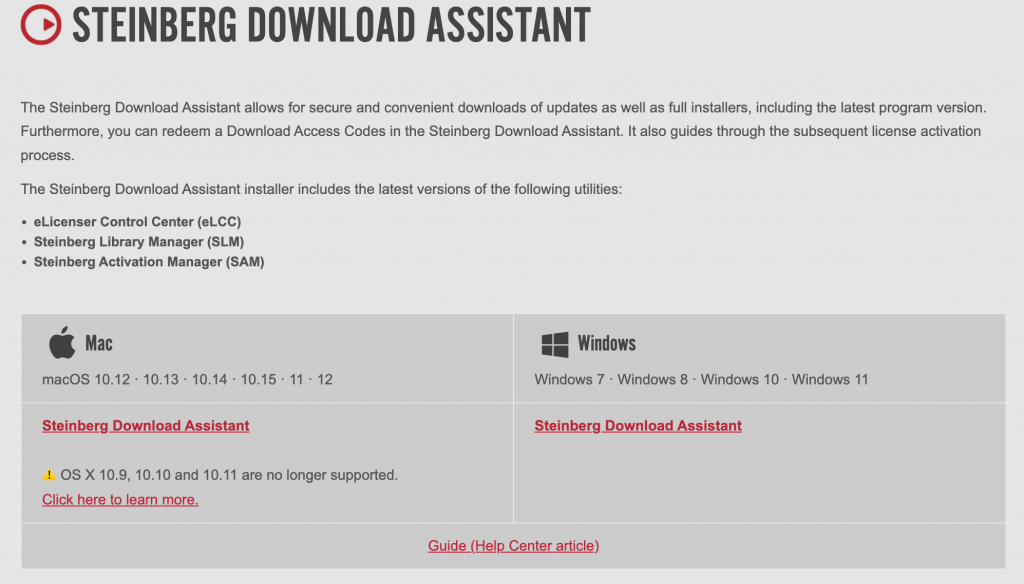
Click the image to download Steinberg Download Assistant
Activating a Steinberg Download Access Code
TIP: If you purchased a product that includes a free copy of Cubase, use the Download Access Code card which is often included inside the box with your hardware.
Once you have downloaded and installed Steinberg Download Assistant, the next step in the process is to activate Steinberg’s Download Access Code you received from your Sweetwater Sales Engineer.
- Launch Steinberg Download Assistant, and when prompted, sign in using your Steinberg account credentials.
- A browser window will open asking you to authorize Steinberg Download Assistant. Once you allow access, the application will open.
- Click Enter your Download Access Code, copy and paste the Download Access Code you received from your Sweetwater Sales Engineer.
- Use the Download Access Code if you purchased a product that has a physical activation card.
- You can also enter your Download Access Code from the Products section of your Steinberg account page.
Upgrading eLicenser-based products
NOTE: If the upgrade fails, this is likely due to the eLicenser servers being overloaded or undergoing maintenance.
When upgrading an eLicenser-based product, there is only one additional step to perform. After entering your Download Access Code as outlined in step 3 in the section above, an eLicenser Control Center window will appear. When you see that, click Continue, select the license you’re upgrading, then click Upgrade License.
Check out Steinberg’s Licensing page for more information on transitioning from the eLicenser-based licensing system!

Click Enter your Download Access Code in Steinberg Download Assistant.
Download and activate your software
TIP: The download location for your Steinberg products defaults to your primary download folder, but you can always change the download location by clicking the Settings icon.
Once the Download Access Code has been authorized, you’ll now be able to download your Steinberg software within the Download Assistant application, then finally activate it using the Steinberg Activation Manager application. Please note that all Steinberg products are listed, so make sure you download and install the correct version!
- Use the dropdown boxes and locate the version of the Steinberg product you purchased, and then click Download.
- Download times will vary depending on your internet connection. Keep the app open at all times when downloading a product or an update!
- Once the download is complete, click Install. Alternatively, go to your Downloads folder and launch the product installer.
- Once installed, launch your software. Upon launch, Steinberg Activation Manager will open and prompt you to sign in using your Steinberg account credentials.
- A browser window will open asking you to authorize the software. Once you allow access, Steinberg Activation Manager will open.
- Click the red Activate button to complete the activation process.
- If you’re receiving a ‘No License Found’ error, make sure you’ve entered your Download Access Code correctly.
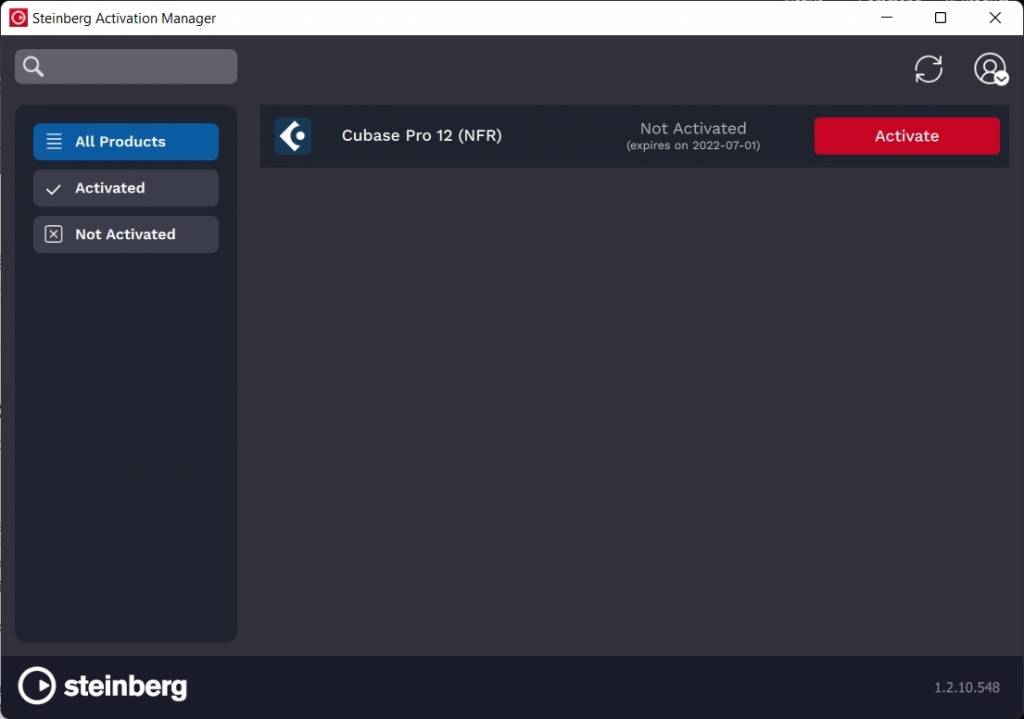
Click Activate to complete the activation process.
Related Articles
When you need help, Sweetwater has the answers!
Our knowledge base contains over 28,000 expertly written tech articles that will give you answers and help you get the most out of your gear. Our pro musicians and gear experts update content daily to keep you informed and on your way. Best of all, it’s totally FREE, and it’s just another reason that you get more at Sweetwater.com.

