

How to Use the Yamaha Montage M E.S.P. Plug-in
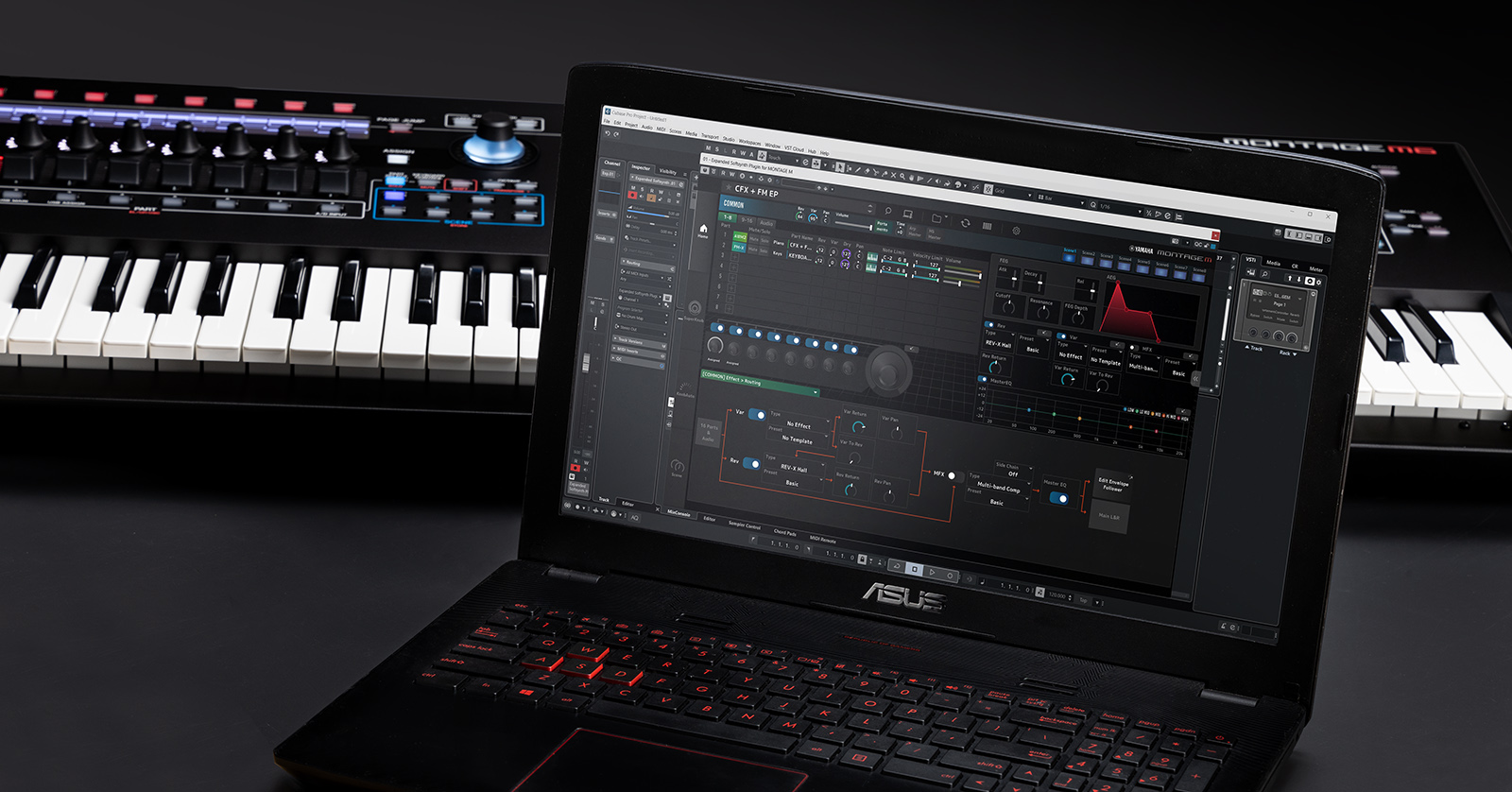
The Yamaha Montage M Expanded Softsynth Plug-in (E.S.P.) is a fantastic companion plug-in for your Montage M workstation. In this guide, we will show you how to set it up and use it with your favorite DAW. Let’s get started!
NOTE: The E.S.P. virtual instrument is only available in VST3 and AU plug-in formats. AAX is not available.
Setup and Installation
IMPORTANT! The Download Access Code is on a card inside the packaging — do not throw it out!
To access the Yamaha E.S.P. plug-in, you must first register your Montage M with Yamaha and update its firmware.
You can register the Montage M in two ways: using the QR code included in the document packaging or through the Montage M registration page, then using the Download Access Code to gain access to the plug-in.
Visit our Steinberg software activation page to learn how to activate your Montage M ESP software. Also, check out Yamaha’s guide to learn more.
Montage M Firmware Update
After you register your Montage M, you must update the workstation’s firmware. For the E.S.P. plug-in to work, the Montage M must run at least O.S. v1.22. However, we recommend updating it to v2.0 to unlock the plug-in’s full potential. Check out our Montage M Firmware Update Guide to learn how to do it.
Navigating the Plug-in
TIP: Just like the Yamaha Montage M, presets are known as Performances, and sounds are known as Parts in E.S.P.
The Montage M E.S.P. is a virtual instrument you can load in your DAW just like any other. When you load E.S.P., you will be greeted with a familiar UI.
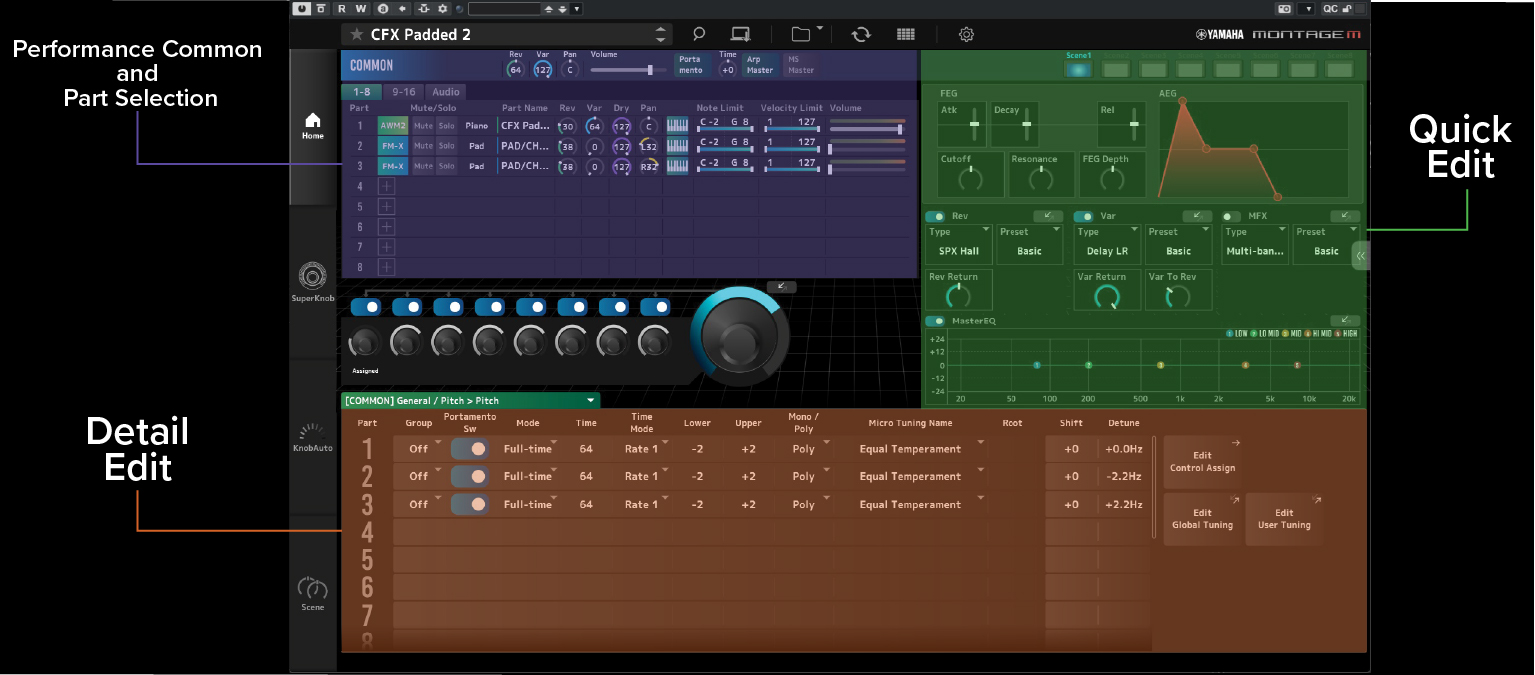
Sections of the Montage M E.S.P. plug-in
Navigation Bar
The navigation bar is located at the top of the plug-in. This is where you will load, search, sync, and transfer Performances and Live Sets. You can also adjust various plug-in and Montage M parameters by clicking the gear icon.
- To search for and load Performances, click the preset name or the magnifying glass. Then, click on a category, a subcategory, and an attribute to filter your search.
- The E.S.P. plug-in also includes the Yamaha MOTIF and original Montage Performances! The Performances are below the Attributes check box.
Performance Common and Part Selection
You will see the Performance Common and Part selection on the left side of the E.S.P. virtual instrument-in. You can adjust individual part panning, note limit, velocity limit, and volume.
When you click Common, you can adjust the parameters of the entire Performance. When you click the Part #,however, you will access the Quick Edit and Detail Edit menus, which allow you to fine-tune the part’s parameters. These parameters will change depending on what engine is used.
- You can assign controls to the eight knobs and the Super Knob by clicking the diagonal arrow located next to the Super Knob.
- Click the + icon next to an empty part to load a new part to your Performance.
Quick Edit
The right side of E.S.P. allows you to adjust the Quick Edit controls. This is where you can adjust part-specific parameters. There are different parameters on different parts (and engines), so spend some time working in this section to familiarize yourself with the options.
Detail Edit
Detail Edit is the bottom half of E.S.P. As the option suggests, here you will make detailed adjustments to the selected part. Just use the green dropdown to view the changes you can make. Depending on the part you selected, different parameters will be available to adjust.
For example, if you load the CFX Padded 2 preset and select the Piano part, you can change Part and Element settings. However, you can change the Part and Operator settings if you choose the Pad part.
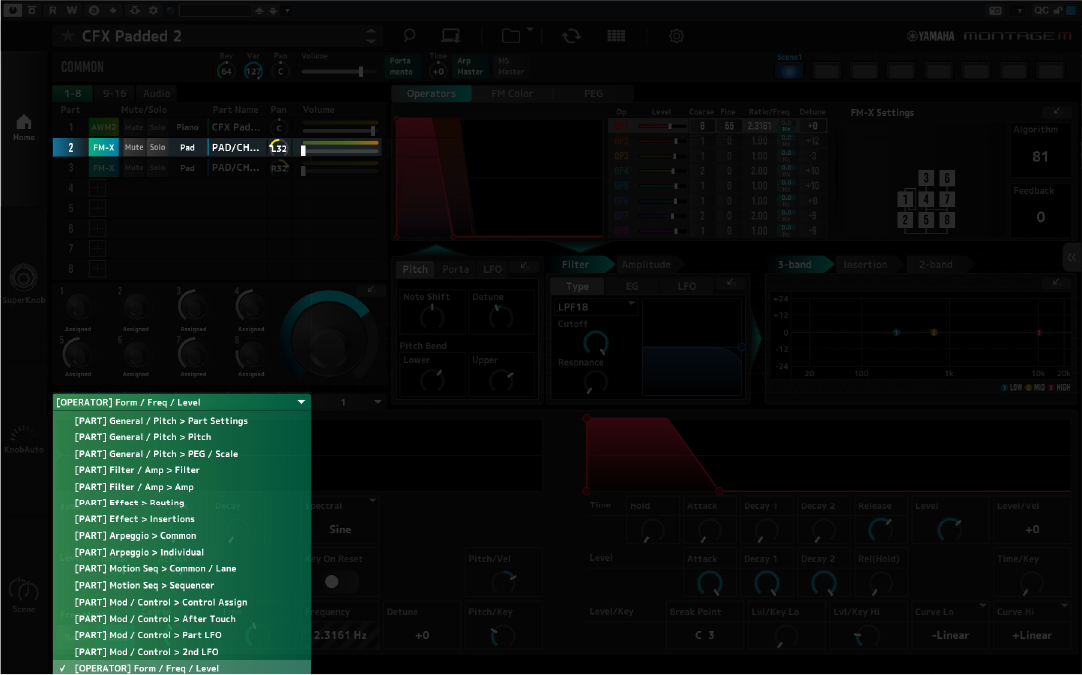
Detailed edit of a Pad layer in the Montage M E.S.P. plug-in
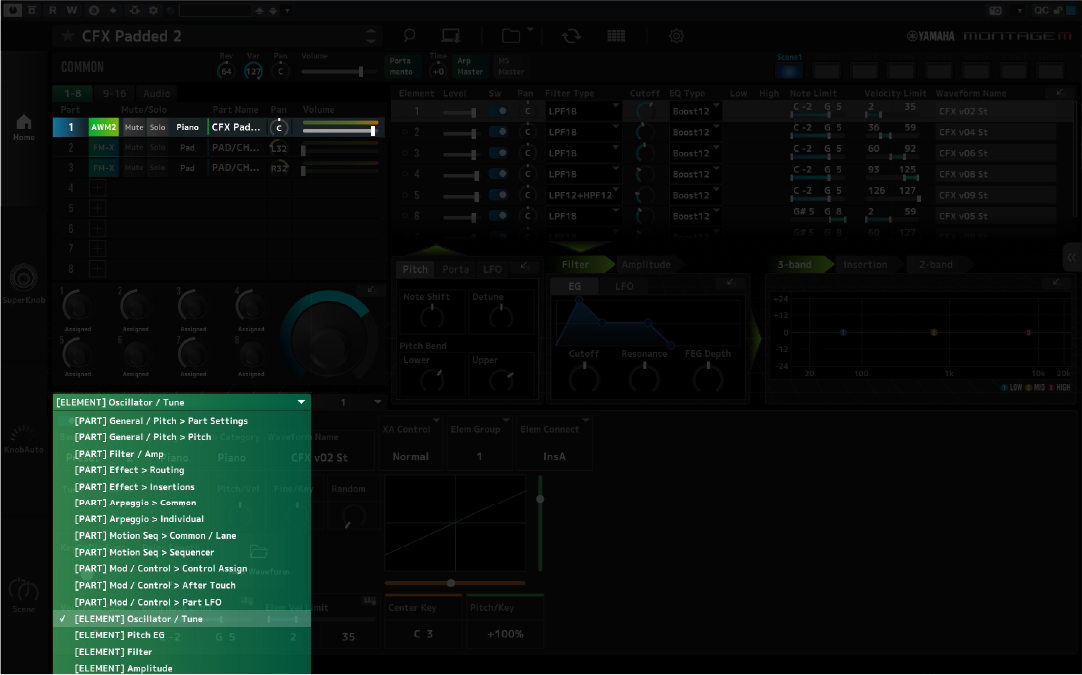
Detailed edit of a Piano layer in the Montage M E.S.P. plug-in
Saving Performances on E.S.P.
Once you have found your Performance’s perfect sound, you can save it as a preset for later recall or transfer it to your Montage M. To do so, click the computer icon and choose Store As New Performance.
- If you are changing a custom preset and wish to overwrite it, click Overwrite Current Perf.
How to Use E.S.P. with Montage M Workstation
What’s great about the virtual instrument is its seamless integration with your Montage M workstation. If you have the Montage M connected to your computer, you can control the plug-in using the workstation’s buttons and knobs, and vice versa. Any change you make on the plug-in will be changed in real time on your Montage M.
- Press DAW Control on your Montage M, and toggle Local Control Onor Off. When it is turned on, all sounds will come directly from the Montage M. When turned off, all sounds will come through E.S.P.
How to Transfer Performances from E.S.P. to Montage M
One great feature of E.S.P. is the ability to transfer sounds to and from the Montage M with a click of a button. This is very useful in cases where you create a Performance on your computer and want to take it on the road with you.
- Connect the Montage M to your computer. Save the Performance on E.S.P. as outlined above.
- Load the Performance you wish to transfer, click the Synchronize icon (circle with arrows), then click Transmit to Montage M.
- If you want to transfer a Performance from the Montage M, click Receive From Montage M.
- If you get a Communication error, click it again. If that doesn’t work, disconnect a few USB devices, then try again.
Yamaha Montage M | ESP: Install Expended Softsynth Plugin Install and Settings
Related Articles
When you need help, Sweetwater has the answers!
Our knowledge base contains over 28,000 expertly written tech articles that will give you answers and help you get the most out of your gear. Our pro musicians and gear experts update content daily to keep you informed and on your way. Best of all, it’s totally FREE, and it’s just another reason that you get more at Sweetwater.com.

