
Polyend Step Quickstart Guide
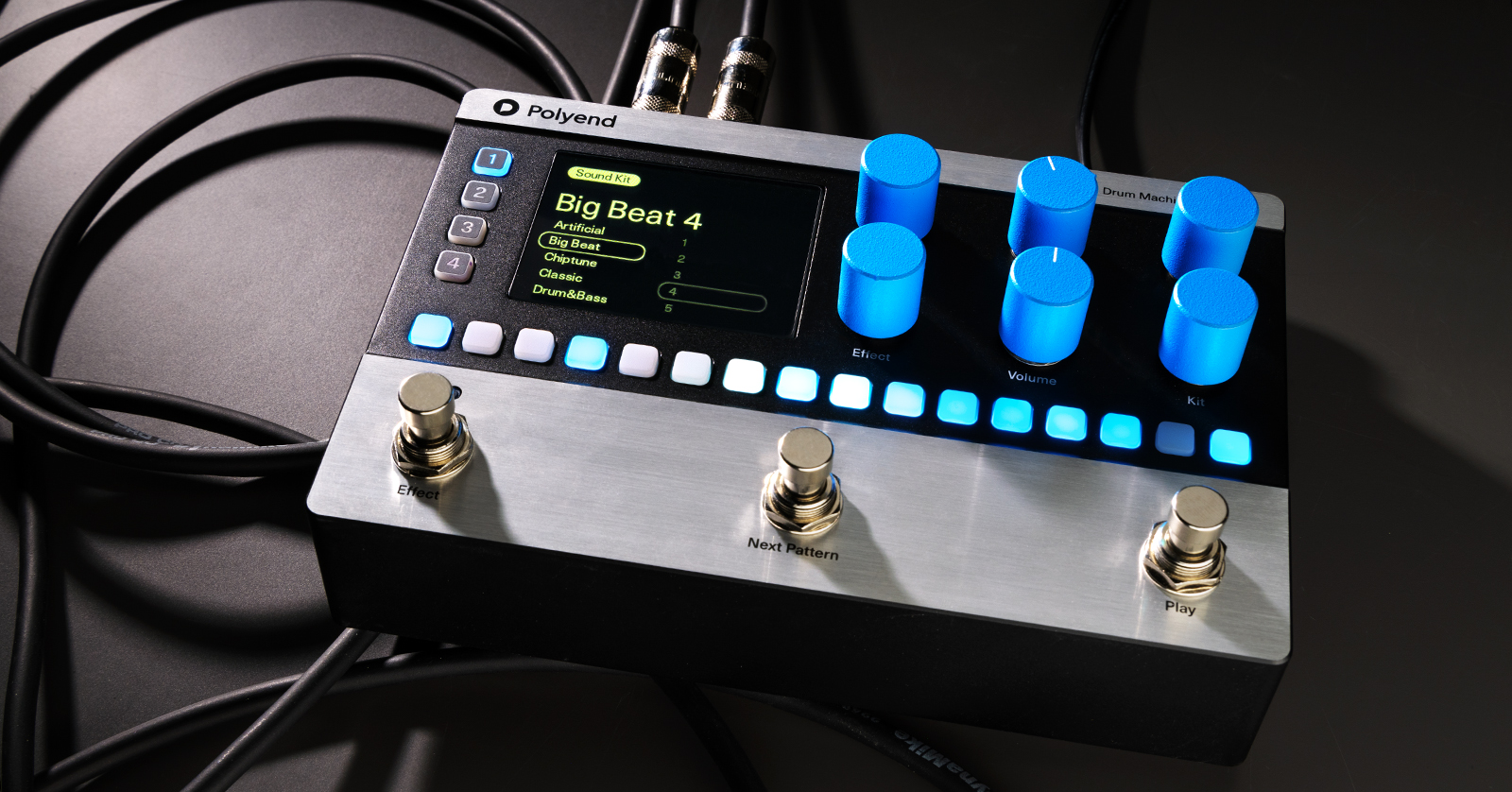
The Polyend Step is a unique drum machine, sequencer, and pedal combo that is perfect for any musician out there! In this guide, we will show you how to register, set up, and use the Polyend Step for the first time. Make sure to check out the Polyend Step manual to learn more! Let’s get started.
- Register the Polyend Step
- Polyend Step Firmware Update
- Setup and Connections
- Working with Songs and Patterns
Register the Polyend Step
Before getting set up and connected, you must first register the Step with Polyend. Upon registration, you’ll get access to additional content and features to load onto the pedal!
- Log in to your Polyend account. If you don’t have a Polyend account, fill out the registration form at the bottom of the page. Polyend will send you a password reset link to create a new password.
- On your account page, click Register Product, use the drop-down to selectStep, enter the serial number, and click Register.
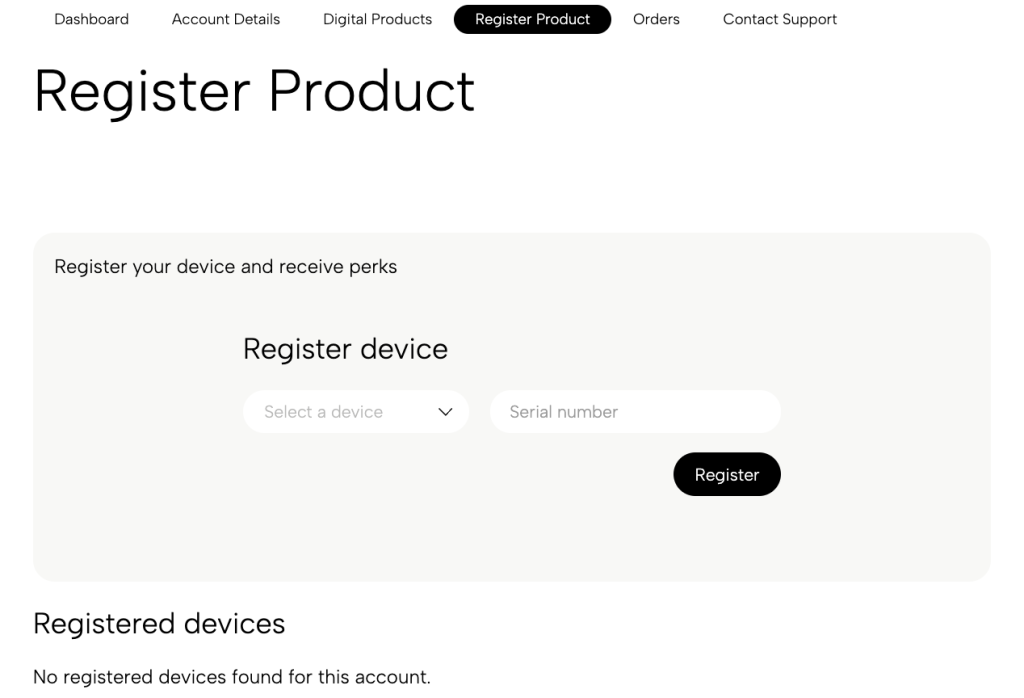
Click the image to register your Polyend Step.
Polyend Step Firmware Update
After registering your Polyend Step, you must update the firmware. Polyend will periodically release updates that will often add new features or address any issues that may be present in the current version. Polyend has made the process simple: you just need to transfer the file from your computer to the Step.
- Go to the Step downloads page. Download the latest firmware version.
- Navigate to your Downloads folder. Locate, then extract the PolyendStep_v.x.x.pstf firmware file.
- Insert the microSD card into the included USB adapter. Connect it to your computer.
- Navigate to your Downloads folder, transfer the firmware file to the Firmware folder located in the Root Directory of the SD card, and safely eject the USB adapter from your computer.
- Insert the SD card into the Step. Power the pedal on.
- Press the Song knob, then navigate and choose Firmware.
- Follow the on-screen prompts to complete the firmware-update process. The pedal will automatically restart once the process is complete.

Click here to download the Polyend Step firmware.
Setup and Connections
After you’ve registered your Step, it’s time to get set up and connected. The connections are straightforward for any instrument you use! Here are a few tips to get you up and running.
Front Panel
- Use the 16 Step buttons to enter or remove the current instrument’s step within the pattern.
- Press the 1–4 buttons to choose the instrument with which you want to work.
- Use the knobs to change specific functions. With the exception of the Tempo and Volume knobs, you can push a knob down to enter and exit out of submenus.
Rear Connections
Power
Make sure you use a 9–18V DC power supply that is 560 mA and center negative!
Outputs
The Step has L and R MONO audio outputs.
Inputs
There is one stereo audio input to connect any instrument, either mono or stereo. Depending on what’s connected, you might need to change the audio input signal setting within the Settings menu.
MIDI
Use 1/8-inch TRS cables for MIDI I/O connections. You can change parameters (CC), make song changes (PC), and play patterns via MIDI.
USB
If you want to send and receive MIDI from your computer, you can do so via the USB port.
Reset
If your pedal isn’t functioning properly, you may have to perform a factory reset. To perform a factory reset on the Polyend Step, you must insert a paper clip or a pen to press the recessed button.
Working with Songs and Patterns
You can work with up to 1,000 songs on the Polyend Step, all of which are customizable. Each song consists of up to 16 patterns, and there are 16 steps within each pattern.
- Turn the Beat knob to select the song of your choosing. Tap the Play footswitch to begin song playback.
- Use the Kit knob to change the kit.
- Press the 1–16 pads to add or remove steps in the pattern. To copy a pattern, press and hold its pattern button, then press the next pattern where you want to assign it.
- Press the Next Pattern footswitch to change to the next pattern in the song.
Create a New Song
Not only can you edit factory songs, but you can also create them from scratch. Songs consist of four samples: Kick, Snare, Hat, and Perc. What’s great is that you can mix and match samples to make your own unique kits! Let’s create a new song from scratch.
- Turn the Song knob and navigate to, then select Empty.
- Turn the Kit knob to select a kit of your choosing.
- Press 1 to select the kick track, enter a pattern, and press the Play switch.
- Repeat steps two and three until you’ve added the samples you wanted to load.
Adding Effects
You can add effects to entire tracks and to individual steps within patterns. Adding effects will give your songs more life and character! Take your time with each track, and play around to see what sounds good to you.
To add effects, press and hold the Track (or step) button to which you wish to apply the effect, then turn the Effect knob. Here are a few tips to get you started.
Punch-in effects
Punch-in effects are a great way to transition from one pattern to another or to add additional flare to the pattern that’s currently playing. The punch-in process is simple, so we will show you how to add a punch-in and to transition to a new pattern.
- After you’ve made edits to your patterns, enter Song view. Turn the Effect knob.
- Navigate to and select Rearrange, then use the Effect knob to select the rearrangement you wish to apply. Press and hold the Effect switch to preview (and apply) the fill.
- Tap the Play switch to begin playing. Tap the Effect switch to begin the punch-in effect and to transition to the new pattern.
Related Articles
When you need help, Sweetwater has the answers!
Our knowledge base contains over 28,000 expertly written tech articles that will give you answers and help you get the most out of your gear. Our pro musicians and gear experts update content daily to keep you informed and on your way. Best of all, it’s totally FREE, and it’s just another reason that you get more at Sweetwater.com.

