
Polyend Synth Firmware Update Guide
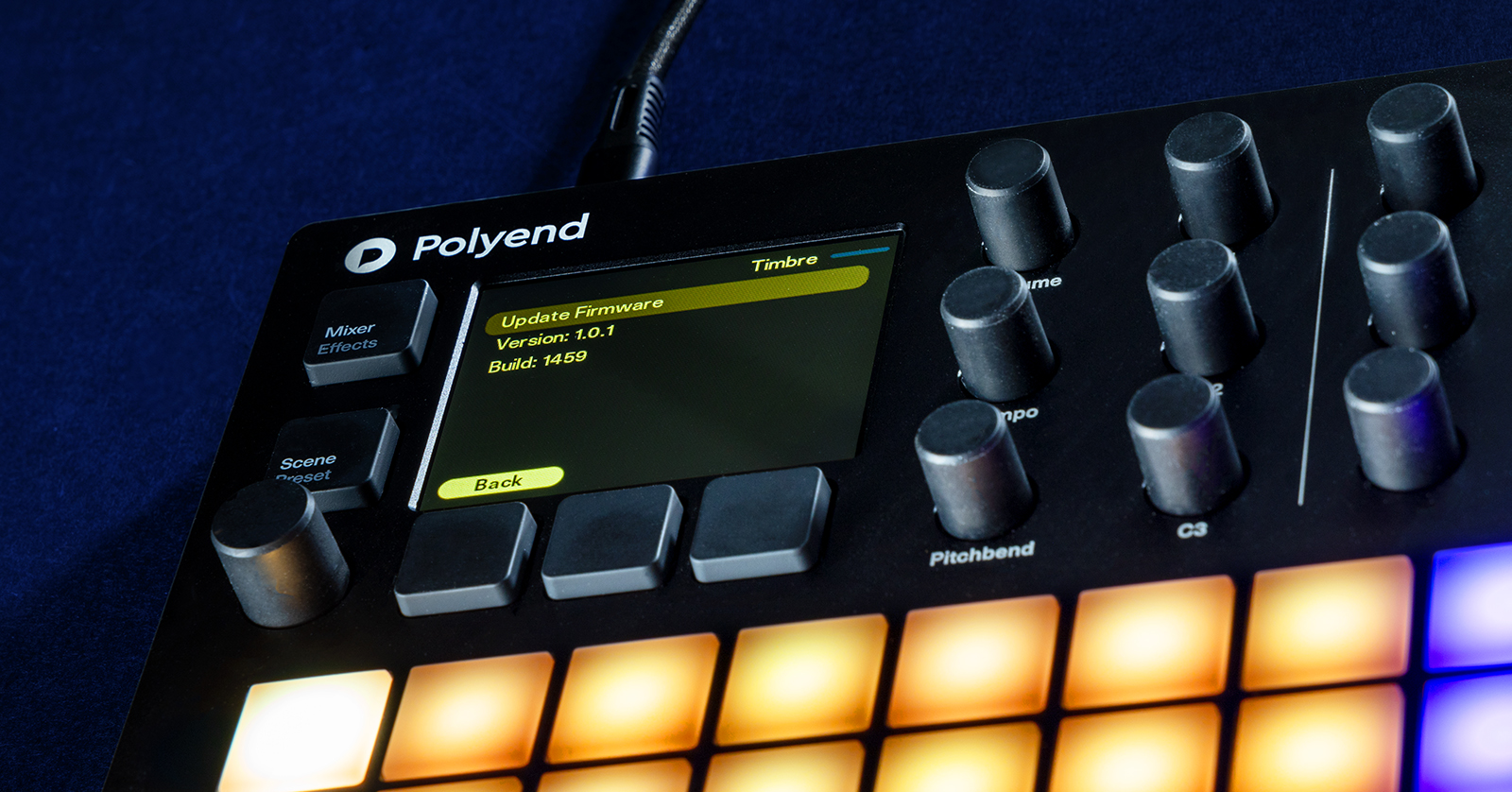
Polyend often releases Synth updates that add great new features and address any potential bugs in the current version. This guide will show you how to update the firmware on your Polyend Synth. Follow the sections below to get started.
Update the Polyend Synth Firmware
IMPORTANT! We recommend you connect the Polyend Synth to the included power adapter while you perform the firmware update. This will ensure steady power connectivity throughout the process.
To update the Polyend Synth firmware, you must download the firmware file and transfer it from your computer to the included microSD card.
- Go to the Polyend Synth download page. Download the latest Synth Firmware.
- Insert the Polyend Synth’s SD card into the included microSD to USB adapter, open an explorer window on your computer, and locate the Polyend folder.
- Copy and paste the downloaded firmware file to the /Firmware sub-directory (Root directory /Settings /Firmware).
- Remove the SD card from the SD card reader, insert it into the Synth, and power the device on.
- Open the Main Menu, navigate to Settings, and locate Firmware. Open Update Firmware and select the firmware you wish to install.
- Press Screen, use the main knob to navigate to Firmware, and press Yes.
- The firmware-update process will now begin. It should take about a minute to install.
- Once the update is complete, the Synth should restart automatically. If it doesn’t (only after the update is 100% complete), manually power cycle the unit.
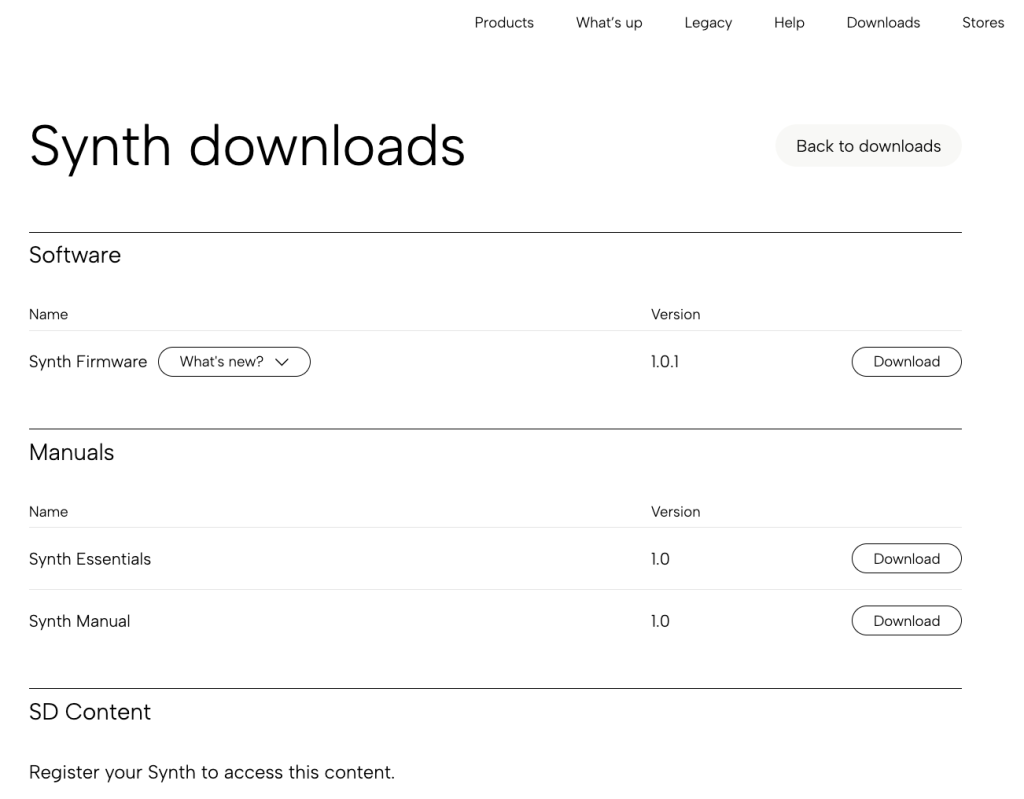
Click the image to download the Polyend Synth firmware.
Emergency Firmware Update
IMPORTANT! The emergency firmware-update procedure will also factory reset the Polyend Synth. Only follow this procedure if you’re encountering issues with the unit.
If you’re having issues such as freezing or random lockups, you may need to perform an emergency firmware update on your Polyend Synth. Do not delete any firmware files from the SD card, as the Synth will load a random firmware version during the emergency firmware-update process.
- Go to the Polyend Synth download page. Download the latest Synth Firmware.
- Insert the Polyend Synth’s SD card into the included microSD to USB adapter, open an explorer window on your computer, and locate the Polyend folder.
- Copy and paste the downloaded firmware file to the /Firmware sub-directory (Root directory /Settings /Firmware).
- Remove the SD card from the SD card reader, insert it into the Synth, and power the device on.
- Insert a pin into the reset button slot, which is located next to the USB jack on the back of the Synth, to press the Reset button. The emergency firmware-update procedure should take a minute to install.
- The Polyend Synth will then reset and search the firmware folder on the SD card.
- A random firmware version will be installed to revert the unit to a known working state.
Related Articles
When you need help, Sweetwater has the answers!
Our knowledge base contains over 28,000 expertly written tech articles that will give you answers and help you get the most out of your gear. Our pro musicians and gear experts update content daily to keep you informed and on your way. Best of all, it’s totally FREE, and it’s just another reason that you get more at Sweetwater.com.

