
Polyend Tracker+ Firmware Update Guide
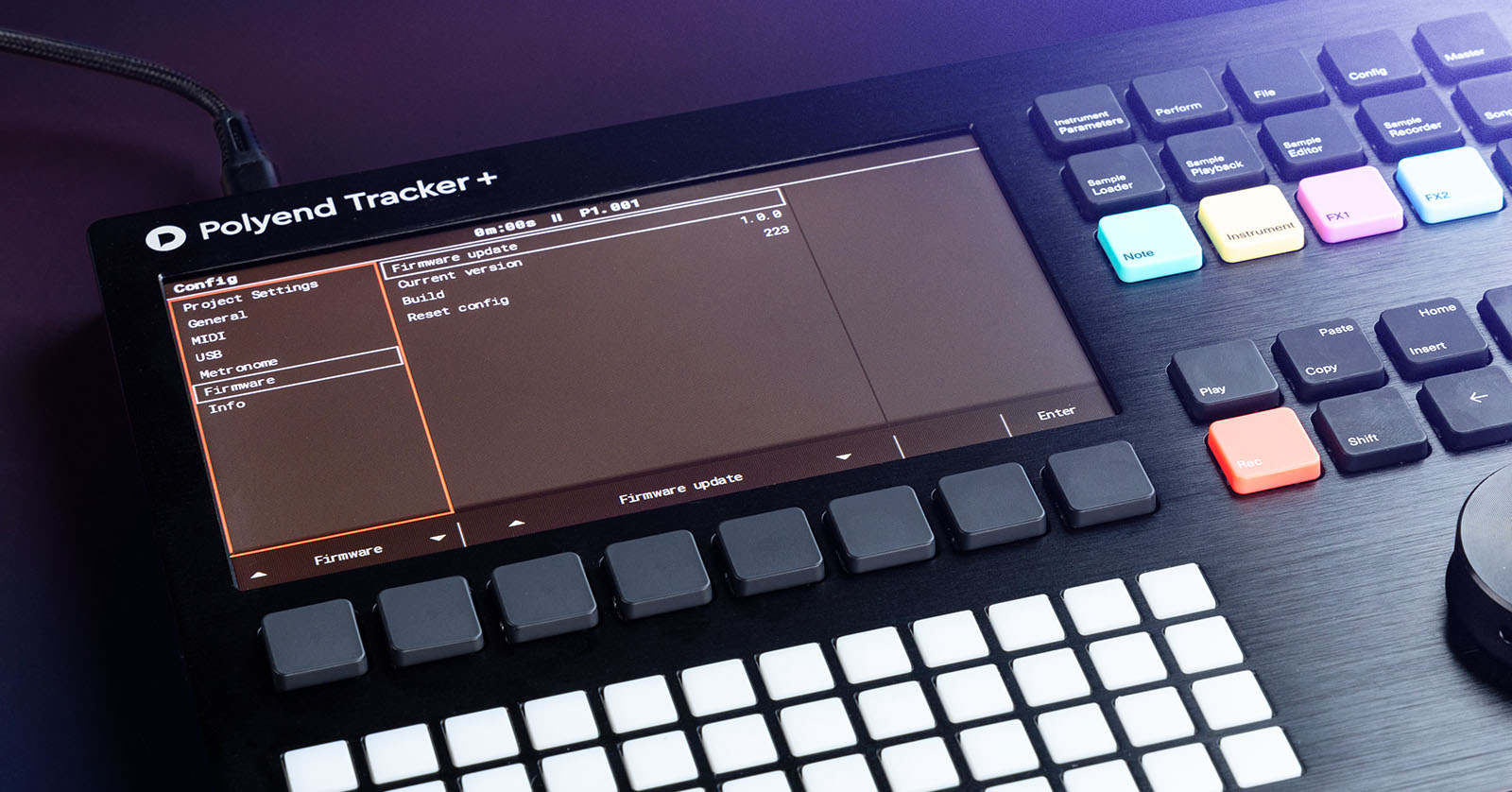
Polyend frequently updates the Tracker+ firmware. These updates often add excellent new features and address bugs that may be present in the current version. In this guide, we will show you how to update the firmware of your Polyend Tracker+. Follow the instructions below to get started.
Check the Current Firmware Version
It’s always good practice to check and see if your Tracker+ has the latest firmware version installed. This is particularly true if you just bought it, as a firmware update could have been released between when it was sitting on the shelf and when you opened the box.
- Go to the Polyend+ download page to see the latest firmware version listed.
- On your Polyend+, press the Config button.
- Use the knob to scroll down to Firmware. The current version and build will be listed.
- If your firmware matches the one shown on the download page, there’s no need to update! If it is out of date, you must go through the firmware update process.
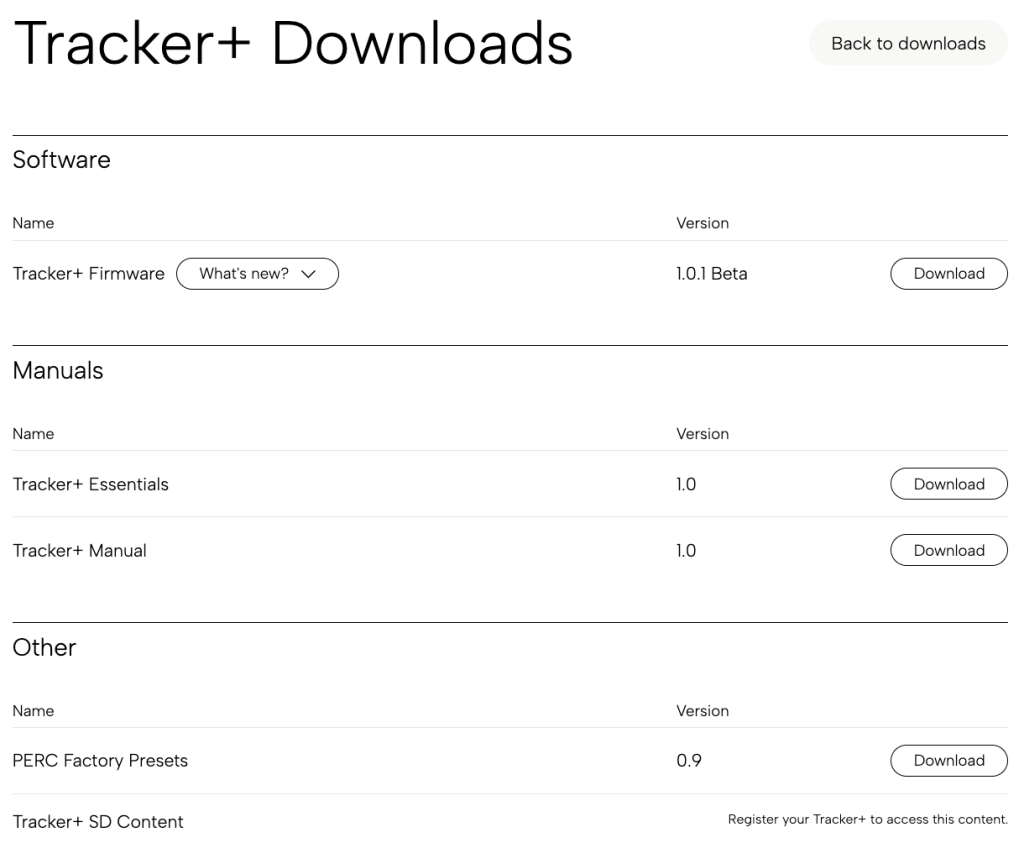
Click the image to navigate to the Tracker+ download page.
Update the Tracker+ Firmware
If the firmware installed on your Tracker+ is different from the latest version on the website, you will need to use the included USB SD card adapter to update it.
- Power down the Tracker+, remove the microSD card from the rear of the unit, and insert it into the included USB SD card adapter.
- Go to the Polyend Tracker+ download page and download the firmware file.
- Navigate to your Downloads folder and locate and extract the firmware file.
- Connect the USB drive to your computer. An Explorer window should appear.
- Copy the downloaded .ptf file to the Firmware folder on the USB drive.
- Safely disconnect the USB drive from your computer, then remove the microSD card.
- Insert the microSD card into your Tracker+, power it on, press Config, and use the knob to scroll down to Firmware.
- Use the arrow buttons to highlight Firmware update, then press Enter.
- Any .ptf firmware files currently on the microSD card will be shown.
- Highlight the firmware file you just transferred, press Select, and press Yes.
- The firmware update process will begin. Once the process is complete, the Tracker+ will automatically reboot.
- Do not power down the Tracker+ during the update process!
How to Perform Polyend Tracker Firmware Update
Related Articles
When you need help, Sweetwater has the answers!
Our knowledge base contains over 28,000 expertly written tech articles that will give you answers and help you get the most out of your gear. Our pro musicians and gear experts update content daily to keep you informed and on your way. Best of all, it’s totally FREE, and it’s just another reason that you get more at Sweetwater.com.

