
macOS 12 Monterey: Audio Optimization Guide
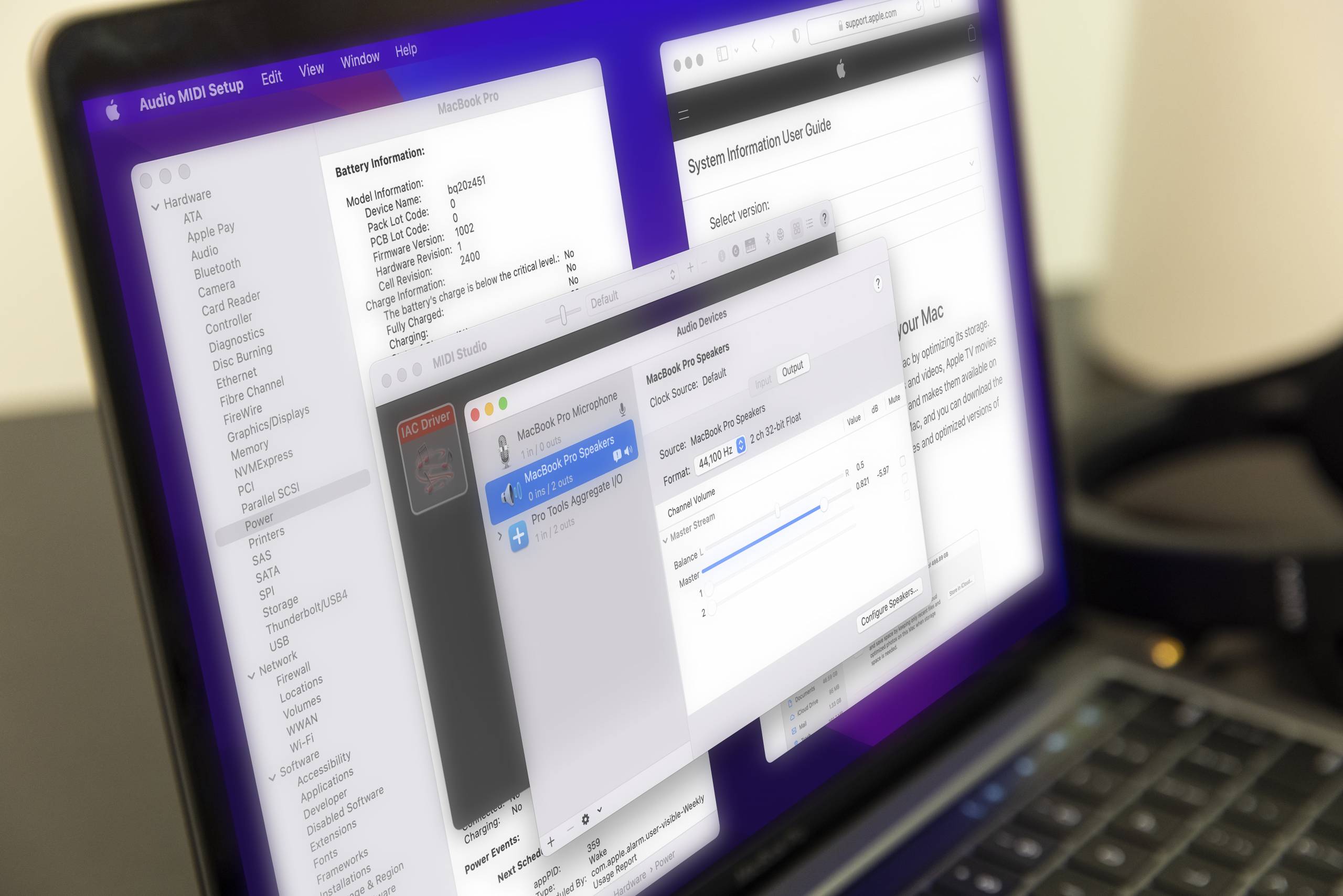
- macOS System Preferences optimizations
- General macOS settings
- Sound, display, and network connections
- DAW and audio/MIDI device connectivity
macOS System Preferences optimizations
Macs are excellent machines for audio, video, and multimedia production. Since you’ll be using your Mac for audio or recording purposes, you’ll want to optimize its System Preferences and Sound Settings so that all your apps, plug-ins, and devices work seamlessly. New Macs ship to you with their default settings. That means nothing is customized and you’ll likely want to adjust some settings to optimize performance. Many settings are cosmetic and ideal for personalizing your Mac, but others are essential for consistent software and hardware performance.
Follow along with our guide below to update the macOS System Preferences and then optimize your DAW and audio/MIDI device connectivity.
General macOS settings
- General
- Desktop & Screen Saver
- Dock & Menu Bar
- Mission Control
- Siri
- Spotlight
- Language & Region
- Notifications & Focus
- Internet Accounts
- Passwords
- Wallet & Apple Pay
- Users & Groups
- Accessibility
- Screen Time
- Extensions
- Security and Privacy
General
The General settings menu lists options for window appearance, default web browser, and other tab/scroll preferences. Depending on how you like to work, it may be useful to disable the Handoff feature to prevent unintended connections between your Mac and other iCloud devices.
- Customize your Mac’s window appearance and behavior.
- Disable Handoff to prevent your Mac from connecting to iCloud devices.
Desktop & Screen Saver
The Desktop & Screen Saver menu is for customizing your desktop wallpaper experience. It’s also for configuring a screen saver, which, while cool, can also help certain display monitors from developing long-term “screen burn.”
- Desktop: Select Automatic macOS Graphics or choose a static desktop wallpaper.
- Screen Saver: Enable the Show screen saver after option and select an interval or disable the screen saver entirely.
Dock & Menu Bar
The Dock and Menu Bar settings are ideal for customizing how you navigate and interact with your Mac’s desktop interface. The Control Center and Menu Bar settings are especially useful for customizing the icons and settings accessible from the top right of your screen.
- Customize your Mac’s Dock and Menu Bar settings.
- Click to the top right of the Menu Bar (time and date) to Edit Widgets.
Mission Control
Mission Control is a useful feature on macOS that makes it easy to view and manage all your windows and apps. These settings won’t improve your computer performance, but you may find the Hot Corners settings useful for even quicker navigation.
Siri
Siri is a helpful feature on all Macs and Apple devices, but we find it unnecessary for pro audio purposes. Turn it off by clicking Disable Ask Siri to prevent unintended interruptions to your production workflow. If you rely on the Siri feature for your Mac, consider disabling it while recording and re-enabling it once finished.
Spotlight
Spotlight is the macOS feature for finding things on your Mac. Whether it’s a file, a folder, or an app, Spotlight can search it all.
- Customize the Search Results categories to determine which types appear.
- Prevent Spotlight from accessing locations by adding them to the Privacy list.
Language & Region
The Language & Region settings determine the primary language for macOS, but you can customize each app, too. Open the Apps submenu and click the + icon to add applications with customized language settings.
Notifications & Focus
The macOS Notifications are helpful messages and alerts. Each app’s notifications are customizable, allowing you to enable some while disabling others. They also can sound an alert, which may not be desirable for music production environments where loud studio monitors can play notifications much louder than usual.
- Customize the Notifications options per app.
- Use the Focus feature to personalize when and how notifications appear.
Internet Accounts
You can configure internet accounts like iCloud, Google, and Exchange to conveniently synchronize apps like Mail, Contacts, Calendar, and Messages. While configuring your internet accounts is often typical, it’s not necessary to set up unused accounts. Ideally, these apps are closed while working with music production software, but accounts synchronize settings over the internet and can interrupt your Mac’s performance.
- Remove all unnecessary and unused accounts from the Internet Accounts settings.
- Close all nonessential apps that synchronize settings over the internet, especially those configured through your Mac’s Internet Accounts settings.
Passwords
The Passwords menu has the native macOS settings for managing saved passwords. Web browsers and other apps will often remember your login credentials, but you can also save your logins directly to your Mac’s Passwords settings. Use this menu to add, remove, and reconfigure your various login credentials.
Wallet & Apple Pay
The Wallet & Apple Pay settings aren’t affiliated with pro audio configuration but are essential to your Apple account.
Users & Groups
Your Mac’s user accounts are customizable from the Users & Groups menu. This is particularly useful for creating new accounts, updating passwords, and customizing the apps that launch on startup.
- Select the Login Items menu and add/remove the apps that launch on startup.
Accessibility
The Accessibility menu is for customizing your Mac’s user experience. Configure the text to speech, add captions, and find other critical accessibility settings here. Other essential permissions for microphone and hard disk access are typically prompted and configured in the Security and Privacy settings.
Screen Time
The Screen Time feature provides feedback about your Mac and how much you use it. We recommend disabling this feature for pro audio systems, but it can still be enabled with little to no impact on your system’s performance bandwidth.
Extensions
The macOS Extensions are not typical for pro audio systems and don’t require any additional configuration. If your Mac experiences performance issues, consider disabling customized extensions.
Security and Privacy
The default macOS Security & Privacy settings limit which software can be installed on your Mac. That means apps and updates already verified with Apple are automatically allowed, while everything else is denied unless manually allowed from the Security menu.
Disable Gatekeeper
The Gatekeeper feature on macOS keeps your Mac safe from installing software from third-party developers. During installation, if a software app is not already verified by Apple and paused, you can manually verify it in the General > Security & Privacymenuby clicking to allow the installation. Learn more from Apple about how to safely open apps on your Mac.
Privacy Settings
It is typical for pro audio software and devices to require permission from your Mac’s sound and hard disk settings. That may mean giving them access to your microphones, storage drive, and more. Update your privacy settings for each device or app that requires it in order for it to work correctly. Not enabling all the required privacy settings may prevent a product from being fully operational. Learn more from Apple about how to change Privacy preferences on Mac.
- In the General menu, for “Allow apps downloaded from:” select App Store and identified developers.
- In the General menu, immediately after installing an audio or MIDI driver, click Allow to unblock the software from loading.
- In the FileVault menu, turn off FileVault. If turned on, use your iCloud account or recovery key to turn it off.
- In the Firewall menu, turn off the Firewall.
- In the Privacy menu, under Location Services, disable Location Services.
- In the Privacy menu, under Analytics, uncheck Share Mac Analytics and Share with App Developers.
- In the Privacy menu, under Microphone, check all apps (DAWs or anything else that uses your audio devices) that you want to record audio with.
- In the Privacy menu, under Accessibility, check iLok and all other necessary audio or licensing apps.
Sound, display, and network connections
- Software Update
- Network
- Bluetooth
- Sound
- Touch ID
- Keyboard
- Trackpad
- Mouse
- Displays
- Printers & Scanners
- Battery
- Date & Time
- Sharing
- Time Machine
- Startup Disk
Software Update
The App Store preferences are useful when configuring automatic updates for macOS and Apple software. Once a music production is set up, automatic updates should be turned off. Future updates and upgrades require reviewing compatibility before installation.
- Uncheck “Automatically keep my Mac up to date.”
- Click Advanced… and uncheck each of the following:
- “Download new updates when available”
- “Install macOS updates”
- “Install app updates from the App Store”
- “Install system data files and security updates”
Network
The Network features on your Mac can take up processing bandwidth and interrupt some features. While many systems can watch YouTube, check email, and run a Pro Tools or Live session at the same time, that can cause performance loss and even require restarting or reconfiguration when software/hardware starts performing incorrectly.
- Unless required for a device or feature (e.g., iLok Cloud, EuCon controller, Ableton Link, etc.), turn Wi-Fi Off and disconnect from the Ethernet port.
- If Wi-Fi is required, uncheck “Ask to join new networks.”
- Turn off and remove the Thunderbolt/Firewire networking when not in use.
- When possible, use an Ethernet connection instead of Wi-Fi for internet access.
- If internet access is required and you’re using network devices like Eucon Controllers, choose an Ethernet/Thunderbolt connection for the devices and dedicate Wi-Fi to internet access.
- Prioritize the Wi-Fi or Ethernet by changing their order in the Set Service Order… drop-down menu.
Bluetooth
Bluetooth is used by many apps and features but typically isn’t required to operate a DAW. Unless your configuration requires Bluetooth, we recommend keeping it off.
- Unless you’re using a Bluetooth device like Apple’s wireless keyboard and mouse, turn Bluetooth off.
- Use a wired or wireless USB keyboard instead of using the built-in Bluetooth.
Sound
The Sound settings menu is where you select the default input and output audio devices for your Mac. Whether your built-in speakers or connected Bluetooth speakers, this is where you go to select what device will output the sound. The input submenu also lets you select the default sound input device. Apps will automatically select these devices when you launch them for the first time. If your device or audio interface isn’t showing up, then its drivers may need to be updated. Learn more about where to download the drivers for your audio and MIDI devices.
In-App Sound Settings
Some apps such as internet browsers do not have their own sound settings and instead rely on your Mac’s default sound configuration. Pro audio apps that work with audio interfaces, speakers, and microphones are different and have their own sound settings. That means they’ll use their input and output device selections rather than those in the macOS Sound System Preferences. Follow our guide on resolving audio interface issues on Mac if your devices don’t appear.
Aggregate Audio Devices
An Aggregate Audio Device is useful for combining two audio devices into one single selectable device. That makes it easy to use the input from one device and the output from another, particularly when an app can only select a single input/output device at a time. Some devices automatically show up as two devices, one for input and the other for output, so creating an aggregate “virtual” device is the best solution for apps where only one device is selectable. Learn more about how to create an aggregate audio device on Mac.
Touch ID
Apple’s Touch ID settings won’t affect your pro audio settings but might be useful for unlocking your Mac and changing user accounts. Learn more about how to use Touch ID on your Mac.
Keyboard
The macOS has built-in shortcuts that make using your Mac easier. Some software may use a hotkey that conflicts with the default shortcuts, so to enable it, you will need to disable the macOS shortcut. Modifying shortcuts is not required but can be useful. Check out your software’s shortcut/hotkey list for more information, or learn more about Mac keyboard shortcuts.
Trackpad
Mac trackpads are customized via the Trackpad menu. This is particularly useful for selecting your trackpad scroll direction and configuring swipe gestures. Learn more about how to customize your Mac’s trackpad settings.
Mouse
External and Bluetooth mouse devices can be connected and configured from this menu. Learn more about how to adjust the mouse settings on Mac.
Displays
Use the optimal resolution for your monitor display. You can choose Default for display, which is automatic, or Scaled to view all of the available resolution configurations. Using the maximum available resolution will give you the most screen real estate. If you find the display too small, then try using a smaller resolution.
Printers & Scanners
Printers and scanners use drivers to connect to your Mac. Some connect with USB cables while others connect wirelessly via AirPrint or a third-party app included with the device. If you do not need to use a printer with your Mac while using your audio and MIDI devices, either power it off or physically disconnect it. If a printer has a job queued, or your Mac thinks a printer is still connected, you can disconnect the printer from the Printers & Scanners list.
- Select all unused printer and scanner devices and click the – button to disconnect them from your Mac.
Battery
The Battery settings are for configuring how your Mac behaves when connected via battery or power adapter. Desktop Macs do not have the Battery settings, but most Macs will benefit from the following configuration:
- Move the slider to Never for “Turn display off after:”
- Uncheck “Put hard disks to sleep when possible”
- Uncheck “Optimize video streaming while on battery”
- Check “Optimized battery charging”
- Uncheck “Low Power Mode”
- Check “Prevent your Mac from automatically sleeping when the display is off”
- Uncheck “Wake for network access”
Date & Time
By default, the date and time are configured by the location services. Manually configure the Time Zone to prevent additional use of location services.
- Uncheck “Set time zone automatically using current location” and set the time zone manually.
Sharing
Your Mac’s Sharing features are restricted to Administrator access by default. For more information, check out Apple’s support page about how to enable or modify file sharing features on your Mac.
Time Machine
Backing up your Mac with Time Machine is a great idea but should be manually scheduled for music production computers. When automatic Time Machine backups are enabled, the backup can occur when you record and cause problems.
- Uncheck “Back Up Automatically” to turn off automatic backups.
- In the Time Machine “Options…” menu, only use drives that need to be backed up — for instance, the internal Macintosh HD.
Startup Disk
You likely won’t need to use the Startup Disk settings often or at all. This menu is useful for when you have multiple drives to boot from or for accessing the drive of another Mac. Learn more about your Mac’s Startup Disk features.
DAW and audio/MIDI device connectivity
It’s typical for pro audio products to require additional configuration. So, on top of optimizing your Mac’s System Preferences, your software and hardware must also be compatible with and configured to your computer and other gear. Fortunately, a lot of software is easy to install, and many audio and MIDI devices are plug-and-play. If you’re getting set up for the first time or updating to macOS 12 Monterey, then you’ll likely need to install or update something. That may mean updating your version of macOS, the driver software, or even how you connect it to your system.
macOS compatibility
If your hardware or software is not supported on macOS 12 Monterey, they may work but not necessarily at optimal performance. Nobody can afford, nor wants to use, gear that doesn’t work correctly, and you may have to reinstall a prior version of macOS to get back up and running like normal. Before upgrading to macOS 12 Monterey or purchasing a new Mac or device, double-check that all your gear is compatible and is officially supported on the version you’ll be using. Learn more on our macOS 12 Monterey Compatibility Guide.
DAW software configuration
- Verify compatibility and system requirements
- Select audio device and match sample rates
- Update input and output routing configuration
DAW compatibility and system requirements
Your Mac must meet a DAW’s minimum system requirements to run successfully. That means your macOS version, RAM (memory), and processor must be compatible with your DAW version; otherwise, the software may not run correctly. In some cases, incompatible DAW software will not install or launch. You must double-check the software manufacturer’s product page or support area for system requirements and official support information.
Audio playback settings
While your Mac’s default Sound settings are the primary audio settings for some apps, most DAW and virtual instrument apps have their own settings. That typically means you can assign their input and output audio device(s) independently without affecting your Mac default Sound settings. Once selected, you must then verify the sample rate and routing configuration. If the sample rate settings don’t match, then you may hear pops, clicks, distorted audio, or even complete silence. Software and hardware alike will often display a “locked” icon or light once they’re successfully synchronized.
Once synced, the audio must be correctly routed between your software and hardware. That means input signals from your hardware must be routed to the correct input channels on your software. This also applies to outputs, so that your computer’s stereo output is going to the correct output jacks and speakers. Once you’ve configured each of your setup’s inputs and outputs, save the settings so it’s easy to recall your default setup. Consider saving each of the settings for each applicable device to a dedicated folder for reliable backups.
Audio and MIDI device settings
- Verify compatibility and system requirements
- Install any required driver software
- Configure audio and MIDI device settings
System compatibility and system requirements
External audio and MIDI devices must be compatible with your Mac to connect. Some devices are plug-and-play while others require additional installation and configuration. Class-compliant interfaces use the native macOS audio/MIDI drivers to connect and do not require additional driver software to work. On the other hand, many interfaces require their own unique driver installation to connect and often have an affiliated software control app, too. Always double-check the manufacturer’s system requirements, and learn more about how to update drivers on macOS.
Connections and connectivity
Each of your audio and MIDI devices may be able to connect in more than one way; it just depends on if they’re USB, MIDI, Thunderbolt, Ethernet, etc. Though docks and hubs provide alternative connection options, pro audio devices typically prefer to be connected directly to your Mac. This is especially true for bus-powered devices that do not have a power supply adapter and draw power from a USB connection. Larger devices usually require more power and have a dedicated power supply connection and/or adapter.
- Pro audio devices prefer to be connected directly to your computer.
- Use docks and hubs with dedicated power adapters.
- Remove unused audio and MIDI devices from the Audio MIDI Setup utility.
- Review our audio and MIDI device troubleshooting guides:
MIDI devices and Audio MIDI Setup configuration
MIDI devices connect similarly to audio devices but stream MIDI information instead of audio data. MIDI devices don’t require as much synchronization as audio devices do, but they still must be successfully configured to your software. For example, some audio interfaces have MIDI ports, which you can select as either input or output MIDI ports. That may be useful if you prefer to connect a MIDI controller via MIDI instead of its USB connection. When connecting MIDI devices, use the Audio MIDI Setup app to refresh your MIDI device list and manage MIDI configurations.
Related Articles
When you need help, Sweetwater has the answers!
Our knowledge base contains over 28,000 expertly written tech articles that will give you answers and help you get the most out of your gear. Our pro musicians and gear experts update content daily to keep you informed and on your way. Best of all, it’s totally FREE, and it’s just another reason that you get more at Sweetwater.com.

