

Friedman IR Tube Preamps: Friedman Editor App Guide
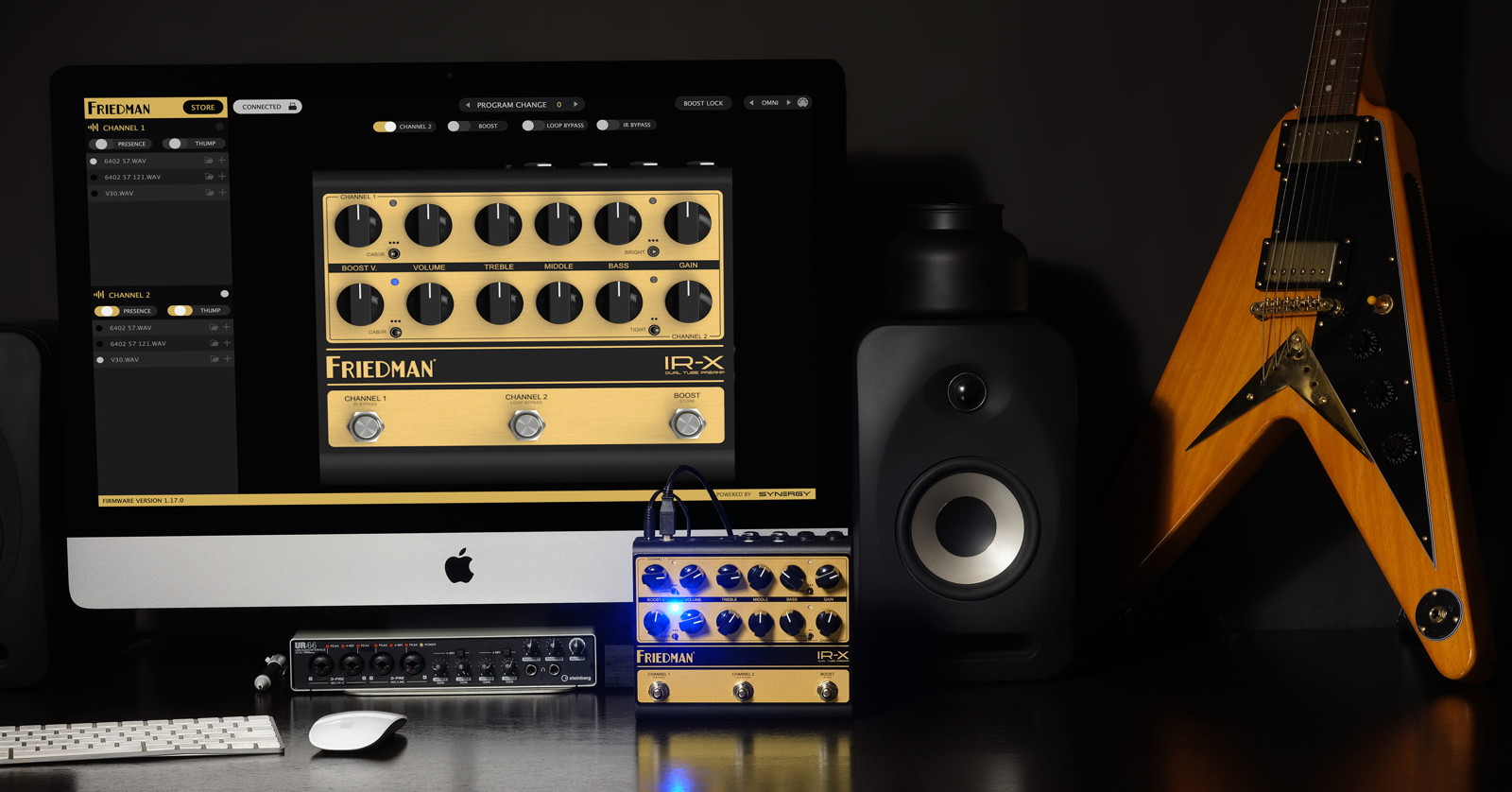
The Friedman IR-X, IR-D, and Jake E. Lee IR-J are genuine high-voltage vacuum-tube preamps for your pedalboard with an important feature: the direct (DI) output provides a digital emulation of the power amplifier stage with your choice of speaker cabinet emulation through impulse responses (IRs).
You can upload your own speaker cab IRs and customize your sound by connecting your Friedman unit to your computer and using the free Friedman Editor app.
- Register Your Purchase, Download the App
- What You Can Do with the Friedman Editor App
- USB Connection
- Selecting IRs
- Saving IRs to Your Computer
- Firmware Update
- Sweetwater Friedman Demo Videos
Register Your Purchase, Download the App
Registration
Obtain your 3-year warranty by filling out the form on the Friedman Warranty Registration page with your product serial number.
Owner’s Manual
Your preamp comes with an owner’s manual in the box, but you can also download a PDF copy from the product page for reference. On each page, under “Downloads,” you’ll see a small link for “English Manual.”
Consult your manual for helpful diagrams of various configurations for integrating your preamp to your rig.
Friedman Editor App
All Friedman IR series pedals use the same Friedman Editor app. Download the newest version for macOS or Windows.
What You Can Do with the Friedman Editor App
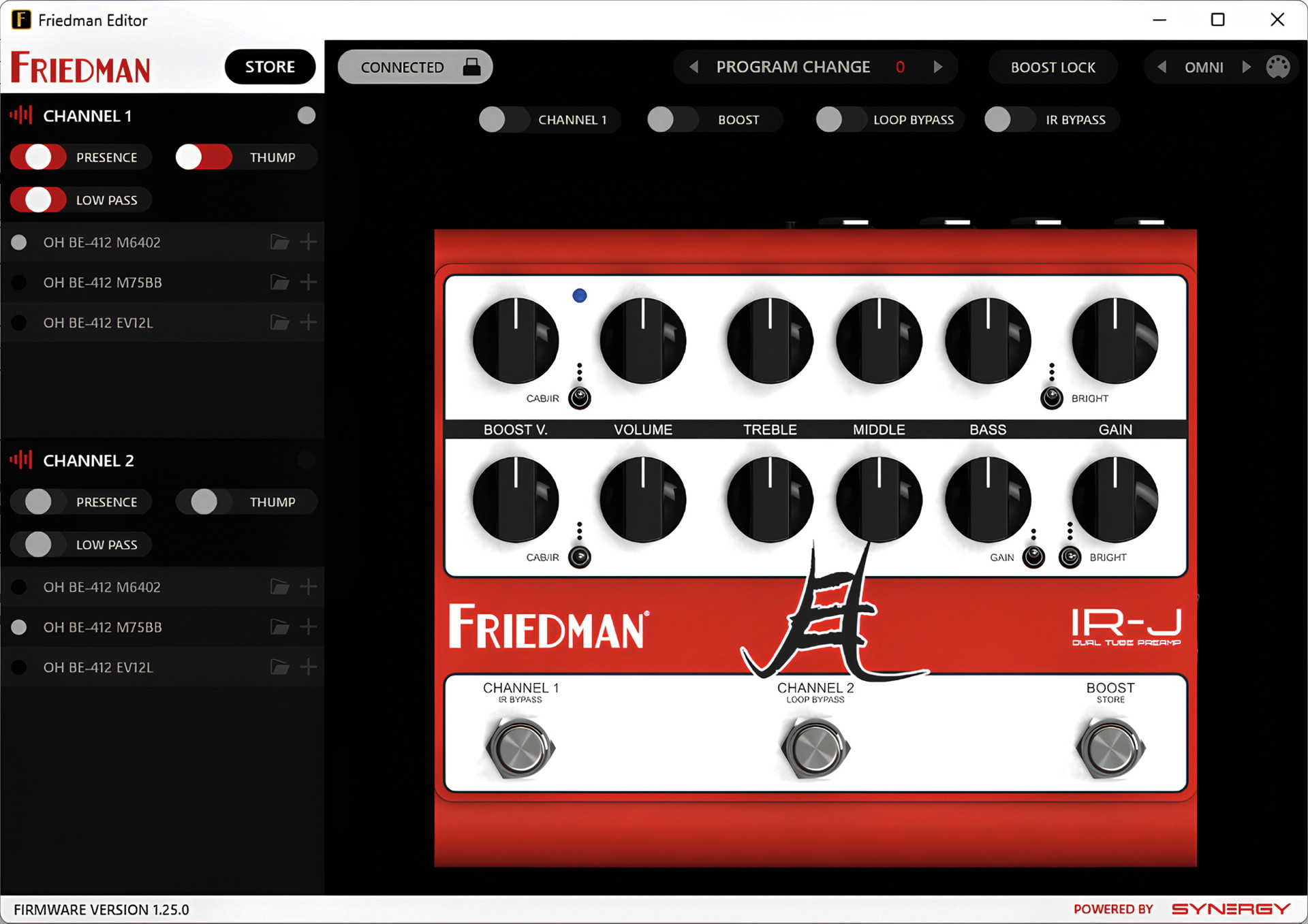
The Friedman Editor app with the Jake E. Lee signature IR-J connected.
The Friedman preamps have different circuitry and different layouts of knobs and switches to control the tone. On these models, the knobs are analog and are not digitally controlled. You dial in your tones manually.
At the end of the tube-powered signal chain is the Synergy Amps digital component, which provides the power amp simulation and speaker cabinet emulation. This is the part that you can edit with the Friedman Editor app.
With the Friedman Editor app, you can:
- Select from three IR cabinets that are factory set to the hardware, one per channel.
- Select from several additional Friedman IRs that come with the software.
- Swap out different IRs and load your own from your computer to the unit’s memory.
- Shape the power amp simulation on each channel with settings for lowpass filter, presence, and thump (depending on the model).
- Toggle certain footswitch functions on and off.
You can set up and save 128 presets, which can be recalled using an external MIDI controller (sold separately).
A MIDI preset instantly recalls:
- Channel selection (1 or 2)
- Boost status (on or off)
- Effects loop status (active or bypass)
- IR selection for each channel (1, 2, 3, or bypass)
- Filter settings for the power amp simulation
USB Connection
Connect your pedal to your computer using a USB data cable to use the Friedman Editor app.
Note that the Friedman preamps do not provide digital audio output over USB. The USB connection is only for using the app to configure IRs and presets. To record sound from the pedal, use the Balanced Out jack to connect to an audio interface and your DAW.
Selecting IRs
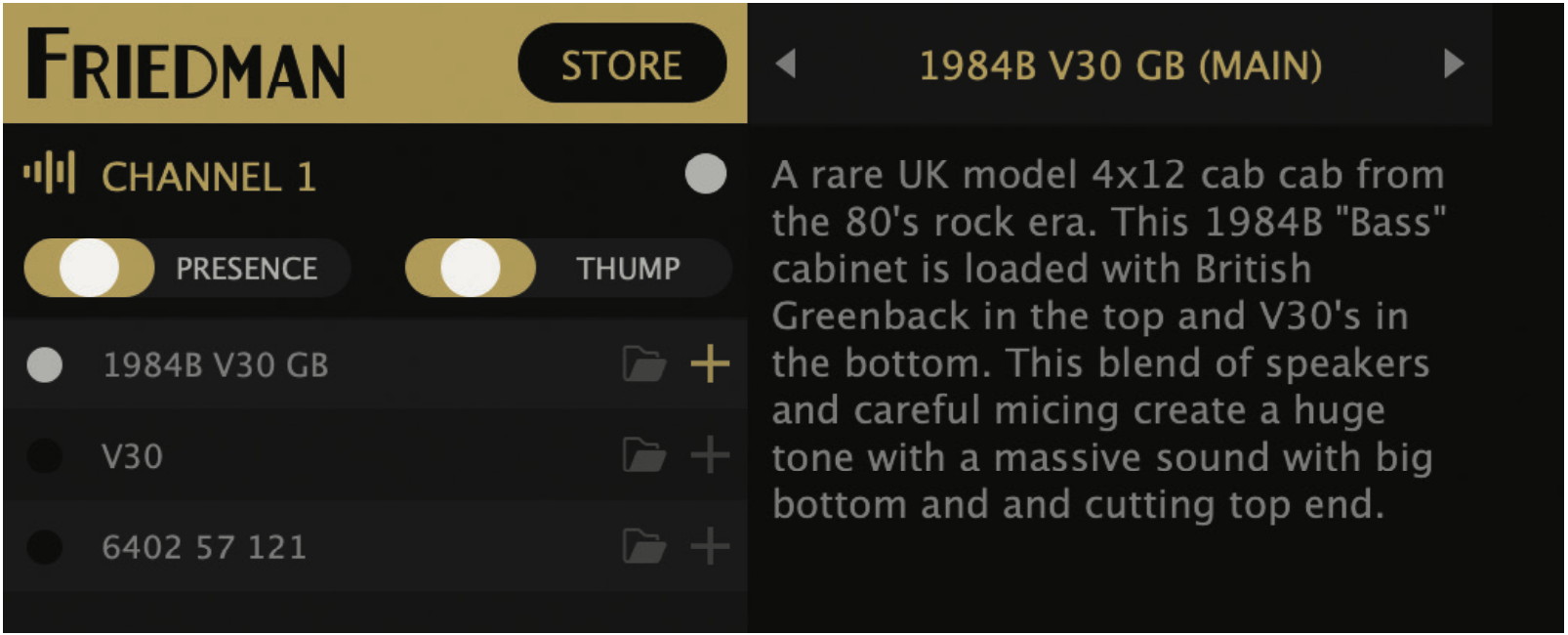
The IR panel for Channel 1 on the Friedman IR-X.
On your pedal, there are three IRs preset for each channel that you can choose using the Cab/IR toggle switch.
The Friedman Editor app includes several additional IRs that you can upload to the available slots in the pedal. When you select one, the Friedman Editor app displays a detailed description of the cabinet, microphones, and preamps used to create the IR.
Using the Friedman Editor app, you can also load your own IR files from your computer, store them in the pedal, and assign them to the available slots for each channel.
Saving IRs to Your Computer
The Friedman Editor app gives you the ability to download all the IRs that come with the pedal and the app and save them to the hard drive of your computer. You can do this to make backups of the IRs if you load different ones, but you can also use these cab models in your DAW with amp modeling plugins.
In the app, when you select any IR, you’ll see an Extract All button at the bottom of the pane. Click on this, and you’ll see a Save dialog. Navigate to a folder where you want to store these files.
Firmware Update
From time to time, Friedman may release a free firmware update for their pedals. These will fix bugs, improve performance, and ensure compatibility with the newest version of the Friedman Editor app. Each time you connect your unit to the app, it will automatically check to see if there’s a firmware update available. If so, then follow the on-screen prompts to install the update.
Be patient during the update, which may take several minutes. Do not quit the app, disconnect the USB cable, or power down the unit until the on-screen prompts indicate that the update is complete.
Sweetwater Friedman Demo Videos
Here are Sweetwater’s Mitch Gallagher and Nick Bowcott taking you through each model’s features.
Sweetwater: Friedman IR-X: 2-channel Tube Preamp Power for Your Pedalboard
Sweetwater: Friedman IR-D Pedal: Full-spectrum Tone Building & Voltaic Versatility
Sweetwater Soundcheck: Friedman IR-J Jake E. Lee Signature Dual Tube Preamp
Related Articles
When you need help, Sweetwater has the answers!
Our knowledge base contains over 28,000 expertly written tech articles that will give you answers and help you get the most out of your gear. Our pro musicians and gear experts update content daily to keep you informed and on your way. Best of all, it’s totally FREE, and it’s just another reason that you get more at Sweetwater.com.

