

macOS 12 Monterey: Operating System Downgrade Guide
Before Downgrading macOS 12 Monterey
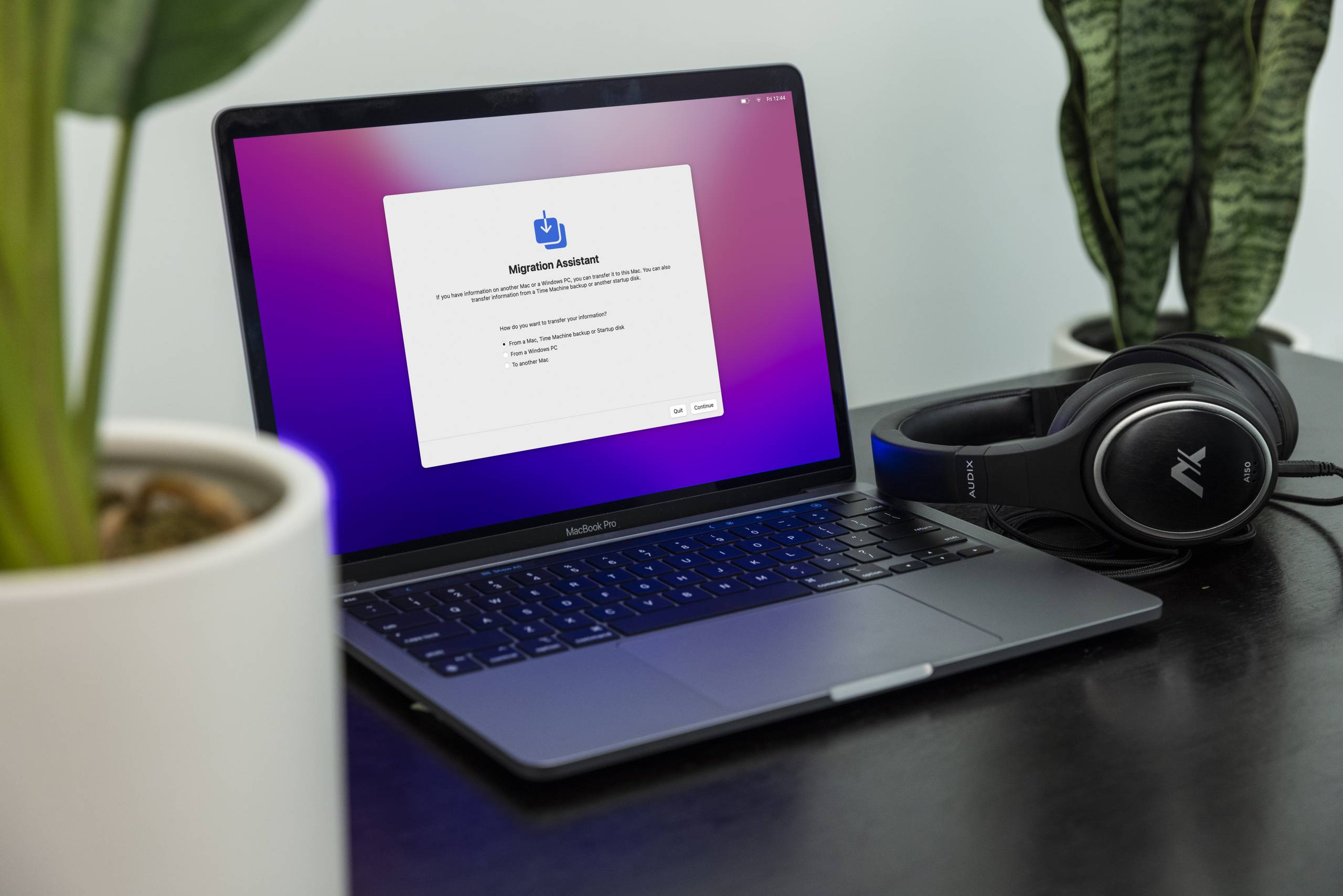
If your Mac originally shipped with macOS 12 Monterey, then that is its default version of macOS, and no earlier versions can be installed. If you’ve upgraded to macOS 12 Monterey from another version, then you can go back — and it’s not too difficult. Downgrading your Mac from macOS 12 Monterey to a prior version is especially simple if you created a Time Machine backup before the macOS 12 Monterey upgrade.
The most essential way to downgrade your Mac to another compatible version of macOS is by downloading the macOS to a bootable installer, completely resetting your computer, then installing the new version. Remember, downgrading macOS requires erasing your Mac’s built-in hard drive storage, which is necessary to remove macOS 12 and install another compatible version.
Use Apple’s Support Resources!
We’ve been through the process a few times, and this process has quite a few steps and details. We recommend following along with Apple’s guide for how to create a bootable installer for macOS. It has all the information you need to download your preferred version, to format a bootable installer, and then to install macOS. Each step is important, and some are more detailed than others, so take your time!
Assign your Mac’s Firmware Password
Before doing anything, we recommend assigning your Mac’s firmware password. This is useful in the event that your built-in drive is erased and cannot be accessed. New users should follow along with Apple’s guide on how to set a firmware password on your Mac.
- Hold Command + R while starting your Mac.
- In the macOS Recover menu, select Utilities > Startup Security Utility.
- Enter your administrator password and configure the Firmware Password:
- Enter a firmware password, something simple and memorable.
- Select No Security.
- Select Allow booting from external or removable media.
- Quit the Startup Security Utility.
Erase internal storage drive
You may need to erase the built-in storage drive to reinstall a past version of macOS from the internet. Before doing that, make sure to set up and verify your Mac’s firmware password before erasing anything. That way you can access the Mac’s built-in drive after it’s been erased.
When reformatting, Macs intended to use macOS 10.12 Catalina or earlier need their built-in drives formatted to Mac OS Extended, and may need to boot from Internet Recovery to do that. All Macs using macOS 10.13 and above will reformat their built-in drives to APFS.
- Do not continue unless you’ve verified your Mac’s firmware password.
- Hold Command + R while starting your Mac.
- In the macOS Recovery menu, select Disk Utility.
- Select your Mac’s built-in storage and erase it (Erase Volume Group).
Reinstall macOS
Once the internal drive is erased, you can boot your Mac into Internet Recovery mode to install the original version of macOS that shipped on your Mac. Once that process is complete, you can relink your Apple ID, restore any Time Machine backups, and even upgrade macOS again. Learn more on Apple’s page about how to reinstall macOS.
- Restart your Mac.
- Intel: Hold the Option key while restarting your Mac and wait for the volumes screen to appear.
- Apple Silicon: Hold the power button until the startup options appear.
- Select Reinstall macOS and follow the on-screen instructions.
Create Bootable Installer
The method for creating a bootable installer requires another drive formatted for macOS Extended. Once that’s prepared, you can download your preferred version, format it to your external drive as a bootable installer, and then install it by starting your Mac with the bootable installer.
- Erase and reformat a USB storage drive with at least 14GB storage.
- The drive must be formatted as macOS Extended to work. APFS cannot be used for bootable installers.
- Use the Terminal utility and the “createinstallmedia” command to apply the macOS installer to your USB storage device.
- Restart your Mac with the bootable installer.
- Intel: Hold the Option key while restarting your Mac and wait for the volumes screen to appear.
- Apple Silicon: Hold the power button until the startup options appear.
- Enter your firmware password, select the macOS installer, and follow the on-screen instructions.
Related Articles
When you need help, Sweetwater has the answers!
Our knowledge base contains over 28,000 expertly written tech articles that will give you answers and help you get the most out of your gear. Our pro musicians and gear experts update content daily to keep you informed and on your way. Best of all, it’s totally FREE, and it’s just another reason that you get more at Sweetwater.com.


Offer applies only to single-receipt qualifying purchases. Select manufacturers may require that only the manufacturer’s products qualify towards the minimum purchase amount needed to be eligible for promotional financing. Otherwise, an invoice that meets the minimum purchase amount and contains at least one qualifying manufacturer product is eligible for promotional financing. No interest will be charged on promo purchase balance, and equal monthly payments are required on promo purchase until it is paid in full. The payments equal the amount financed divided by the number of months in the promo period, rounded up to the next whole dollar. These payments may be higher than the payments that would be required if this purchase was a non-promo purchase. During the last month(s) of the promo period the required monthly payment may be reduced due to the prior months’ rounding. Regular account terms apply to non-promo purchases. New Accounts as of 07/31/2025: Purchase APR is 34.99%. Penalty APR is 39.99%. Min Interest Charge is $2. Existing cardholders: See your credit card agreement terms. Subject to credit approval.
Offer applies only to single-receipt qualifying purchases. No interest will be charged on the promo balance if you pay it off, in full, within the promo period. If you do not, interest will be charged on the promo balance from the purchase date. The required minimum monthly payments may or may not pay off the promo balance before the end of the promo period, depending on purchase amount, promo length and payment allocation. Regular account terms apply to non-promo purchases and, after promo period ends, to the promo balance. New Accounts as of 07/31/2025: Purchase APR is 34.99%. Penalty APR is 39.99%. Min Interest Charge is $2. Existing cardholders: See your credit card agreement terms. Subject to credit approval.
The estimated required monthly payment shown which excludes taxes and delivery equals the amount financed divided by the number of months in the promo period, rounded up to the next cent. During the last month(s) of the promo period the required monthly payment may be reduced due to this rounding. These payments apply only with the financing offer shown. If you make these payments by the due date each month, you should pay off this amount financed within the promo period, if it is the only balance you are paying off. If you have other balances on your account, this payment will be added to any other minimum monthly payments.
Applies only to select items from this manufacturer. Ask your Sweetwater Sales Engineer for more details.