
How to Get Your Computer to Recognize Your Audio Interface
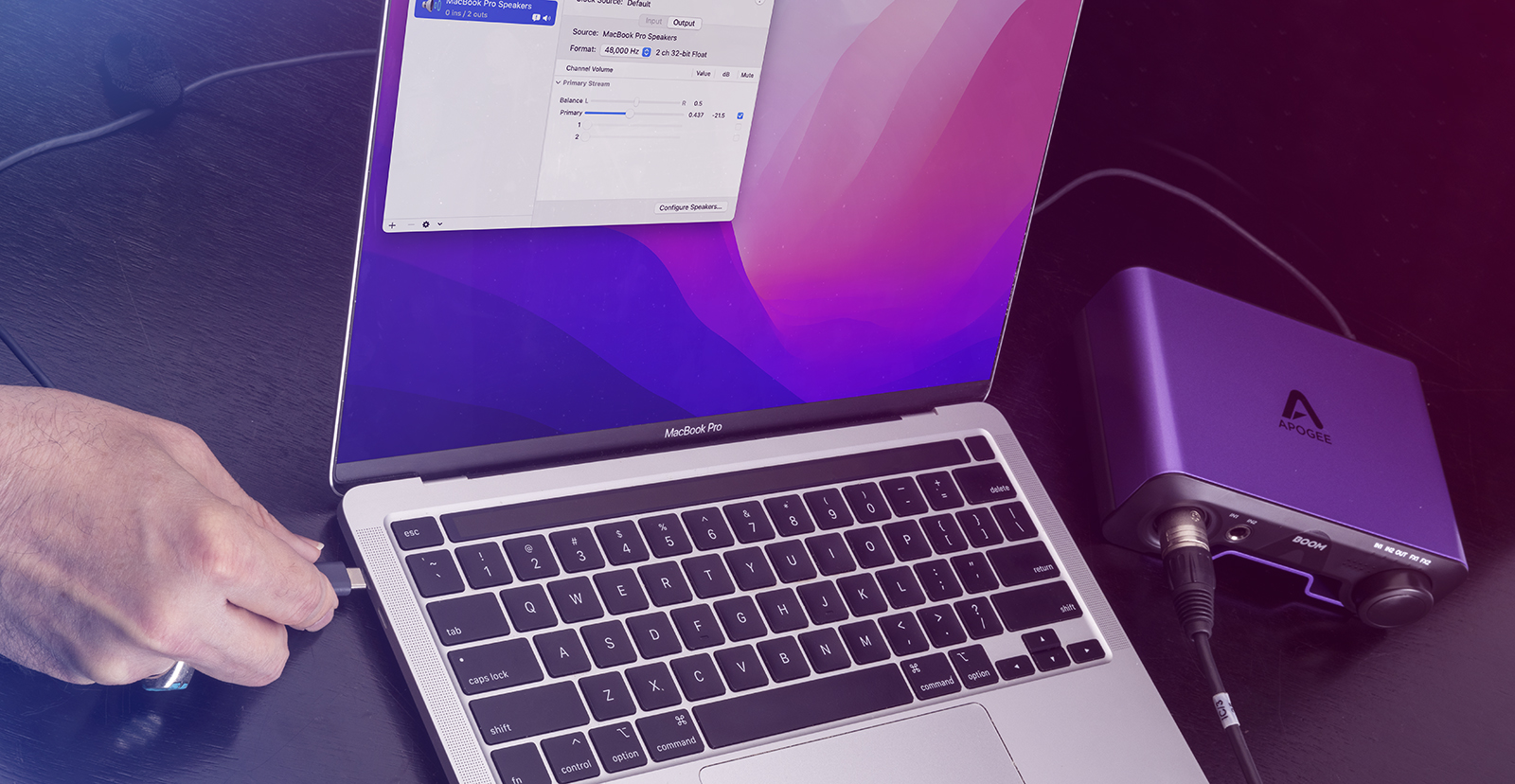
If your Mac or your Windows PC can’t recognize your audio interface, we are here to help. Here are steps you can take to resolve the problem.
- Check the Audio Interface and Its Power
- Check the Cable Connecting Your Audio Interface to Your Computer
- Check Your Cable’s Connection to Your Computer
- Check the Software
- Verify that the Computer is Communicating with the Audio Interface
- Further Troubleshooting
Check the Audio Interface and its Power
Does your audio interface have its own power adapter, or does it get its power over the USB or Thunderbolt cable connecting it to your computer (bus-powered)?
If it has its own power supply, turn the power off, wait a few seconds, and turn it back on again. Check to see if your computer can recognize it now.
If it’s powered over the USB or Thunderbolt cable, disconnect the cable, which will power down your audio interface. Wait a few seconds, plug it back in, and confirm that it powers up again. Check to see if your computer can recognize it.
If these don’t work, then reboot your computer. Log back in and check to see if it can recognize the audio interface.
Check the Cable Connecting Your Audio Interface to Your Computer
If it still isn’t recognized, check if you are using the cable that shipped with the audio interface. Try a different cable, but make sure it is of the same type and that it’s professional quality.
Some cheap cables are only “charging cables” that transmit power but not data, so make sure you aren’t using one of those.
Here are links to professional-grade USB and Thunderbolt cables at Sweetwater:
Check Your Cable’s Connection to Your Computer
It’s always best to connect your audio interface directly to your computer.
If your audio interface has a USB connection, have you been trying to use it by plugging it into a USB hub, and then connecting the hub to the computer? The first troubleshooting step is to disconnect all the cables that you don’t need right now from your computer, then to connect your audio interface directly to the computer, bypassing the hub. Does this solve the problem? If so, keep your audio interface connected directly, and use the hub for other devices.
Beyond that, check that you have your audio interface’s cable connected to the correct USB 2, USB 3, USB-C, or Thunderbolt port on your computer. You may need to check the computer’s owner’s manual or specifications to identify which is which, and you may need to try different ports.
Check the Software
Many audio interfaces for Mac or Windows PC require that you download and install a specific driver that enables your computer to communicate with your audio interface. Some manufacturers also provide a control app that is required to configure signal routing in the audio interface, to upgrade the firmware, and to perform other functions.
Go to the manufacturer’s website, log in to your account, and look for the relevant software. Download and install it according to the instructions.
Even if you have already installed the driver and the control app, if you are encountering problems, it’s always a good idea to go to the website and re-install them to make sure that you are running the newest versions and to update your device to the newest firmware.
Verify that the Computer is Communicating with the Audio Interface
On Mac, see if the device is visible in System Report.
On Windows, see if the device is visible in Device Manager.
Further Troubleshooting
If you still need more help, Sweetwater’s got you covered. Check out this pair of detailed, in-depth SweetCare articles:
Related Articles
When you need help, Sweetwater has the answers!
Our knowledge base contains over 28,000 expertly written tech articles that will give you answers and help you get the most out of your gear. Our pro musicians and gear experts update content daily to keep you informed and on your way. Best of all, it’s totally FREE, and it’s just another reason that you get more at Sweetwater.com.

