

Yamaha Montage M Factory Reset Guide
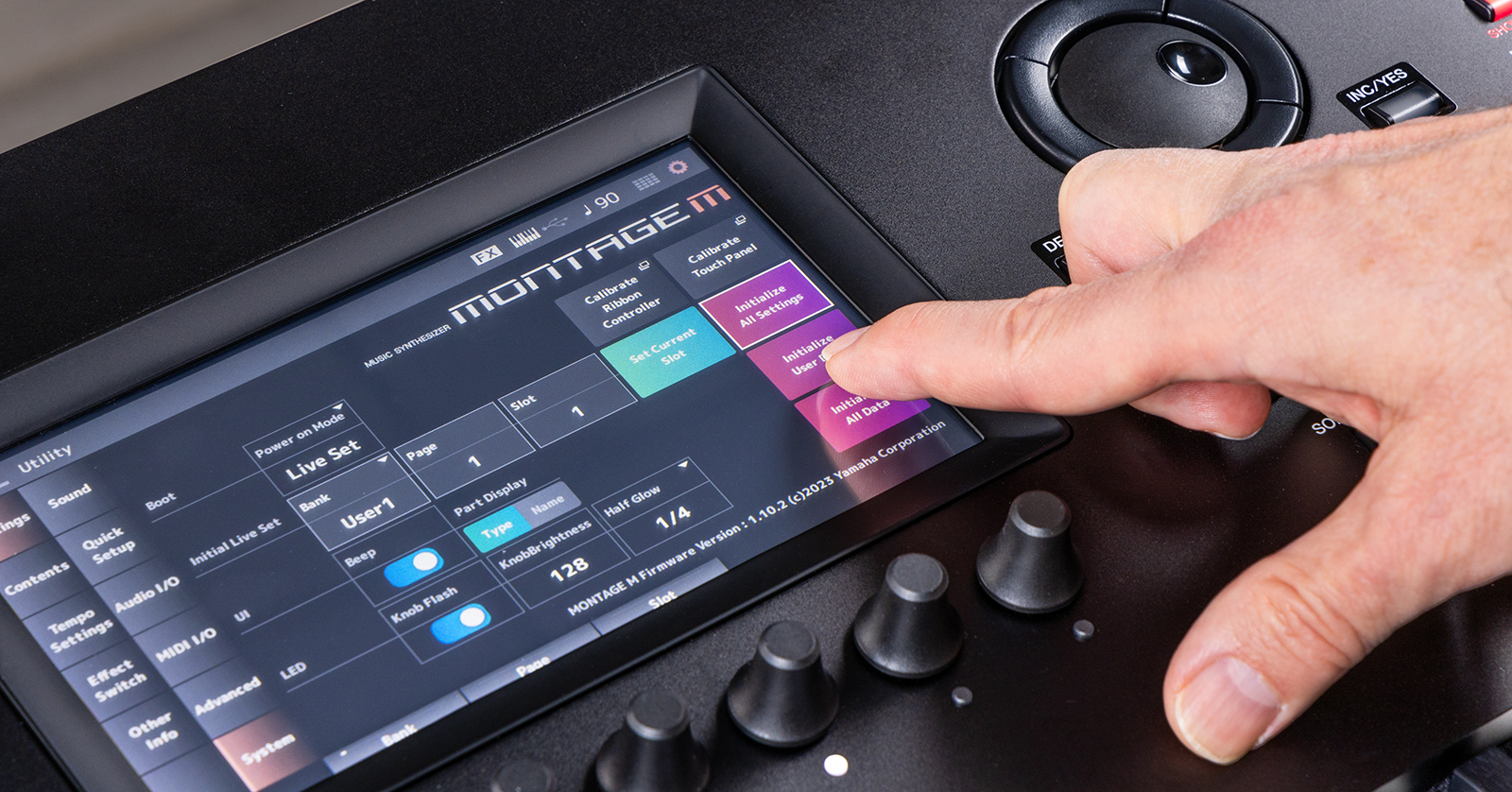
If you’re having issues with your Montage M, or if you just want to start with a clean slate, you must perform a factory reset. In this guide, we will show you how to format a USB thumb drive, back up user data, and perform a factory reset on Yamaha Montage M6, M7, and M8x workstations. Follow the sections below to get started.
- Format the USB Thumb Drive
- Back Up User Data
- Perform a Factory Reset on a Yamaha Montage M6, M7, or M8x
Format the USB Thumb Drive
IMPORTANT! Formatting a USB thumb drive will erase any stored data, so back up any important files to your computer before completing the formatting process.
Before backing up your data and updating the Montage M firmware, you must format your thumb drive directly from the synthesizer. Before formatting, ensure it’s compatible with your Montage M. Check out Yamaha’s list of compatible USB thumb drives for more information. Please note that Montage M user data files can be large, so it is recommended to have a USB thumb drive with at least 1GB of storage.
- Insert the USB thumb drive into a USB TO DEVICE port (1 or 2).
- Press the UTILITY button, select Contents, and tap the icon of your thumb drive.
- Press Job on the top-right corner of the display. It will now give you the option to format the thumb drive.
- Select the thumb drive, then press Format.
Back Up User Data
Performing a factory reset on a Yamaha Montage M6, M7, or M8x will erase all user data and return the synthesizer to its original, out-of-the-box state. So, before performing a factory reset, you must back up your data on the newly formatted USB thumb drive.
- With your USB thumb drive connected to the Montage M, press the UTILITY button, select Contents, then choose Save.
- Select Backup File from the Content Type dropdown box, then choose the USB thumb drive to save the file.
- Pressthe + button underneath (Save As New File). Enter a unique file name.
- We recommend including the date in the file name (e.g., Montage M User Data 11.7.23). This will make it easier to locate if you ever need to recall the file later.
- Press Done.
- Connect the thumb drive to your computer and move the Backup File to your desktop, as the firmware file can be the only file on the thumb drive during the update process.
Restoring User Data
After you perform the factory reset on your Yamaha M6, M7, or M8x, you can restore the data that was stored on your USB thumb drive.
- Connect the USB thumb drive to your computer. Transfer the Backup File to the thumb drive.
- Safely eject the USB thumb drive to your computer, then connect it to any USB to DEVICE port (1 or 2).
- Press the UTILITY button, select Contents, and choose Load.
- Select Backup File from the Content Type dropdown box. Select the USB thumb drive where you saved your Backup File, then choose the file you want to load.
Perform a Factory Reset on a Montage M6, M7, or M8x
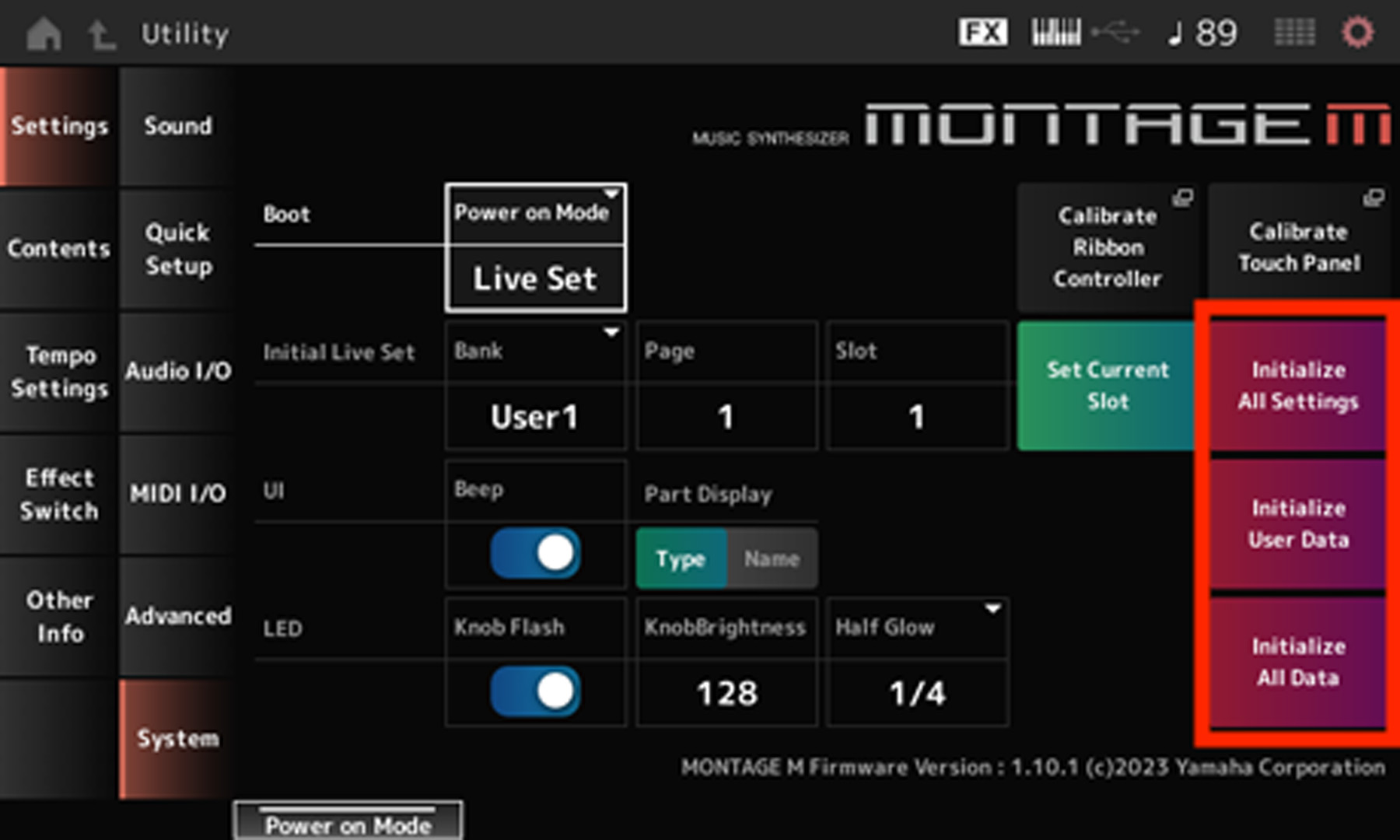
After you have backed up your user data, you can perform a factory reset. There are three ways you can perform a factory reset: All Settings, User Data, or All Data.
- Press the UTILITY button, then press Settings.
- Press System, select the option you want to reset, and press Initialize to perform the reset.
- Initialize All Settings: Any system settings that have been changed in the Utility menu (e.g., display, audio I/O, tuning) will be reset. All saved user data (e.g., live sets and performances) are retained.
- Initialize User Data: All saved user data (e.g., live sets, performances, songs) will be reset. All system data will be kept.
- Initialize All Data: All system data stored on the Montage M will be reset. Any user data is kept.
Related Articles
When you need help, Sweetwater has the answers!
Our knowledge base contains over 28,000 expertly written tech articles that will give you answers and help you get the most out of your gear. Our pro musicians and gear experts update content daily to keep you informed and on your way. Best of all, it’s totally FREE, and it’s just another reason that you get more at Sweetwater.com.

