
Managing Updates for Music Production Computers
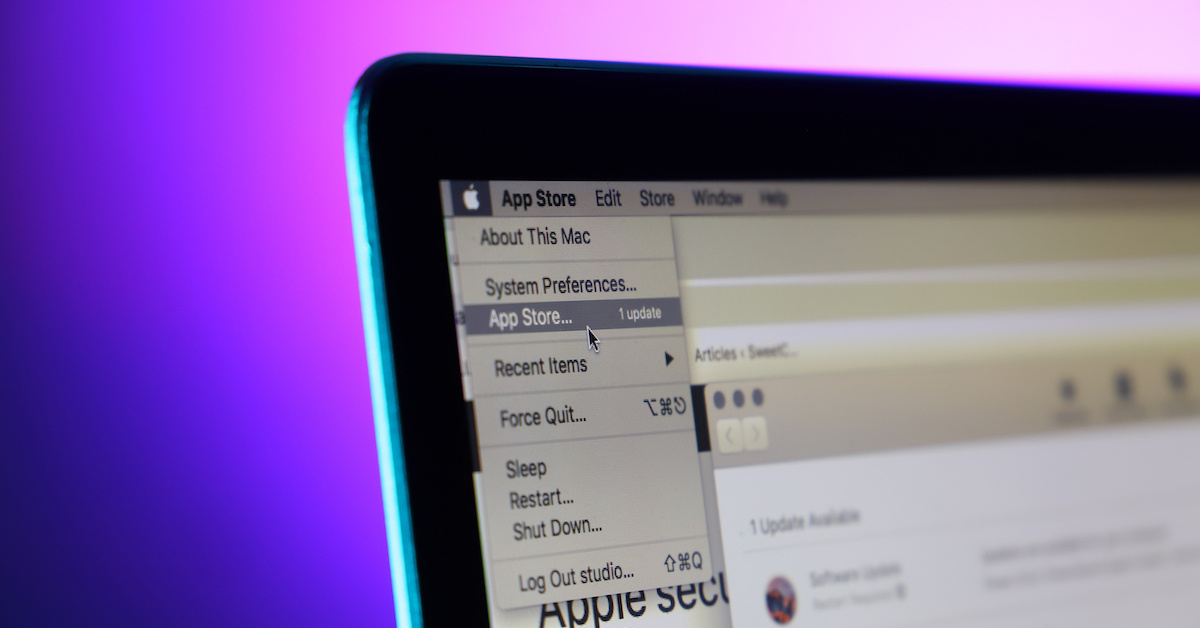
Getting started with computer updates
In this guide, we will explain all the types of updates you might encounter on a Windows PC or Mac computer. You’ll learn when to update the computer’s operating system, DAW/plug-in software, and drivers or firmware for connected devices. These guidelines will help ensure your system continues to perform reliably, regardless of which gear you choose to use. Follow each of the sections below to get started.
- Operating System updates for Mac and PC
- DAW and plug-in updates
- Audio driver and firmware updates
- Related content
Operating system updates for Mac and PC
Your computer will often prompt you for updates: either security updates or a more recent version with the latest features. Performing routine updates is usually a good thing, but not if it creates an incompatibility issue between your software or audio devices. Updating to an incompatible system has the potential for buggy or non-supported software, too, and that can seriously interrupt your work.
PCs and Macs both receive operating system updates, but they’re managed and performed differently. The most important thing to remember is that the operating system version will determine which software and drivers will work with your computer.
Software compatibility = System requirements
For your recording software to work reliably, your computer system must meet or exceed its system requirements. That means the computer must meet the software’s minimum requirements for the operating system version, processor, memory (RAM), and storage space. Learn more about how to view your computer’s specs and verify compatibility.
macOS updates
The operating system on Mac computers is called macOS (previously OS X). Updating macOS means to go from your current operating system to the latest available version from Apple. That means if your current operating system is macOS 10.15.1 you’ll be updated to the latest version of 10.15, such as 10.15.1 or 10.15.5. If you are upgrading, it means you’re not applying a simple update but rather installing an entirely new operating system. If your current operating system is anywhere between macOS 10.9 and 10.14.6 you’ll be updated to the latest macOS edition, for example, 10.15.1.
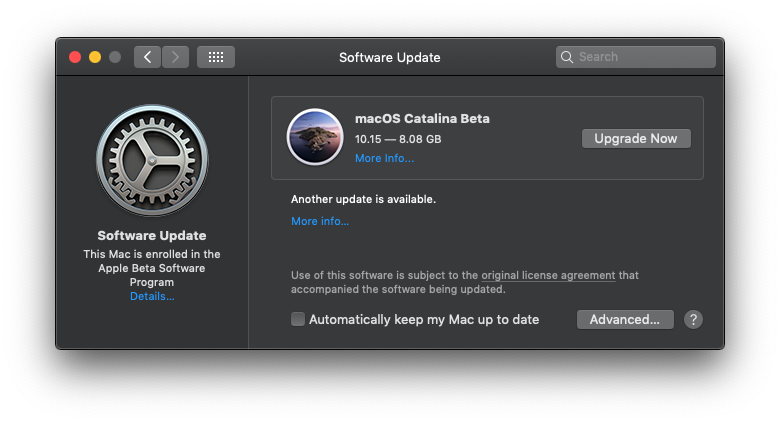
Updating to macOS Catalina.
Should I update macOS?
Macs used for music production must be compatible with your software and hardware devices to work consistently. Updates are done through the App Store application or System Preferences > System Updates and can be performed manually or automatically. Since the native macOS security features are sufficient for practical studio purposes, we recommend checking for updates manually and always make a backup before updating or upgrading. Learn more on our macOS Sequoia Compatibility List.
In short: Continue working on a compatible system until you have confirmed all your hardware and software will be compatible with the new version.
Before updating macOS
- Check that ALL software and hardware are compatible with the version you are updating or upgrading to.
- Create a Time Machine backup on an external hard drive.
Disable automatic updates
- Click the Apple icon and choose System Preferences…
- Click App Store.
- Uncheck Automatically check for updates.
- (optional) To only check for security updates, check the following:
- Automatically check for updates
- Download newly available updates in the background
- Install system data files and security updates.
- (optional) To only check for security updates, check the following:
Learn more about Apple updates:
- What’s new in the updates for macOS Sequoia
- How to update the software on your Mac
- Apple security updates
Windows updates
The Windows computer operating system (OS) occasionally requires updates to add new features and patches to fix bugs in the OS. Updating the latest OS means your computer will have the latest security and bug fixes that Microsoft has released.
There are two different types of updates; Quality (cumulative) Updates, which are mandatory updates that include bug and security patches (also known as a KB update). The other type of update is known as a Feature Update. This is a major update to the Windows operating system and happens approximately once every six months. Feature updates are rolled out gradually, which means not all Windows users will receive them at once.
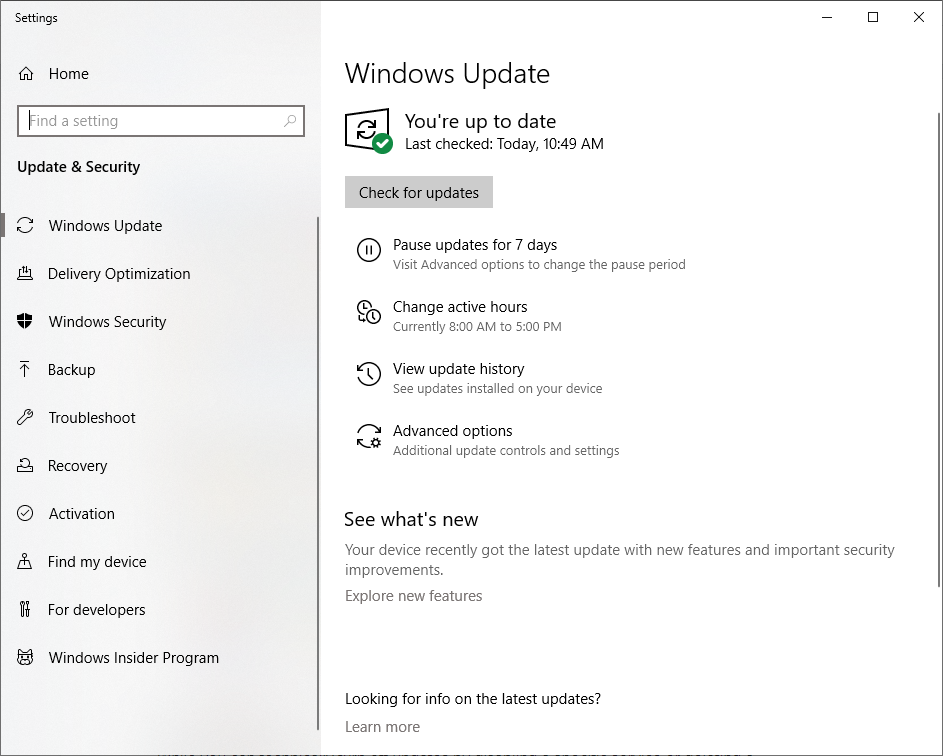
Should I update Windows?
By default, Windows 10 has automatic updates enabled. If there is a new update, be it Quality or Feature, you’ll receive a notification if you would like to apply the update now or at a later time. You can pause updates for up to 35 days before it automatically updates. Follow these steps to update your Windows OS.
- Click the Windows icon on the toolbar, type Update, then select Check for updates.
- Click Check for updates in the Windows update screen. If there are new updates available, it will automatically download the file.
- Once the download is complete, click Restart Now. If you want to wait for the update to be installed, select Schedule a restart and choose the time you wish for it to be applied.
How to pause updates: Click Pause updates for 7 days or go to Advanced options, and use the dropdown box to select the date you want the updates to be applied. After 35 days, you must download and install any current updates before pausing again.
Before updating Windows
- Check your DAW, plug-in, and audio interface manufacturer’s page for compatibility information.
- Make sure you have enough space on your hard drive when performing an update. You can free up space automatically by enabling Storage Sense.
- Back up any projects, virtual instrument libraries, and media to an external hard drive.
- Consider performing an image or file backup of your computer. Check out our article about How to Back Up Windows!
- Visit Microsoft’s Update FAQ for tips and information on updating your version of Windows.
About Windows automatic updates
While you can technically turn off updates by disabling a specific service or deleting a registry key, it is not recommended. This can cause irreversible damage in which you will need to reinstall the entire OS.
DAW and plug-in updates
Digital Audio Workstations (DAW’s) and plug-ins are the most common software tools used for audio production. Updates can include new features and fixes to make the software perform its best. While it may be tempting to install the latest version, sometimes that may mean installing a version that is incompatible with your computer system. Below, we’ll explain when and why to update your DAW or plug-in software.
DAW updates
Most modern music relies on Digital Audio Workstation (DAW) software for recording and arranging. That’s because everything recorded will be saved on a hard drive and recalled in the DAW session. When you update a DAW, you’re essentially installing a newer version, and sometimes the system requirements change when updating or upgrading. While the new features and patches will improve the software, it must be compatible with your computer to work.
When to update DAW software
It’s hard to make a blanket statement that applies to all updates, but here are a few tips that will help you make a smart decision. Visit your DAW software manufacturer’s website for more compatibility information.
- If the update resolves an issue or provides new features, it is advisable to perform the update, so long as the software is compatible with your computer system.
- If your computer updated to a more recent operating system, you likely may need to update the DAW version, too.
- When the manufacturer lists that the new software version is compatible with your computer system (OS version, processor, memory, storage) then the new version is supported.
Before updating your DAW, first, check that your computer will be compatible with the new version. If the new version is NOT compatible with your current system (requires more RAM or newer OS version), it may not work correctly or even launch at all. You’ll need to uninstall and then reinstall the old version or update your computer to meet the new DAW version’s minimum requirements. Updating the computer can sometimes mean upgrading the RAM or processor, which isn’t an option in many cases. It’s almost always better to reinstall the older software version.
- Check that the computer meets your current DAW’s system requirements.
- Check that the computer meets the new DAW version’s system requirements.
- Check that your plug-in software is supported in the new DAW version.

Updating Cubase via Steinberg Download Assistant.
Plug-ins
Software plug-ins do not typically require updates, although some may require updates for patches or compatibility. While virtual processors generally don’t require routine updating, virtual instrument hosts/players like Kontakt or UVI Workstation are stand-alone apps that host other sample libraries and instruments. These types of apps are updated more frequently to ensure compatibility with the newest sounds.
Windows 32bit & 64bit compatibility
One reason for updating plug-ins on Windows is for compatibility reasons. There are two versions of a VST plug-in: 32bit and 64bit. Most DAW’s and plug-in software will only use 64bit versions nowadays. This means that if your plug-in is 32bit and your DAW only accepts the 64bit version, you’ll likely receive an error, or the plug-in won’t load. Check out our SweetCare article to learn more about using VST Plug-ins on Windows.
Mac plug-in compatibility
macOS supports VST and AAX plug-ins, but also AU (Audio Units), Apple’s proprietary plug-in format. If your plug-ins are not showing up in your DAW, try downloading and reinstalling the latest version of the software. Make sure to check the plug-in’s system requirements and verify your Mac is compatible before updating.
When to update plug-ins
Check that the computer meets the new plug-in version’s system requirements and that plug-in software is supported by your DAW. Read more on our plug-in compatibility page.
- Installing a new version or upgrading.
- Installing a patch or feature update.
- Updated the operating system or DAW.

Updating Toontrack virtual instrument plug-ins.
Audio driver and firmware updates
Music production hardware like audio interfaces, MIDI keyboards, and hard drives connect to your computer. The device’s hardware components won’t change, but software such as computer drivers and your device’s internal firmware are often updatable. We’ll explain below when and why to update either one.
What’s a driver?
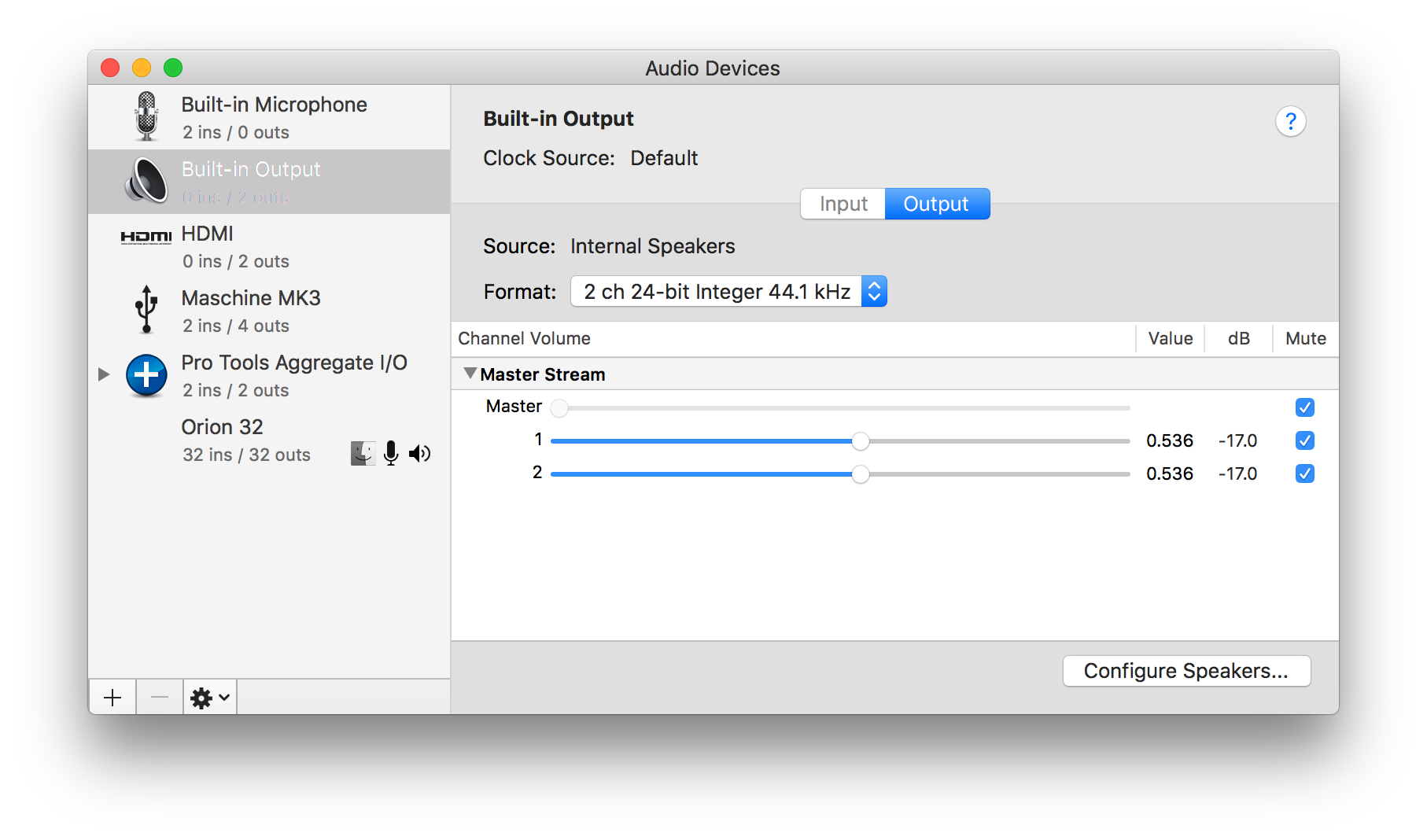
A driver is a type of software that allows a computer to communicate with external devices like audio interfaces, MIDI controllers, and printers. Computers are usually equipped with generic drivers that are organized in “classes” by function. For example, audio or MIDI interfaces that do not require driver installation to work with a computer are considered class compliant. That means the generic drivers included with your OS will work, and the audio device will be selectable and fully functional.
If the connected hardware has additional features that are not included with the generic audio drivers, an additional driver from the manufacturer is required. That driver will have the information that lets the device work to its full capabilities. For example, if your audio interface requires driver software, it’s because the audio streaming or control software is unique and requires the additional driver. Without it, the interface may not be fully functional or show up on your computer at all.
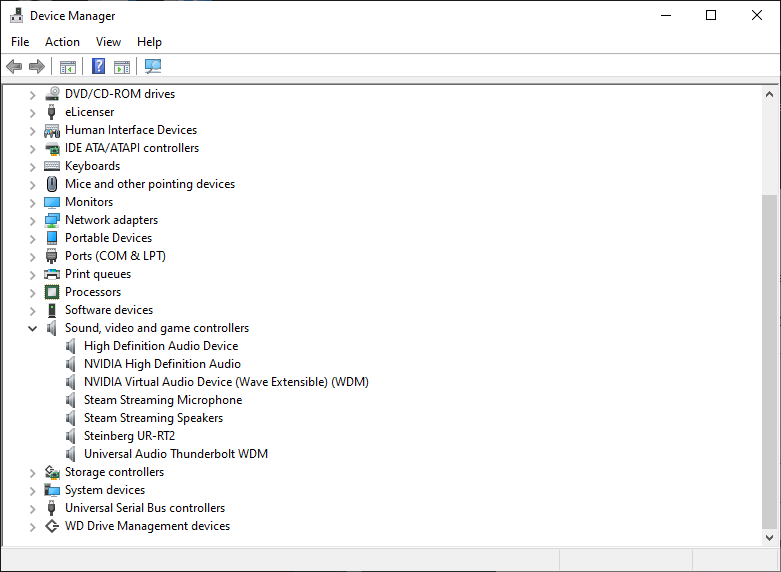
When to update drivers
While most drivers only function to connect the computer to the external device, they often include bundled control software to access all the device’s features, as well. For many audio interfaces, the driver is included with the software application. If you are thinking about updating your drivers, there are a few things to consider before determining if it’s necessary or not.
- If both the latest version and installed version of the driver are compatible with your system, updating the driver software will not necessarily affect the connectivity, rather just features or patches included in the update.
- If your device is no longer functioning properly, or even connecting with the computer at all, reinstalling the latest driver may resolve the issue.
- If your computer’s operating system (PC or Mac) was updated, it’s possible that the current driver is now out of date, and a new version of the driver needs to be installed on the computer.
- If a compatible software driver update does not exist for your OS, you will need to install a compatible driver to continue using the device.
- Most manufacturers will have a driver archive which allows you to select previous downloads that can be compatible with your system.
IMPORTANT NOTE FOR CLASS-COMPLIANT DEVICES ON WINDOWS: Since class-compliant devices don’t have additional driver software to download, you will manually need to update them. To do this, check out our SweetCare article on how to update your drivers in Device Manager.
Before updating drivers
- Make sure your computer meets the connected device’s system requirements.
- Check that the driver is the latest available for your operating system by going to the device manufacturer’s website.
What is firmware?
Some devices have updateable firmware, which is the device’s internal (built-in) software and is capable of receiving new features or patches. For example, if your device initially didn’t have a particular feature like new sounds or updated routing control, but a recent release includes the new feature, updating the firmware will add that to the device. If no new features are included, the firmware will only include patches (fixes) to make the device perform consistently and without issue.
When to update firmware
Updating the firmware will rarely affect compatibility, but it may impact which new features are accessible and which driver(s) can be used to connect to a computer. If your device has a new firmware update available, you’re more than likely safe to update it. A lot of devices have software applications that will either let you know if a new firmware version has been released and also install it for you.
We recommend reviewing the manufacturer’s documentation beforehand, so you know what will change on your device. For example, if you’re using a keyboard workstation, it may add additional menus that you’ll need to navigate. You’ll mostly see patches and new features, but be in the lookout for notes about compatibility or driver requirements. Additionally, back up any settings or presets before updating the firmware. Otherwise, they might be lost; it just depends on the device.
IMPORTANT NOTE WHEN UPDATING FIRMWARE: Be sure to follow the manufacturer’s firmware installation instructions to the letter! Improper firmware installation can sometimes corrupt the device and prevent it from operating correctly. If this happens, performing a factory reset or reinstalling the firmware may resolve the issue.
Updating firmware via SysEx
Some hardware requires you to update the firmware by transmitting a specific MIDI System Exclusive (SysEx) message to the device. This is particularly true with synthesizers and older hardware with MIDI. If the device requires it and you’re new to SysEx, be sure to check out our article on how to send and receive SysEx files on PC and Mac.
Before updating firmware
- Backup any device settings or presets.
- Go to the manufacturer’s website to view which, if any, new features have been added.
- Check that your computer meets the current firmware and device’s system requirements.
- Check that the driver is compatible with the new firmware version.
Related Articles
When you need help, Sweetwater has the answers!
Our knowledge base contains over 28,000 expertly written tech articles that will give you answers and help you get the most out of your gear. Our pro musicians and gear experts update content daily to keep you informed and on your way. Best of all, it’s totally FREE, and it’s just another reason that you get more at Sweetwater.com.

