

How to Back Up Windows 10
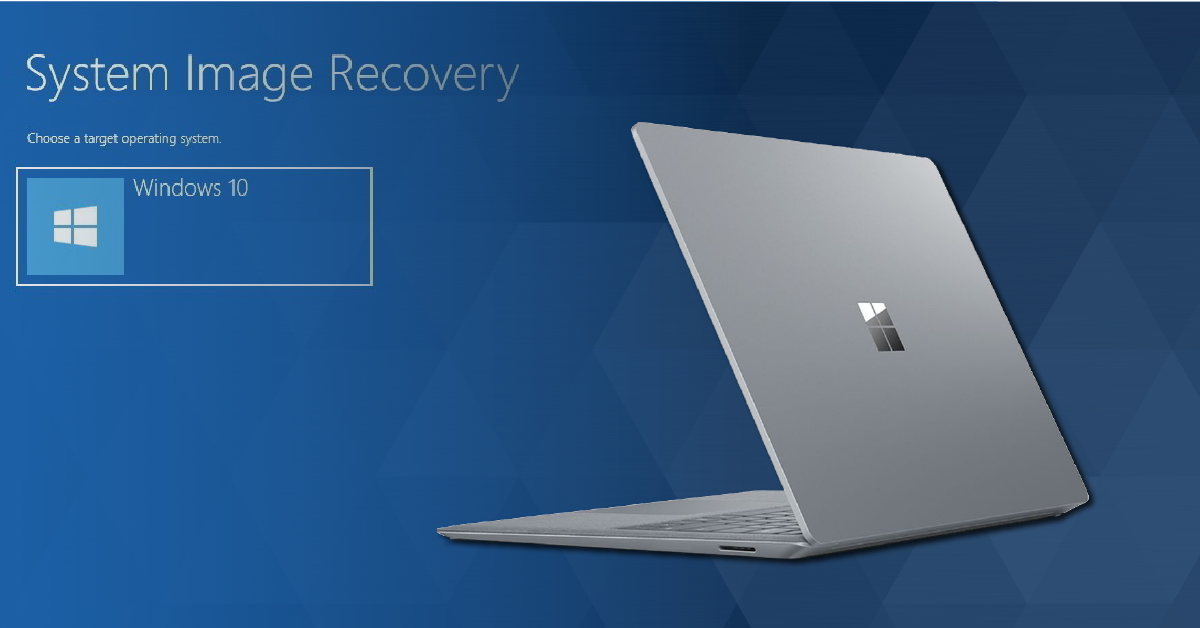
Backing up means saving files and folders from your computer’s primary hard drive to another source like an external hard drive and is something you should do on a regular basis. There are different types of backups you can perform with your Windows 10 computer, so in this article, we’ll talk about these backups, and how to perform and recover them.
Ways to back up Windows
There are two different types of file backups; image backup for saving the entire hard drive, and file backup for saving individual files and folders. Before we show you how to perform and recover these backups, let’s first discuss which each backup does.
What is Image Backup?
When you perform an image backup, every single file, folder, and program including all of your Windows settings are compiled into one .ISO file then sent to another hard drive. Essentially, it takes a snapshot of the entire hard drive, packs it into one box, and ships it out. You can’t transfer image backups to another system though since your Windows key is tied to the original computer.
What is a File Backup?
A file backup is a little different than an image backup because it only takes a snapshot of files and folders you ask it to; not any Windows settings. If you need to recover from a file backup and your system crashes or hard drive begins to fail, you may need to reinstall Windows.
Back up to an external hard drive
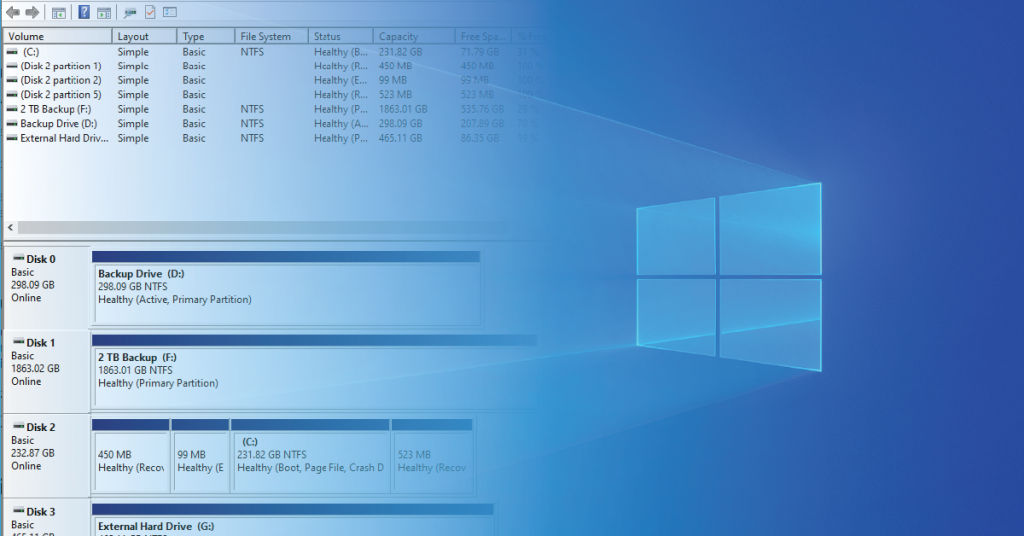
Although you can use an internal hard drive, we highly recommend investing in an external drive. This gives you the ability to easily copy and access your files if you plan on doing file backups, regularly moving back and forth from a different computer. It’s also much easier to disconnect since you won’t be using it 24/7.
How to back up Windows 10
Now that you know which types of backups there are and what they do, we’ll walk you through how to perform each backup. Keep this tab open and follow the steps below to back up your current Windows data.
Image Backup
With image backups, you’ll need to reformat the hard drive you want to back up to. If you format a drive with files on it, formatting will erase any current files. To correctly format your hard drive, read our guide here.
- Navigate to Control Panel and click Backup and Restore (Windows 7). Don’t worry, doing this will not roll your system back to Windows 7.
- In the Backup and Restore window, click Create system image and choose the hard drive you want to back your system up to.
- Click Next and select any drive(s), including your C:/ drive, you wish to back up.
- If you have an Optical CD/DVD drive, insert a disc and follow the prompts to create a disk. This recovery disc will create a backup of your current version of Windows 10, and everything that is contained within your hard drive.
- Windows will list recommended drives to back up to, so before you do this, make sure you have your external hard drive connected or disc inserted. We also recommend that you have a backup Windows 10 installer.
Image backups take time
Image backups take a very long time as it is backing up your entire system. It’s not recommended to use your computer as it can slow things down. Don’t shut down your computer during this time, either!
Creating a system image backup.
File Backup
Again, make sure that the drive is formatted first, but once it’s formatted, there’s no need to create backup images. Follow these steps to back up your files.
- On your Windows task bar, click Start, and select Settings.
- In the Settings window, select Update & Security, then Backup.
- In the Backup window, select one of the following options:
- Automatically back up my files – With this turned on, Windows will automatically back up your files once every hour.
- More options – This will allow you to select which folders you want to include when you back up. Since you are just backing up your files, you don’t want to have the Windows folder included.
- Go to Backup and Restore (Windows 7) – Clicking this just takes you to the Recovery window mentioned in the Image Backup section.
Creating a file backup.
How to recover a Windows 10 backup
Once backed up, reloading your files is known as “recovery”. Recovering image and file backups are pretty simple. Once backed up, you’ll just need to reload them. It can take some time depending on how many files there are, so be patient and follow these steps to recover your files and folders.
Recover an Image Backup
There are three ways to recover an Image Backup:
- If you can boot into Windows, Click Start and open up your Settings. Once there, select Update & Security, click Recovery, then Restart now.
- If you can’t fully boot into Windows and created a backup DVD, insert that then turn on your computer. When prompted to press any key, select your language and follow the on-screen instructions.
- If you can’t fully boot into Windows and created a recovery thumb drive, insert it into a USB port then turn your computer on. Once you’re in Recovery mode, click Troubleshoot, select System Image Recovery, then follow the on-screen instructions.
If the drives aren’t loading into Recovery mode
If the computer can’t boot into Windows Recovery mode with the DVD or thumb drive inserted, you will need to change the boot load options in your BIOS. Please refer to the motherboard manufacturer’s manual on how to change it to your recovery disk drive.
Recover a File Backup
- On your Windows taskbar, click Start, and select Settings.
- In the Settings window, select Update & Security, then Backup.
- Once in the Backup window, select More Options then click Restore files from a current backup.
Related Articles
When you need help, Sweetwater has the answers!
Our knowledge base contains over 28,000 expertly written tech articles that will give you answers and help you get the most out of your gear. Our pro musicians and gear experts update content daily to keep you informed and on your way. Best of all, it’s totally FREE, and it’s just another reason that you get more at Sweetwater.com.

