
Behringer U-Control Audio Interface Setup Guide
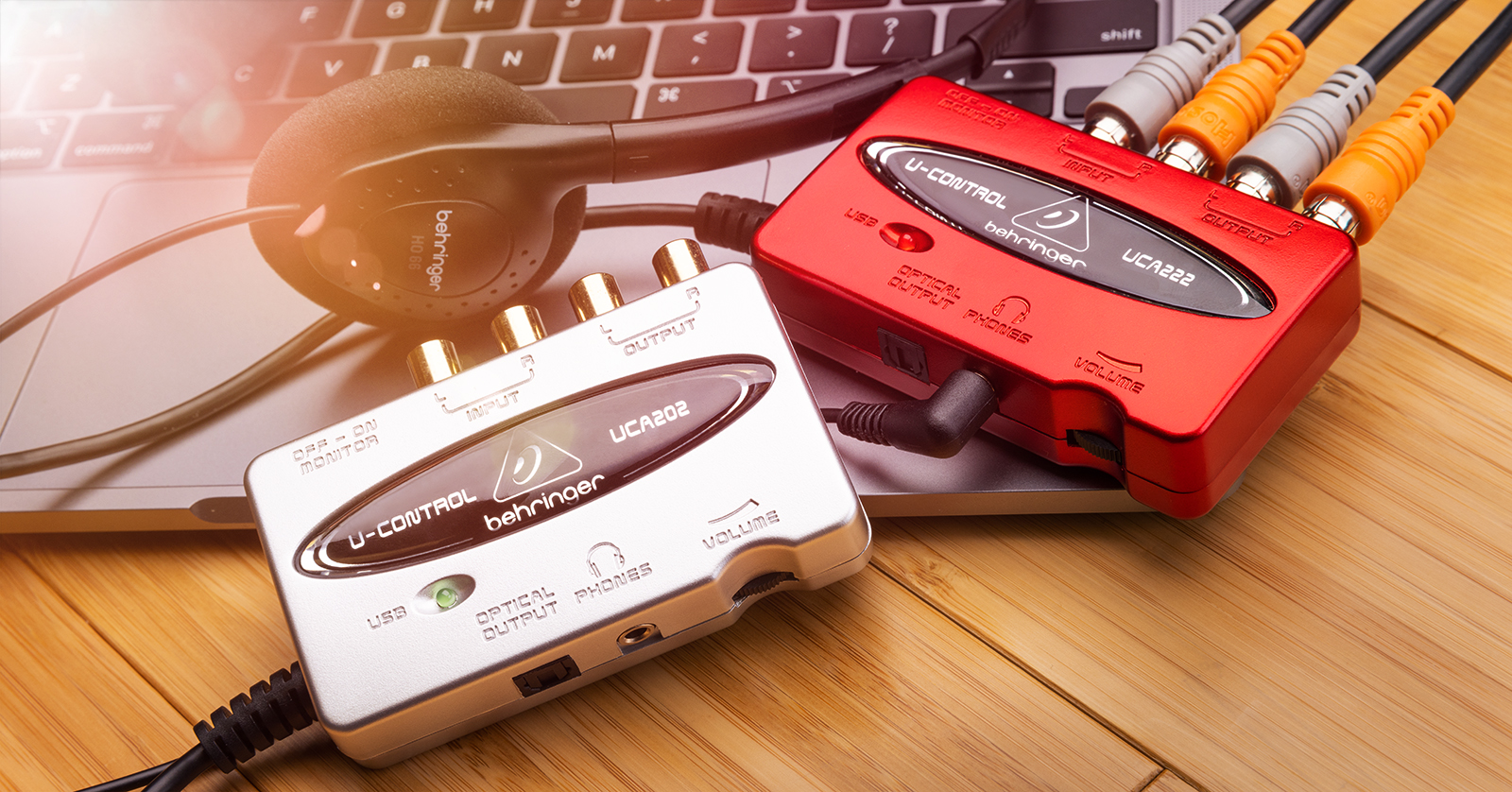
The Behringer U-Control USB audio interface is a convenient and portable audio interface. While it may be small in size, you can use it in many ways, so in this guide, we will show you how to register, set up, and work with the U-Control interface. Follow the sections below to get started.
Register the U-Control Interface with Behringer
Before you get connected, you’ll want to register the U-Control audio interface with Behringer. While the interface comes with a one-year warranty, registering the device within 90 days will extend the warranty to three years! Check out our guide below for complete instructions on registering your Behringer U-Control interface.
Setup and Connections
The U-Control audio interface is versatile, as you can use it at home, in your studio, or onstage. With the unit’s simplicity, you’ll be up and running in no time!
Download ASIO4ALL (PC users only)
The Behringer U-Control audio interface is class-compliant on Mac, meaning no additional driver software is required. However, Windows PC users must download and install ASIO4ALL to get the best results possible. Follow the steps below, and be sure to check out our installation guide.
- Go to the ASIO4ALL homepage and download the latest version.
- Navigate to your Downloads folder and locate and launch the installer file.
- Follow the on-screen instructions to complete the process.
How to connect the interface
The U-Control interface is the middleman between your external audio devices and your computer. If you want to record audio but the output device has RCA inputs and doesn’t have a USB connection available, this is where you’ll want to use it.
- Connect the interface to your computer.
- Connect RCA cables from the external device’s RCA OUT to the Behringer U-Control LINE IN.
- If you want to use studio monitors, use the U-Control LINE OUT. You can use an RCA to TRS Y-cable if your monitors don’t have RCA connections.
- (Optional) Connect headphones to the ⅛-inch TRS input.
- If you want to listen to the audio through headphones, ensure the Monitor switch is set to ON. Otherwise, audio will go directly to the RCA LINE OUT.
- Launch your recording software, set the U-Control interface as your primary recording and output device, then start recording!
My interface isn’t showing up!
If your interface isn’t showing up as an audio device on your computer, check your cable connection and try a different port. If you’re using a USB hub (specifically passive), reconfigure it so the U-Control is connected directly to the computer. These hubs may not provide enough power to transfer data to and from your system. If you’re still running into issues, check out our guides on resolving audio interface issues on PC and Mac.
Related Articles
When you need help, Sweetwater has the answers!
Our knowledge base contains over 28,000 expertly written tech articles that will give you answers and help you get the most out of your gear. Our pro musicians and gear experts update content daily to keep you informed and on your way. Best of all, it’s totally FREE, and it’s just another reason that you get more at Sweetwater.com.

