
macOS 13 Ventura: Audio Optimization Guide
IMPORTANT: Apple released macOS 13 Ventura on October 24, 2022. We will revise and update this article based on our experience with macOS 13 Ventura.
Macs are excellent computers for music, audio, video, and media production. But as a general-purpose device, your Mac needs some optimization to give the best performance for recording and mixing audio. Choose the settings and performance tweaks that fit your workflow.
TIP: The new System Settings app in macOS 13 Ventura
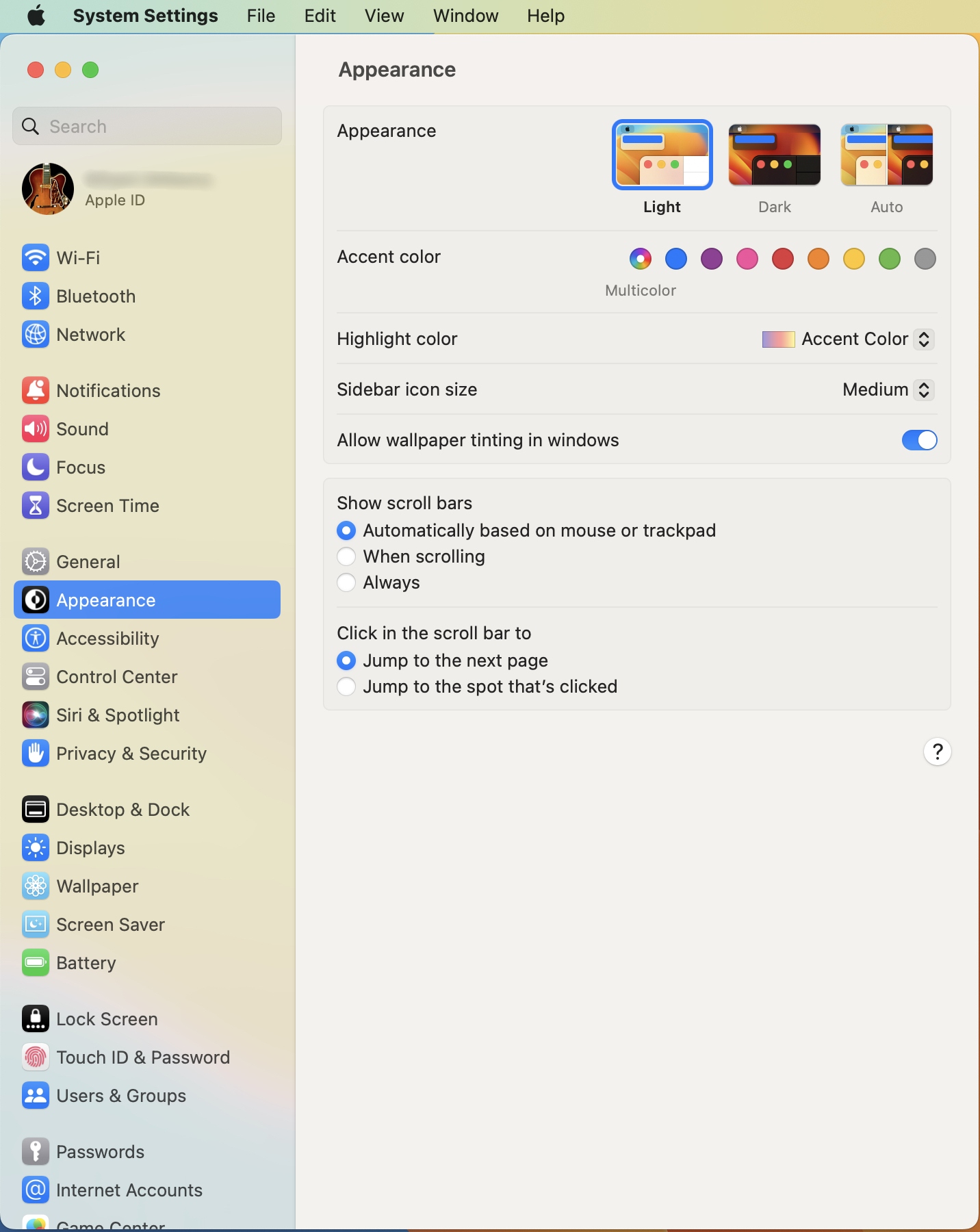
macOS 13 Ventura has a redesigned System Preferences app, now called System Settings. If you have used macOS before, you will notice that a lot of settings have been moved. We will walk you through the ones you need for optimization. Fortunately, System Settings has a Search bar where you can type in terms to find the right setting.
- The most important rule for audio optimization
- Connecting your audio interface
- Using a MacBook? Plug it in.
- Turn off Time Machine
- Bluetooth
- Network and Internet Connections
- Optimizing to Reduce Network Activity
- System Settings
- Get to know Activity Monitor
The most important rule for audio optimization
The most important rule to maximize your computer’s resources for working with audio is to quit all the apps that you are not using while you work in your DAW.
Any apps you leave running take up space in memory and take away from your system’s computing power. They may also run background processes that interfere with recording and playing back audio.
TIP: Before each session, start clean: restart your Mac. In the dialog box Are you sure you want to restart your computer now?, un-check the box next to Reopen windows when logging back in.
Connecting your audio interface
You should always plug a USB or Thunderbolt audio interface directly into your Mac and not through a USB hub or Thunderbolt dock. Audio interfaces require the greatest data bandwidth and power, so they function much better when connected directly.
You can connect your other peripherals through a powered USB hub.
Using a MacBook? Plug it in.
MacBooks are configured to reduce computing power when they are not plugged in, to save battery life. When you are recording audio and making music, connect the power supply.
Turn off Time Machine
Sweetwater recommends that you use Apple Time Machine with an external hard drive to make regular backups of your system. But since Time Machine frequently reads data from your disks and writes it to the backup volume, this can interfere with recording audio. Before you start each session, turn off Time Machine.
- Go to System Settings > General > Time Machine.
- Select your Time Machine backup disk and click Options…
- Under Backup frequency, pull down the menu and select Manually. This will interrupt the regular backup process.
When your session is done, go back to the settings and change Backup frequency to Automatically Every Hour so it can resume incremental backups.
For more information, check out Sweetwater’s macOS 13 Ventura Time Machine Backup Guide:
Bluetooth
If you don’t use Bluetooth devices while working in your DAW, turn Bluetooth off. If Bluetooth is enabled on your Mac, it constantly sends signals that add to your Mac’s processor overhead and memory.
- Go to System Settings > Bluetooth.
- Click the button to turn it off.
Network and Internet Connections
If you don’t need to have your Mac connected to the internet when using your DAW, you will get higher performance by disconnecting from the internet altogether. But most people need to remain connected while recording. If you are able, connect your Mac to your router using an Ethernet cable and then turn your Mac’s Wi-Fi connection off. Wi-Fi generates additional network traffic on your Mac and can interfere with audio recording and playback.
Many apps and background processes on your Mac constantly create network traffic as they transmit data to and from the internet. This traffic can cause glitches in recording and playback. We will discuss ways to eliminate or reduce this.
TIP: If you have any products licensed to the iLok Cloud system, you must keep a continual connection to the internet or your licensed products will not run. Learn more about iLok Cloud.
Use an Ethernet connection
If you can position your Mac in your home or studio so that you can run an Ethernet cable between your Mac and your router, this will enable you to turn off Wi-Fi on your Mac but remain connected to the internet. Turning off Wi-Fi will reduce the chance of interference in recording and playing back audio.
Recent MacBooks and the newest iMacs don’t have an Ethernet port, but you can connect an Ethernet to USB-C adapter dongle, an Ethernet to Thunderbolt adapter dongle, or a USB dock or Thunderbolt dock that has an Ethernet port built-in. Then you will need to run an Ethernet cable from the adapter or dock to an Ethernet port on your router.
Turn off your Wi-Fi
If you have an Ethernet connection, you can turn off your Mac’s Wi-Fi.
- Go to System Settings > Wi-Fi
- Click the button to turn it off.
Optimizing to Reduce Network Activity
Turn off cloud-based storage and backup apps
Turn off Cloud-based storage
If you are connected to the internet while working with audio apps, turn off all cloud-based backup and file-sharing services like Apple iCloud Drive, Google Drive, Dropbox, or Microsoft OneDrive.
Don’t save your audio project files to a folder that is actively being synced to the cloud by one of these apps. When you record, you are continuously writing data to these files. Cloud-based storage apps are constantly looking for changes in your files, reading the data off your hard drive and syncing it to servers on the internet. These conflicting actions can corrupt audio files and may even prevent your DAW from entering record mode.
Turn off iCloud Drive
- Go to System Settings and click on the icon next to your Apple ID.
- In the pane on the right, click on iCloud
- You will see the various settings for iCloud Drive and other apps that share data through iCloud.
- Click on iCloud Drive. Click Turn Off.
Please consult Apple’s support pages for more information. This Apple Support article explains how to disable iCloud Drive and get your Desktop and Documents folder back to your startup disk.
Turn off Cloud-based backup services
You should also turn off third-party system-wide backup services that back up all your data, such as Carbonite, iDrive, and Backblaze. Disable them while using your DAW and turn them back on when you are done.
Quit Web Browsers
Quit all your web browsers. Leaving your web browser open, with multiple tabs or windows, takes up memory and processing power. Open web pages may constantly be fetching data from the internet, creating more network traffic.
Quit Mail
Quit the Mail app, or any other email app you use, because it creates network activity as it continuously checks for new email and downloads it.
Quit Notification widgets
Turn off all music streaming apps and Notification Center widgets, like News or Weather. They create network traffic and impact memory and processing power.
Learn more about Apple Support: Notification Center widgets.
System Settings
macOS Automatic Updates
macOS 13 Ventura will update itself automatically by default.
Updating to newer point releases of macOS 13 Ventura is generally a good idea. However, these updates sometimes cause incompatibilities with your DAW or other audio software. When Apple releases a minor update, you may wish to check with your DAW developer’s support before you decide if you should upgrade.
Sometimes macOS will automatically install minor security patches in the background without notice, while you are working. It’s possible that these updates could cause glitches in audio recording.
For these reasons, you should disable Automatic Updates.
- Go to System Settings > General > Software Update
- If Automatic Updates are On, you can click on the Information icon, and a dialog will open.
- Click the buttons to disable each option, and then click Done.
You can go back to Software Update at any time and click on it. System Settings will check to see if updates are available. You can decide whether and when to install each update.
Disable unused network adapters
Your Mac may be configured with software network interfaces that you don’t use. They may interfere with data on the USB or Thunderbolt bus, so it’s best to disable them.
Go to System Settings > Network.
The interfaces you need to keep pertain to Wi-Fi and Ethernet.
- Click on a network interface you don’t use, for example, Thunderbolt Bridge.
- In the next pane, click Make Inactive. You can also click on Delete Service.
- Repeat this for any additional interfaces that appear.
Firewall
IMPORTANT: You may decide to disable the Firewall when you are on your home network behind your router, but for security reasons, you should enable the Firewall when you travel with your Mac and connect to other networks.
Some audio interface manufacturers recommend that you disable your Mac’s Firewall because it can create network activity that may cause dropouts in audio recording and playback. However, the firewall on your Mac serves an essential purpose: to protect your Mac from network intrusion. If you encounter audio dropouts, try disabling your Firewall to see if it fixes the problem.
- Go to System Settings > Network > Firewall
- Click the button to turn it on or off.
- If it is on, you can click the Options button and select additional settings.
Apple Support: Block connections to your Mac with a firewall
Location Services
Certain apps continuously broadcast your location to services on the internet. It’s best to turn this feature off when you use your DAW.
- Go to System Settings > Privacy & Security > Location Services.
- Across from Location Services, turn off the button at the upper right to disable Location Services for all listed apps at once.
System Services at the bottom of the Location Services pane has a separate set of controls.
- Across from System Services, click on Details…
- The System Services Can Access Your Location For dialog box opens.
- Turn off each of the nine settings individually. Click Done.
Note that one item you turn off removes your Mac from appearing in the Find My app. For more information, see Apple Support: Set up the Find My app to locate a missing Mac, device or item.
Background Processes
There are some background processes you may be able to turn off.
Go to System Settings > General > Login Items
Open at Login shows any apps or services that automatically launch. Remove anything you do not need to have running. You can launch those apps manually from the Applications folder.
Allow in the Background shows a list of background processes you can turn off individually. Apple’s description is apt:
“Applications add background items to perform tasks when the application isn’t open, such as checking for software updates or syncing data. Turning off a background item may prevent these tasks from being completed.”
You might want to turn these processes back on after your session.
Analytics & Improvements
Apple collects diagnostic and usage data while you use your Mac, and can send crash reports and usage data to third-party developers. As this creates unwanted network traffic, it’s best to turn off each option.
- Go to System Settings > Privacy & Security > Analytics & Improvements.
- Turn off Share Mac Analytics, Improve Siri & Dictation, and Share with app developers.
System Sounds and Sound Notifications
You don’t want to be distracted by the Mac’s alert sounds while working in your DAW.
System Sounds
- Go to System Settings > Sound.
- Turn off Play user interface sound effects and Play feedback when volume is changed.
Individual Application Notifications
Go to System Settings > Notifications > Application Notifications.
You’ll see a list of not only Apple apps, but also third-party apps installed on your Mac that use Notifications. Click on each app and turn all Notifications on or off with the Allow Notifications button. If you wish to leave some Notifications on, you can turn off Play sound for notification. Go through the list and check the settings for each app.
Get to know Activity Monitor
Most DAWs have a “Performance Monitor” or “CPU Overload” indicator to alert you when your audio session overwhelms your system’s hardware, leading to hang-ups, glitches, and noise. This feature only reports on system resources within your DAW.
Activity Monitor is an app in macOS that gives you a real-time display of all running apps and processes on your entire system. For each process, Activity Monitor displays how much of your computer’s resources are being used, according to five categories: CPU, Memory, Energy, Disk, and Network.
While working in your DAW, spot-checking Activity Monitor is useful to find out if your workflow is overwhelming your CPU or exceeding the amount of RAM you have, leading to your system slowing down or causing audio glitches. Use this information to identify apps and processes that are taking up resources so that you can quit or disable them.
Go to Applications > Utilities > Activity Monitor
Under the CPU tab, click on the % CPU column. The list will sort according to the processes using the most CPU power. At the bottom, the CPU Load graph indicates the total amount of CPU resources being used.
Under the Memory tab, click on the Memory column to sort by processes that use the most memory. At the bottom, the Memory Pressure graph indicates how much memory is in use. If the apps you are running at the moment exceed the amount of RAM, then there is a value in the Swap Used field, indicating that your system must write data to and from the startup disk to make up for the shortfall in RAM. This indicates that your system is overburdened at that moment.
For more information, look at Apple Support’s Activity Monitor User Guide.
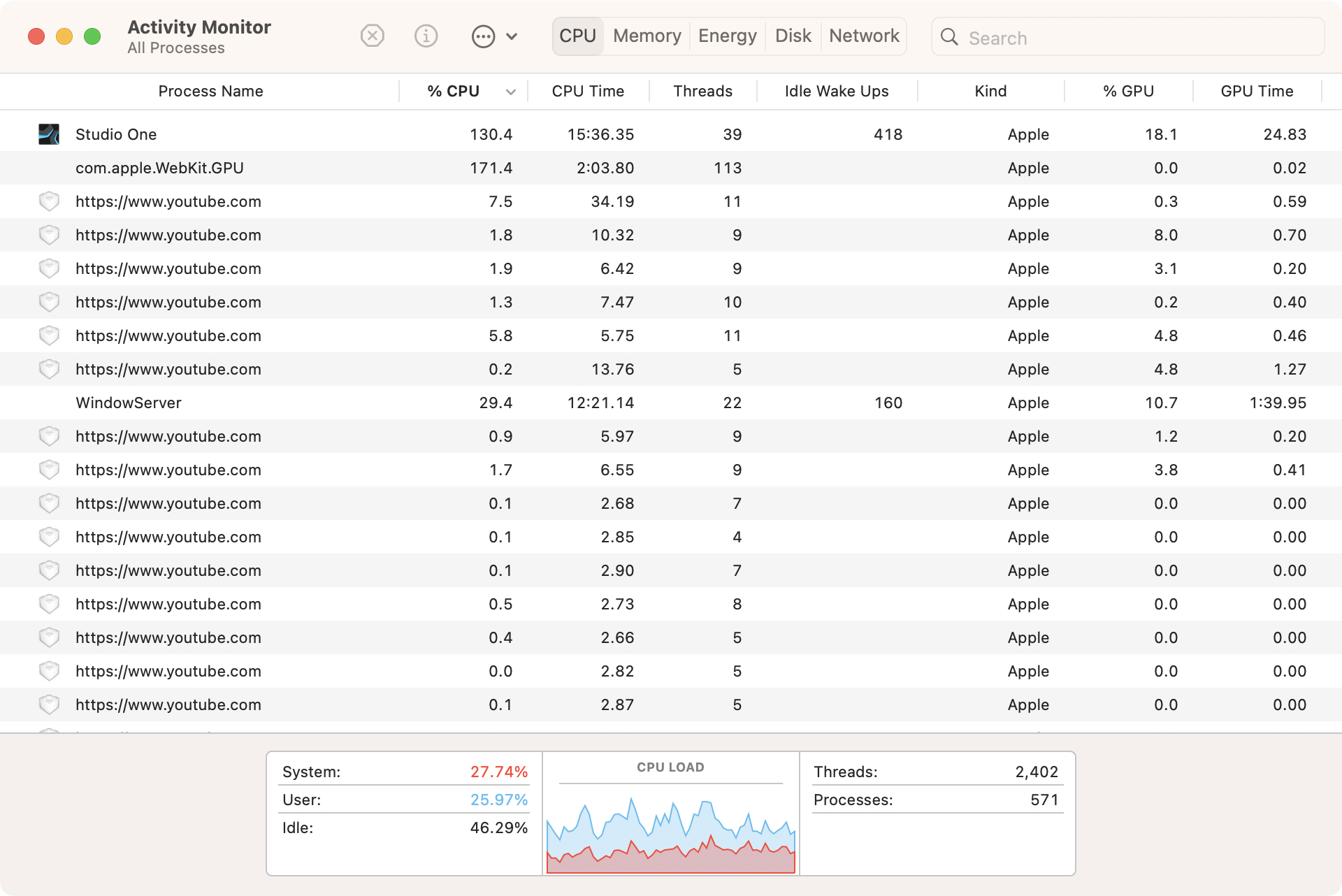


The macOS 13 Ventura Activity Monitor with detailed views of the CPU Load and Memory Pressure meters
macOS 13 Ventura Support Resources
Apple launched macOS 13 Ventura on October 24, 2022. Sweetwater has created a comprehensive series of support pages about macOS 13 Ventura to make sure our customers and the community have access to all the information required before upgrading. Not all software or hardware manufacturers will have versions of their products that are Ventura-compatible right away, but rest assured that they are hard at work testing and developing. After you confirm that all your products can be upgraded to compatible versions, that’s the time to upgrade. Bookmark this page and check back for the latest updates!
When you need help, Sweetwater has the answers!
Our knowledge base contains over 28,000 expertly written tech articles that will give you answers and help you get the most out of your gear. Our pro musicians and gear experts update content daily to keep you informed and on your way. Best of all, it’s totally FREE, and it’s just another reason that you get more at Sweetwater.com.

