
Behringer RD-8 Song Creation
Getting started
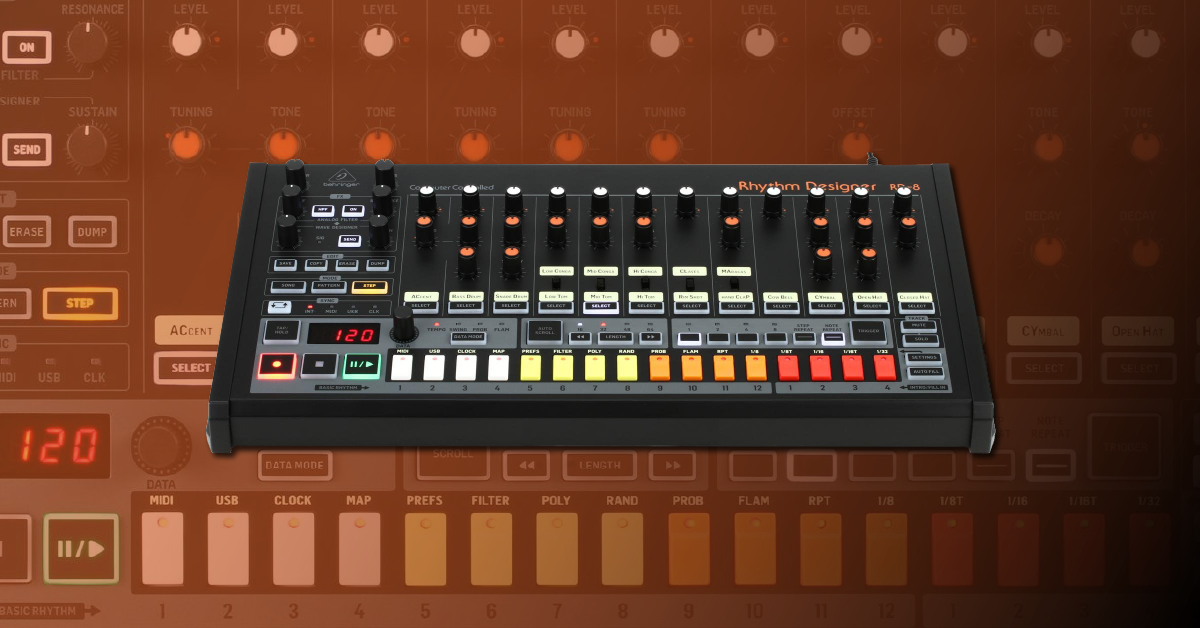
In this guide, we will show you how to create, edit, and save patterns and songs using the RD-8. You’ll learn how to make and edit beats, and also how to save them. Follow each of the sections below to get started.
Create a pattern on the RD-8
The RD-8 consists of three basic elements for beat creation: Steps, patterns, and songs. Steps are the individual beats of the Pattern, and a group of patterns creates a Song. You can create and save up to 64 steps per pattern, and up to 16 patterns and 16 songs. When you first turn the unit on it will be in SONG mode. So, to create a pattern, you will need to enter PATTERN mode, select the pattern, and then enter STEP mode to input the steps (notes). Follow these steps to create your first pattern on the RD-8. Once you get the hang of it, experiment with the effect and volume knobs to dial in your favorite sounds.
- The Accent does not produce sound. It only boosts and subtracts the level of the selected step.
- When the Hand Clap is selected, turning the Offset all the way down will shorten the length of the sound and increase the amount of reverb.
TIP: You must have the record button engaged when adding and removing steps. If the record button is disengaged, it will only temporarily add/remove the step.
- Press the Pattern button, select the pattern number you want to record, and then press the Step key to enter Step Mode.
- Select the sample you want to trigger, and press the Trigger button to preview the sound.
- Press the Record button and use the step buttons to place the sound into that specific step.
- You can also record live by pressing Record, Play, and then using the Trigger button to insert the steps in realtime.
- Once complete, press Stop and Record to exit step recording, and then press Pattern.
Note and step repeat
Note and step repeat are handy tools to get creative during playback. As their names state, they repeat the number of steps/notes by the amount you specify. Even if Record is enabled, the step and note repeats will not record onto any of the steps.
Change the pattern length
By default, you can set the pattern length to 16, 32, 48, or 64 steps. However, you can create a custom length. For example, instead of having a 32 step pattern, you can make one that is 24 (eight steps shorter). This gives you a bit more flexibility when arranging your songs.
- Press the Length button and use the arrows to select the pattern range.
- Use the step buttons to set the length of the pattern.
Change the note length
Changing the length of the notes allows you to change the feel of your drum grooves even further. Like most drum machines, the default duration is set to a sixteenth note. However, you can change it to the following lengths: 1/8th, 1/8th triplet, 16th, 16th triplet, and 32nd. So if you think your beat sounds too mechanic, follow these steps to change the length of the notes.
- Press the Settings button.
- Select the note length you want to change to. The note length options are the four RED step keys.
- Press Settings twice more to exit.
Saving patterns
After creating a pattern, it’s best practice to save it. Whenever you turn the RD-8 off, all unsaved data will be erased, including patterns and songs. Follow these steps to save your patterns.
- Press Save and then press the flashing red Pattern button.
- Select the step number where your pattern resides, and then press the flashing Save button to complete the save.
Create a song (pattern chaining)
Once you’ve made some patterns, you can then group them together to create a Song. When creating a song, you can arrange the patterns however you want. You can even program the number of times each pattern is repeated/looped. Follow these steps to create a song.
- Press the Song button and select the song number you want to create.
- Press the Pattern button and then press the Record button.
- Press the first pattern step key you want to load, and then press the AUTO SCROLL button so it’s illuminated.
- If Auto-Scroll is off, it will only play the currently selected pattern.
- Press the next pattern step key you want to load, and continue until you’re finished.
- If you need to remove a pattern from your song, press the blinking ERASE button. Make sure that you are in Pattern Record mode and erase one bar at a time.
Looping patterns
Looping patterns on the RD-8 will be done while you’re creating your Song (pattern chain). Press the flashing LENGTH button, use the DATA knob to select the amount of times you want the pattern to repeat, and then press the LENGTH button once more to exit. If you want to loop the pattern indefinitely or until you select the next pattern, you can also set the loop length to Hold.
Saving songs
After programming your song, you’ll want to save it. If you don’t, you will lose your data when turning the unit off and back on. Saving your Songs on the RD-8 is done just like how you save patterns.
- Press Save and then press the red flashing Song button.
- Select the step number where the song resides, and then press the flashing Save button to complete the save.
Using the FX section
The FX section of the RD-8 is easy to use. Just send each channel to the built-in FX bus to create an even more unique sound. Once routed, use the Analog Filter to change the cutoff and resonance of the samples, and use the Wave Designer to adjust the attack and sustain of the samples.
IMPORTANT! The Wave Designer and Analog Filter sections completely bypass the headphone output, which means you will not hear any of those effects through your headphones.
- Press the SEND button so it turns yellow and select the channels you want to route to the FX section. The channels that are routed will turn solid red.
- Press SEND to exit assignment menu and press the ON button to engage the Analog Filter.
Related Articles
When you need help, Sweetwater has the answers!
Our knowledge base contains over 28,000 expertly written tech articles that will give you answers and help you get the most out of your gear. Our pro musicians and gear experts update content daily to keep you informed and on your way. Best of all, it’s totally FREE, and it’s just another reason that you get more at Sweetwater.com.

