
Behringer RD-8 Firmware Update
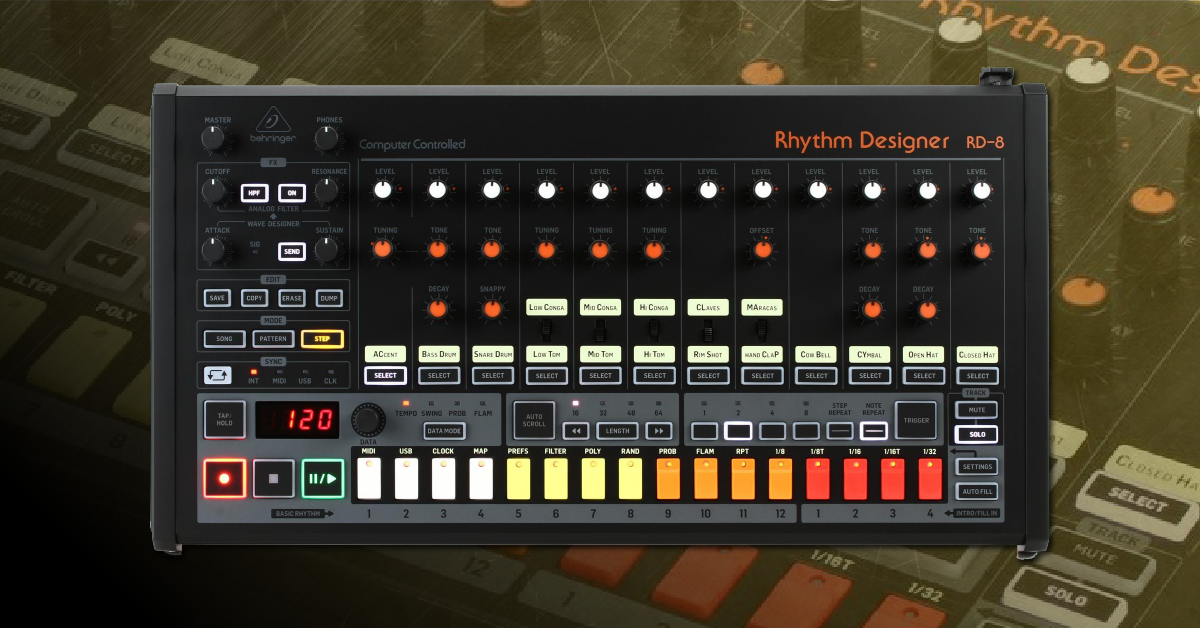
How to update the firmware on a Behringer RD-8
In this guide, we will show you how to perform a firmware update to a Behringer RD-8. Follow the sections below to get started.
Check the firmware version number
RD-8 firmware updates typically add new features and bug fixes to the internal software. You may need to perform a firmware update if you’re running into issues and need to reload the device’s software. Before performing an update, check which firmware version you’re currently on and compare it to the latest listed on the RD-8 product page on the Behringer website. Follow these steps to check the firmware version.
- Press the Settings button and then press and hold the TAP/HOLD button.
- While holding the TAP/HOLD button, press the PREFS (5) step key. The firmware version will scroll across the screen.
Install the Bootloader driver (PC users only)
IMPORTANT: Make sure that the RD-8 is in Boot mode before installing the Bootloader drive. If it’s powered on normally, the STM32 Bootloader will not appear in the device list.
While the RD-8 is class-compliant on Windows, a unique Bootloader driver first needs to be installed for the device to be recognized by the firmware updater while in Boot mode. You will need to install a driver tool that allows the RD-8 to be recognized by your PC while in Boot mode. This procedure is only necessary the first time you perform a firmware update on Windows. Follow these steps to install the Bootloader driver. Mac users can skip this section and go straight to Perform a firmware update.
- With the RD-8 turned off, connect it to your computer.
- Go to the Zadig driver installer page, and download the latest version.
- Press and hold the recessed Boot button located next to the USB port on the RD-8 using a paper clip (or something of a similar size) and power the unit on.
- The RD-8 does not light up while in Boot mode.
- Launch the Zadig software, click Options, and select List All Devices.
- In the dropdown box, select STM32 BOOTLOADER and click Replace Driver. The driver installation process may take a minute or two, so make sure not to disconnect the device or power it off.
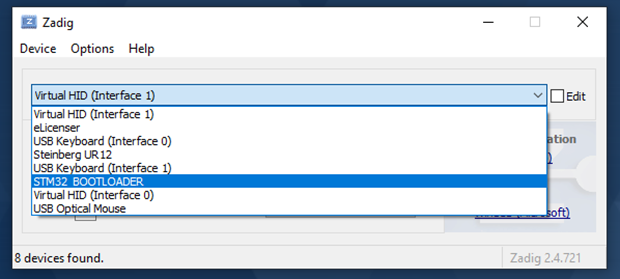
Select STM32 BOOTLOADER from the device dropdown screen.
Perform a firmware update
IMPORTANT: Disconnect all MIDI cables before performing a firmware update. Having MIDI cables connected, specifically to the MIDI IN port, may cause the update to fail.
Once you’ve confirmed that your RD-8 requires updating, you can begin the update process. You’ll need to connect your device to the computer, download the firmware file on the RD-8 download page, and then perform the update.
- Go to the Behringer RD-8 product page and download the Firmware Updater for your OS.
- With it powered OFF, connect the RD-8 to your computer and then launch the updater.
- Press and hold the recessed Boot button located next to the USB port on the RD-8 using a paper clip (or something of a similar size) and power the unit on.
- The RD-8 does not light up while in Boot mode.
- Click the Update button within the Firmware Updater software.
- Once the update is complete, power cycle the unit.
Related Articles
When you need help, Sweetwater has the answers!
Our knowledge base contains over 28,000 expertly written tech articles that will give you answers and help you get the most out of your gear. Our pro musicians and gear experts update content daily to keep you informed and on your way. Best of all, it’s totally FREE, and it’s just another reason that you get more at Sweetwater.com.

