
Behringer UMC Audio Interface Setup Guide
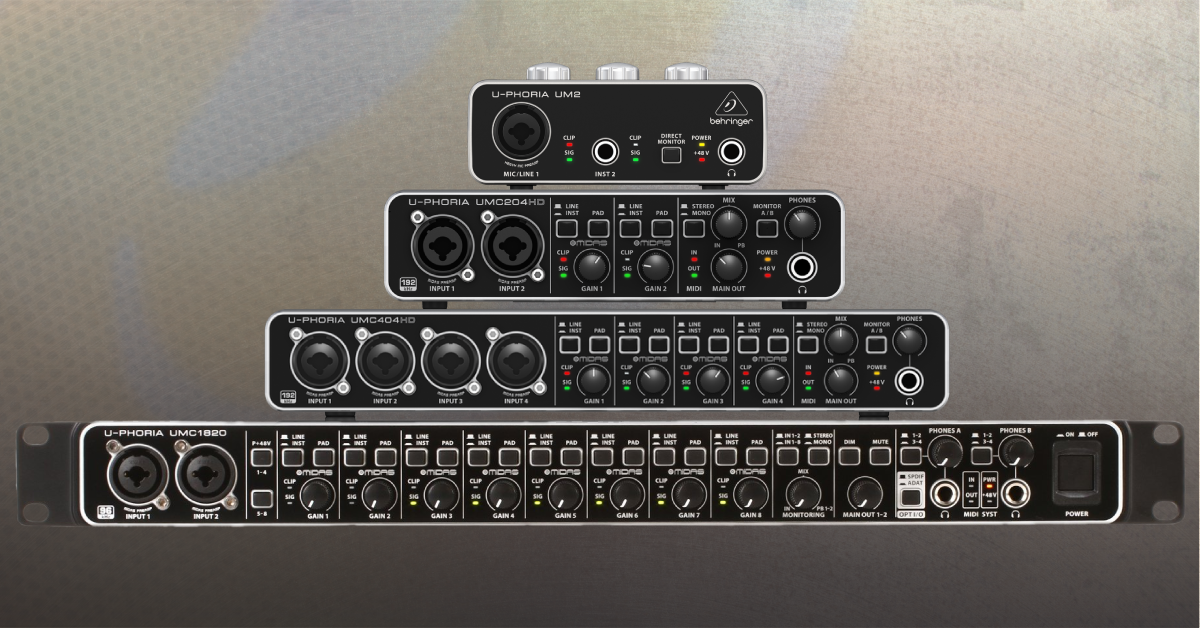
In this article, we will walk you through how to get started with your Behringer USB audio interface on PC (Windows) and Mac (macOS). Setup is easy, so follow the sections below to get started.
- Register your Behringer to get the full warranty
- Download and install Behringer drivers (Windows users only)
- Set up and connect your gear
Register your Behringer to get the full warranty
By default, Behringer gives you a 1-year warranty. However, if you register your item on the website within 90 days of purchase, Behringer gives you a 3-year warranty. It’s free.
TIP: Everything you purchase from Sweetwater comes with our 2-year Total Confidence Coverage (TCC) warranty. However, three years is even better than two, so please register with Behringer today.
Download and install Behringer drivers (Windows users only)
After registration, the next step is to download and install the required PC (Windows) driver. A driver isn’t necessary on a Mac OS because Behringer interfaces are class-compliant and do not need additional software to connect. Follow the steps below to install the necessary driver software for Windows. If you’re a Mac user, skip this section and continue to Set up and connect your gear.
- Visit the Behringer Products page, and under “Audio Interfaces,” select your product.
- On your product’s individual page, click Downloads. Under “Drivers, USB, Audio,” locate the newest version of the driver. Download it and install it according to the instructions.
Do I need to use the ASIO4ALL driver?
Although most Behringer audio interfaces have their own driver (version 4.38 as of July 2018), some of the smaller interfaces will require the third-party driver, ASIO4All. These interfaces include the UMC22, UM2, UCA222, and UCA202. Check out our ASIO4ALL setup guide for instructions on how to install and configure it.
Set up and connect your gear
Once connected, the last step is to set up your gear and configure your computer’s audio settings. The process is effortless, so you’ll be making music in no time!
USB CONNECTION TIP: We highly recommend connecting your interface directly to your computer, preferably a USB 2.0 port. USB hubs may not provide enough power to your interface, resulting in connectivity issues, and connecting to a USB 3.0 port may result in connectivity issues.
- Turn the Volume knob all the way down, then connect your speakers.
- If you’re going to use headphones, turn its volume knob all the way down, as well.
- Connect the USB cable from the interface to your computer, then power it on.
- If you have the UMC404 or UMC1820, connect the power supply and then connect the interface to your computer.
- Navigate to your computer’s sound settings and set it as the default recording and playback device.
- PC: Right-click the Speaker icon on your Windows taskbar and click Sounds. Select Playback, right-click your interface, and click Set as Default Device and Set as Default Communications Device. Lastly, select Properties, go to the Advanced tab, and uncheck the boxes under Exclusive Mode. Click the Recording tab and follow the same procedure.
- Mac: Click the Apple icon from the Menu Bar and select System Preferences. Click Sound, then select the Revolution under the Input and Output tabs.
- If applicable, connect your headphones to the jack on the front.
- Play some music or a video, and slowly turn MAIN OUT and PHONES knobs up until it’s at a comfortable listening level.
- Launch your DAW, go to its routing page, then select the Behringer interface as your main input and output.
Audio interface not working correctly?
If you are running into connectivity issues, sample rate issues such as fast or slow playback, or sample rate mismatch errors, reconnect the interface, try a different port, and double-check your system and DAW sound settings. If the problem persists, try a different USB port or cable. Visit our Windows and Mac guides for more tips on resolving audio device connectivity.
Additional Behringer resources
How To – First Recording
How To – Recording Vocals
How To Record – Tracktion 5
Record and Overdub in Logic
Related Articles
When you need help, Sweetwater has the answers!
Our knowledge base contains over 28,000 expertly written tech articles that will give you answers and help you get the most out of your gear. Our pro musicians and gear experts update content daily to keep you informed and on your way. Best of all, it’s totally FREE, and it’s just another reason that you get more at Sweetwater.com.

