

Yamaha reface YC Quickstart Guide
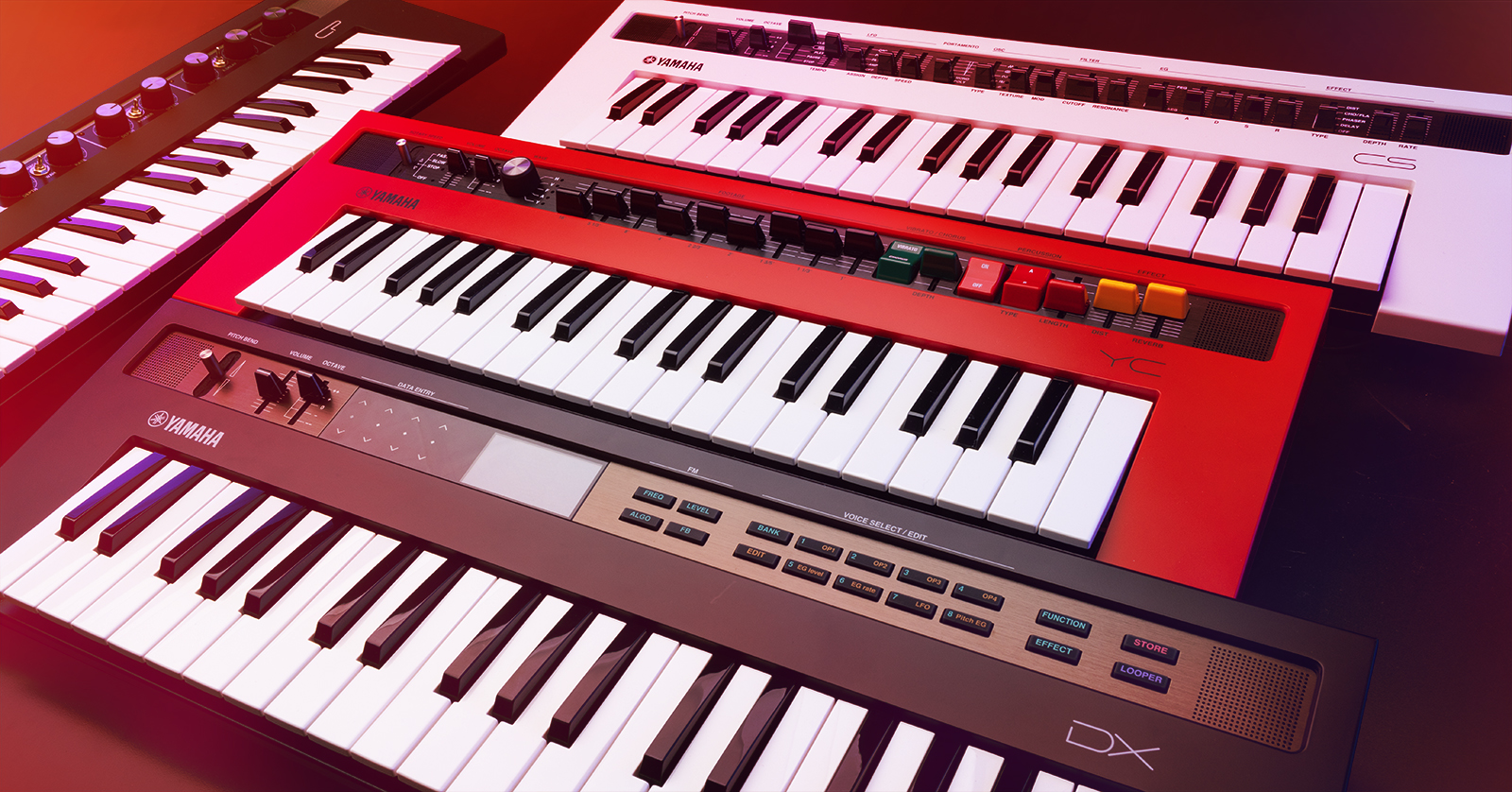
Congratulations on buying the Yamaha reface YC, the portable combo organ keyboard in Yamaha’s family of four reface instruments.
The reface can be used as a stand-alone portable keyboard, battery-powered and with its own internal stereo speakers and headphone jack. It can also be powered by the included external power supply, connected to professional audio systems through the left and right output jacks, and connected to other instruments, computers, and devices through MIDI and USB.
- Register Your Purchase with Yamaha
- Setting Up Your Yamaha reface YC
- Yamaha reface YC Controls, Instruments, and Effects
- Connect Your reface to a Full-size MIDI Keyboard
- Connect Your reface to a Mac or a Windows PC
- Store and Recall Presets and Set Lists with Yamaha Soundmondo
- Play Your reface Like a Keytar
Register Your Purchase with Yamaha
Go to https://usa.yamaha.com/.
Create an account if you don’t have one already.
After you log in, click the Product Registration link, and on the following page, Register My Product. Fill out your information and the reface serial number, which is on the bottom of the unit.
The owner’s manuals, reference materials, and software downloads for the reface are at this link on the Yamaha website.
Setting Up Your Yamaha reface YC
Batteries and speakers
You can power your reface with six AA batteries. Open the battery lid on the underside and make sure the batteries are oriented according to the diagram. Your reface also has small stereo speakers built in.
Connections
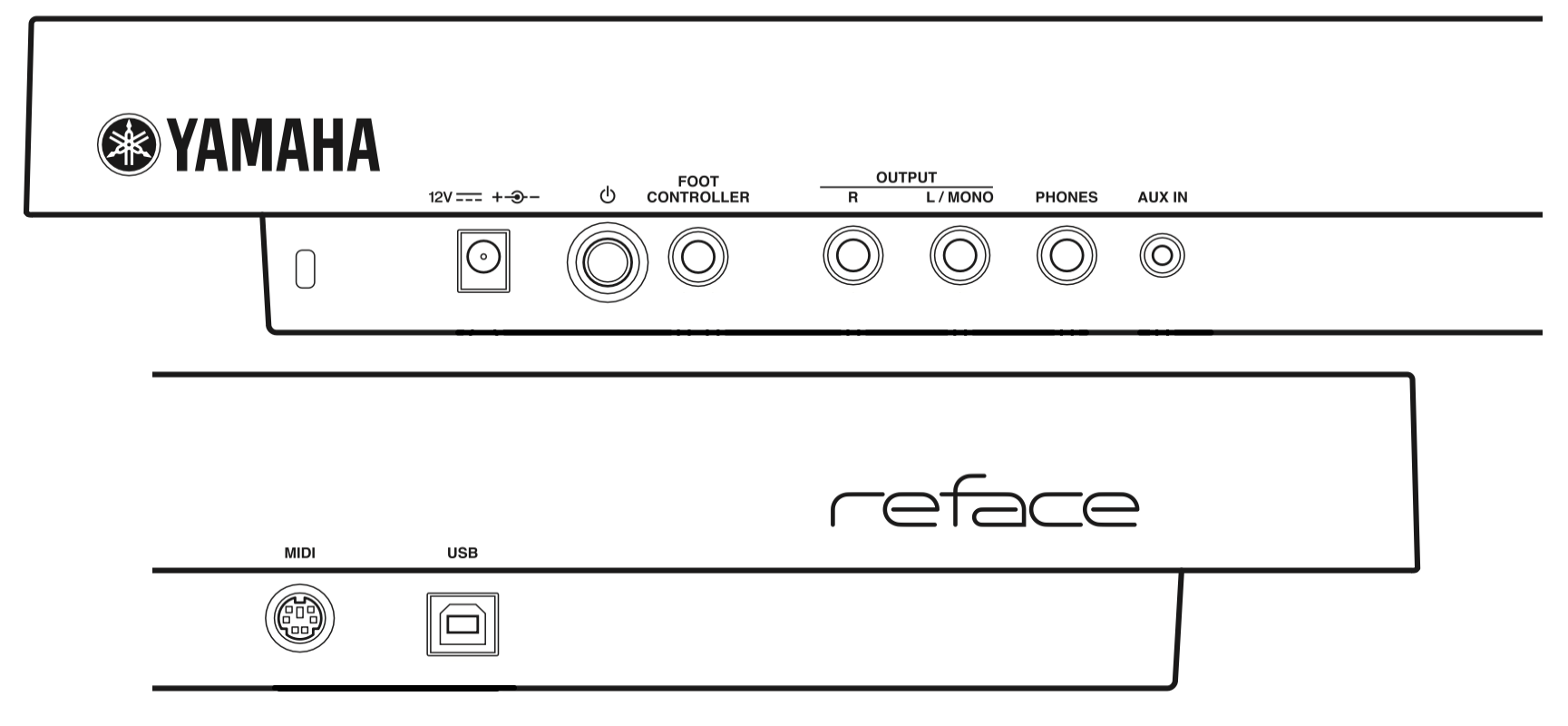
Yamaha reface back panel connections
On the back panel, you will see the connections for:
- Power supply. Attach the included 12V center-positive power supply.
- Power button
- Foot Controller. With the reface YC, you can connect a Yamaha FC7 volume/expression pedal.
- Output, L/Mono, and R. Connect 1/4-inch TS cables to your speakers, amp, mixer, or audio interface.
- Phones. Connect headphones with a 1/4-inch TRS plug.
- Aux In. Insert a stereo 1/8-inch TRS cable as an input from an external music player so you can play along on the reface through headphones or the built-in speakers.
- MIDI. This proprietary connection accepts the included Yamaha MIDI break-out adapter to connect standard MIDI cables.
- USB. Connect a USB cable to send and receive MIDI over USB to a Mac, a Windows PC, or an iOS or iPad device.
Powering Up your reface YC
Connect the power supply to an outlet.
Before you turn the power on, connect the Outputs to your mixer, speakers, or audio interface. Connect your headphones if you need them.
Make sure the Master knob on the front panel is turned all the way down.
Press the Power button. The unit will take a few seconds until the lights come on indicating it has powered up.
Now you can gradually turn up the Volume slider on the front panel and play some keys.
To turn the unit off, turn the volume all the way down, and press the Power button again.
Disabling internal speakers
When you attach headphones, the internal speakers in the reface will be turned off.
The speakers will still be engaged if you connect cables to the L/Mono and R Outputs. If you want to disable the speakers, do this:
- Turn the power off.
- While holding down the lowest “D” key on the keyboard, turn the power back on and wait until the lights stop blinking.
Auto power off
By default, if you don’t touch your reface YC for 30 minutes, the instrument will turn itself off. If you want to disable this:
- Turn the power off.
- While holding down the lowest key on the keyboard, “C,” turn the power back on and wait until the lights stop blinking.
If you are running on batteries, conserve battery life by turning the unit off using the power button on the back whenever you are not playing it.
Yamaha reface YC Controls, Instruments, and Effects
The reface YC provides an emulation of vintage electro-mechanical and electronic organs.
Organ models
The Wave knob provides five settings for models of different combo organs:
- H, the electro-mechanical tonewheel organ from the US that first appeared in the 1930s
- V, the British transistor combo organ from the 1960s
- F, the Italian transistor combo organ from the 1960s
- A, the Japanese transistor combo organ from that other company besides Yamaha, from the late 1960s
- Y, modeled on the Japanese Yamaha YC10 from 1969 and the YC-45 from 1972
Controls
- Rotary Speed. Simulates the stereo tremulant effect achieved by the rotating speaker system that accompanied the H-brand tonewheel organ.
- Volume
- Octave with center position and transpositions for plus and minus two octaves
- Wave for selecting among the five models mentioned above
- Footage, which provides nine sliders replicating the drawbars on the electro-mechanical organ for adjusting the level of signals from the tonewheels, which are combined to create registrations, or different sounds.
- Vibrato/Chorus. The rocker switch enables either the Vibrato effect or the Chorus effect, and the slider controls the Depth of the effect.
- Percussion. An On/Off switch engages the effect. The Type switch has two positions, A and B, which govern which drawbar footage is used to create the effect. The Length slider adjusts the duration of the percussive sound.
- Effect. Two sliders provide Distortion and Reverb.
The reface Owner’s Manual, in the reface YC Voice Setting Examples section, provides examples of Wave, Footage, and Effects settings to recreate several vintage organ sounds.
Connect Your reface to a Full-size MIDI Keyboard
Playing the reface YC’s 3-octave, 37-key miniature keyboard is fun, but you can play the reface across a wider range more expressively by connecting an external MIDI keyboard controller with full-size, full-travel keys.
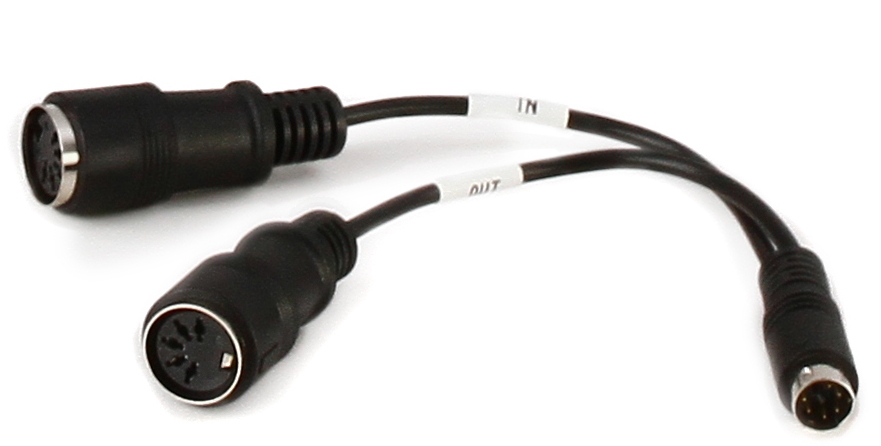
The included, proprietary Yamaha break-out adapter provides MIDI In and MIDI Out for the reface.
- Connect the included proprietary Yamaha break-out adapter to MIDI port on the back of the reface.
- Connect a 5-pin MIDI cable to the jack labeled In on the break-out adapter.
- Connect the other end of your 5-pin DIN cable to the MIDI Out port on your controller keyboard.
Now you can play the reface from your external MIDI controller keyboard.
The reface also outputs MIDI over the MIDI ports and USB, so you can play its built-in keyboard and use it to control other instruments.
Connect Your reface to a Mac or a Windows PC
To connect your reface to your Mac or your Windows PC via MIDI over USB, you need to download and install the appropriate driver from the Yamaha website.
Connect a USB cable to your computer. You can now transmit and receive MIDI from the reface to your DAW.
Consult Appendix: Keyboard Settings in the reface Owner’s Manual for configuration.
Store and Recall Presets and Set Lists with Yamaha Soundmondo
The reface YC has no memory to store presets and effects settings internally. However, you can store and retrieve presets and set lists using the Yamaha Soundmondo editor/librarian and preset-sharing app on your Mac, your Windows PC, or on an iPhone or iPad.
Soundmondo provides thousands of presets for the reface YC, with patch diagrams, shared by users around the world. Downloading presets for the reface YC from Soundmondo would be a good way to learn how the different drawbar registrations and effects settings work.
Play Your reface Like a Keytar
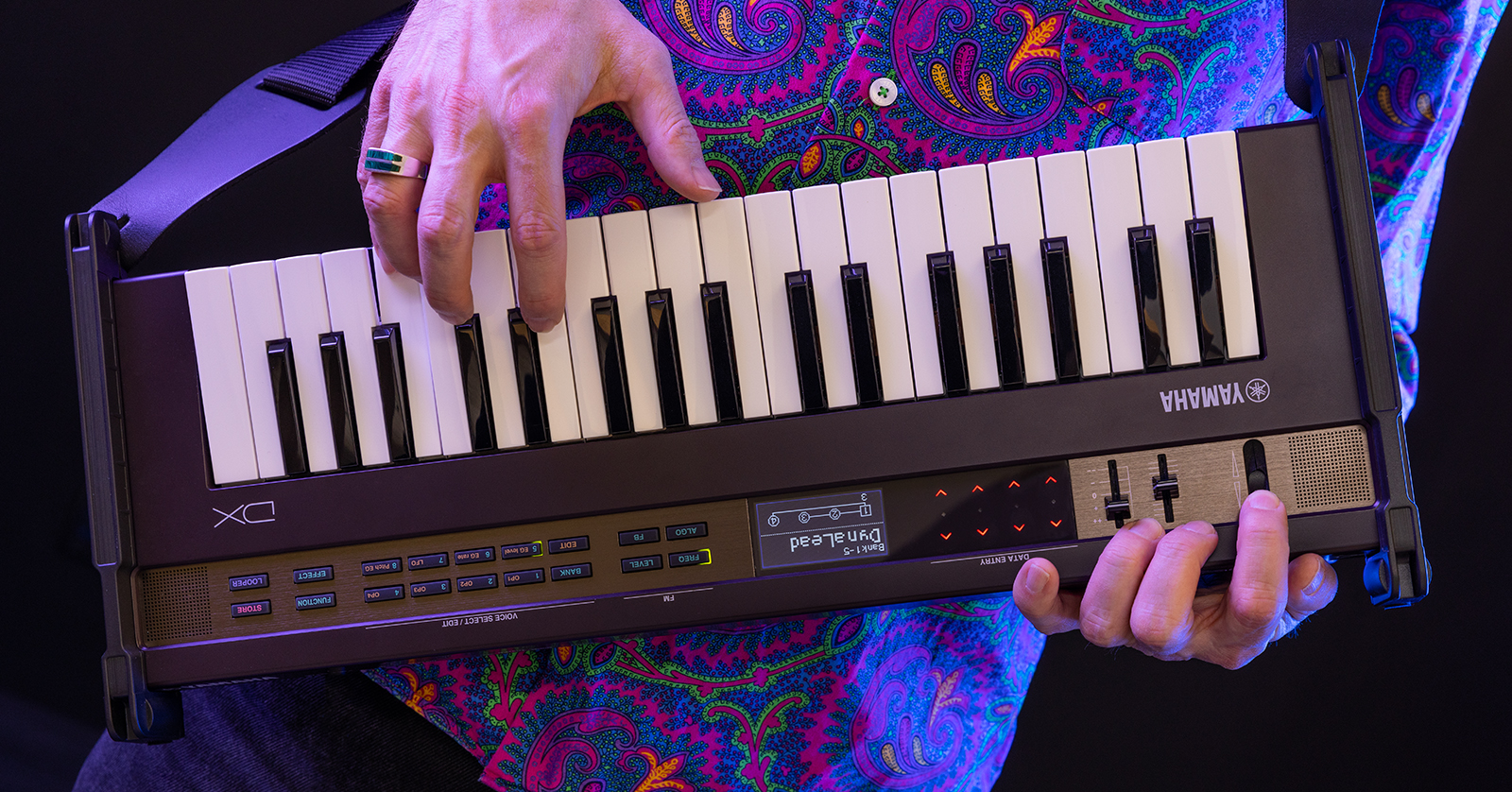
The Yamaha Strap Attachment Kit for reface enables you to attach a guitar strap and play any model reface like a keytar.
Just for fun, Yamaha sells an optional Strap Attachment Kit for reface. It consists of brackets you attach to any model reface. The brackets have strap buttons for you to secure your own guitar strap.
Related Content
Here is Sweetwater’s Daniel Fisher explaining the original design of the tonewheel organ and how the various controls enable the creation of different sounds.
Related Articles
When you need help, Sweetwater has the answers!
Our knowledge base contains over 28,000 expertly written tech articles that will give you answers and help you get the most out of your gear. Our pro musicians and gear experts update content daily to keep you informed and on your way. Best of all, it’s totally FREE, and it’s just another reason that you get more at Sweetwater.com.


Offer applies only to single-receipt qualifying purchases. Select manufacturers may require that only the manufacturer’s products qualify towards the minimum purchase amount needed to be eligible for promotional financing. Otherwise, an invoice that meets the minimum purchase amount and contains at least one qualifying manufacturer product is eligible for promotional financing. No interest will be charged on promo purchase balance, and equal monthly payments are required on promo purchase until it is paid in full. The payments equal the amount financed divided by the number of months in the promo period, rounded up to the next whole dollar. These payments may be higher than the payments that would be required if this purchase was a non-promo purchase. During the last month(s) of the promo period the required monthly payment may be reduced due to the prior months’ rounding. Regular account terms apply to non-promo purchases. New Accounts as of 07/31/2025: Purchase APR is 34.99%. Penalty APR is 39.99%. Min Interest Charge is $2. Existing cardholders: See your credit card agreement terms. Subject to credit approval.
Offer applies only to single-receipt qualifying purchases. No interest will be charged on the promo balance if you pay it off, in full, within the promo period. If you do not, interest will be charged on the promo balance from the purchase date. The required minimum monthly payments may or may not pay off the promo balance before the end of the promo period, depending on purchase amount, promo length and payment allocation. Regular account terms apply to non-promo purchases and, after promo period ends, to the promo balance. New Accounts as of 07/31/2025: Purchase APR is 34.99%. Penalty APR is 39.99%. Min Interest Charge is $2. Existing cardholders: See your credit card agreement terms. Subject to credit approval.
The estimated required monthly payment shown which excludes taxes and delivery equals the amount financed divided by the number of months in the promo period, rounded up to the next cent. During the last month(s) of the promo period the required monthly payment may be reduced due to this rounding. These payments apply only with the financing offer shown. If you make these payments by the due date each month, you should pay off this amount financed within the promo period, if it is the only balance you are paying off. If you have other balances on your account, this payment will be added to any other minimum monthly payments.
Applies only to select items from this manufacturer. Ask your Sweetwater Sales Engineer for more details.