
Yamaha reface CS Quickstart Guide
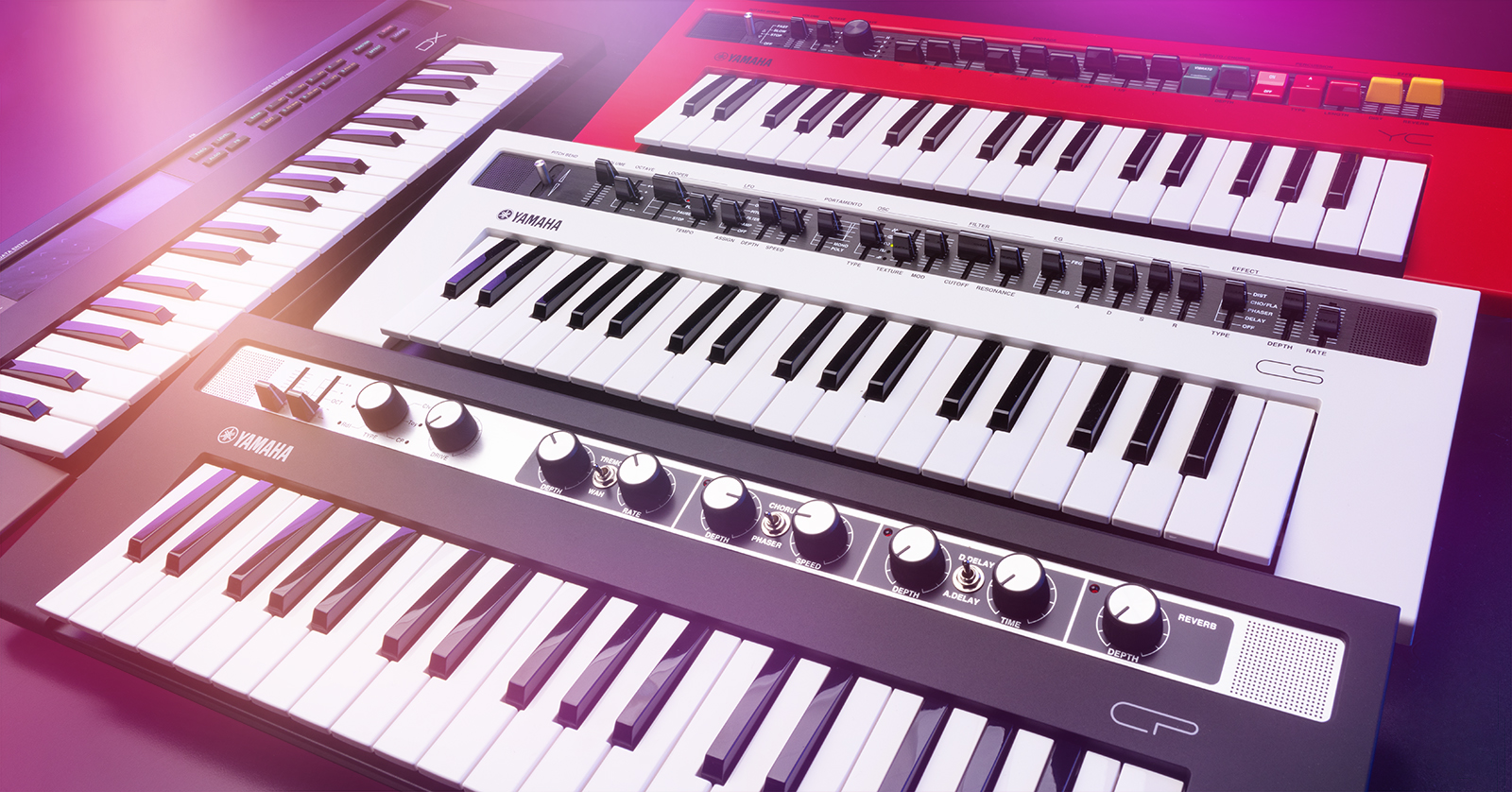
Congratulations on buying the Yamaha reface CS, the portable virtual analog synthesizer keyboard in Yamaha’s family of four reface instruments.
The reface CS can be used as a stand-alone portable keyboard, battery-powered and with its own internal stereo speakers and headphone jack. It can also be powered by the included external power supply, connected to professional audio systems through the left and right output jacks, and connected to other instruments, computers, and devices through MIDI and USB.
- Register Your Purchase with Yamaha
- Setting Up Your Yamaha reface CS
- Yamaha reface CS Controls and Effects
- Creating Sounds with Synthesizer Parameters
- Connect Your reface to a Full-size MIDI Keyboard
- Connect Your reface to a Mac or a Windows PC
- Store and Recall Presets and Set Lists with Yamaha Soundmondo
- Play Your reface Like a Keytar
Register Your Purchase with Yamaha
- Go to https://usa.yamaha.com/.
- Create an account if you don’t have one already.
- After you log in, click the Product Registration link, and on the following page, Register My Product. Fill out your information and record the reface serial number found on the bottom of the unit.
- The owner’s manuals, reference materials, and software downloads for the reface are at this link on the Yamaha website.
Setting Up Your Yamaha reface CS
Batteries and speakers
You can power your reface with six AA batteries. Open the battery lid on the underside and make sure the batteries are oriented according to the diagram. Your reface also has small stereo speakers built in.
Connections
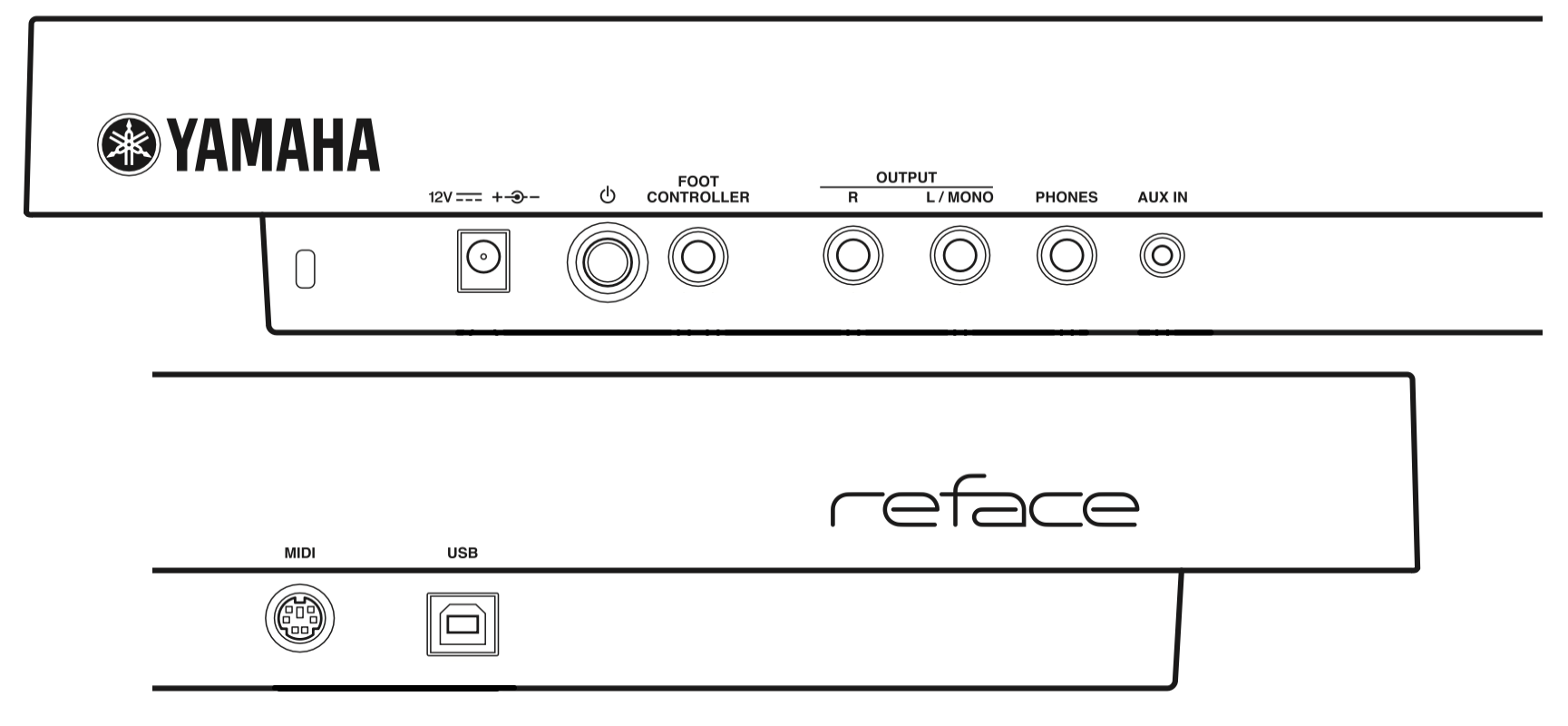
Yamaha reface back panel connections
On the back panel, you will see the connections for:
- Power supply. Attach the included 12V center-positive power supply.
- Power button
- Foot Controller. With the reface CS, you can connect either a sustain pedal (footswitch) or an expression pedal for volume. The unit should arrive configured to accept a Yamaha FC7 volume/expression pedal.
If you want to use a sustain footswitch instead, you can use a Yamaha FC4A or FC5 footswitch or another brand of momentary footswitch.
To set the reface to accept a footswitch, do this:- Turn the power off.
- While holding down the C3 key, which is the C one octave above the lowest key on the keyboard, turn the power back on and wait until the lights stop blinking.
For more information, consult the reface Version 1.30 Supplementary Manual under New reface CS Functions: Foot Volume/Sustain Switch.
- Output, L/Mono, and R. Connect 1/4-inch TS cables to your speakers, amp, mixer, or audio interface.
- Phones. Connect headphones with a 1/4-inch TRS plug.
- Aux In. Insert a stereo 1/8-inch TRS cable as an input from an external music player so you can play along on the reface through headphones or the built-in speakers.
- MIDI. This proprietary connection accepts the included Yamaha MIDI break-out adapter to connect standard MIDI cables.
- USB. Connect a USB cable to send and receive MIDI over USB to a Mac, a Windows PC, or an iOS or iPad device.
Powering Up your reface CS
Connect the power supply to an outlet.
Before you turn the power on, connect the Outputs to your mixer, speakers, or audio interface. Connect your headphones if you need them.
Make sure the Master knob on the front panel is turned all the way down.
Press the Power button. The unit will take a few seconds until the lights come on indicating it has powered up.
Now you can gradually turn up the Volume slider on the front panel and play some keys.
To turn the unit off, turn the volume all the way down, and press the Power button again.
Disabling internal speakers
When you attach headphones, the internal speakers in the reface will be turned off.
The speakers will still be engaged if you connect cables to the L/Mono and R Outputs. If you want to disable the speakers, do this:
- Turn the power off.
- While holding down the lowest “D” key on the keyboard, turn the power back on and wait until the lights stop blinking.
Auto power off
By default, if you don’t touch your reface CS for 30 minutes, the instrument will turn itself off. If you want to disable this:
- Turn the power off.
- While holding down the lowest key on the keyboard, “C,” turn the power back on and wait until the lights stop blinking.
If you are running on batteries, conserve battery life by turning the unit off using the power button on the back whenever you are not playing it.
Yamaha reface CS Controls and Effects
The reface CS provides a new, digitally modeled implementation of the sounds created by the Yamaha CS line of analog synthesizers from the 1970s.
Basic controls
- Pitch Bend. By default, the pitch bend range is one octave up or down. The reface Version 1.30 Supplementary Manual provides instructions for changing the pitch bend range to two semitones up or down.
- Volume
- Octave, with center position and transpositions for plus and minus two octaves
Looper
The Looper section is a sequencer that can record a phrase, play it back, and adjust its tempo. The Phrase Looper can record up to 2,000 notes or 10 minutes at 120 BPM. It permits you to overdub phrases and modify synthesizer parameters on the notes being played back. Yamaha does not provide a means to save or restore a loop, so you will lose a loop when you power the unit off. For information on using the Looper, consult the reface Owner’s Manual in the section reface CS: Using the Phrase Looper.
Effects
Use the Type switch to choose from four effects: Distortion, Chorus/Flanger, Phaser, and Delay. The Depth and Rate sliders then modify the effect.
Creating Sounds with Synthesizer Parameters
While the reface CS is designed as a physical modeling emulation of Yamaha’s classic CS line of analog synthesizers, its control layout is unique. Most sliders affect combinations of sound parameters, which depend on the context.
The OSC Type control lets you select between five different settings, which are combinations of two oscillators. When you use the Type control to select one of the five, you can modify the oscillator section using the Texture and Mod sliders. These two sliders have different functions depending on which Oscillator Type is selected. Give them a try at different settings.
The output from the Oscillator section then goes to the Filter section, where you can adjust Cutoff and Resonance.
The reface CS has a single bank of controls for EG (Envelope Generator) in the familiar ADSR structure. However, the slider to the left of this section, labeled AEG at the bottom and FEG at the top, lets you blend between settings for Amplitude Envelope Generator and Filter Envelope Generator.
The LFO section has a control to let you assign the Low Frequency Oscillator to either the Oscillator, Pitch, Filter, or Amplitude. You can then set Depth and Speed with the sliders.
The Portamento control lets you select Poly mode, in which the reface CS plays polyphonically, and there is no portamento. If you raise the switch to the Mono position, the synth becomes monophonic, enabling portamento between notes. Adjusting the control upwards increases the portamento time.
Here’s a video where a Yamaha rep demonstrates all the synthesis functions.
A great way to learn synthesis on the reface CS is to use the Yamaha Soundmondo editor/librarian platform, explained below, to search for different kinds of synth presets and download them into the reface CS one at a time. Then, with each preset you select, you can play around with the sliders and controls and learn how each parameter affects the sound.
Connect Your reface to a Full-size MIDI Keyboard
Playing the reface CS’s 3-octave, 37-key miniature keyboard is fun, but you can play the reface across a wider range more expressively by connecting an external MIDI keyboard controller with full-size, full-travel keys.
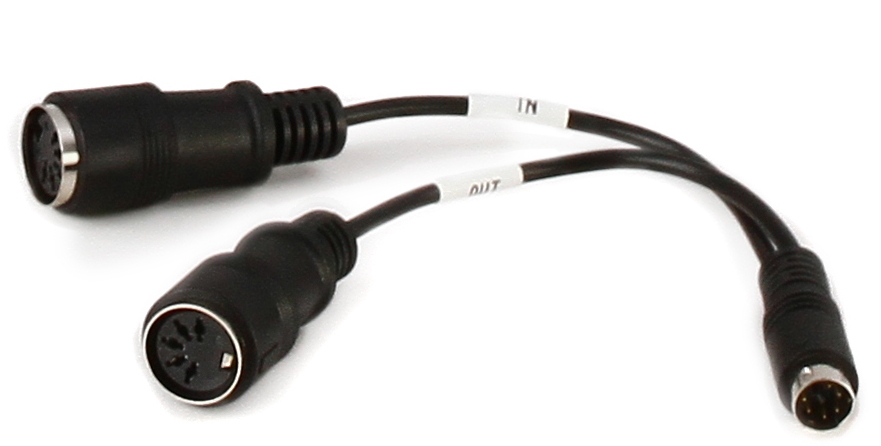
The included, proprietary Yamaha break-out adapter provides MIDI In and MIDI Out for the reface.
- Connect the included proprietary Yamaha break-out adapter to MIDI port on the back of the reface.
- Connect a 5-pin MIDI cable to the jack labeled In on the break-out adapter.
- Connect the other end of your 5-pin DIN cable to the MIDI Out port on your controller keyboard.
Now you can play the reface from your external MIDI controller keyboard.
The reface also outputs MIDI over the MIDI ports and USB, so you can play its built-in keyboard and use it to control other instruments.
Connect Your reface to a Mac or a Windows PC
To connect your reface to your Mac or your Windows PC via MIDI over USB, you need to download and install the appropriate driver from the Yamaha website.
Connect a USB cable to your computer. You can now transmit and receive MIDI from the reface to your DAW.
Consult Appendix: Keyboard Settings in the reface Owner’s Manual for configuration.
Store and Recall Presets and Set Lists with Yamaha Soundmondo
The reface CS has no memory to store presets and effects settings internally. However, you can store and retrieve presets and set lists using the Yamaha Soundmondo editor/librarian and preset-sharing app on your Mac, your Windows PC, or on an iPhone or iPad.
Soundmondo provides thousands of presets for the reface CS, with patch diagrams, shared by users around the world. Downloading presets for the reface CS from Soundmondo would be a good way to learn how the different synthesis parameters work.
Play Your reface Like a Keytar
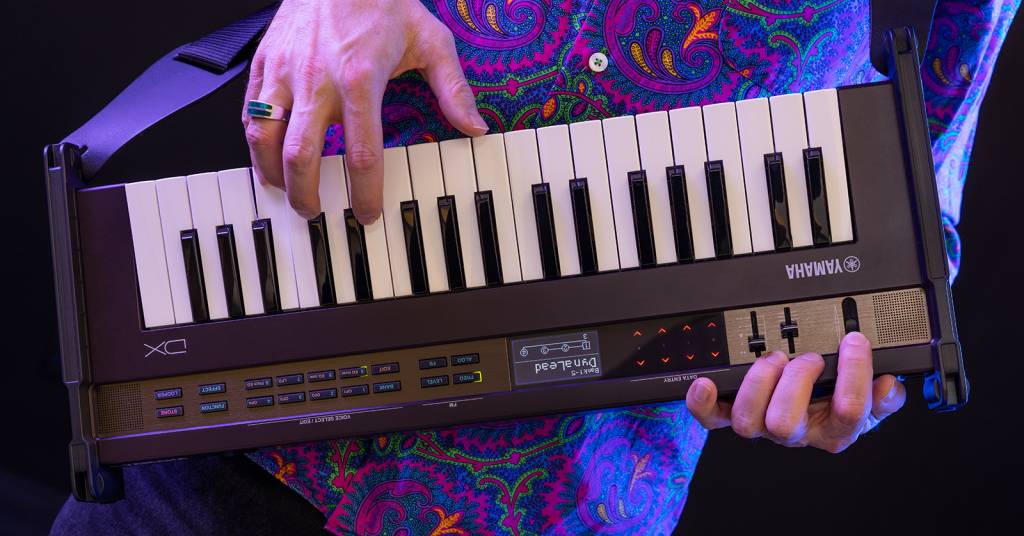
The Yamaha Strap Attachment Kit for reface enables you to attach a guitar strap and play any model reface like a keytar.
Just for fun, Yamaha sells an optional Strap Attachment Kit for reface. It consists of brackets you attach to any model reface. The brackets have strap buttons for you to attach your own guitar strap.
Related Content
Related Articles
When you need help, Sweetwater has the answers!
Our knowledge base contains over 28,000 expertly written tech articles that will give you answers and help you get the most out of your gear. Our pro musicians and gear experts update content daily to keep you informed and on your way. Best of all, it’s totally FREE, and it’s just another reason that you get more at Sweetwater.com.

