
Yamaha reface CP Quickstart Guide
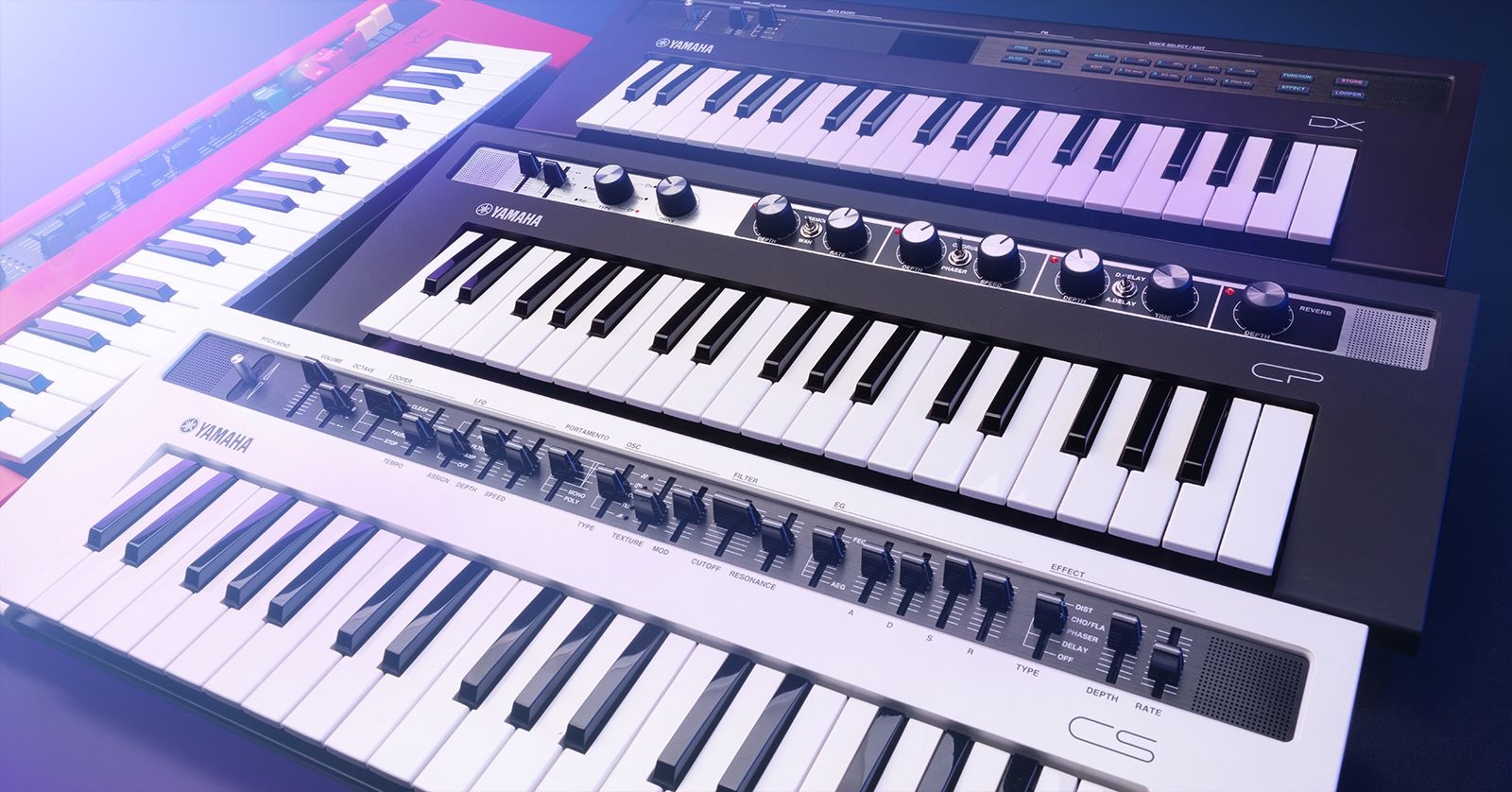
Congratulations on buying the Yamaha reface CP, the portable digital piano keyboard in Yamaha’s family of four reface instruments.
The reface can be used as a stand-alone portable keyboard, battery-powered and with its own internal stereo speakers and headphone jack. But it can also be powered by the included external power supply, connected to professional audio systems, and connected to other instruments, computers, and devices through MIDI and USB.
- Register Your Purchase with Yamaha
- Setting Up Your Yamaha reface CP
- Yamaha reface CP Controls, Instruments, and Effects
- Connect Your reface to a Full-size MIDI Keyboard
- Connect Your reface to a Mac or a Windows PC
- Store and Recall Presets and Set Lists with Yamaha Soundmondo
- Play Your reface Like a Keytar
Register Your Purchase with Yamaha
Go to https://usa.yamaha.com/.
Create an account if you don’t have one already.
After you log in, click the Product Registration link, and on the following page, Register My Product. Fill out your information and the reface serial number, which is on the bottom of the unit.
The owner’s manuals, reference materials, and software downloads for the reface are at this link on the Yamaha website.
Setting Up Your Yamaha reface CP
Batteries and speakers
You can power your reface with six AA batteries. Open the battery lid on the underside and make sure the batteries are oriented according to the diagram. Your reface also has small stereo speakers built in.
Connections
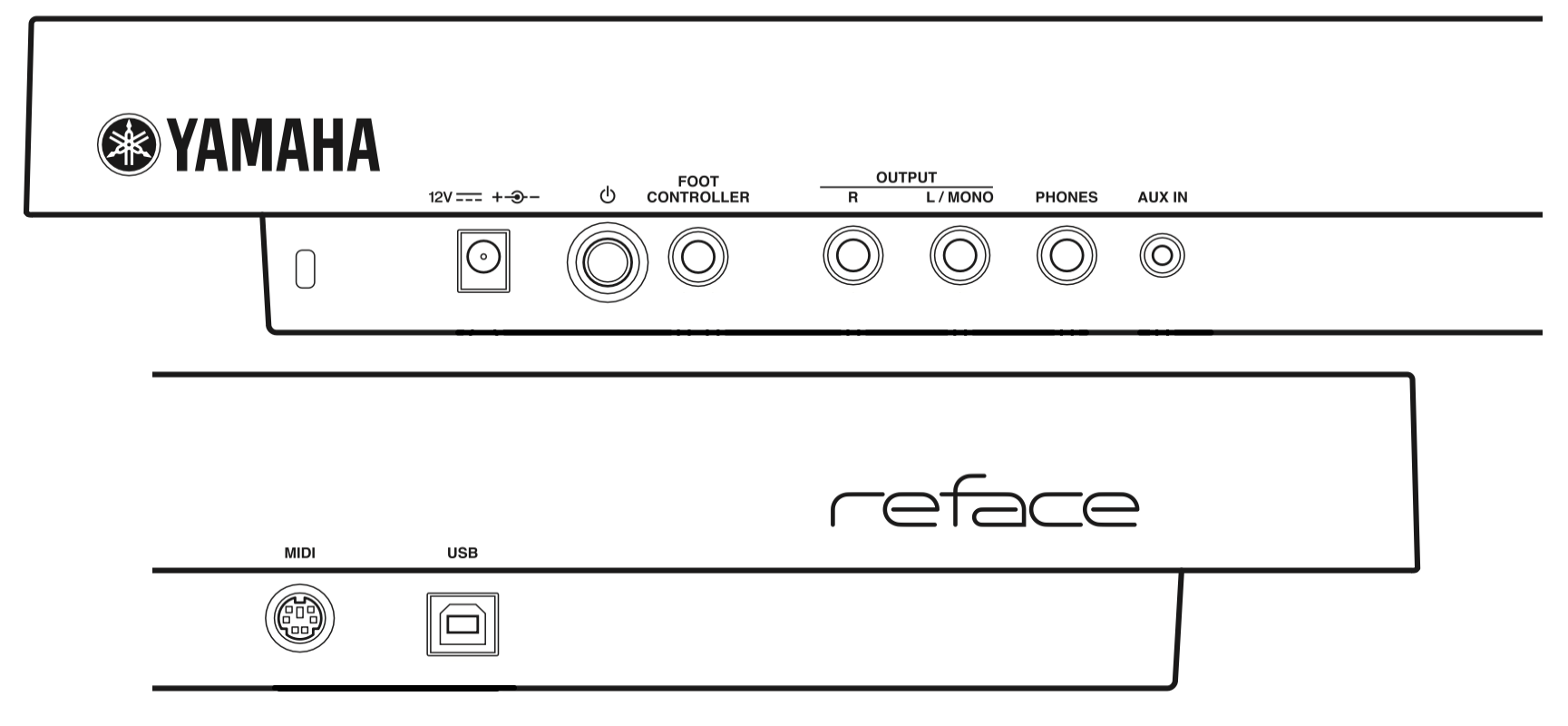
Yamaha reface back panel connections
On the back panel, you will see the connections for:
- Power supply. Attach the included 12V center-positive power supply.
- Power button
- Foot Controller. With the reface CP, you can connect a sustain pedal, either a Yamaha FC4A or FC5 footswitch or another brand of momentary footswitch. You can also use the Yamaha FC3A, which adds a half-damper control for more expressive playing.
- Output, L/Mono and R. Connect 1/4-inch TS cables to your speakers, amp, mixer, or audio interface.
- Phones. Connect headphones with a 1/4-inch TRS plug.
- Aux In. Insert a stereo 1/8-inch TRS cable as an input from an external music player so you can play along on the reface through headphones or the built-in speakers.
- MIDI. This proprietary connection accepts the included Yamaha MIDI break-out adapter to connect standard MIDI cables.
- USB. Connect a USB cable to send and receive MIDI over USB to a Mac, a Windows PC, or an iOS or iPad device.
Powering Up your reface CP
Connect the power supply to an outlet.
Before you turn the power on, connect the Outputs to your mixer, speakers, or audio interface. Connect your headphones if you need them.
Make sure the Master knob on the front panel is turned all the way down.
Press the Power button. The unit will take a few seconds until the lights come on indicating it has powered up.
Now you can gradually turn up the Volume slider on the front panel and play some keys.
To turn the unit off, turn the volume all the way down, and press the Power button again.
Disabling internal speakers
When you attach headphones, the internal speakers in the reface will be turned off.
The speakers will still be engaged if you connect cables to the L/Mono and R Outputs. If you want to disable the speakers, do this:
- Turn the power off.
- While holding down the lowest “D” key on the keyboard, turn the power back on and wait until the lights stop blinking.
Auto power off
By default, if you don’t touch your reface CP for 30 minutes, the instrument will turn itself off. If you want to disable this:
- Turn the power off.
- While holding down the lowest key on the keyboard, “C,” turn the power back on and wait until the lights stop blinking.
If you are running on batteries, conserve battery life by turning the unit off using the power button on the back whenever you are not playing it.
Yamaha reface CP Controls, Instruments, and Effects
Basic controls
On the front panel are the Volume slider and the Octave switch, which has a center position and transposes the keyboard by plus or minus one or two octaves.
Instrument models
The TYPE knob lets you select between six instrument models:
- RdI, the tine electric piano from the early 1970s
- RdII, the later tine electric piano model
- Wr, the metal reed electric piano from the 1960s
- Clv, the electric clavichord, an instrument with strings, from the 1960s
- Toy, an acoustic toy piano
- CP, the Yamaha CP-70 electro-acoustic piano, which debuted in 1976. The original had real piano strings but no soundboard. It also had piezo-electric pickups, creating a distinctive, electrically processed sound.
Effects
- Drive, which simulates an overdriven amplifier, controlled by one knob
- Tremolo/Wah with Depth and Rate knobs
- Chorus/Phaser with Depth and Speed knobs
- D.Delay/A.Delay with Depth and Time knobs, providing a digital delay and a digital model of an analog-style delay
- Reverb with Depth knob
The Drive effect is turned off when the knob is turned all the way down.
The three pairs of effects have a 3-way toggle switch, enabling choosing one effect from each pair. The up position selects the first effect. The middle position turns the effect off. The down position selects the second effect.
The Reverb effect is turned off when the knob is turned all the way down.
You can use the Drive, Reverb, and one effect each from the three pairs of effects simultaneously for a total of five effects.
The reface Owner’s Manual, in the reface CP Voice Setting Examples section, provides examples of combinations of effects settings useful with different instrument models to recreate vintage keyboard sounds.
Connect Your reface to a Full-size MIDI Keyboard
Playing the reface CP’s 3-octave, 37-key miniature keyboard is fun, but you can play the reface across the full range of its electric pianos with full expression by connecting an external MIDI keyboard controller with full-size, full-travel keys, up to the full 88 keys.
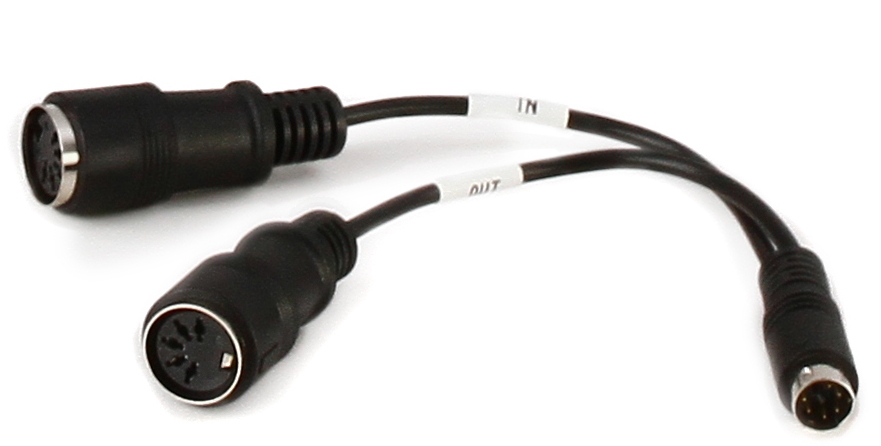
The included, proprietary Yamaha break-out adapter provides MIDI In and MIDI Out for the reface.
- Connect the included proprietary Yamaha break-out adapter to the MIDI port on the back of the reface.
- Connect a 5-pin MIDI cable to the jack labeled In on the break-out adapter.
- Connect the other end of your 5-pin DIN cable to the MIDI Out port on your controller keyboard.
Now you can play the reface from your external MIDI controller keyboard.
The reface also outputs MIDI over the MIDI ports and USB, so you can play its built-in keyboard and use it to control other instruments.
Connect Your reface to a Mac or a Windows PC
To connect your reface to your Mac or Windows PC via MIDI over USB, you need to download and install the appropriate driver from the Yamaha website.
Connect a USB cable to your computer. You can now transmit and receive MIDI from the reface to your DAW.
Consult Appendix: Keyboard Settings in the reface Owner’s Manual for configuration.
Store and Recall Presets and Set Lists with Yamaha Soundmondo
The reface CP has no memory to store presets and effects settings internally. However, you can store and retrieve presets and set lists using the Yamaha Soundmondo editor/librarian and preset-sharing app on your Mac, your Windows PC, or an iPhone or iPad. Check out our guide to using Soundmondo:
Play Your reface Like a Keytar
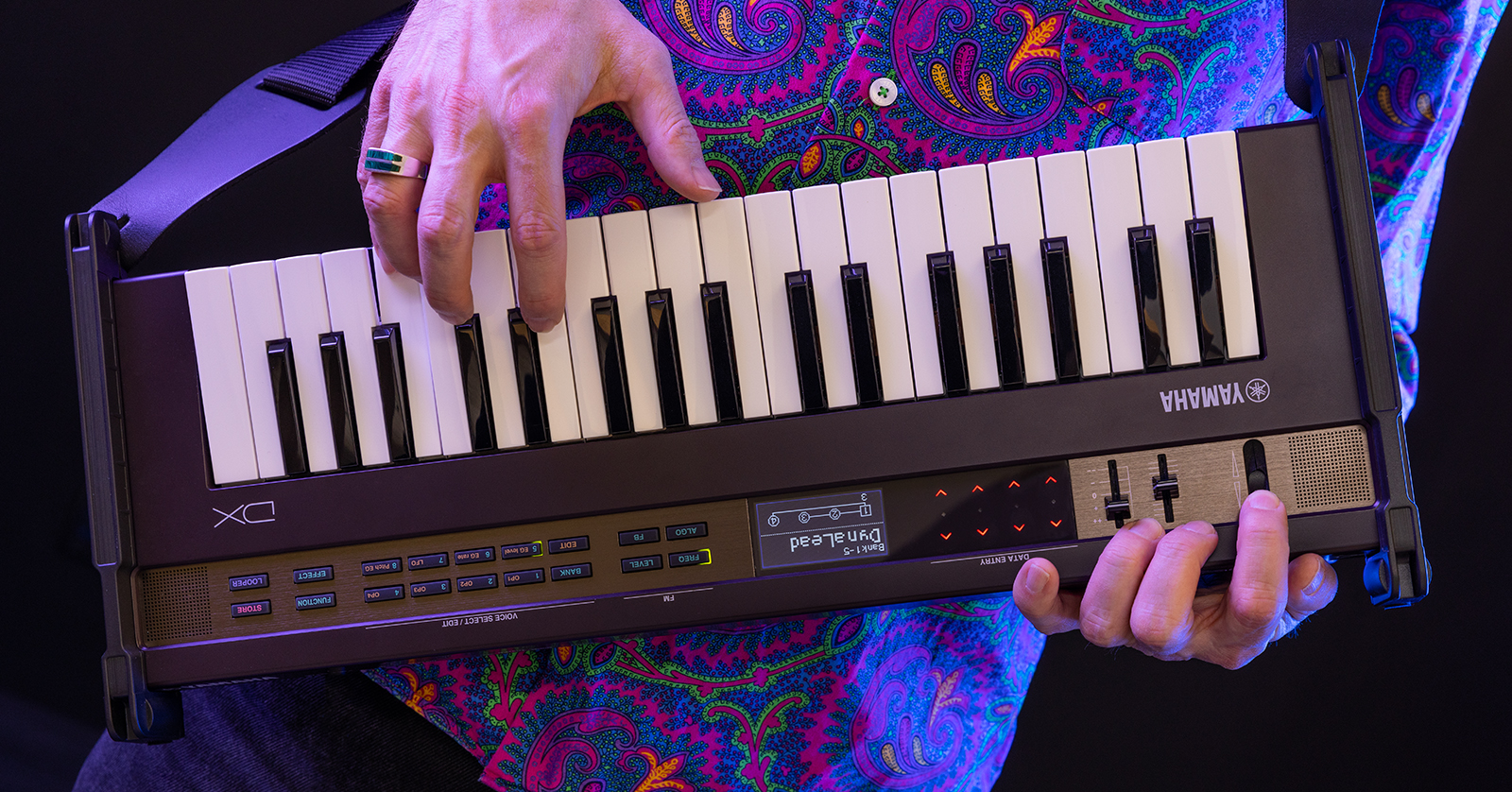
The Yamaha Strap Attachment Kit for reface enables you to attach a guitar strap and play any model reface like a keytar.
Just for fun, Yamaha sells an optional Strap Attachment Kit for reface. It consists of brackets you attach to any model reface. The brackets have strap buttons for you to attach your own guitar strap.
Related Content
Related Articles
When you need help, Sweetwater has the answers!
Our knowledge base contains over 28,000 expertly written tech articles that will give you answers and help you get the most out of your gear. Our pro musicians and gear experts update content daily to keep you informed and on your way. Best of all, it’s totally FREE, and it’s just another reason that you get more at Sweetwater.com.

