

TC-Helicon GoXLR Mini Setup Guide
Getting started with the TC-Helicon GoXLR Mini
In this guide we will show you how to register, set up, and connect your TC-Helicon GoXLR Mini, on Microsoft Windows, for the first time. Follow the instructions below to get started.
Register the GoXLR Mini
Before you start using your new GoXLR Mini, you’ll first want to register it on the TC-Helicon website. When you register the device, you’ll receive a three year extended warranty. It should be noted that you must register your GoXLR Mini with TC-Helicon within the first 90 days of purchase. For more information, check out our guide to learn more.
How to set up and connect the GoXLR Mini
Now that you’ve successfully registered your TC-Helicon GoXLR Mini, you can now get everything set up and connected. From computers to gaming consoles and even multiple computers, connecting with the GoXLR Mini to any device is a breeze. Please note that the GoXLR Mini is only compatible with Microsoft Windows, and your computer will need an Ethernet port.
Go to the Products page on the TC Helicon website and search for your product.
Open the page for your product. On the page, click Downloads. Under “Windows,” download and install the GoXLR App and the GoXLR Driver.
Once the installation is complete, you can now connect your GoXLR Mini.
Update your computer’s sound settings
When your computer plays audio, the sound is output through a selected audio device. In this case, it’s your GoXLR Mini. For it to work correctly, you’ll need to update your computer’s sound settings. That means any audio software needs to know what the audio device is and what inputs and outputs are being used. Follow these steps to update your computer’s sound settings.
- From your Windows taskbar, right-click the sound icon and select Open Sound Settings.
- Select your TC-Helicon GoXLR Mini from the Output and Input dropdown boxes.
- The Output is listed as System (TC-Helicon GO XLR MINI)
- The Output is listed as Chat Mic (TC-Helicon GO XLR MINI)
- Test your output by scrolling down to and selecting Sound Control Panel, click the Playback tab, right-click the GoXLR Mini, then click Test.
Is your TC-Helicon GoXLR Mini not showing up?
The GoXLR Mini is bus-powered, which means it uses your computer to power it. If your GoXLR Mini isn’t showing up, reconnect the interface by unplugging and plugging it back in. If you have not done so yet, try reconfiguring the USB connections so that it is connected directly to your computer.
Sometimes USB hubs cannot provide enough power for bus-powered devices, which is especially true for hubs that do not have their own power supply (aka passive hubs). If the problem persists, try a different USB port or cable. Visit our Windows guide for more tips on resolving audio device connectivity.
Update your mic settings in the GoXLR app
Once your computer’s sound settings are updated, the last thing you’ll want to do before you start is to update your mic settings within the GoXLR app. For example, if you’re using a condenser microphone but the mic is set to Dynamic, you won’t be able to hear yourself. It should also be worth noting that you can only use one connection: either XLR or 3.5mm. If there’s a mic connected to the 3.5mm, the XLR jack will be disabled.
- Launch the GoXLR app, then click the Mic tab. Alternatively, you can click the System tab.
- Click Mic Setup, then select the type of microphone that’s connected to your GoXLR Mini.
- Talk as you normally would and adjust the gain so the bar in the Mic Meter section stays within the Good area.
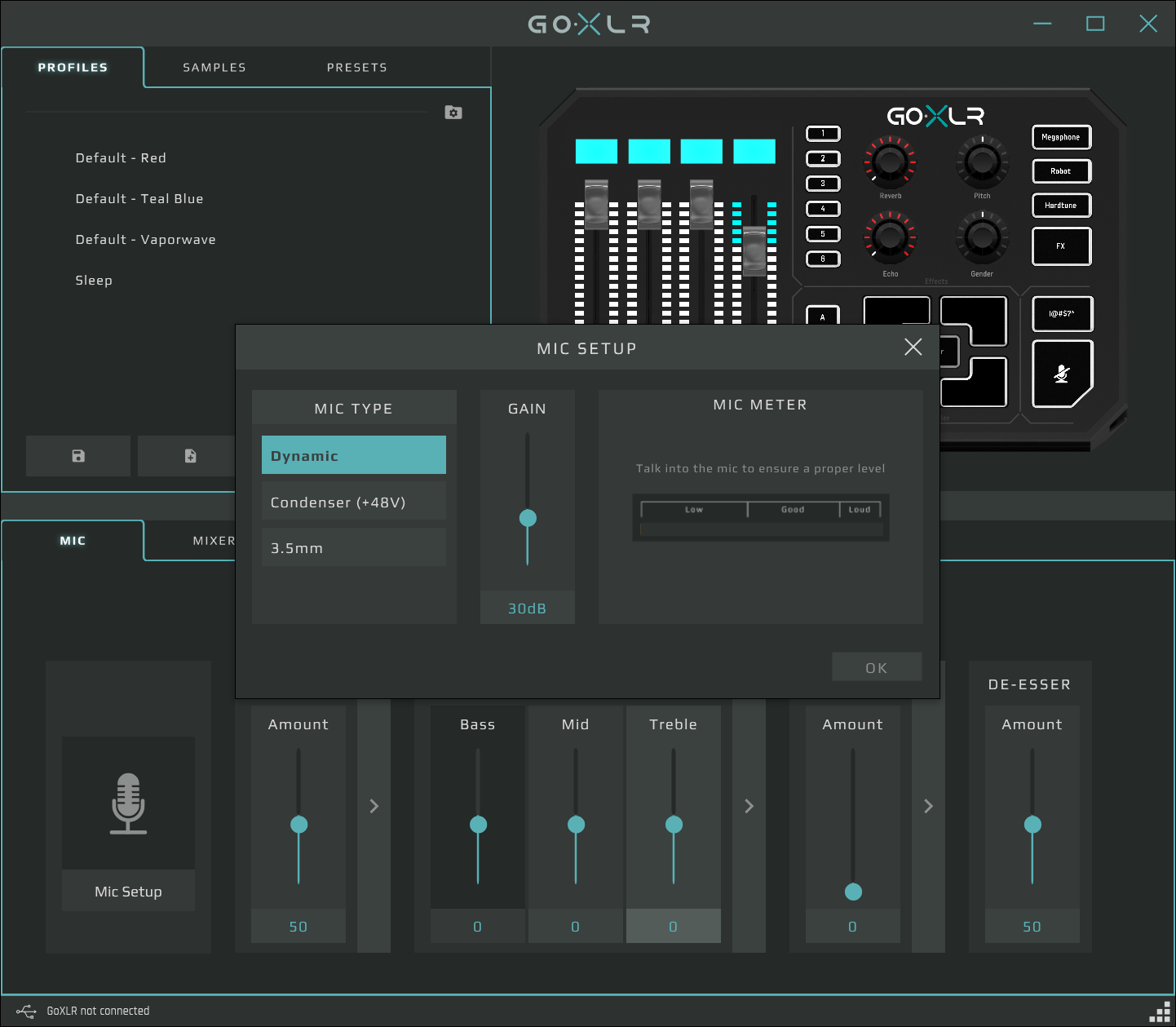
GoXLR app Mic setup window
Additional resources
Download the Owner’s Manual for your product.
Go to the Products page on the TC Helicon website and search for your product. Open that page and click Downloads.
TC Helicon GOXLR Video Tutorial Series
Related Articles
When you need help, Sweetwater has the answers!
Our knowledge base contains over 28,000 expertly written tech articles that will give you answers and help you get the most out of your gear. Our pro musicians and gear experts update content daily to keep you informed and on your way. Best of all, it’s totally FREE, and it’s just another reason that you get more at Sweetwater.com.



Offer applies only to single-receipt qualifying purchases. Select manufacturers may require that only the manufacturer’s products qualify towards the minimum purchase amount needed to be eligible for promotional financing. Otherwise, an invoice that meets the minimum purchase amount and contains at least one qualifying manufacturer product is eligible for promotional financing. No interest will be charged on promo purchase balance, and equal monthly payments are required on promo purchase until it is paid in full. The payments equal the amount financed divided by the number of months in the promo period, rounded up to the next whole dollar. These payments may be higher than the payments that would be required if this purchase was a non-promo purchase. During the last month(s) of the promo period the required monthly payment may be reduced due to the prior months’ rounding. Regular account terms apply to non-promo purchases. New Accounts as of 07/31/2025: Purchase APR is 34.99%. Penalty APR is 39.99%. Min Interest Charge is $2. Existing cardholders: See your credit card agreement terms. Subject to credit approval.
Offer applies only to single-receipt qualifying purchases. No interest will be charged on the promo balance if you pay it off, in full, within the promo period. If you do not, interest will be charged on the promo balance from the purchase date. The required minimum monthly payments may or may not pay off the promo balance before the end of the promo period, depending on purchase amount, promo length and payment allocation. Regular account terms apply to non-promo purchases and, after promo period ends, to the promo balance. New Accounts as of 07/31/2025: Purchase APR is 34.99%. Penalty APR is 39.99%. Min Interest Charge is $2. Existing cardholders: See your credit card agreement terms. Subject to credit approval.
The estimated required monthly payment shown which excludes taxes and delivery equals the amount financed divided by the number of months in the promo period, rounded up to the next cent. During the last month(s) of the promo period the required monthly payment may be reduced due to this rounding. These payments apply only with the financing offer shown. If you make these payments by the due date each month, you should pay off this amount financed within the promo period, if it is the only balance you are paying off. If you have other balances on your account, this payment will be added to any other minimum monthly payments.
Applies only to select items from this manufacturer. Ask your Sweetwater Sales Engineer for more details.